1. Introduction
Thank you for choosing the Generic 6-inch E-Ink E-Reader. This device is designed to provide a comfortable and immersive reading experience, mimicking the look of ink on paper. With its high-resolution E-Ink display, compact design, and extensive language support, it is an ideal companion for avid readers. This manual will guide you through the features, setup, and operation of your new e-reader.
2. Package Contents
Please verify that all items are present in your package:
- 1 x Electronic Reader
- 1 x Pair of Headphones
- 1 x USB Cable
- 1 x Blue Case Cover
3. Product Features
The Generic E-Ink E-Reader offers several key features for an enhanced reading experience:
- E-Ink Display Technology: Utilizes E-Ink electronic screen for readability, flexibility, and low power consumption, closely resembling ink on paper.
- Optimal Readability: Features better reflectivity and contrast ratio compared to other display technologies, reducing eye strain.
- Compact and Portable: With a 6-inch screen and approximately 189g weight, the device is easy to hold with one hand and carry anywhere.
- Multilingual Support: Supports 29 languages, including English, Chinese, Russian, Japanese, French, Spanish, Portuguese, Turkish, Polish, Arabic, Italian, Dutch, and German.
- Long Battery Life: Equipped with a 1400mAh battery, providing approximately 7,500 page turns or one month of standby time.

Figure 3.1: The E-Ink screen offers excellent readability, flexibility, and low power consumption, making it comfortable for extended reading sessions.

Figure 3.2: The E-Ink display provides superior reflectivity and contrast, enhancing the visual experience by closely mimicking printed text.
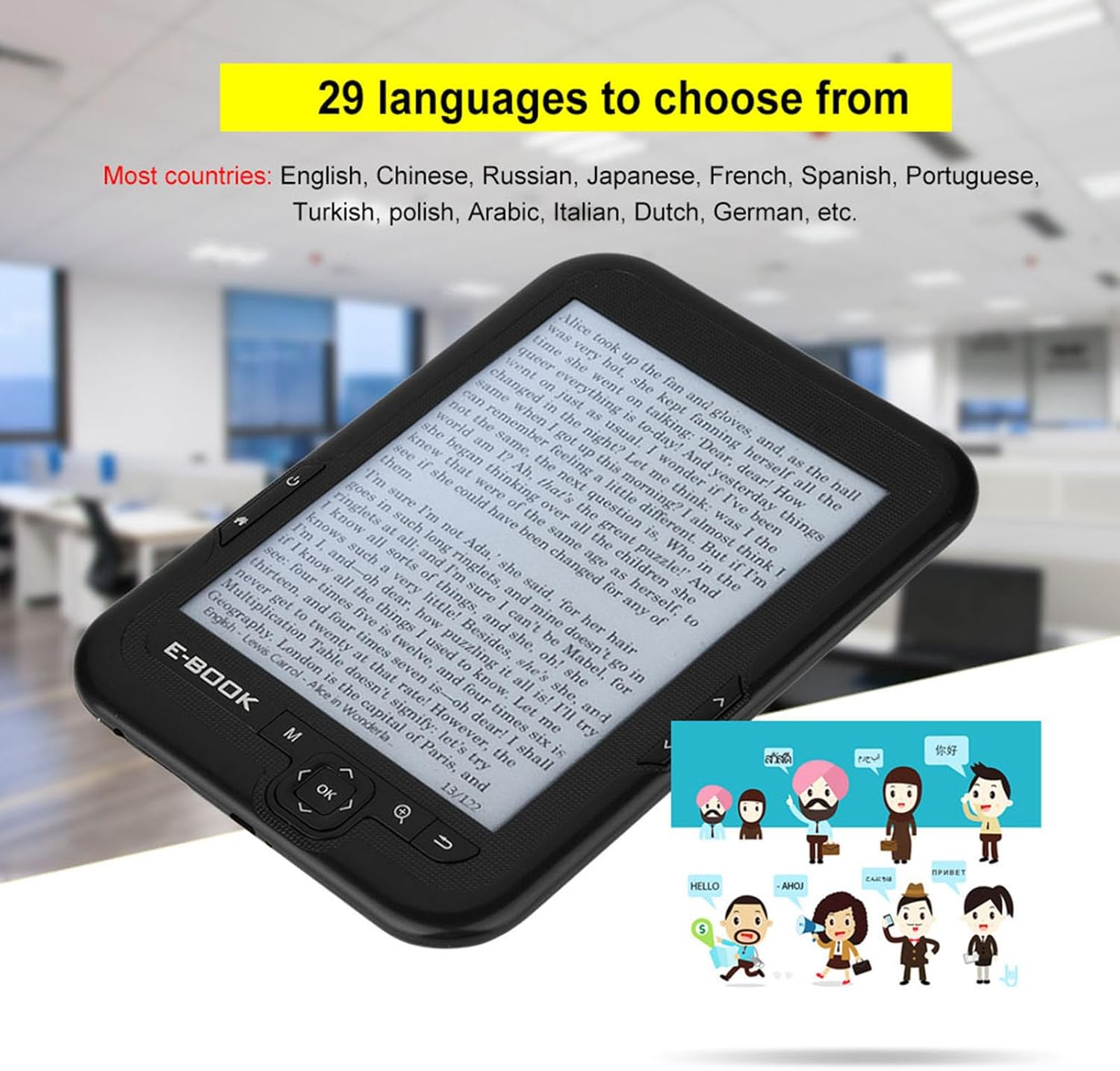
Figure 3.3: The device supports 29 languages, allowing users from diverse linguistic backgrounds to operate the e-reader comfortably.
4. Device Layout and Controls
Familiarize yourself with the physical components and controls of your e-reader.

Figure 4.1: Front view of the E-Ink E-Reader. The screen displays text, and navigation buttons are located below and to the sides of the screen.

Figure 4.2: The e-reader measures approximately 175mm (6.9in) in height, 120mm (4.7in) in width, and 8mm (0.3in) in thickness, making it highly portable.
4.1. Buttons and Ports
- Power Button: Typically located on the side or top, used to turn the device on/off or put it to sleep.
- Navigation Buttons: Page turn buttons on the sides, and a central directional pad with an 'OK' button for menu navigation.
- Menu/Home Button: Returns to the main menu or home screen.
- Search Button: For searching within books or the device.
- Micro USB 2.0 Port: For charging the device and transferring files.
- 3.5 mm Headset Audio Interface: For connecting headphones to listen to audio files or FM radio.
- TF Card Slot: For expanding storage up to 32GB.
5. Setup
5.1. Initial Charging
Before first use, fully charge your e-reader. Connect the provided USB cable to the device's Micro USB port and the other end to a USB power adapter (not included) or a computer's USB port. The charging indicator light will typically show the charging status and turn off or change color when fully charged.
5.2. Powering On/Off
- To Power On: Press and hold the Power button for a few seconds until the screen activates.
- To Power Off: Press and hold the Power button until a power-off prompt appears on the screen, then select 'Power Off'.
- Sleep Mode: A short press of the Power button will put the device into sleep mode, conserving battery while keeping your current page.
5.3. Language Selection
Upon first power-on or after a factory reset, you may be prompted to select your preferred language. Navigate through the options using the directional pad and confirm with the 'OK' button. You can change the language later in the device settings.
6. Operating Instructions
6.1. Navigating the Interface
Use the directional pad and 'OK' button to navigate through menus and select options. The page turn buttons on the sides can also be used for scrolling in menus or lists.
6.2. Reading Books
- From the home screen, select 'Books' or 'Library' to view your stored e-books.
- Navigate to the desired book and press 'OK' to open it.
- Use the page turn buttons on the sides to advance or go back a page.
- While reading, you may access reading options (e.g., font size, refresh mode) by pressing the Menu button.
6.3. File Management
The device supports file directory browsing. You can organize your files into folders for easier access. Connect the e-reader to a computer via USB to transfer files directly to the device's internal storage or an inserted TF card.
6.4. Multimedia Playback
- Audio Player: The device supports MP3, WAV, and other audio formats. Connect the included headphones to the 3.5mm audio jack to listen to music or audiobooks.
- Image Viewer: View JPG, BMP, GIF, and PNG image files.
- FM Radio: Access the built-in FM radio function through the main menu. Ensure headphones are connected as they act as the antenna.
7. Supported File Formats
The e-reader is compatible with a wide range of file formats:
- Text Formats: TXT, HTML, PDF, DPUB, DJVU, EPUB, TIFF, RTF, CBZ, CB, etc.
- Audio Formats: MP3, WAV, and others.
- Image Formats: JPG, BMP, GIF, PNG.
8. Maintenance and Care
- Cleaning: Use a soft, dry, lint-free cloth to clean the screen and body of the device. Avoid using liquid cleaners or abrasive materials.
- Storage: Store the e-reader in a cool, dry place away from direct sunlight and extreme temperatures.
- Battery Care: To prolong battery life, avoid fully discharging the battery frequently. Charge the device regularly, even if not in use for extended periods.
- Protection: Use the provided blue case cover to protect your device from scratches and minor impacts.

Figure 8.1: The e-reader fits snugly into its blue protective case, offering protection during transport and storage.
9. Troubleshooting
| Problem | Possible Cause | Solution |
|---|---|---|
| Device does not turn on. | Low battery; device frozen. | Charge the device for at least 30 minutes. If still unresponsive, perform a hard reset (refer to manual for specific reset instructions, usually holding power button for 10-15 seconds). |
| Screen is unresponsive or flickering. | Software glitch; E-Ink refresh issue. | Restart the device. Ensure 'Full Refresh' mode is enabled in settings if persistent ghosting occurs. |
| Cannot open certain files. | Unsupported file format; corrupted file. | Verify the file format is listed in Section 7. Try converting the file to a supported format or download a new copy. |
| Device not recognized by computer. | Faulty USB cable; driver issue; incorrect connection mode. | Try a different USB cable or USB port on your computer. Ensure the device is powered on and connected correctly. Check if the device offers a 'USB connection mode' option. |
| Audio playback issues. | Headphones not connected properly; unsupported audio format; low volume. | Ensure headphones are fully plugged in. Check audio format compatibility. Adjust volume settings on the device. |
10. Technical Specifications
| Feature | Specification |
|---|---|
| Model | Generichekgxnymuw-03 |
| Material | ABS |
| Screen Size | 6-inch E-Ink Display |
| Display Effect | Black and white, 16 grey, 300dpi |
| Resolution | 600 x 800 |
| CPU Processor | E200 |
| Cache | 256MB |
| Built-in Storage | 4GB/8GB/16GB (variant dependent) |
| Extended Storage | TF Card (up to 32GB) |
| Interface | Micro USB 2.0 |
| Audio Interface | 3.5 mm Headset Jack |
| Battery | 1400mAh |
| Dimensions (Approx.) | 175 x 120 x 8 mm (6.9 x 4.7 x 0.3 in) |
| Weight (Device) | Approx. 189g |
| Supported Languages | 29 languages (e.g., English, Chinese, Russian, Japanese, French, Spanish, Portuguese, Turkish, Polish, Arabic, Italian, Dutch, German) |
| Additional Features | FM Radio, Clock, Calendar, File Directory Support |
11. Warranty and Support Information
Warranty terms and conditions for this product are typically provided at the time of purchase or included with the product packaging. Please refer to your purchase documentation for specific warranty details and duration.
For technical support, troubleshooting assistance beyond this manual, or warranty claims, please contact the seller or retailer from whom you purchased the device. They will be able to provide the most accurate and up-to-date support information.


