1. Introduction
The MRSCOZ Toddlers Sleep Training Clock is a multifunctional device designed to assist children with sleep training, provide alarm clock functionality, act as a Bluetooth music player, and offer various night light and sound machine features. Its intuitive design and multiple settings aim to create a comfortable and consistent sleep environment for toddlers and kids.

Image: The MRSCOZ Sleep Training Clock displaying different light colors, highlighting its versatile illumination options.
2. Safety Information
- This product is not a toy. Adult supervision is recommended for young children.
- Keep the device away from water and excessive moisture to prevent electrical hazards.
- Use only the provided USB-C cable for charging. Do not use damaged cables or chargers.
- Do not attempt to disassemble or repair the device yourself. Contact customer support for assistance.
- Ensure the clock is placed on a stable, flat surface to prevent it from falling.
3. Package Contents
Please check the package contents upon opening:
- MRSCOZ Toddlers Sleep Training Clock (White)
- USB-C Charging Cable
- User Manual (this document)
4. Product Overview
Familiarize yourself with the clock's components and controls.

Image: The multifunctional MRSCOZ Sleep Training Clock highlighting its use as an alarm clock, night light, Bluetooth music player, and sound machine.
Controls and Indicators:
| Button/Indicator | Function |
|---|---|
| Time Setting Button (Clock icon) | Press to enter time setting mode. |
| Alarm Setting Button (Bell icon) | Press to set or adjust alarms. |
| Night Light Button (Sun icon) | Short press to change light color. Long press to adjust brightness. |
| Music/Sound Button (Music note icon) | Press to cycle through sleep sounds. |
| Bluetooth Button (M icon) | Long press to enter Bluetooth pairing mode. |
| Volume Up/Down Buttons (+/-) | Adjust volume for sounds and music. |
| Display Screen | Shows time, AM/PM, sleep/wake icons, and other indicators. |
| USB-C Port (Rear) | For charging the device. |
5. Setup
5.1 Charging the Device
Before first use, fully charge the sleep training clock. Connect the provided USB-C cable to the charging port on the back of the clock and plug the other end into a compatible USB power adapter (not included).

Image: The sleep training clock connected to a USB-C charging cable, indicating its portable night light feature.
5.2 Initial Power On
The clock will automatically power on when connected to power or if it has sufficient battery charge. The display will light up.
5.3 Time Synchronization via Bluetooth
When connected to a smartphone via Bluetooth, the clock will automatically synchronize with your phone's time, simplifying initial setup.
6. Operating Instructions
6.1 Setting the Time
To manually set the time:
- Press the Time Setting Button (Clock icon) to enter time setting mode.
- Use the +/- Buttons to adjust the hour.
- Press the Time Setting Button again to move to minute adjustment.
- Use the +/- Buttons to adjust the minutes.
- Press the Time Setting Button one more time to confirm and exit setting mode.
For a visual guide on setting up the time, please refer to the video below:
Video: A short demonstration on how to set up the time on the MRSCOZ Sleep Training Clock.
6.2 Sleep Training Function
The clock uses visual cues to help children understand when it's time to sleep and wake up:
- Time to Sleep: The clock displays a closed-eye icon and emits a blue light, indicating it's bedtime.
- Time to Wake Up: The clock displays an open-eye icon and emits a yellow light, signaling it's okay to wake up.
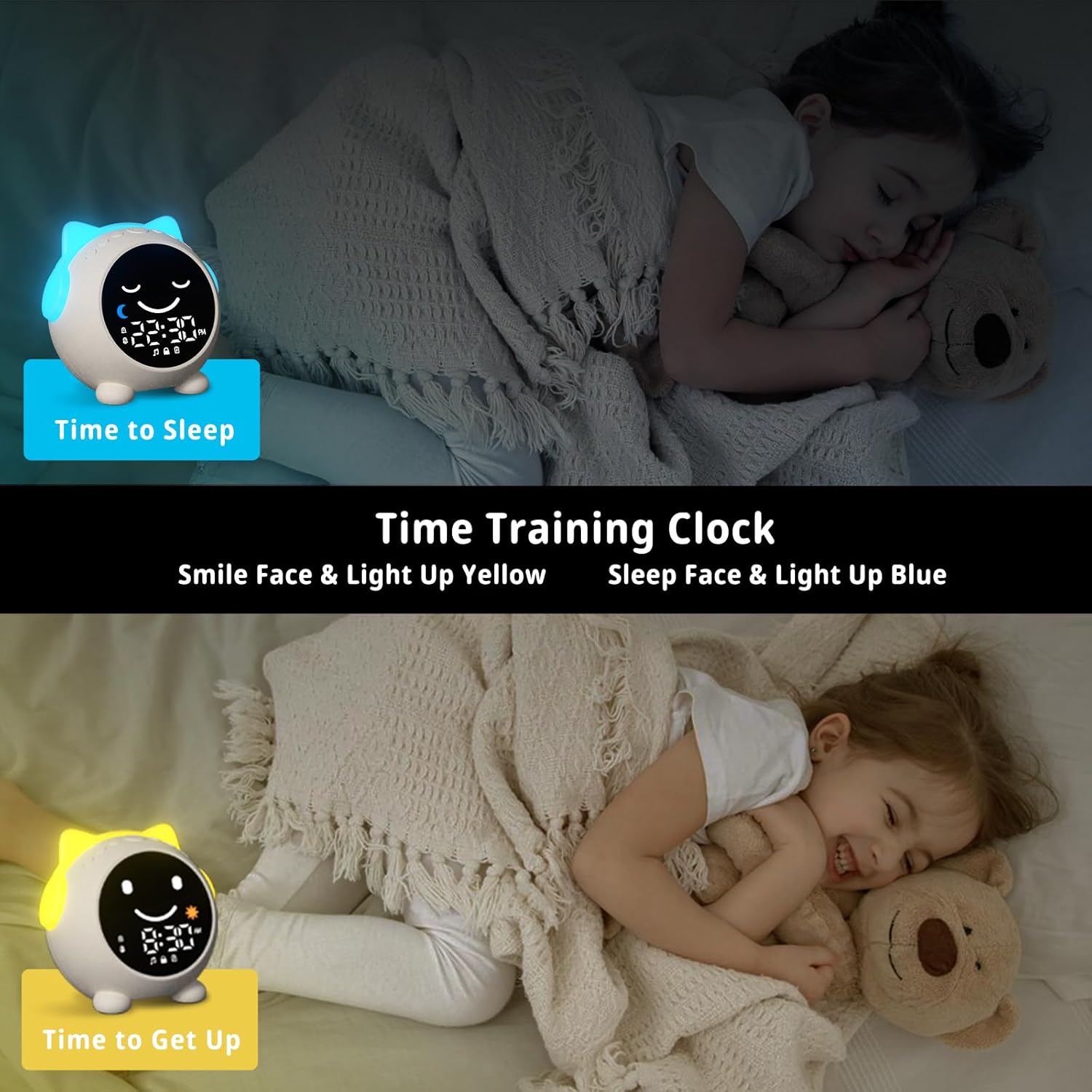
Image: The sleep training clock illustrating the "Time to Sleep" (blue light, closed eyes) and "Time to Get Up" (yellow light, open eyes) features.
6.3 Alarm Clock Settings
The clock features dual alarms and a snooze function:
- Press the Alarm Setting Button (Bell icon) to select Alarm 1 or Alarm 2.
- Use the +/- Buttons to set the desired alarm time.
- Press the Alarm Setting Button again to confirm.
- To activate the snooze function, simply touch the clock when the alarm sounds. It will ring again after 10 minutes, up to 3 times.
- To stop the alarm, press any button on the clock.
Video: An overview of the Toddlers Sleep Training Clock and its alarm features, including snooze functionality.
6.4 Night Light Operation
The clock offers 9 light colors and 2 brightness levels:
- Changing Colors: Short press the Night Light Button (Sun icon) to cycle through the 9 available colors.
- Adjusting Brightness: Long press the Night Light Button to switch between the 2 brightness levels.

Image: The sleep training clock demonstrating its 9 distinct night light colors and two brightness settings.
6.5 Sleep Sound Machine
Choose from 7 soothing sleep sounds to help your child relax:
- Press the Music/Sound Button (Music note icon) to cycle through the available sounds: Ocean Wave, Rain, Campfire, Summer Night, Bird Songs, Wind Bell, and Fan.
- Use the +/- Buttons to adjust the volume of the selected sound.

Image: The sleep training clock illustrating its 7 white noise options, including natural sounds like ocean waves and rain.
6.6 Bluetooth Music Player
Connect your smartphone or other Bluetooth-enabled device to play music through the clock's speaker:
- Long press the Bluetooth Button (M icon) to enter Bluetooth pairing mode. The display will show a Bluetooth icon.
- On your device, enable Bluetooth and search for "C1" (or similar device name).
- Select "C1" to pair. Once connected, the clock will synchronize its time with your phone.
- You can now play music from your device through the clock. Use the +/- Buttons to adjust volume.
7. Maintenance
- Clean the clock with a soft, dry cloth. Do not use abrasive cleaners or solvents.
- Avoid exposing the device to extreme temperatures or direct sunlight for prolonged periods.
- Store the clock in a cool, dry place when not in use for extended periods.
8. Troubleshooting
| Problem | Possible Solution |
|---|---|
| Clock display is blank or unresponsive. | Ensure the clock is charged. Connect it to a power source using the USB-C cable. If the issue persists, try resetting the device (if a reset button is available, otherwise let it fully discharge and recharge). |
| Alarm does not sound. | Check if the alarm is enabled and the volume is not set to zero. Verify the alarm time is correctly set. |
| Cannot connect via Bluetooth. | Ensure the clock is in Bluetooth pairing mode (long press M button). Make sure Bluetooth is enabled on your device and it's within range. Try forgetting the device on your phone and re-pairing. |
| Time format stuck in 24-hour mode. | Refer to the time setting instructions. Some models may automatically switch based on phone sync, or require specific button combinations (e.g., long press time button) not explicitly detailed in general instructions. |
| Night light not changing colors/brightness. | Ensure you are using short presses for color change and long presses for brightness adjustment on the Night Light button. |
9. Specifications
| Feature | Detail |
|---|---|
| Brand | MRSCOZ |
| Model Number | TCR |
| Color | White |
| Display Type | Digital |
| Product Dimensions | 3.8"W x 3.9"H |
| Power Source | Corded Electric (Rechargeable Battery) |
| Material | Acrylonitrile Butadiene Styrene (ABS) |
| Special Features | Bluetooth, Timer, Adjustable Brightness, LED Display, Adjustable Volume, Sleep Training, Night Light, Sound Machine |
| Number of Batteries | 1 12V battery required (internal) |
| Item Weight | 9.6 ounces |
10. Warranty and Support
This MRSCOZ product comes with a limited warranty. For detailed warranty information, product support, or to report any issues, please contact MRSCOZ customer service through the retailer's platform or the official brand website. Please retain your proof of purchase for warranty claims.


