1. Introduction
Thank you for choosing the GOLDENMATE 2000VA/1600W Lithium Uninterruptible Power Supply (UPS). This device is designed to provide reliable battery backup and surge protection for your valuable electronic equipment. Featuring a state-of-the-art LiFePO4 battery, Automatic Voltage Regulation (AVR), and pure sine wave output, it ensures clean, stable, and uninterrupted power during outages and voltage fluctuations.
This manual provides essential information for the safe and efficient operation of your UPS. Please read it thoroughly before installation and use, and retain it for future reference.

Image 1.1: The GOLDENMATE UPS ensuring uninterrupted power for a workstation.
2. Safety Information
Please observe the following safety precautions to ensure safe operation and to reduce the risk of electric shock, fire, or injury:
- Read all instructions: Before installing or operating the UPS, read all safety and operating instructions.
- Do not open the UPS: There are no user-serviceable parts inside. Refer servicing to qualified service personnel.
- Avoid moisture: Do not expose the UPS to rain, water, or excessive humidity.
- Proper ventilation: Ensure the UPS is placed in an area with adequate airflow to prevent overheating. Do not block ventilation openings.
- Proper grounding: Plug the UPS into a grounded AC power outlet. Do not remove the grounding prong.
- Indoor use only: This UPS is intended for indoor use in a controlled environment.
- Battery safety: The LiFePO4 battery is sealed and maintenance-free. Do not attempt to replace the battery yourself.
- Overload protection: Do not overload the UPS. Ensure the total power consumption of connected devices does not exceed the UPS's rated capacity (1600W).

Image 2.1: The UPS features comprehensive protection against various electrical anomalies.
3. Package Contents
Verify that all items are present upon opening the package:
- GOLDENMATE 2000VA/1600W Lithium UPS Unit
- AC Power Cord
- USB Communication Cable
- User Manual (this document)
4. Product Overview
4.1 Front Panel

Image 4.1: Front view of the UPS.
- LCD Display: Provides real-time information on battery status, input/output voltage, load level, and other operational parameters.
- Power Button: Turns the UPS on or off.
- Mute/LCD On/Off Button: Press and hold to silence alarms or toggle the LCD display on/off.
- USB-A Charging Port: For charging compatible USB devices.
- USB-C Charging Port: For charging compatible USB-C devices.
4.2 Rear Panel
The rear panel includes the AC input, NEMA 5-15P outlets for connected equipment, and PP45 terminals for secure connections.

Image 4.2: Rear view of the UPS with multiple outlets and charging ports.
- AC Input: Connects the UPS to the wall power outlet using the provided AC power cord.
- NEMA 5-15P Outlets (x8): Provide both surge protection and battery backup for connected devices. Designed with wider spacing for various power cords.
- PP45 Terminals: For secure, reliable connections.
- USB Communication Port: Connects to a computer for monitoring and automatic shutdown features.
5. Setup
5.1 Placement
- Place the UPS on a flat, stable surface.
- Ensure adequate clearance (at least 4 inches) around all ventilation openings for proper airflow.
- Avoid direct sunlight, heat sources, and areas with excessive dust or moisture.
5.2 Initial Charging
Before initial use, connect the UPS to a standard wall outlet using the AC power cord and allow it to charge for at least 8 hours. This ensures the internal LiFePO4 battery is fully charged and ready to provide maximum backup time.
5.3 Connecting Equipment
- Plug your computer, monitor, network devices, and other critical electronics into the NEMA 5-15P outlets on the rear panel.
- Ensure the total load does not exceed the UPS's 1600W capacity.
- For network-attached storage (NAS) devices, connect them to the UPS to ensure safe shutdown during power events.

Image 5.1: Protecting a NAS device with the GOLDENMATE UPS.
5.4 Connecting to a Computer (USB Communication)
Use the provided USB communication cable to connect the UPS to a Windows PC. This allows the UPS to communicate with your computer, enabling automatic shutdown features through Windows power settings during extended power outages.
6. Operation
6.1 Powering On/Off
- To Power On: Press and hold the Power Button on the front panel until the LCD display illuminates.
- To Power Off: Press and hold the Power Button until the UPS shuts down.
6.2 LCD Display
The intelligent LCD display provides real-time monitoring of the UPS status, including:
- Input/Output Voltage
- Battery Charge Level
- Load Level
- Operational Mode (e.g., AC mode, Battery mode)
- Warning Indicators
6.3 Mute Function and LCD Control
The mute function and LCD on/off controls are integrated into a single switch alongside the main power button. Press and hold this button to:
- Silence audible alarms during a power event.
- Turn the LCD display on or off for reduced light emission.
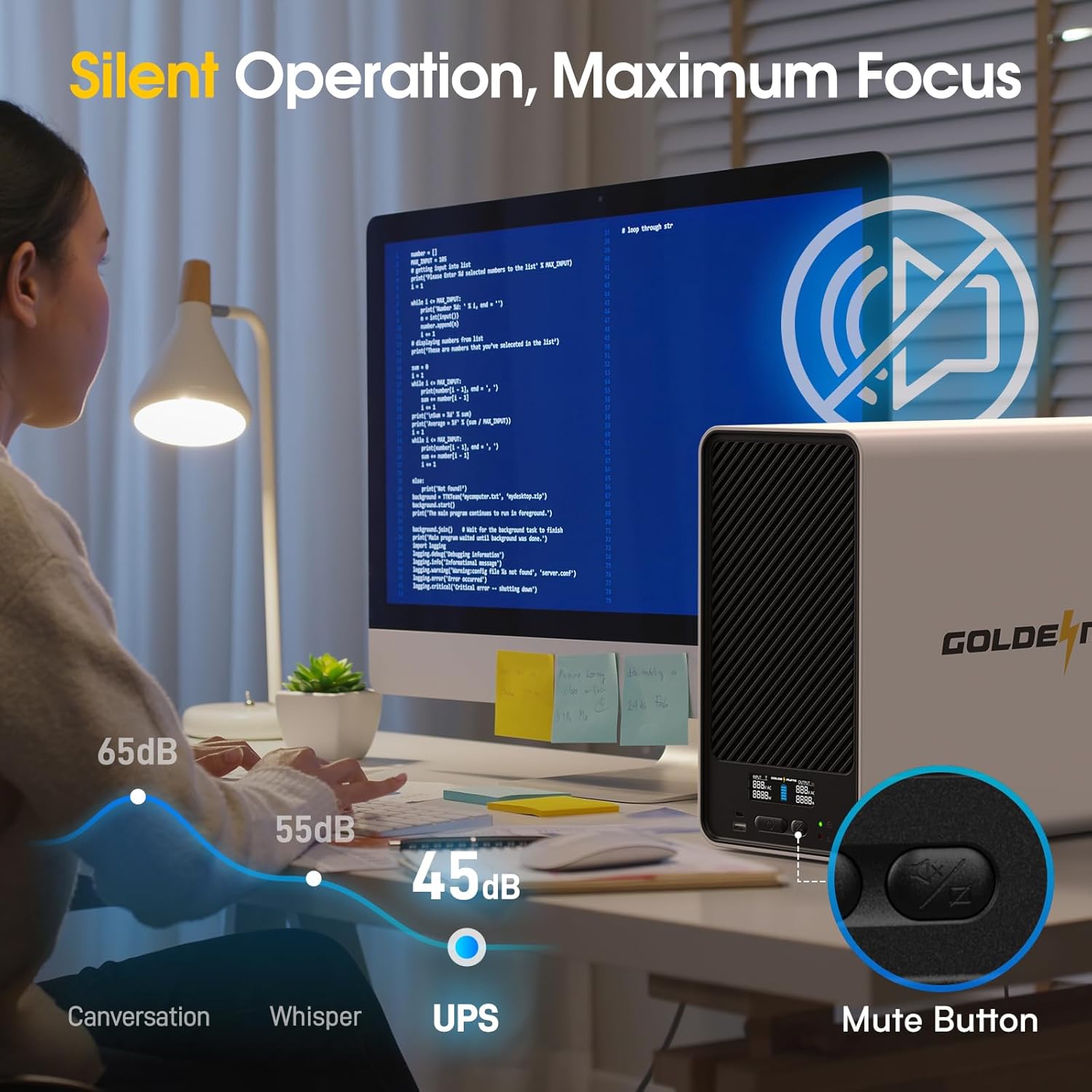
Image 6.1: The UPS operates quietly, featuring a mute button for alarms.
6.4 Automatic Voltage Regulation (AVR)
The UPS features Automatic Voltage Regulation (AVR) to correct minor power fluctuations without switching to battery power. This protects connected equipment from sags and surges, ensuring a stable power supply.
6.5 Pure Sine Wave Output
The GOLDENMATE UPS provides a pure sine wave output, which is essential for sensitive electronics such as gaming PCs, servers, and professional audio/video equipment. This ensures compatibility and optimal performance for all connected devices.
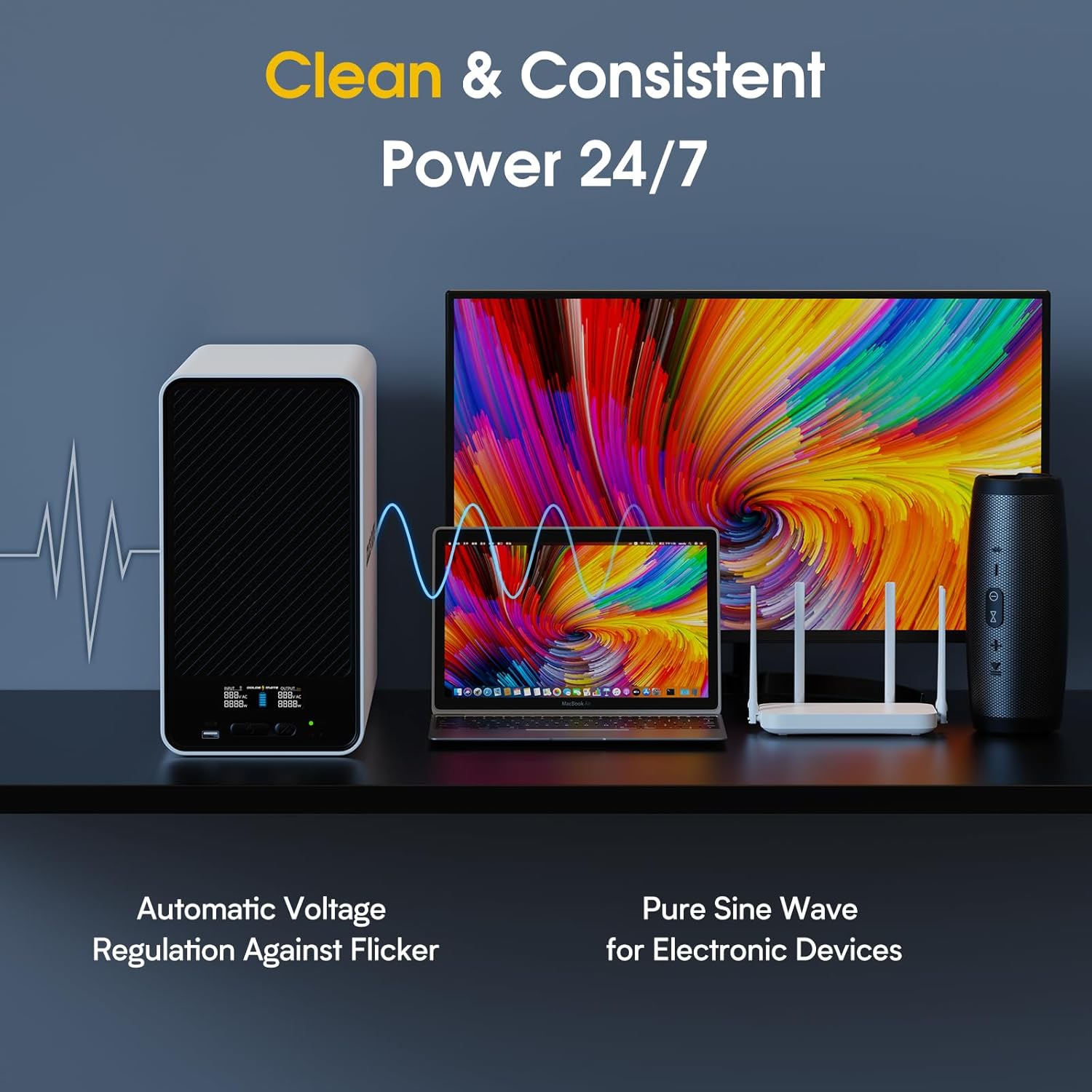
Image 6.2: Clean and consistent power delivery by the UPS.
7. Communication Port & USB Charging
7.1 USB Communication Port
Connect the UPS to your Windows PC using the provided USB cable. This allows the UPS to be recognized as a battery device by your operating system. You can then configure power settings in Windows to automatically initiate a graceful shutdown of your PC during extended power outages, preventing data loss.
7.2 USB Charging Ports
The front panel includes one Type-C and one Type-A USB charging port, offering a total of 10W charging power. These ports are ideal for keeping your smartphones, tablets, smartwatches, and other USB-powered devices charged, even during a power outage.
8. Maintenance
8.1 LiFePO4 Battery
The GOLDENMATE UPS is equipped with a Lithium Iron Phosphate (LiFePO4) battery pack (51.2V, 9Ah). This advanced battery technology offers:
- An impressive lifespan of over 10 years.
- More than 3,000 charge cycles.
- Maintenance-free operation; no need for frequent replacements or hassle like lead-acid batteries.

Image 8.1: The internal LiFePO4 battery offers long-lasting performance.
8.2 Cleaning
Periodically wipe the exterior of the UPS with a dry, soft cloth. Do not use liquid or aerosol cleaners.
8.3 Storage
If storing the UPS for an extended period, ensure the battery is fully charged. Store it in a cool, dry place, away from direct sunlight and extreme temperatures. Recharge the battery every 3-6 months to maintain its health.
9. Troubleshooting
This section addresses common issues you might encounter with your UPS. If the problem persists after following these steps, please contact GOLDENMATE customer support.
| Problem | Possible Cause | Solution |
|---|---|---|
| UPS does not turn on | No AC input; Battery discharged; Power button not pressed correctly. | Ensure AC power cord is securely plugged into a live wall outlet. Allow UPS to charge for several hours. Press and hold the power button firmly. |
| UPS is beeping continuously or intermittently | Power outage/Battery mode; Overload; Low battery. | This is normal during a power outage. Reduce the load by unplugging non-essential devices. Allow UPS to recharge. Press the mute button to silence the alarm temporarily. |
| Connected devices are not receiving power | UPS is off; Overload; Faulty connection. | Turn on the UPS. Check the total power consumption of connected devices. Ensure all power cords are securely plugged into the UPS outlets. |
| UPS not recognized by computer via USB | USB cable not connected properly; Driver issue; Operating system settings. | Ensure the USB cable is firmly connected to both the UPS and the PC. Try a different USB port. Check Windows power settings for battery management. |
10. Specifications
| Feature | Specification |
|---|---|
| Model Number | UPS 2000VA/1600W |
| Capacity | 2000VA / 1600W |
| Battery Type | LiFePO4 (Lithium Iron Phosphate) |
| Battery Capacity | 51.2V, 9Ah (460Wh) |
| Battery Lifespan | Over 10 years / 3,000+ cycles |
| Input Voltage | 110 Volts |
| Output Waveform | Pure Sine Wave |
| Outlets | 8 x NEMA 5-15P (Battery Backup & Surge Protected) |
| USB Charging Ports | 1 x Type-C, 1 x Type-A (10W total) |
| Communication Port | USB (for PC connection) |
| Product Dimensions (L x W x H) | 16.73 x 6.3 x 11.81 inches (42.5 x 16 x 30 cm) |
| Item Weight | 38.5 pounds (17.46 kg) |
| Color | White |
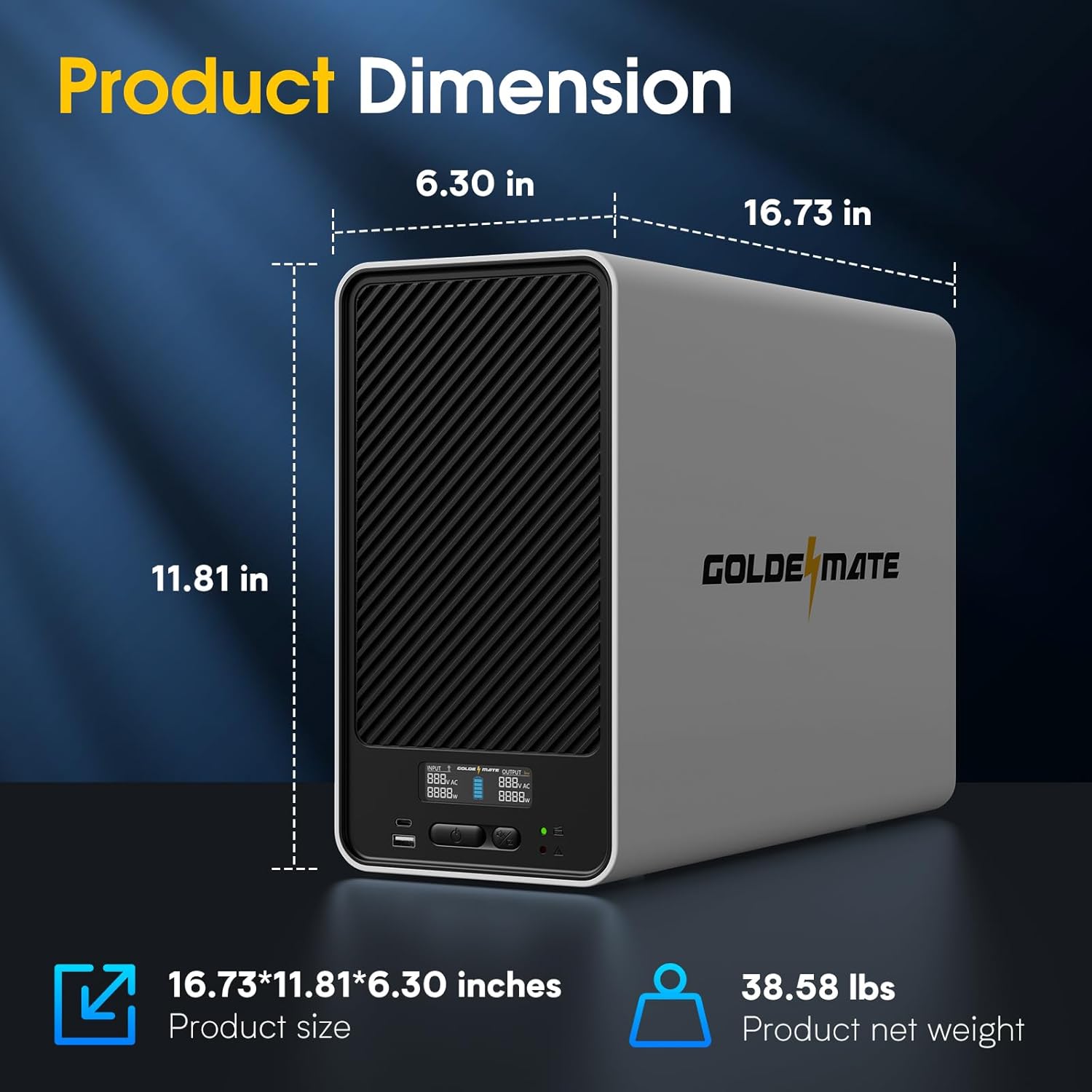
Image 10.1: Physical dimensions and weight of the UPS.
11. Warranty and Support
GOLDENMATE is committed to providing high-quality products and excellent customer service.
- Product Lifetime: Our UPS is designed for a 10-year lifetime when used correctly according to the manual instructions.
- Technical Support: We offer US Local Warehouse Technical Aftersales Service. Our team is dedicated to assisting with problem analysis, restoring battery usage, and introducing optimal usage methods.
- Response Time: We aim to respond to inquiries and provide support within 24 hours.
- Battery Replacement: In cases where a problem cannot be resolved, a new battery replacement will be provided for defective batteries.
For support, please refer to the contact information provided with your purchase or visit the official GOLDENMATE website.


