
Rimoody 8Core 6G+128G
Rimoody 12.3-inch IPS Car Radio User Manual
Model: 8Core 6G+128G for Toyota Corolla 2007-2013
1. Introduction
This manual provides detailed instructions for the installation, operation, and maintenance of your Rimoody 12.3-inch IPS Car Radio. This unit is designed for Toyota Corolla models from 2007 to 2013, offering advanced features such as Android 13, wireless Carplay and Android Auto, GPS navigation, and a high-resolution touchscreen display.
Please read this manual thoroughly before using the product to ensure proper operation and to maximize your user experience.

Image 1.1: Rimoody 12.3-inch Car Radio in a vehicle dashboard, showcasing its large display and user interface.
2. Product Compatibility and Features Overview
The Rimoody 12.3-inch IPS Car Radio is specifically designed to integrate with Toyota Corolla vehicles manufactured between 2007 and 2013. It features a 12.3-inch IPS touchscreen with a 1920x720 resolution, powered by an 8-core CPU, 6GB of RAM, and 128GB of storage running on Android 13.

Image 2.1: Compatibility and connectivity options for the Rimoody Car Radio, showing various Toyota Corolla dashboard configurations.

Image 2.2: Visual representation of the display specifications, internal memory, and customizable user interface options.
3. Setup and Installation
3.1 Package Contents
Before installation, verify that all components are present:
- Rimoody 12.3-inch Car Radio Unit
- Wiring Harnesses (specific to Toyota Corolla 2007-2013)
- GPS Antenna
- USB Cables
- Backup Camera (Included Component)
- User Manual (this document)
3.2 Pre-Installation Checklist
- Ensure the vehicle's ignition is off and the battery is disconnected to prevent electrical damage.
- Gather necessary tools (e.g., screwdrivers, trim removal tools).
- Familiarize yourself with your vehicle's dashboard disassembly process.
3.3 Installation Steps (General Guidelines)
Installation typically involves removing the factory radio, connecting the new unit's wiring harness, and securing the unit in the dashboard. Due to variations in vehicle models and trim levels, it is recommended to consult a professional installer or a vehicle-specific installation guide.
- Dashboard Mount: The unit is designed for dashboard mounting. Ensure proper fitment and secure fastening.
- Wiring: Connect the provided wiring harness to the vehicle's existing harness. Ensure all connections are secure.
- GPS Antenna: Mount the GPS antenna in a location with a clear view of the sky, typically on the dashboard or under the windshield.
- Backup Camera: Connect the backup camera to the designated video input port. Route the camera cable carefully to avoid interference.
- Steering Wheel Control (SWC): Connect the SWC wires to your vehicle's steering wheel control interface. Configuration may be required in the unit's settings.
4. Operating Instructions
4.1 Power On/Off and Basic Navigation
Press the power button (if available) or turn on your vehicle's ignition to power on the unit. The 12.3-inch IPS touchscreen allows for intuitive navigation through the Android 13 operating system.
4.2 Wireless Carplay & Android Auto
This unit supports wireless Carplay for iPhones and wireless Android Auto for Android phones. To connect:
- Ensure Bluetooth and Wi-Fi are enabled on your smartphone.
- On the car radio, navigate to the Carplay or Android Auto application.
- Follow the on-screen prompts to pair your phone. Once connected, you can access phone apps, make calls, send messages, and use navigation via voice or touch.
4.3 Mirror Link
The unit supports both iOS and Android mirror link functionality, allowing you to display your phone's screen on the car radio. This can be achieved via USB cable or Wi-Fi connection, depending on your device.
4.4 Built-in GPS Navigation
The car radio includes a built-in GPS module supporting both online and offline maps. You can download maps for offline use or connect to Wi-Fi for real-time traffic information and online navigation services.

Image 4.1: Navigation, Wi-Fi, and EQ settings interfaces on the Rimoody Car Radio.
4.5 Bluetooth 5.0
Connect your smartphone via Bluetooth 5.0 for hands-free calling, music playback, and automatic phone book synchronization.
4.6 FM/RDS Radio
Access FM radio stations with RDS (Radio Data System) functionality. The unit features 30 preset stations, powerful noise reduction, and anti-interference capabilities for clear reception.
4.7 DSP (Digital Sound Processor) & EQ Sound Effects
Utilize the integrated DSP tuning software to adjust audio frequencies, balance, and a 32-band equalizer for a customized sound experience.
4.8 Split Screen Function
Operate two applications simultaneously on the screen. You can adjust the size and position of each app and switch between them using swipe gestures.
4.9 Customizable UI Themes
Choose from 59 different user interface desktop themes to personalize the look of your car radio. The home page app display can also be customized by long-pressing icons.
4.10 Backup Camera Support
When connected, the unit automatically displays the rear view of your vehicle on the screen when shifting into reverse gear, aiding in safe parking and maneuvering.
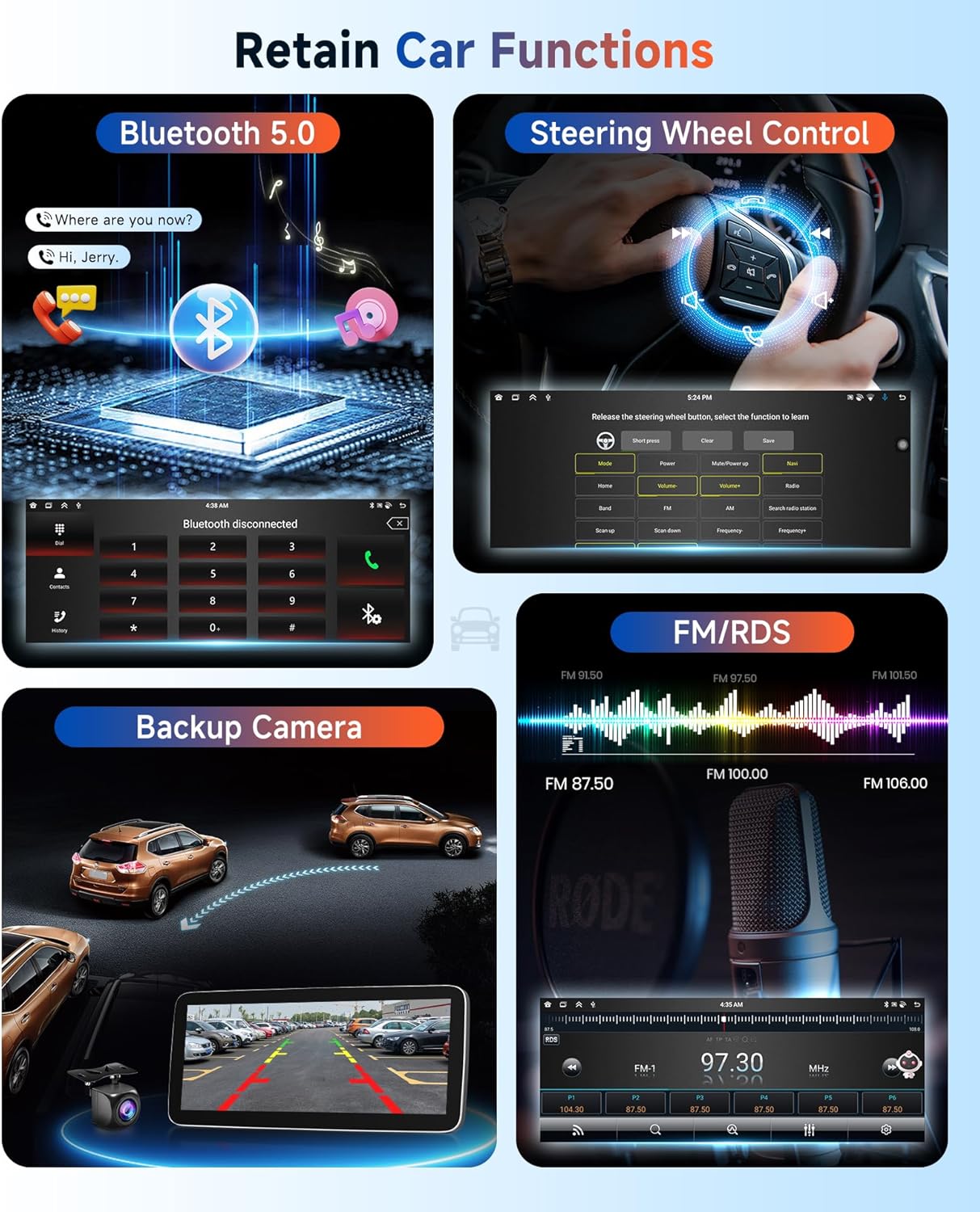
Image 4.2: Key operational features including Bluetooth, Steering Wheel Control, Backup Camera, and FM/RDS radio.
4.11 Intelligent Voice Control
The unit supports intelligent voice control for various functions, enhancing convenience and safety while driving.
4.12 Wi-Fi Connectivity
Connect to the internet via 2.4G/5G dual-band Wi-Fi hotspot or tethering from your smartphone to browse the web, stream online content, and download applications.
5. Maintenance
To ensure the longevity and optimal performance of your Rimoody Car Radio, follow these maintenance guidelines:
- Screen Cleaning: Use a soft, lint-free cloth to gently wipe the touchscreen. Avoid abrasive cleaners or solvents that may damage the display.
- Software Updates: Periodically check for software updates provided by Rimoody to ensure the system is running the latest features and security patches.
- Environmental Conditions: Avoid exposing the unit to extreme temperatures, direct sunlight for prolonged periods, or excessive moisture.
- Cable Connections: Periodically check all cable connections to ensure they are secure and free from damage.
6. Troubleshooting
If you encounter issues with your Rimoody Car Radio, refer to the following common troubleshooting steps:
- No Power: Check all power connections and ensure the vehicle's ignition is on. Verify the vehicle's fuse for the radio.
- No Sound: Check speaker connections, volume levels, and audio settings (e.g., EQ, balance). Ensure the correct audio source is selected.
- GPS Signal Issues: Ensure the GPS antenna is properly installed and has a clear view of the sky. Try moving the antenna to a different location.
- Bluetooth Pairing Problems: Ensure Bluetooth is enabled on both the car radio and your smartphone. Delete previous pairings and attempt to re-pair.
- Touchscreen Unresponsive: Try restarting the unit. If the issue persists, a factory reset might be necessary (note: this will erase all user data).
- System Lag/Freezing: Close unnecessary applications. If the issue continues, a system restart or factory reset may resolve it.
For persistent issues not resolved by these steps, please contact Rimoody customer support.
7. Specifications
| Feature | Specification |
|---|---|
| System | Android 13 |
| Screen Size | 12.3 Inches |
| Screen Material | IPS |
| Screen Resolution | 1920*720 |
| CPU | 8-Core |
| RAM | 6GB |
| ROM | 128GB |
| Bluetooth Version | 5.0 |
| Wi-Fi | 2.4G/5G Dual Band |
| Connectivity Technology | Bluetooth, Wi-Fi |
| Special Feature | Touchscreen, GPS, Carplay, Android Auto, Mirror Link, DSP, FM/RDS, SWC, Voice Control |
| Map Type | North America (Pre-installed, supports others) |
| Included Components | Backup Camera |
| Mounting Type | Dashboard Mount |
| Item Weight | 2.87 pounds |
| Package Dimensions | 11.02 x 6.3 x 5.71 inches |
| Manufacturer | Rimoody |
8. Warranty and Support
8.1 Manufacturer's Warranty
The Rimoody 12.3-inch IPS Car Radio comes with a 2-year manufacturer's warranty. This warranty covers defects in materials and workmanship under normal use. Please retain your proof of purchase for warranty claims.
8.2 Extended Protection Plans
Optional extended protection plans may be available for purchase, offering additional coverage beyond the manufacturer's warranty. These plans typically include:
- 2-Year Protection Plan
- 3-Year Protection Plan
- Complete Protect (monthly subscription for eligible purchases)
Refer to the specific terms and conditions of any purchased protection plan for full details.
8.3 Customer Support
For technical assistance, warranty inquiries, or any questions regarding your Rimoody Car Radio, please contact Rimoody customer support. You can find contact information on the official Rimoody website or through your purchase platform.
Ask a question about this manual
Ask about setup, troubleshooting, compatibility, parts, safety, or missing instructions. Manuals+ will review the question and use this page’s manual context to help answer it.