
Introduction
This user manual provides comprehensive instructions for the safe operation, setup, maintenance, and troubleshooting of your Generic L600 Pro MAX Professional Drone. This advanced drone features a 4K HD camera, 360° laser obstacle avoidance, a 3-axis gimbal, and GPS capabilities, designed for superior aerial photography and stable flight performance. Please read this manual thoroughly before operating the drone to ensure proper use and to maximize your flying experience.
Safety Information
Operating a drone requires adherence to safety guidelines to prevent injury or damage. Always prioritize safety during flight.
General Safety Precautions
- Ensure all local regulations and laws regarding drone operation are understood and followed.
- Do not fly near airports, restricted airspace, or sensitive areas.
- Maintain a safe distance from people, animals, and obstacles.
- Avoid flying in adverse weather conditions such as strong winds, rain, or snow.
- Always keep the drone within your line of sight.
- Perform pre-flight checks before each flight.
- Do not operate the drone under the influence of alcohol or drugs.
- Keep fingers and loose clothing away from rotating propellers.
Battery Safety
- Use only the original charger and battery provided with the drone.
- Do not overcharge or over-discharge the battery.
- Store batteries in a cool, dry place away from direct sunlight and heat sources.
- If the battery is damaged, swollen, or leaking, discontinue use immediately and dispose of it properly.
Package Contents
Verify that all items are present in the package:
- L600 Pro MAX Drone
- Remote Control
- 7.4V 4500mAh Battery
- Propellers (set of spares included)
- USB Charging Cable
- User Manual (this document)
- Backpack (for specific bundles)
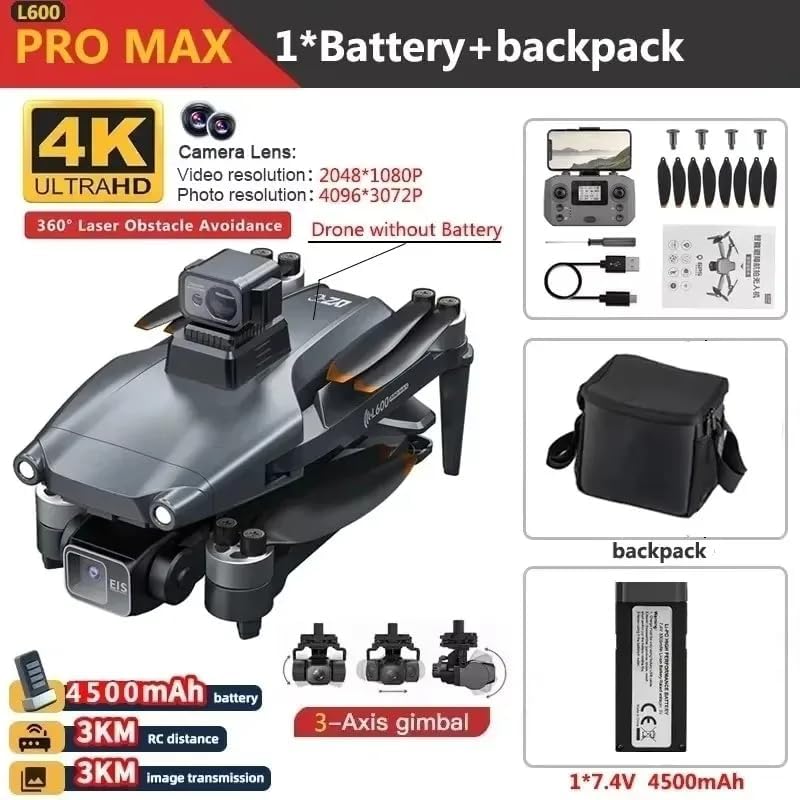
Image: Overview of the L600 Pro MAX package contents, including the drone, remote control, battery, propellers, and a backpack.
Product Overview
Drone Components
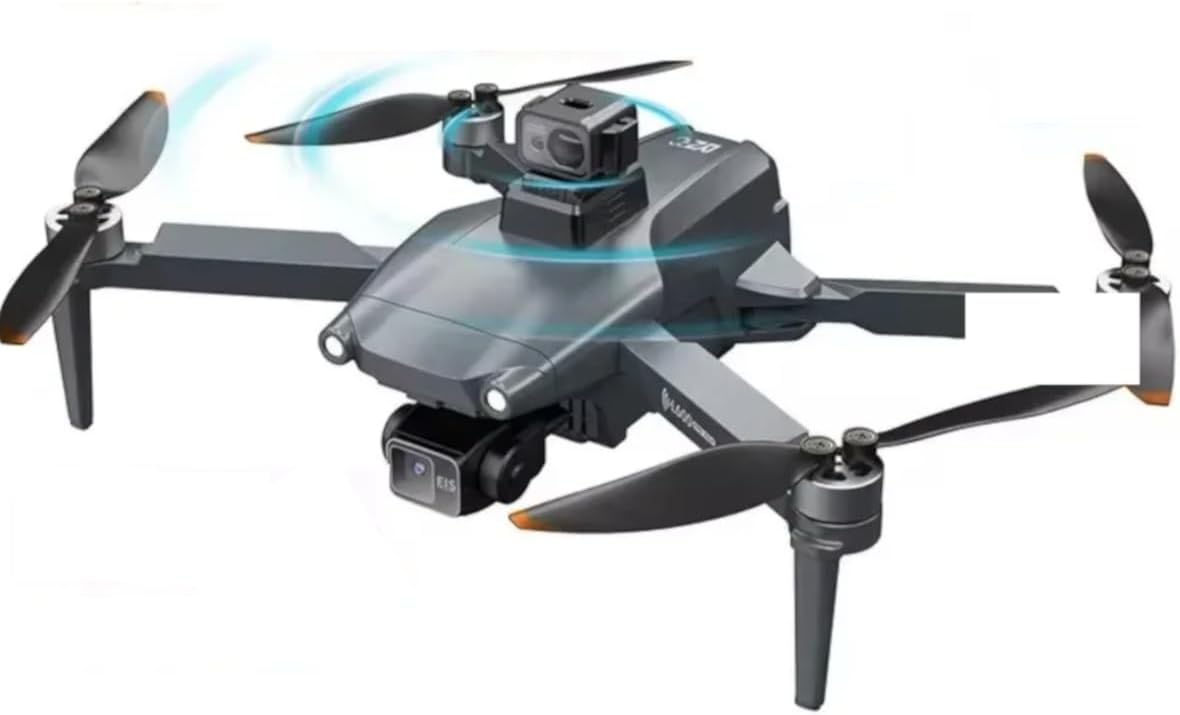
Image: The L600 Pro MAX drone, showcasing its main body, four propellers, and the integrated camera system with obstacle avoidance sensors.
- Propellers: Four rotating blades for lift and propulsion.
- Motors: Brushless motors providing power to the propellers.
- 4K HD Camera: Front-mounted camera for photo and video capture (4096x3072P photo, 2048x1080P video).
- 3-Axis Gimbal: Stabilizes the camera for smooth footage.
- 360° Laser Obstacle Avoidance System: Sensors around the drone to detect and avoid obstacles.
- GPS Module: For precise positioning and stable hovering.
- Battery Compartment: Houses the 7.4V 4500mAh flight battery.
- Landing Gear: Integrated into the drone's arms.
Remote Control Overview
The remote control allows for precise manipulation of the drone's flight and camera functions. Familiarize yourself with its buttons and joysticks.
- Left Joystick: Controls altitude (up/down) and yaw (rotate left/right).
- Right Joystick: Controls forward/backward and left/right movement.
- Take-off/Landing Button: One-key automatic take-off and landing.
- Return-to-Home (RTH) Button: Initiates automatic return to the take-off point.
- Photo/Video Button: Captures photos or starts/stops video recording.
- Speed Mode Button: Toggles between different flight speeds.
- Gimbal Control Dial: Adjusts camera tilt.
- Phone Holder: For mounting your smartphone to view live video feed.
Setup
1. Charging the Battery
Connect the drone battery to the provided USB charging cable. Plug the USB cable into a compatible USB power adapter (not included). The charging indicator light will show the charging status. A full charge takes approximately 4-5 hours. Ensure the battery is fully charged before each flight.
2. Installing the Drone Battery
Insert the fully charged battery into the battery compartment on the rear of the drone until it clicks securely into place.
3. Installing Propellers
Attach the propellers to the corresponding motor shafts. Ensure the correct propeller type (A or B) is matched to the designated motor. Propellers are typically marked. Secure them firmly according to the drone's specific mechanism (e.g., screw-on or quick-release).
4. Remote Control Battery Installation
Open the battery compartment on the back of the remote control and insert the required batteries (e.g., 3x AA batteries, not included) ensuring correct polarity. Close the compartment.
5. App Installation and Connection
Download the official drone application from your smartphone's app store (App Store for iOS, Google Play for Android). Search for "L600 Pro MAX" or refer to the QR code in the quick start guide. Once installed, power on the drone and connect your smartphone to the drone's Wi-Fi network. Open the app to establish a connection and view the live video feed.

Image: A smartphone displaying the drone application interface, with icons for downloading the app from the App Store and Google Play, indicating mobile connectivity for control and sharing.
Operating Instructions
1. Pre-Flight Checklist
- Ensure drone and remote control batteries are fully charged.
- Propellers are correctly installed and free from damage.
- Choose an open, clear area free from obstacles, people, and restricted airspace.
- Check weather conditions (avoid strong winds, rain).
- Connect smartphone to drone Wi-Fi and open the app.
2. Power On and Pairing
Power on the drone first, then the remote control. The drone and remote will automatically pair. Wait for GPS signal acquisition (indicated by solid green lights on the drone or app display) before attempting flight.
3. Take-off and Landing
- One-Key Take-off: Press the dedicated take-off button on the remote control. The drone will automatically ascend to a safe hovering altitude.
- Manual Take-off: Push both joysticks down and outwards to start the motors. Slowly push the left joystick up to ascend.
- One-Key Landing: Press the dedicated landing button. The drone will automatically descend and land.
- Manual Landing: Slowly pull the left joystick down to descend. Once landed, push both joysticks down and inwards to stop the motors.
4. Flight Controls
- Left Joystick (Up/Down): Controls altitude.
- Left Joystick (Left/Right): Controls yaw (rotation).
- Right Joystick (Up/Down): Controls forward/backward movement.
- Right Joystick (Left/Right): Controls left/right (sideways) movement.

Image: The L600 Pro MAX drone shown flying above both a body of water and a mountainous landscape, illustrating its capability to fly in various environments with strong wind resistance.
5. Camera Operation
- Photo Capture: Press the photo button on the remote or tap the camera icon in the app.
- Video Recording: Press the video button on the remote or tap the video icon in the app to start/stop recording.
- Gimbal Control: Use the gimbal dial on the remote to adjust the camera's vertical angle.
- Gesture Control: The drone supports gesture-based photo and video capture. Refer to the app for specific gestures.
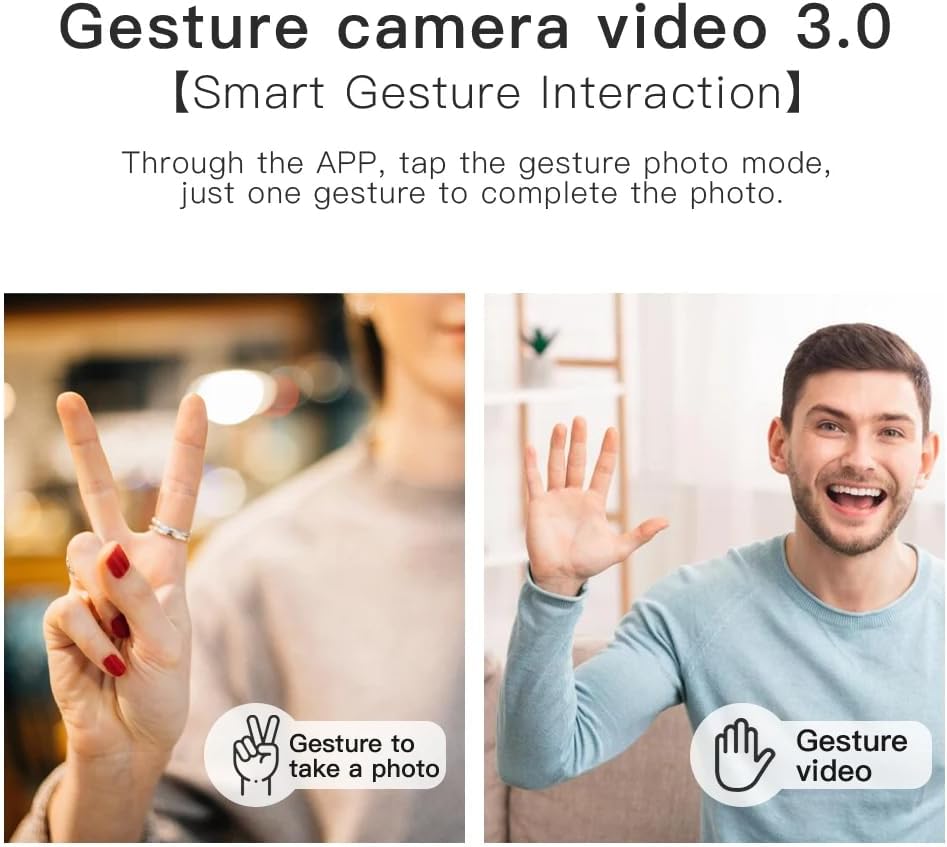
Image: Two distinct hand gestures are displayed: a peace sign, indicating a gesture to take a photo, and an open palm, indicating a gesture to start or stop video recording with the drone's camera.
6. Smart Flight Features
- GPS + Optical Flow Dual Mode: Provides accurate altitude and position hold for stable flight, especially in windy conditions.
- 360° Laser Obstacle Avoidance: Automatically detects and navigates around obstacles in all directions.
- GPS Follow Surround 2.0: The drone can automatically follow a subject, keeping them in the center of the frame.
- GPS Pointing Flight: Tap points on the map in the app, and the drone will fly along the designated path.
- Return-to-Home (RTH): Automatically returns the drone to its take-off point when activated or when battery is low/signal is lost.

Image: The L600 Pro MAX drone is depicted in two settings, indoors and outdoors, to illustrate its GPS + Optical Flow Dual Mode, which enables accurate hovering and stability in various environments.

Image: The L600 Pro MAX drone is shown flying in a circular path around a person on a paddleboard, illustrating its GPS Follow Surround 2.0 feature, which keeps the subject centered in the frame.

Image: The L600 Pro MAX drone is shown flying over a desert landscape, following a pre-defined path indicated by red GPS markers, demonstrating its GPS pointing flight capability.
Maintenance
Cleaning
- Wipe the drone body with a soft, dry cloth after each use.
- Gently clean the camera lens and obstacle avoidance sensors with a microfiber cloth.
- Remove any debris from the motors and propellers.
Propeller Inspection
Regularly inspect propellers for cracks, bends, or chips. Replace damaged propellers immediately using the provided spares to ensure safe and stable flight.
Storage
When not in use, store the drone and its components in a cool, dry place, away from direct sunlight and extreme temperatures. Remove batteries from the drone and remote control if storing for extended periods.
Troubleshooting
| Problem | Possible Cause | Solution |
|---|---|---|
| Drone does not power on. | Battery not charged or not inserted correctly. | Ensure battery is fully charged and securely inserted. |
| Remote control does not connect. | Remote control batteries low or not paired. | Replace remote control batteries. Re-pair drone and remote (refer to pairing instructions). |
| Drone drifts during flight. | Not calibrated or strong wind interference. | Perform gyroscope calibration. Avoid flying in strong winds. Ensure GPS signal is strong. |
| No live video feed on app. | Smartphone not connected to drone's Wi-Fi or app not open. | Verify Wi-Fi connection to drone. Restart app and drone. |
| Obstacle avoidance not working. | Sensors are dirty or obstructed. | Clean obstacle avoidance sensors. Ensure sufficient lighting for sensor operation. |
Specifications
| Model Name | L600 Pro MAX |
| Brand | Generic |
| Dimensions | 11.4"L x 11"W x 4"H |
| Item Weight | 11.6 Ounces (approx. 330g) |
| Flight Time | Up to 29 minutes |
| Battery | 7.4V 4500mAh Lithium Ion |
| Remote Control Distance | Up to 3000 meters (3KM) |
| Image Transmission Distance | Up to 800 meters |
| Video Resolution | 2048x1080P (4K EIS) |
| Photo Resolution | 4096x3072P |
| Gimbal | 3-Axis Mechanical Self-stabilizing |
| Obstacle Avoidance | 360-degree Laser |
| Storage Support | Up to 30G SD card (not included) |
| Connectivity | GPS, Wi-Fi |
| Skill Level | Intermediate |
Warranty and Support
For warranty information and technical support, please refer to the contact details provided with your purchase or visit the official Generic product support website. Keep your proof of purchase for warranty claims.
For common questions and troubleshooting, please consult the Troubleshooting section of this manual or online resources.


