
1. Product Overview
This manual provides essential information for the setup, operation, maintenance, and troubleshooting of your HIDevolution MSI Raider A18 HX A9WIG gaming laptop. Designed for high-performance gaming and demanding applications, this laptop features an AMD Ryzen 9 9955HX3D processor, NVIDIA GeForce RTX 5080 graphics, and a vibrant 18-inch UHD+ 120Hz Mini LED display.

The HIDevolution MSI Raider A18 HX A9WIG laptop, showcasing its powerful AMD Ryzen 9 9955HX3D processor and NVIDIA GeForce RTX 5080 graphics.
HIDevolution ensures thorough quality control, including BIOS firmware and driver updates, stress testing for thermal performance, and benchmark testing to guarantee optimal functionality. The system incorporates Gelid GC Extreme thermal interface materials for enhanced cooling, preventing thermal throttling and maximizing reliability during intensive use.
2. Initial Setup
- Unpacking: Carefully remove the laptop and all accessories from the packaging. Ensure all components are present: laptop, power adapter, and documentation.
- Power Connection: Connect the power adapter to the laptop's power input port and then to a wall outlet. It is recommended to fully charge the battery before initial use.
- First Boot: Open the laptop lid and press the power button. The system will guide you through the initial Windows 11 Pro setup process. Follow the on-screen instructions to configure your operating system settings.
- Peripheral Connection: Connect any desired external devices such as a mouse, keyboard, or external display using the available USB, HDMI, or Thunderbolt ports.

The HIDevolution MSI Raider A18 HX A9WIG laptop, ready for initial setup.
3. Operating Your Laptop
3.1. Keyboard and Touchpad
Your laptop features a SteelSeries per-Key RGB keyboard with anti-ghosting technology for precise input during gaming. The multi-touch touchpad supports various gestures for navigation.

Close-up view of the SteelSeries per-Key RGB keyboard and multi-touch touchpad.
3.2. Display
The 18-inch UHD+ (3840x2400) 120Hz Mini LED display offers exceptional visual clarity and color accuracy (HDR 1000, 100% DCI-P3). Adjust brightness and display settings through Windows display options or dedicated function keys.

The vibrant 18-inch UHD+ 120Hz Mini LED display in action.
3.3. Storage and Memory
Your laptop is equipped with a 2 TB M.2 PCIe 5.0 x4 NVMe SSD for rapid boot-up and application loading times. The 32 GB DDR5 6400MHz RAM ensures smooth multitasking and performance in memory-intensive applications.

Illustration of the PCIe based storage, featuring a 2 TB M.2 PCIe NVMe SSD.
4. Maintenance
- Cleaning: Use a soft, lint-free cloth to clean the screen and chassis. For stubborn smudges, a slightly dampened cloth with water or a specialized screen cleaner can be used. Avoid harsh chemicals.
- Thermal Management: The laptop utilizes Gelid GC Extreme thermal compound for optimal heat dissipation. Ensure the ventilation grilles are clear of obstructions to maintain efficient cooling. Avoid operating the laptop on soft surfaces that can block airflow.
- Software Updates: Regularly update your Windows operating system, drivers, and BIOS firmware to ensure system stability, security, and optimal performance.
- Battery Care: For optimal battery longevity, avoid consistently draining the battery to 0% or keeping it at 100% charge for extended periods when plugged in.
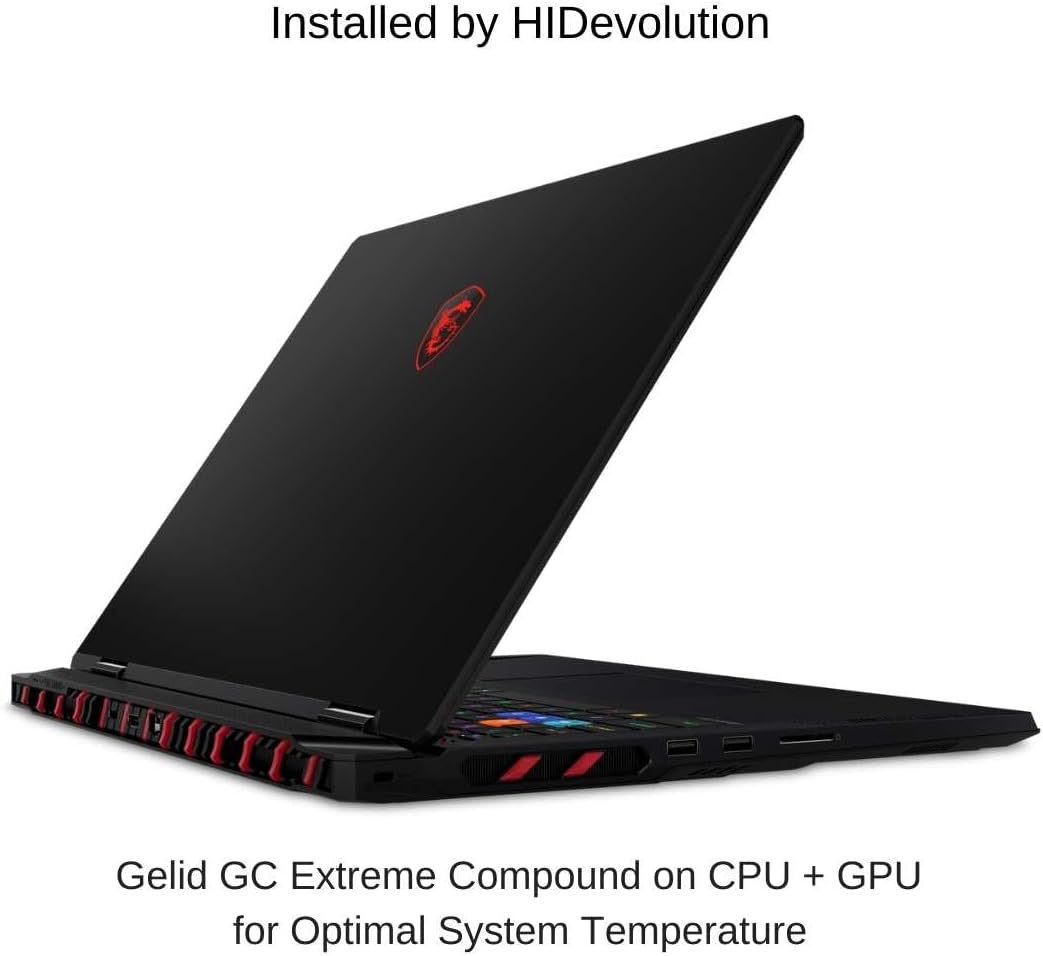
The laptop's thermal design, featuring Gelid GC Extreme compound for optimal system temperature management.
5. Troubleshooting
- No Power: Ensure the power adapter is securely connected to both the laptop and a working power outlet. Try a different outlet.
- Display Issues: If the screen is blank, try connecting an external monitor to verify if the issue is with the laptop's display or graphics output. Restart the laptop.
- Performance Slowdown: Check for background applications consuming excessive resources. Ensure drivers are up to date and ventilation is unobstructed.
- Peripheral Not Detected: Ensure the peripheral is properly connected. Try a different port or restart the laptop. Update peripheral drivers if necessary.
- Software Errors: Restart the application or the laptop. If issues persist, consider reinstalling the problematic software or performing a system restore.
For persistent issues, refer to the HIDevolution support section or contact customer service.
6. Specifications
| Feature | Detail |
|---|---|
| Model Name | Raider A18 HX A9WIG-082US |
| Processor | AMD Ryzen 9 9955HX3D (16 Core, 32 Thread, 2.5 GHz base, up to 5.4 GHz turbo) |
| Graphics Card | NVIDIA GeForce RTX 5080 with 16 GB GDDR7 |
| Display | 18-inch UHD+ (3840 x 2400) 120Hz Mini LED, HDR 1000, 100% DCI-P3 |
| RAM | 32 GB DDR5 6400MHz (2 x 16 GB) |
| Storage | 2 TB M.2 PCIe 5.0 x4 NVMe SSD |
| Operating System | Windows 11 Pro |
| Keyboard | SteelSeries per-Key RGB with Anti-Ghost key, Backlit |
| Touchpad | Multi-Touch |
| Webcam | IR FHD with shutter |
| Battery | 4-cell (99.9Whr) Li-ion |
| Connectivity | Bluetooth, Wi-Fi (802.11ac, 802.11ax, 802.11b, 802.11g, 802.11n) |
| Ports | HDMI, DisplayPort, Thunderbolt, USB (specific types not detailed in source) |
| Dimensions (L x W x Th) | 15.91" x 12.09" x 1.26" |
| Weight | 7.9 Pounds |

The laptop runs on Genuine Windows 11 Pro and is powered by a 4-cell (99.9Whr) Li-ion battery.
7. Warranty and Support
Your HIDevolution MSI Raider A18 HX A9WIG laptop comes with a 1-Year Warranty. As an authorized MSI Build to Order Dealer, HIDevolution provides thorough quality testing and access to expert support staff.

HIDevolution's commitment: Authorized MSI BTO Dealer, thorough quality testing, 1-Year Warranty, and expert support staff.
For technical assistance, warranty claims, or further inquiries, please contact HIDevolution's customer support. You can find contact information and additional resources on the official HIDevolution website or through your purchase platform.
For more information, visit the HIDevolution Store.