
1. Introduction
The UniFi Cloud Gateway UCG-Fiber is an enterprise-grade network security router designed for high-speed connectivity and comprehensive network management. This manual provides detailed instructions for the installation, configuration, operation, and maintenance of your UCG-Fiber device, ensuring optimal performance and security for your network environment.
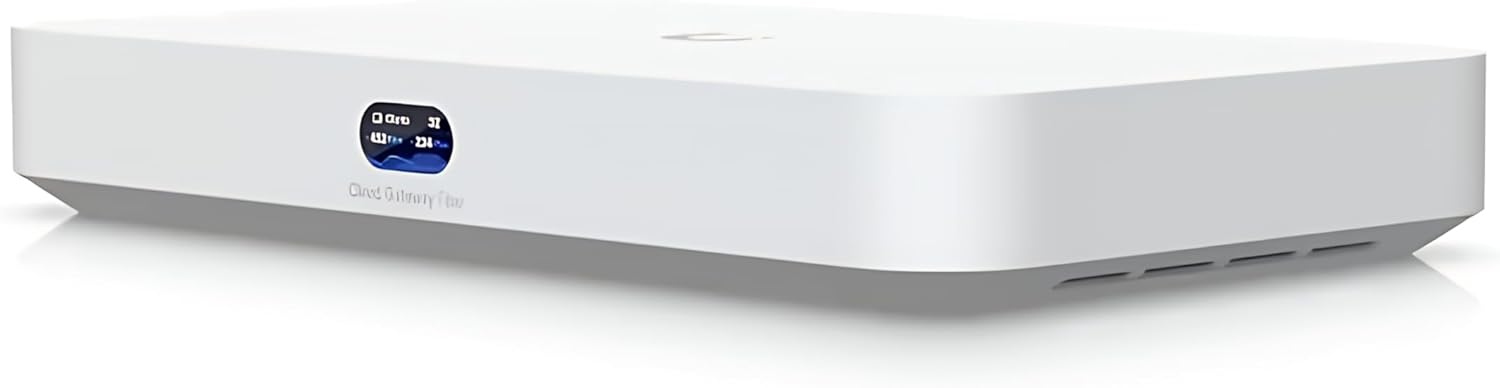
Figure 1: Front view of the UniFi Cloud Gateway UCG-Fiber, showcasing its compact design and front display.
2. Package Contents
Verify that all items are present in your package:
- UniFi Cloud Gateway UCG-Fiber
- Installation Tools (e.g., power adapter, Ethernet cable)
3. Product Overview
The UCG-Fiber features a compact desktop form factor with various ports for network connectivity and management.

Figure 2: Top-down view of the UniFi Cloud Gateway UCG-Fiber, highlighting its sleek design and a side port.
3.1 Front Panel
- Display: Shows device status, network statistics, and other relevant information.
3.2 Rear Panel
- 10G SFP+ Ports (x2): For high-speed fiber optic connections.
- RJ45 Ports (x5): Includes one 10GbE WAN port and four 2.5GbE LAN ports for Ethernet connectivity.
- Power Input: Connects to the included power adapter.
4. Setup
4.1 Before You Begin
Ensure you have the following:
- An active internet connection.
- A computer or mobile device with a web browser.
- The UniFi Network Application (Controller) installed or access to a UniFi Cloud Key/Console.
4.2 Hardware Installation
- Connect Power: Plug the power adapter into the UCG-Fiber's power input and then into a power outlet.
- Connect WAN: Connect your internet service provider's modem or router to the 10GbE WAN RJ45 port on the UCG-Fiber using an Ethernet cable. Alternatively, use one of the 10G SFP+ ports for fiber WAN connection.
- Connect LAN Devices: Connect your local network devices (e.g., computers, switches, UniFi Access Points) to the 2.5GbE LAN RJ45 ports.
4.3 Initial Configuration
- Access UniFi Network Application: Open your web browser and navigate to the IP address of your UniFi Network Application (e.g., UniFi Cloud Key, UniFi Console, or self-hosted controller).
- Adopt Device: In the UniFi Network Application dashboard, locate the UCG-Fiber under the 'Devices' section. It should appear as 'Pending Adoption'. Click 'Adopt' to integrate it into your UniFi network.
- Configure Network Settings: Follow the on-screen prompts within the UniFi Network Application to configure your WAN settings, create Wi-Fi networks, and set up other network parameters as needed.
5. Operating the UniFi Cloud Gateway
The UCG-Fiber is managed entirely through the UniFi Application Suite, providing centralized control over your network.
5.1 Network Management
- Device Management: Manage over 50 UniFi devices, including access points, switches, and cameras (up to 15 HD, 8 2K, 5 4K).
- User Management: Support for over 500 concurrent users with robust access controls.
- Traffic Monitoring: Monitor network throughput, client activity, and application usage in real-time.
5.2 Security Features
- Stateful Firewall: Protects your network from unauthorized access.
- Application-Aware Layer 7 Filtering: Granular control over network traffic based on application type.
- Intrusion Detection/Prevention System (IDS/IPS): Utilizes over 55,000 signatures to detect and block malicious activity with up to 5 Gbps throughput.
- Content Filtering: Manage access to specific websites or content categories.
5.3 VPN Configuration
The UCG-Fiber supports various VPN protocols for secure remote access and site-to-site connectivity:
- Site Magic
- IPsec
- OpenVPN
- WireGuard
- L2TP
Configure VPN tunnels via the UniFi Network Application for secure communication with a 20 Gbps tunnel throughput.
6. Maintenance
- Firmware Updates: Regularly check for and apply firmware updates through the UniFi Network Application to ensure optimal performance and security.
- Regular Monitoring: Periodically review network logs and statistics within the UniFi Network Application to identify potential issues.
- Physical Cleaning: Keep the device free from dust and ensure proper ventilation to prevent overheating. Use a soft, dry cloth for cleaning.
7. Troubleshooting
If you encounter issues with your UCG-Fiber, consider the following common solutions:
- Device Not Powering On: Ensure the power adapter is securely connected to both the device and a working power outlet.
- No Internet Connection: Verify that your WAN cable is properly connected and that your ISP service is active. Check WAN settings in the UniFi Network Application.
- Device Not Adopting: Ensure the UCG-Fiber is on the same Layer 2 network as your UniFi Network Application. Try restarting the device and the application. Check firewall settings on your controller host.
- Slow Performance: Check network utilization in the UniFi Network Application. Ensure firmware is up to date. Consider potential network loops or misconfigurations.
For more advanced troubleshooting, consult the UniFi community forums or Ubiquity support resources.
8. Specifications
| Model Name | UCG-Fiber |
| Dimensions | 8.3 x 5 x 0.5 inches |
| WAN Ports | 1x 10GbE RJ45, 2x 10G SFP+ |
| LAN Ports | 4x 2.5GbE RJ45 |
| IDS/IPS Throughput | 5 Gbps |
| VPN Tunnel Throughput | 20 Gbps |
| Managed Devices | 50+ UniFi devices |
| Concurrent Users | 500+ |
| Operating System | UniFi OS |
9. Warranty and Support
For warranty information and technical support, please refer to the documentation provided with your purchase or visit the official Ubiquity support website. Keep your proof of purchase for warranty claims.