
1. Introduction and Overview
The Eyoyo EY032B is a versatile and portable 1D and 2D barcode scanner designed to enhance efficiency in various environments such as retail, libraries, warehouses, and offices. Its unique back-clip design allows it to attach directly to your smartphone, transforming it into a powerful data collection tool. This manual provides detailed instructions for setup, operation, maintenance, and troubleshooting to ensure optimal performance of your device.
Key features include multi-connection options (Bluetooth, 2.4G wireless, USB wired), robust decoding capabilities for various barcode types, and a long-lasting battery with an intuitive level indicator.

The Eyoyo EY032B barcode scanner attached to a smartphone, ready for use.
2. Product Features
- Back Clip Design: Integrates seamlessly with your smartphone, offering a compact and convenient scanning solution.
- Horizontal Retractable Clip: Accommodates a wide range of phone sizes (4.7" to 7.2" screens) and thicknesses (up to 0.5"), ensuring broad compatibility without blocking the camera.
- Strong Decoding Performance: Capable of rapidly and accurately decoding various 1D and 2D barcode types, including damaged or low-contrast codes, and barcodes from digital screens.
- 3-in-1 Connection Ways: Offers flexible connectivity via Bluetooth, 2.4G wireless, and USB wired modes for diverse operational needs.
- Long Battery Life: Built-in 1200mAh battery provides up to 10 hours of continuous scanning or 12,000 EAN scans on a single 3-hour charge.
- Battery Level Indicator: Features a 4-level indicator (25%-50%-75%-100%) for easy monitoring of power status.
- Dual Usage Modes: Can be used clipped to a phone for integrated scanning or as a standalone portable scanner.
- Ergonomic Button Design: Multiple scan buttons (front, left, right) cater to both left- and right-handed users for comfortable operation.

Overview of the scanner's key features and design elements.
3. Setup
3.1 Package Contents
Before starting, please verify that all items are present in the package:
- Eyoyo EY032B Barcode Scanner
- USB Charging Cable
- 2.4G Wireless Dongle
- Instruction Manual
- Warranty Card
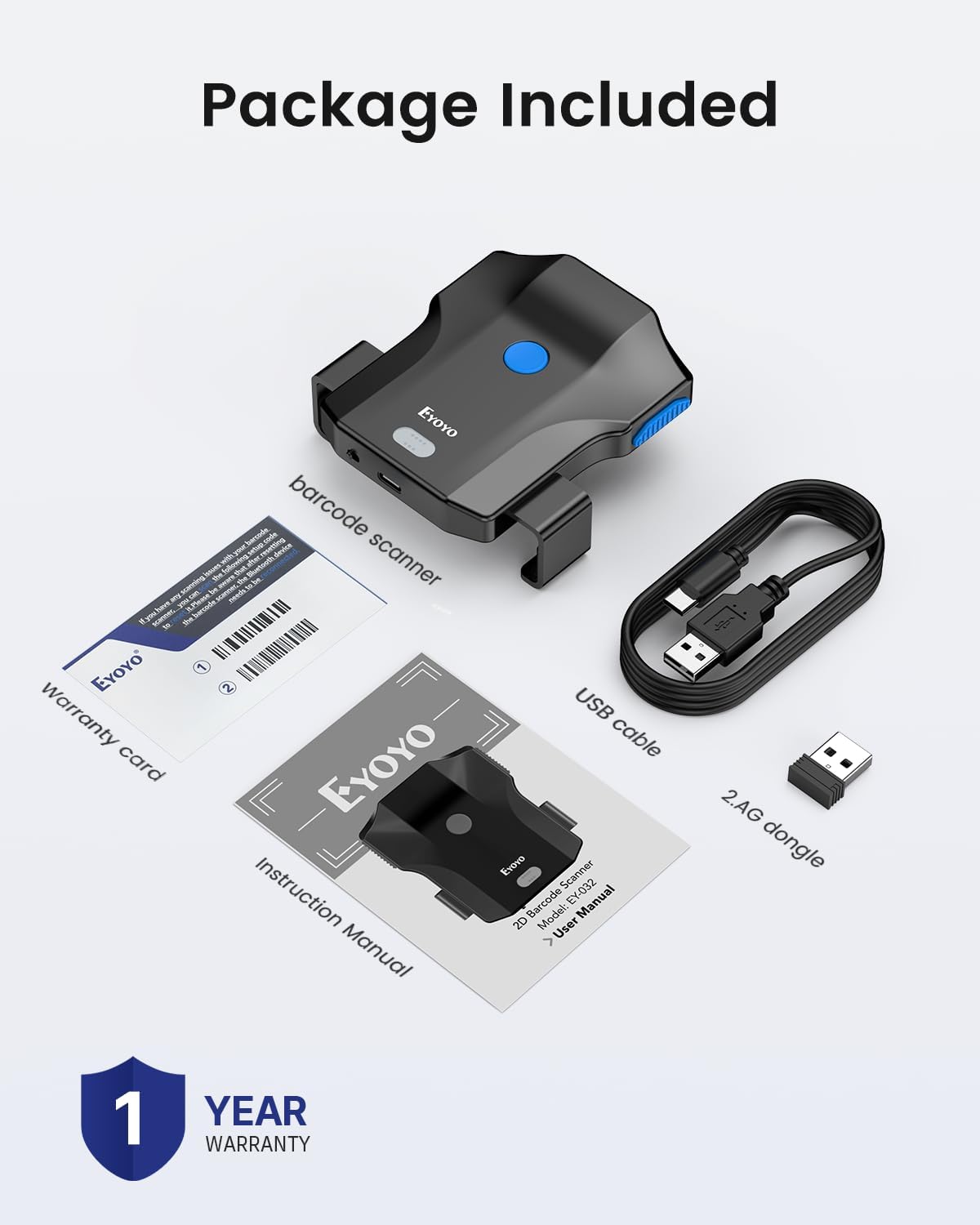
Contents included in the Eyoyo EY032B package.
3.2 Initial Charging
For first-time use, fully charge the scanner. Connect the USB charging cable to the scanner's Type-C port and a power source (e.g., computer USB port or USB wall adapter). The battery indicator lights will show charging progress.
3.3 Powering On/Off
Locate the physical power switch on the scanner. Slide the switch to the 'ON' position to power on the device. Slide it to 'OFF' to power off and conserve battery.
3.4 Connectivity Options
The scanner supports three connection methods:
- Bluetooth Connection: Ideal for wireless use with smartphones, tablets, and Bluetooth-enabled computers.
- 2.4G Wireless Connection: Uses the included USB dongle for wireless connection to computers without Bluetooth.
- USB Wired Connection: Connects directly to a computer via the USB cable for stable, plug-and-play operation.

The three available connection methods for the Eyoyo EY032B scanner.
Refer to the Connectivity section for detailed pairing instructions.
4. Operating Instructions
4.1 Scanning Barcodes
To scan a barcode, aim the scanner's beam at the barcode and press one of the scan buttons (front, left, or right). A successful scan will typically be indicated by a beep and/or a vibration, depending on your settings.
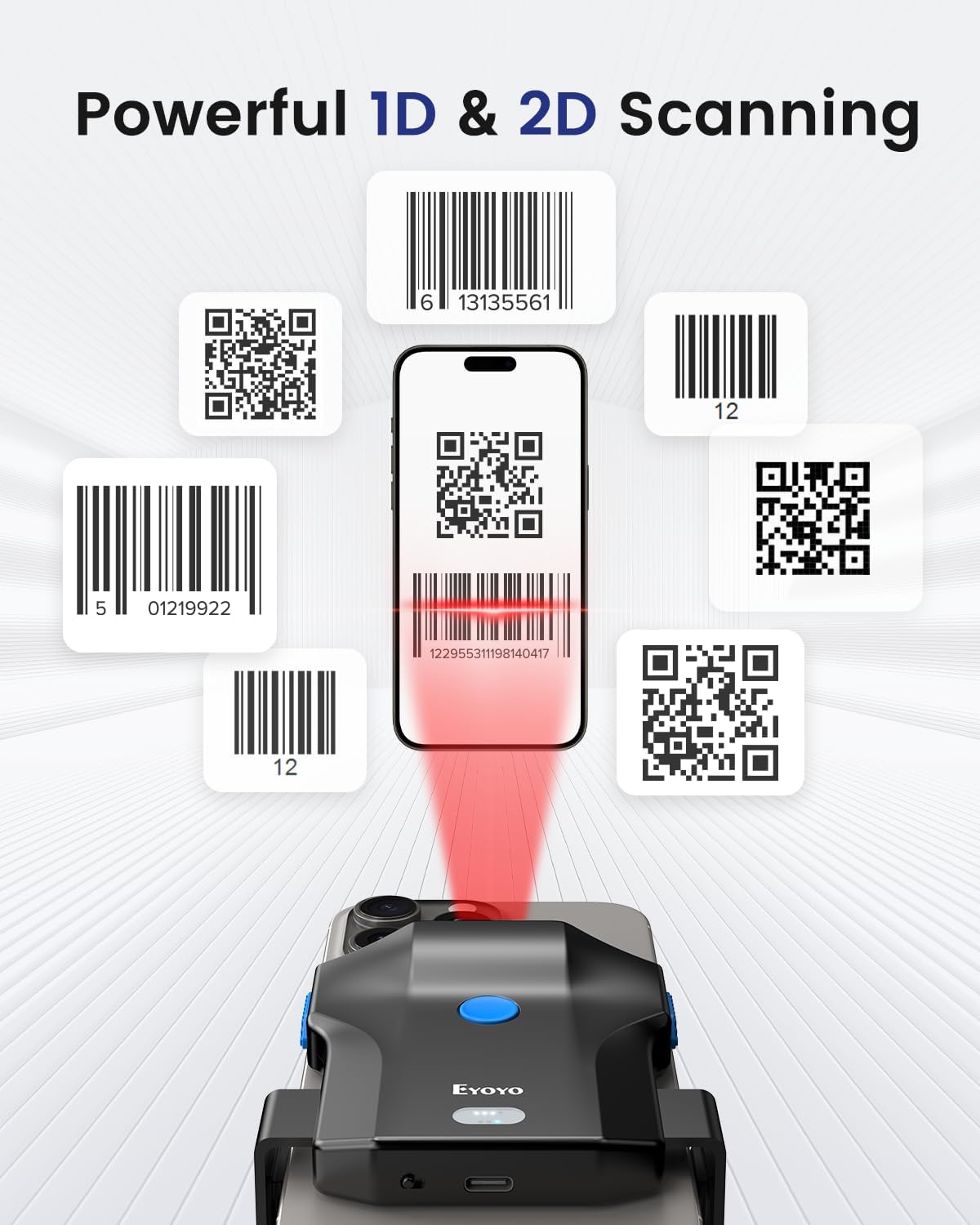
The scanner's ability to read various 1D and 2D barcode formats.
4.2 Usage Modes
The scanner offers two primary ways to be used:
- Phone Clip Mode: Attach the scanner to your smartphone using the retractable clip. This allows for integrated scanning and real-time data viewing on your phone.
- Portable Handheld Mode: Use the scanner independently for quick scans or when a phone attachment is not required.

The scanner can be used as a handheld device or clipped to a smartphone.
4.3 Scanning Modes
The EY032B supports different scanning modes to suit various applications:
- Manual Trigger Mode: Press the scan button to activate the laser and scan a barcode.
- Auto-Sense Scanning Mode: The scanner automatically detects and scans barcodes when they enter its field of view, without needing to press a button.
- Continuous Scanning Mode: The scanner continuously emits the laser and scans barcodes as they pass by.

The three available scanning modes for the Eyoyo EY032B.
4.4 Upload Modes
The scanner offers two data upload modes:
- Instant Upload Mode: Scanned data is immediately transmitted to the connected device.
- Storage Mode: Scanned data is stored in the scanner's internal memory and can be uploaded later as a batch. This is useful when out of range of a connected device.

The two data upload modes: Storage and Instant Upload.
5. Connectivity
5.1 Bluetooth Connection
- Ensure the scanner is powered on.
- On your device (smartphone, tablet, computer), enable Bluetooth and search for available devices.
- Select "Eyoyo Barcode Scanner" or a similar name from the list of found devices.
- The scanner will pair, and a confirmation sound or light indicator will signal a successful connection. The scanner operates in HID mode, functioning as a keyboard input device.
5.2 2.4G Wireless Connection
- Insert the 2.4G wireless dongle into a USB port on your computer.
- Power on the scanner. It should automatically connect to the dongle.
- A successful connection will be indicated by a specific sound or light pattern on the scanner.
5.3 USB Wired Connection
- Connect one end of the USB cable to the scanner's Type-C port.
- Connect the other end of the USB cable to a USB port on your computer.
- The scanner will be recognized as a plug-and-play device and will be ready for use.
5.4 System Compatibility
The Eyoyo EY032B scanner is compatible with a wide range of operating systems and devices, including:
- Windows (Win7/8/10/XP)
- Linux
- Mac OS
- Android Phones and Tablets
- iPhones and iPads
- POS Systems

The scanner offers broad compatibility across various devices and operating systems.
6. Customized Settings
The scanner allows for various customizations to optimize its performance for specific needs. These settings are typically configured by scanning special setup barcodes found in the full instruction manual (physical copy or digital version from manufacturer's website).
6.1 Prefix and Suffix
You can add custom prefixes or suffixes to the scanned data. This is useful for automatically adding identifiers to your barcode entries (e.g., a date, a location code, or a specific character).
6.2 Sound and Vibration
Adjust the sound volume (High, Medium, Low, Turn off) and enable/disable vibration feedback for scan confirmations.

Customization options for data output and feedback.
7. Compatibility
The Eyoyo EY032B is designed to be highly compatible with a wide range of smartphones and devices. Its horizontal retractable clip ensures a secure fit for various phone models and sizes.
7.1 Phone Dimensions
- Screen Size: Compatible with phones ranging from 4.7 inches to 7.2 inches.
- Thickness: Supports phones with a thickness of up to 14mm (0.5 inches), including those with thick phone cases.
7.2 Supported Phone Models
This includes, but is not limited to:
- iPhone 11/12/13/14/15/16 (Pro/Max/Pro Max)
- Samsung Galaxy S8/S9/S10/S20/S21/S22/S23/S24/S25, Note 8/9/10/20
- Motorola Edge
- Google Pixel 5/6/8
- LG G7/G8/V40
Note: Phones with holster clip stands, raised sections, or military-grade cases that exceed the 14mm thickness or interfere with the clip mechanism cannot be clipped onto this back clip scanner.

The scanner's clip design accommodates a wide range of phone sizes and thicknesses.
8. Battery and Power
The Eyoyo EY032B is equipped with a robust battery system designed for extended use.
- Battery Capacity: 1200mAh Lithium Polymer battery.
- Working Time: Up to 10 hours of nonstop scanning, or approximately 12,000 EAN scans on a single charge.
- Charging Time: Approximately 3 hours for a full charge.
- Standby Time: Up to 720 hours.
- Battery Indicator: A 4-level LED indicator on the front displays the remaining battery life (25%, 50%, 75%, 100%).

Battery specifications and indicator for the Eyoyo EY032B.
9. Maintenance
Proper maintenance ensures the longevity and optimal performance of your Eyoyo EY032B scanner.
- Cleaning: Use a soft, dry, lint-free cloth to clean the scanner's exterior. For the scanning window, gently wipe with a microfiber cloth. Avoid abrasive cleaners, solvents, or excessive moisture.
- Storage: Store the scanner in a cool, dry place away from direct sunlight and extreme temperatures.
- Handling: Avoid dropping the scanner or subjecting it to strong impacts, which can damage internal components.
- Battery Care: For long-term storage, charge the battery to about 50% to prolong its lifespan. Avoid fully discharging the battery for extended periods.
10. Troubleshooting
If you encounter issues with your Eyoyo EY032B scanner, refer to the following common solutions:
- Scanner Not Responding: Ensure the scanner is powered on and fully charged. If connected wirelessly, check the connection status or try reconnecting.
- Scanning Issues:
- Ensure the barcode is clean, undamaged, and well-lit.
- Adjust the distance between the scanner and the barcode.
- Verify that the correct barcode symbologies are enabled in the scanner's settings (refer to the full manual for configuration barcodes).
- Bluetooth HID Conflict (e.g., cannot answer calls, apps open automatically): Since the scanner connects via HID mode (acting as an input keyboard), conflicts can occur. To resolve, temporarily turn off Bluetooth on your phone or power off the scanner when not actively scanning.
- iOS Keyboard Toggle: On iOS devices, if you need to bring up or hide the on-screen keyboard while the scanner is connected, double-tap the scan button. This feature is specific to iOS.
- Connection Drops: Ensure the scanner is within range of the connected device. Check for interference from other wireless devices. For 2.4G wireless, ensure the dongle is securely plugged in.

Specific instruction for iOS keyboard management.
11. Specifications
| Feature | Specification |
|---|---|
| Model Number | EY032B |
| Item Weight | 4.6 ounces |
| Package Dimensions | 4.53 x 3.78 x 1.69 inches |
| Batteries | 1 Lithium Polymer battery (included) |
| Power Source | Battery Powered |
| Connectivity Technology | 2.4G Wireless, Bluetooth, USB Cable |
| Compatible Devices | Desktop, Laptop, POS, Smartphone, Tablet |
| Manufacturer | Eyoyo |
12. Warranty and Support
The Eyoyo EY032B Barcode Scanner comes with a 1-Year Warranty from the date of purchase, covering manufacturing defects and malfunctions under normal use. Please retain your proof of purchase for warranty claims.
For technical support, troubleshooting assistance, or warranty inquiries, please refer to the contact information provided on the warranty card included in your package or visit the official Eyoyo website. Ensure you have your model number (EY032B) and purchase details ready when contacting support.