
Introduction
This manual provides detailed instructions for the installation, operation, and maintenance of your new EWLSAC Car Radio. This unit is designed for Hyundai Genesis Rohens Coupe models from 2012 to 2016, featuring a 9-inch touch screen with Android 13, Wireless Apple Carplay, Android Auto, GPS, WiFi, Bluetooth, FM radio, Steering Wheel Control (SWC), and support for a backup camera.
Please read this manual thoroughly before installation and use to ensure proper function and to maximize your experience with the product.
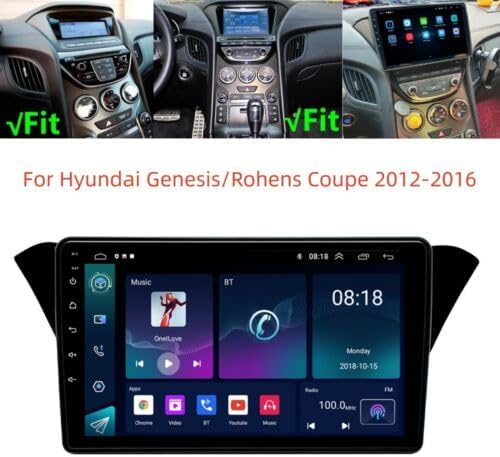
Figure 1: EWLSAC Car Radio installed in a Hyundai Genesis Rohens Coupe.
Safety Information
Observe the following safety precautions to prevent accidents and damage to the unit or vehicle:
- Professional Installation Recommended: Due to the complexity of car electrical systems, professional installation is highly recommended.
- Power Disconnection: Always disconnect the vehicle's battery negative terminal before starting any installation work to prevent electrical shorts.
- Wiring: Ensure all wiring connections are secure and properly insulated to avoid short circuits and fire hazards.
- Driving Safety: Do not operate the unit's complex functions or watch videos while driving. Distracted driving can lead to serious accidents.
- Volume Control: Keep the volume at a level that allows you to hear outside traffic sounds.
- Environmental Conditions: Avoid exposing the unit to extreme temperatures, direct sunlight for prolonged periods, or excessive moisture.
- Cleaning: Use a soft, dry cloth for cleaning the screen and unit. Do not use abrasive cleaners or solvents.
Setup and Installation
This section guides you through the physical installation and initial setup of your car radio.
Package Contents
Before beginning, verify that all components are present in the package:
- 1 x Car Radio Stereo with Frame
- 1 x GPS Cable
- 2 x USB Cable
- 1 x Power Cable
- 1 x Canbus Box
- 1 x RCA Cable
- 1 x Camera Input Cable
- 1 x User manual

Figure 2: Included components of the EWLSAC Car Radio package.
Pre-Installation Check
It is crucial to confirm compatibility and wiring requirements before proceeding with installation. If you are unsure about the model fitment or wiring, please contact customer support with clear pictures of your vehicle's center console and the back of the original head unit's plugs.

Figure 3: Example of vehicle center console and rear connectors for fitment verification.
Wiring Connections
Follow the diagram below for connecting the main cables. Ensure each connection is secure.
- Power Cable: Connect the power cable to the original CD power plug.
- RCA Cables: Connect the FR OUT and FL OUT of the RCA cable.
- USB Cables: Connect the 4P USB and 6P USB cables.
- Protocol Box: Connect the protocol box as indicated.
- GPS Cable: Connect the GPS antenna cable.
- Reversing Line: Connect the reversing line for the backup camera.
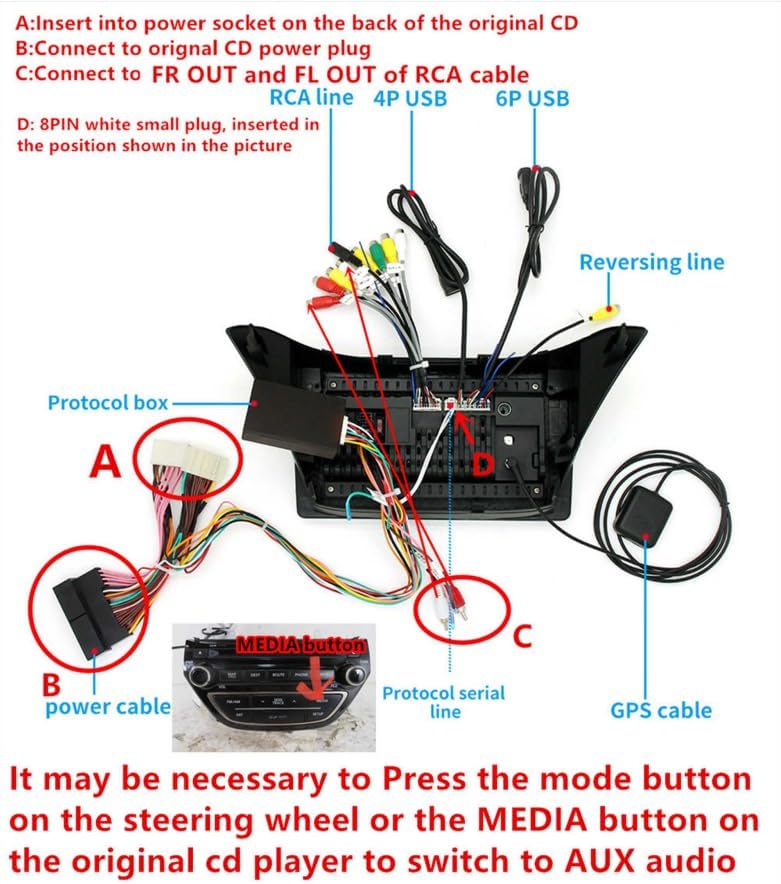
Figure 4: Main wiring diagram for the EWLSAC Car Radio.
Note:
After installation, it may be necessary to press the "MODE" button on the steering wheel or the "MEDIA" button on the original CD player to switch to AUX audio input for the new unit to function correctly.
Backup Camera Wire Connection
For the backup camera, connect as follows:
- Connect the camera's video output to the "Camera Input" on the car radio.
- Connect the camera's power source (RED: +12V, Black: GND) to the vehicle's reversing light positive and ground.
- Connect the trigger wire (labeled "back" or "reverse") from the power cable to the reversing light positive. This signals the radio to switch to the camera view when reverse gear is engaged.

Figure 5: Backup camera wiring connection diagram.
Operating Instructions
This section details how to use the various features of your EWLSAC Car Radio.
Basic Operation
The unit features a 9-inch 1024*600 high-resolution IPS 2.5D touch screen. Power on the unit by starting your vehicle. Navigate through menus and applications by touching the screen icons.

Figure 6: 9-inch 1024*600 IPS Touch Screen display.
Wireless Carplay & Android Auto / Mirror Link
Connect your smartphone to the car radio wirelessly via Bluetooth or USB data cable to access your phone's applications and features directly on the car's display.
- Wireless Carplay: For iPhone users, connect wirelessly to use navigation, messages, music, and more.
- Wireless Android Auto: For Android users, connect wirelessly to access Google Maps, music, and voice commands.
- Mirror Link: Synchronously display your phone's screen content onto the car radio's display.
To activate, ensure Bluetooth is enabled on your phone and the car radio. Pair your device, then select the Carplay or Android Auto option on the radio's interface.
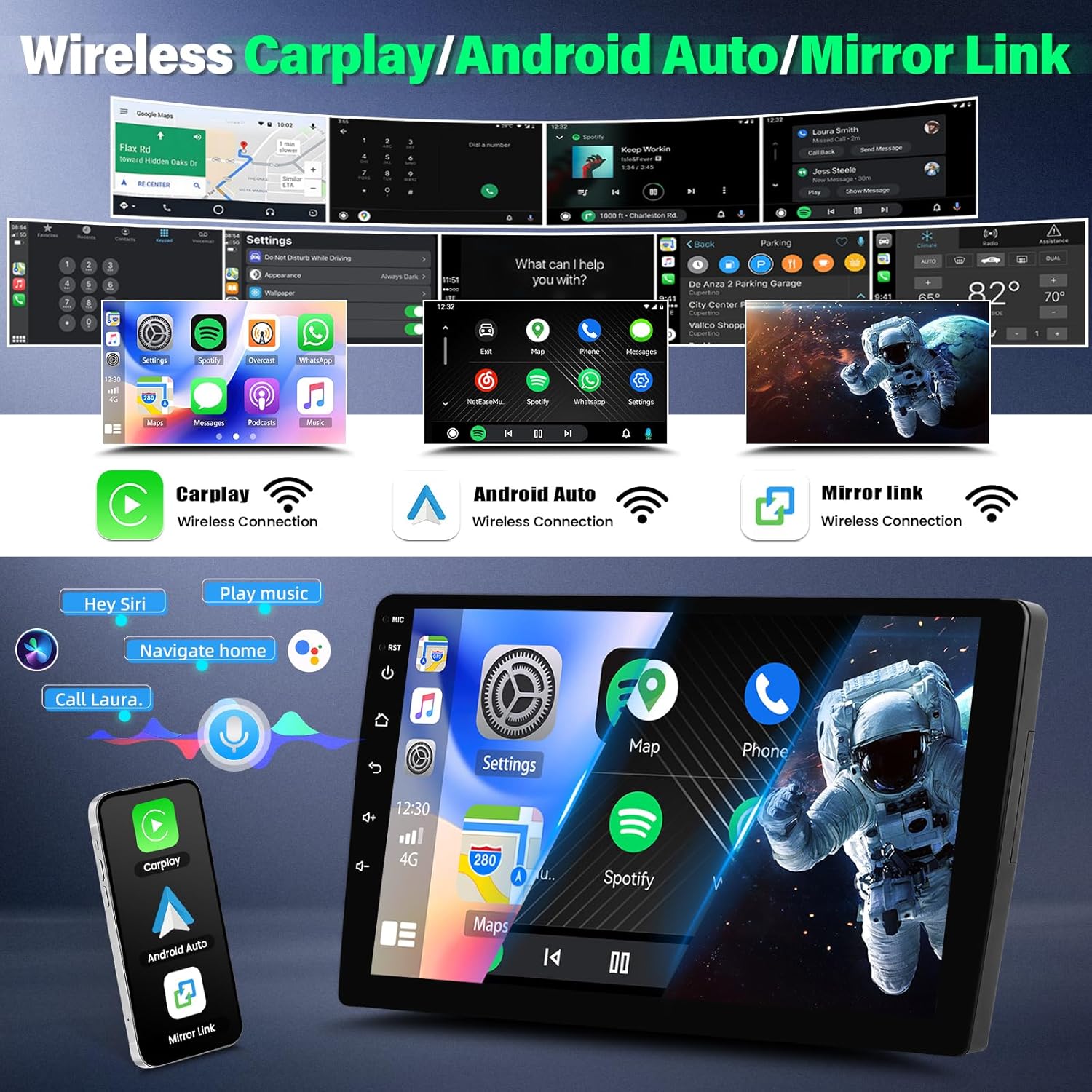
Figure 7: Wireless Carplay, Android Auto, and Mirror Link interface examples.
GPS Navigation & WiFi
The unit includes a built-in GPS navigation app supporting both online and offline maps.
- Online Maps: Connect to WiFi or a mobile hotspot to access real-time traffic conditions and updated map data.
- Offline Maps: Download map data in advance for navigation without an internet connection.
- WiFi Connectivity: Connect to a WiFi network or your phone's hotspot to browse the web, download apps, and stream content.
To connect to WiFi: Go to the radio's car settings, find your phone's WiFi or hotspot name, enter the password, and connect.
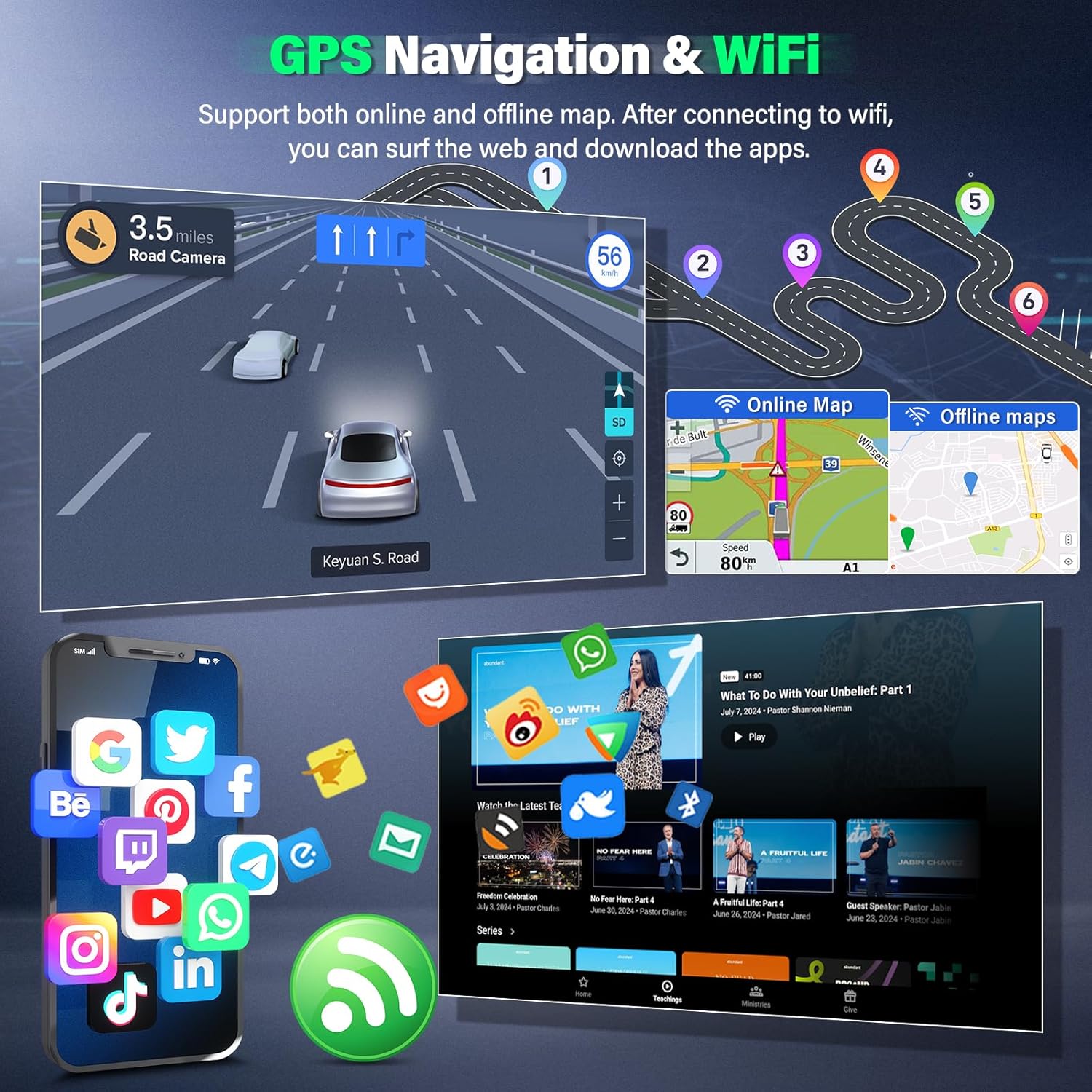
Figure 8: GPS Navigation and WiFi connectivity features.
Bluetooth & FM Radio
Bluetooth
The Bluetooth function supports hands-free calling and music streaming.
- Pairing: Enable Bluetooth on your phone and the car radio. Search for the radio's Bluetooth name in your phone's settings and pair.
- Hands-Free Calling: Make and receive calls directly through the car radio's interface. Synchronize contacts for easy access.
- Music Streaming: Play audio from your phone through the car's speakers.
FM Radio
The FM radio features 18 preset stations, allowing you to listen to local broadcasts, weather forecasts, and traffic updates.
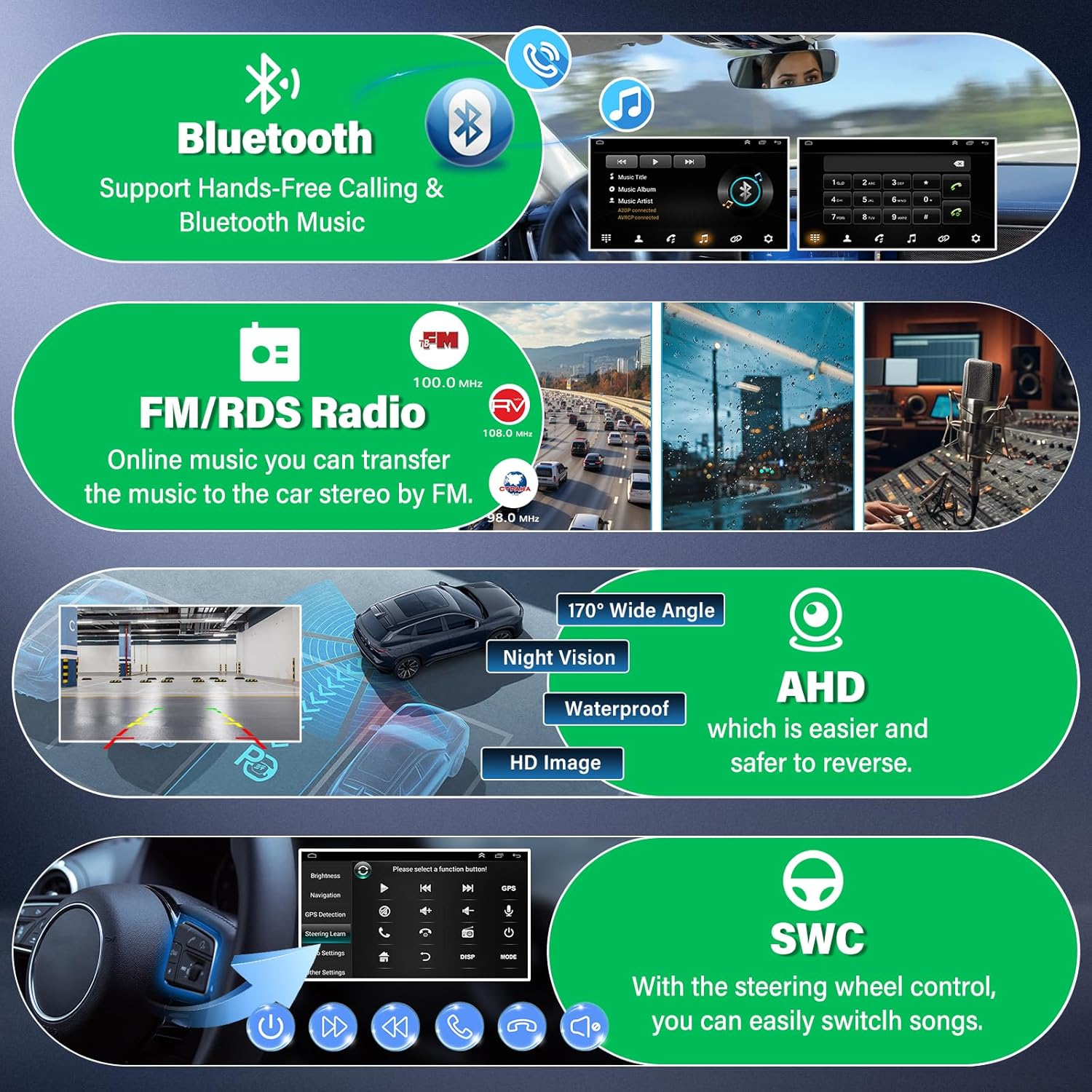
Figure 9: Bluetooth, FM Radio, Backup Camera, and SWC features overview.
Split Screen Function
The split-screen feature allows you to run two applications simultaneously on the display. For example, you can have navigation open on one side and music playback on the other.

Figure 10: Split Screen Functionality.
Steering Wheel Control (SWC)
The unit supports your vehicle's original steering wheel control functions. This allows you to adjust volume, change tracks, answer/hang up calls, and access other functions without taking your hands off the steering wheel.
To set up SWC: Access the "Steering Learn" option in the radio's settings and follow the on-screen instructions to map your steering wheel buttons.

Figure 11: Steering Wheel Control setup interface.
AHD Backup Camera
The included AHD backup camera provides a clear, wide-angle view when reversing. It features IP68 waterproofing, 170-degree wide angles, and night vision capabilities.
When the vehicle is shifted into reverse gear, the car radio automatically displays the camera feed, assisting with safer parking and maneuvering.

Figure 12: AHD Backup Camera features and display.
Maintenance
Proper maintenance ensures the longevity and optimal performance of your car radio.
- Screen Cleaning: Use a soft, lint-free cloth to gently wipe the touch screen. For stubborn smudges, slightly dampen the cloth with water or a screen-specific cleaner. Avoid harsh chemicals or abrasive materials.
- Software Updates: Periodically check for software updates from the manufacturer to ensure the system runs efficiently and has the latest features and security patches.
- Cable Connections: Occasionally check all visible cable connections to ensure they remain secure and free from corrosion.
- Environmental Care: Protect the unit from extreme heat or cold, which can affect electronic components.
Troubleshooting
If you encounter issues with your car radio, refer to the following common problems and solutions:
| Problem | Possible Cause | Solution |
|---|---|---|
| Unit does not power on. | Incorrect wiring, blown fuse, vehicle battery issue. | Check power cable connections. Verify vehicle fuses. Ensure vehicle battery is charged. Consult a professional installer. |
| No sound. | Volume too low, incorrect audio source, speaker wiring issues. | Increase volume. Select correct audio source (e.g., FM, Bluetooth, Carplay). Check speaker connections. |
| Bluetooth not connecting. | Bluetooth not enabled, incorrect pairing, interference. | Ensure Bluetooth is enabled on both devices. Delete previous pairings and re-pair. Move closer to the unit. |
| GPS signal lost or inaccurate. | GPS antenna obstruction, poor satellite reception. | Ensure GPS antenna is properly installed and has a clear view of the sky. Move to an open area. |
| Backup camera not displaying. | Incorrect camera wiring, faulty camera, trigger wire issue. | Check camera input cable and trigger wire connections. Verify camera power. |
| Steering Wheel Controls not working. | SWC not configured, incorrect Canbus connection. | Perform "Steering Learn" in settings. Verify Canbus box connection. |
If these solutions do not resolve the issue, please contact customer support.
Specifications
| Feature | Detail |
|---|---|
| Model Number | QJ0168X |
| Operating System | Android 13 |
| RAM | 2GB |
| ROM | 32GB |
| Display Size | 9 Inches |
| Display Resolution | 1024*600 IPS 2.5D Touch Screen |
| Video Playback | Supports 1080P |
| Connectivity | Wireless Apple Carplay, Android Auto, Mirror Link, Bluetooth, Wi-Fi |
| Navigation | Built-in GPS, supports online and offline maps (Worldwide) |
| Radio | FM Radio with 18 preset stations |
| Backup Camera | AHD, IP68 waterproof, 170-degree wide angle, night vision |
| Steering Wheel Control | Supported |
| Product Dimensions | 15 x 8 x 7 inches |
| Item Weight | 4 pounds |
Warranty Information
This product comes with a one-year warranty from the date of purchase. The warranty covers manufacturing defects and malfunctions under normal use. It does not cover damage caused by improper installation, misuse, accidents, unauthorized repairs, or normal wear and tear.
Please retain your proof of purchase for warranty claims.
Customer Support
For technical assistance, troubleshooting beyond this manual, or warranty inquiries, please contact EWLSAC customer support through the retailer where the product was purchased or refer to the contact information provided in the included user manual.
When contacting support, please have your product model number (QJ0168X) and proof of purchase ready.