Introduction
This manual provides detailed instructions for the Azeyou 11.6'' Laptop Computer, Model CG11Q6. It covers essential information regarding setup, operation, maintenance, and troubleshooting to ensure optimal performance and longevity of your device. Please read this manual thoroughly before using your laptop.
The Azeyou CG11Q6 laptop features an 11.6-inch HD display, 4GB DDR4 RAM, and 128GB SSD storage, powered by a Celeron N4020 processor with integrated graphics. It runs on Windows 11 Pro, offering a balance of performance and portability for various tasks.
1. Setup Guide
1.1 Unboxing and Initial Inspection
Carefully remove the laptop and all accessories from the packaging. Verify that all components are present:
- Azeyou 11.6'' Laptop
- Power Adapter
- User Manual (this document)
Inspect the laptop for any signs of physical damage. If any damage is found or components are missing, contact customer support immediately.
1.2 Connecting to Power
Before first use, ensure the laptop is fully charged. Connect the power adapter to the DC 3.5mm power port on the laptop and then plug the adapter into a wall outlet.

This image details the laptop's rich interface configuration, including Bluetooth 4.2 and WIFI 2.4G/5G connectivity. Visible ports are a 3.5mm headphone jack, TF Interface, DC 3.5mm power input, two USB 3.0 ports, and a Type-C port, meeting various connectivity needs.
1.3 First Boot and Windows Setup
Press the power button located on the keyboard to turn on the laptop. The laptop will guide you through the initial Windows 11 Pro setup process. Follow the on-screen prompts to:
- Select your region and keyboard layout.
- Connect to a Wi-Fi network.
- Accept the Microsoft Software License Terms.
- Create or sign in with a Microsoft account.
- Set up a PIN for quick login.
Once the setup is complete, your laptop will be ready for use.
2. Operating Instructions
2.1 Basic Operation
Power On/Off: Press the power button to turn on. To shut down, click the Start button, then Power > Shut down. For sleep mode, press the power button briefly or close the lid.
Keyboard and Touchpad: The laptop features a standard QWERTY keyboard and a multi-touch touchpad. Use the touchpad for navigation, clicking, and gestures. Refer to Windows settings for touchpad customization.
2.2 Connectivity
Wi-Fi: To connect to a Wi-Fi network, click the Wi-Fi icon in the taskbar, select your desired network, and enter the password if required.
Bluetooth: Enable Bluetooth from Windows Settings > Bluetooth & devices. You can then pair with Bluetooth-enabled devices such as headphones or mice.
USB Ports: The laptop includes USB 3.0 ports and a Type-C port for connecting external devices like USB drives, external keyboards, or mice.
TF Card Slot: Insert a TF (microSD) card into the designated slot for expanded storage or data transfer.
2.3 Battery Management
The laptop is equipped with a 7.4V/4000mAh lithium polymer battery. For optimal battery life:
- Avoid fully discharging the battery frequently.
- Unplug the charger once the battery is fully charged if not using the laptop for extended periods.
- Adjust screen brightness and power settings to conserve battery life.

A woman is depicted working on the Azeyou laptop, showcasing its portability and long battery life. The laptop is equipped with a 7.4V/4000mAh lithium polymer battery, providing 6-8 hours of usage time and 24Wh energy.
3. Maintenance
3.1 Cleaning the Laptop
To clean the laptop's exterior:
- Use a soft, lint-free cloth slightly dampened with water or a screen cleaner.
- Avoid using harsh chemicals, abrasives, or solvents.
- For the screen, spray cleaner onto the cloth, not directly onto the display.
3.2 Software Updates
Regularly check for and install Windows updates to ensure your system has the latest security patches and performance improvements. Go to Settings > Windows Update.
3.3 Storage Management
Periodically review your installed applications and files. Uninstall unused programs and delete unnecessary files to free up storage space on the 128GB SSD, which helps maintain system performance.

An illustration demonstrating the laptop's 4GB DDR4 RAM and 128GB SSD, emphasizing its capability for smooth multitasking and fast application loading speeds. It also indicates TF Card Expansion support.
4. Troubleshooting
This section addresses common issues you might encounter with your Azeyou laptop.
| Problem | Possible Cause | Solution |
|---|---|---|
| Laptop does not turn on. | Low battery; Power adapter issue; Hardware malfunction. | Ensure power adapter is securely connected and plugged into a working outlet. Allow laptop to charge for at least 30 minutes before attempting to power on. |
| No Wi-Fi connection. | Wi-Fi disabled; Router issue; Driver problem. | Check if Wi-Fi is enabled in Windows settings. Restart your router and modem. Update or reinstall Wi-Fi drivers via Device Manager. |
| Slow performance. | Too many applications running; Low storage space; Malware. | Close unnecessary applications. Free up disk space. Run a full system scan with antivirus software. |
| Screen is blank or flickering. | Display driver issue; External display conflict; Hardware problem. | Restart the laptop. Update display drivers. If connected to an external monitor, disconnect it. |
If you encounter issues not listed here or if the suggested solutions do not resolve the problem, please contact Azeyou customer support.
5. Technical Specifications
The following table outlines the key technical specifications of the Azeyou 11.6'' Laptop Computer (Model CG11Q6):
| Feature | Specification |
|---|---|
| Brand | Azeyou |
| Model Name | CG11Q6 |
| Screen Size | 11.6 Inches |
| Display Resolution | 1366x768 (HD) |
| Processor | Celeron N4020 (up to 2.8 GHz) |
| RAM | 4 GB DDR4 |
| Hard Drive | 128 GB SSD |
| Operating System | Windows 11 Pro |
| Graphics Card | Integrated (Intel UHD 600) |
| USB 2.0 Ports | 1 |
| USB 3.0 Ports | 1 |
| USB Type-C Port | 1 |
| Headphone Jack | 3.5mm |
| TF Card Slot | Yes |
| Wireless Connectivity | Wi-Fi 2.4G/5G, Bluetooth 4.2 |
| Battery | 7.4V/4000mAh Lithium Polymer |
| Color | Silver |
| Dimensions (L x W x H) | 30.1 x 22 x 8 cm |
| Weight | 997.9 g (approx. 2.2 lbs) |
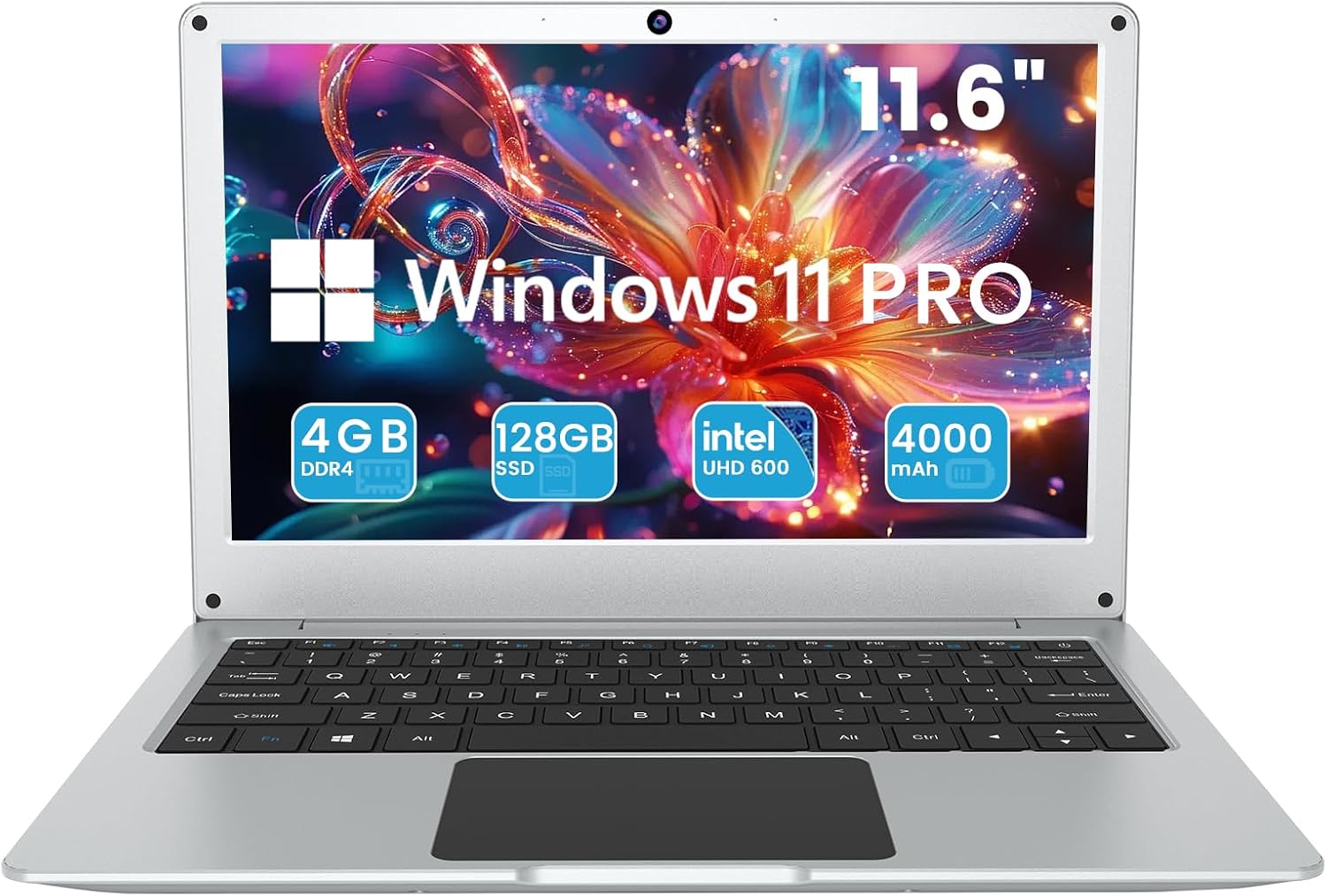
This image displays the Azeyou 11.6-inch laptop, highlighting its key specifications such as Windows 11 Pro operating system, 4GB DDR4 RAM, 128GB SSD storage, Intel UHD 600 integrated graphics, and a 4000mAh battery capacity.
6. Warranty Information
Azeyou products are covered by a limited warranty. Please refer to the warranty card included with your product packaging for specific terms, conditions, and duration of the warranty. Keep your proof of purchase for warranty claims.
The warranty typically covers manufacturing defects and malfunctions under normal use. It does not cover damage caused by misuse, accidents, unauthorized repairs, or natural disasters.
7. Customer Support
For technical assistance, troubleshooting, or warranty inquiries, please contact Azeyou customer support. You can typically find contact information on the manufacturer's official website or on the product packaging.
When contacting support, please have your laptop's model number (CG11Q6) and serial number (if applicable) ready, along with a detailed description of the issue you are experiencing.


