
1. Introduction
This manual provides detailed instructions for the installation, operation, and maintenance of your LINHAMCOLN Android Car Stereo Multimedia Player. Designed for Toyota RAV4 XA50 models from 2018 to 2023, this system offers advanced features including wireless CarPlay and Android Auto, GPS navigation, Bluetooth 5.0, and a high-resolution touch screen. Please read this manual thoroughly before installation and use to ensure optimal performance and safety.
2. What's in the Box
Your LINHAMCOLN Android Car Stereo Multimedia Player package includes the following components:
- Android Head Unit (10-inch touch screen)
- Dash Kit / OEM Panel
- Power Wire Cable (Plug & Play)
- RCA Cable
- Rear View Camera Cable (10-pin reversing video input interface)
- USB Cables (6-pin and 4-pin)
- GPS Antenna
- 4G Antenna
- Radio Antenna Adapter
- Canbus Wire Harness
- Microphone
- AUX Harness
- OEM USB Adapter
- SIM Card Slot Adapter
- Trim Tool
- Zipties
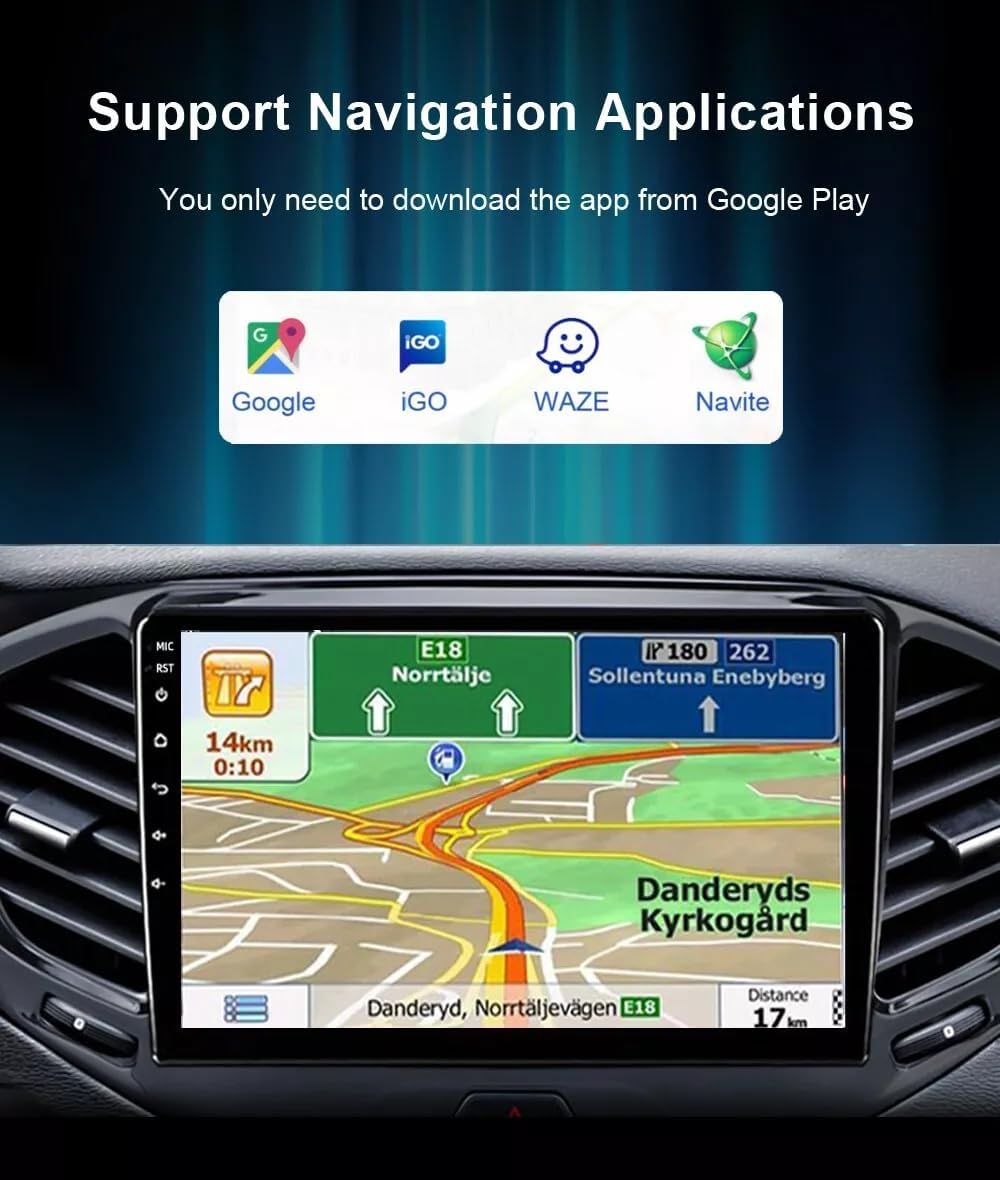
Image: All included cables and accessories for the LINHAMCOLN Android Car Stereo.
3. Specifications
- Operating System: Android
- Display Size: 10 Inches
- Resolution: 1024*600 (supports 1080P video playback)
- Processor: Quad Core
- RAM: 2GB
- ROM: 32GB
- Connectivity: Wi-Fi, Bluetooth 5.0
- Special Features: Built-In Bluetooth (hands-free calls, music), GPS Navigation, Wireless/Wired CarPlay & Android Auto, FM Radio (RDS tuner), Steering Wheel Control, RCA input/output, Double Rear USB Port Input, Rear View Camera Input.
- Mounting Type: Dashboard Mount
- Audio Output Mode: Stereo
- Item Weight: 2.64 pounds
- Package Dimensions: 12.5 x 8.6 x 5 inches
4. Setup & Installation
Follow these steps for proper installation of your Android Car Stereo. It is recommended to consult a professional if you are unsure about any part of the installation process.
4.1. Pre-Installation Check
- Verify compatibility: Ensure your Toyota RAV4 is a XA50 model (2018-2023).
- Inspect the original head unit: If the back of your original head unit has a specific configuration (as shown in the image below), installation may not be supported.
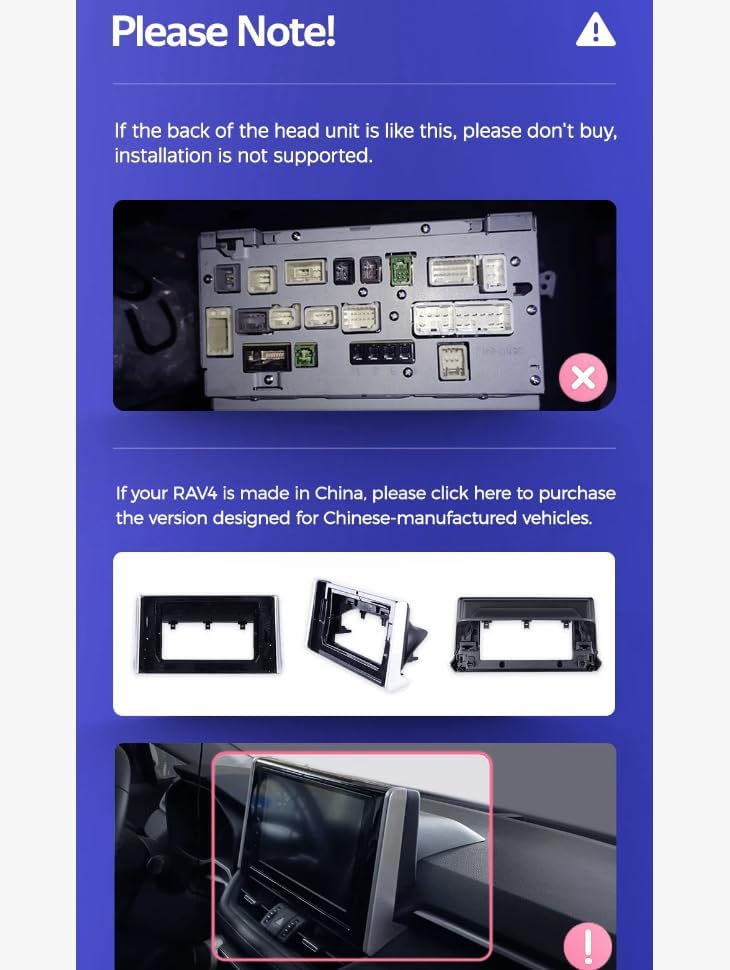
Image: Example of an original head unit's rear connections. Ensure compatibility before proceeding.
4.2. Radio Removal Steps
- Carefully pry and pull out the trim surrounding the original radio using the provided trim tool.
- Unscrew the bolts securing the original radio.
- Gently pull out the original radio unit.
- Disconnect all cables from the back of the original radio.
4.3. Wiring Connections
Connect the provided cables to the new Android head unit. All connectors are uniquely shaped to prevent incorrect connections. Refer to the wiring diagram for detailed guidance.
- Connect the 6-pin and 4-pin USB cables to their respective ports on the head unit.
- Connect the 10-pin reversing video input interface (rear camera signal wire).
- Attach the 4G antenna and GPS antenna to their designated ports.
- Connect the factory radio antenna to the ANT port.
- Connect the main power cable (plug and play) to the 16-pin port.
Video: Step-by-step guide on connecting the various cables to the Android head unit.
Video: Detailed installation process for the Android Car Stereo in a Toyota RAV4.
Video: Comprehensive installation and wiring guide for the Roadanvi 12.3" Head Unit in a Toyota RAV4 (2019-2022).
4.4. Final Installation
- Carefully place the new head unit into the dashboard opening.
- Secure the head unit with the appropriate bolts.
- Reattach the trim pieces, ensuring all clips are properly engaged.
- Test all functions of the new stereo system.

Image: Comparison of the dashboard before and after installing the new Android Car Stereo.
5. Operating Instructions
5.1. Power On/Off
The unit will power on automatically when the vehicle ignition is turned on. To power off, turn off the vehicle ignition.
5.2. Wireless CarPlay & Android Auto
The system supports both wireless and wired CarPlay/Android Auto. Connect your smartphone via Bluetooth or USB to activate these features and access navigation, music, messages, and more directly on the stereo screen.

Image: Display showing CarPlay and Android Auto interfaces for iOS and Android systems.
5.3. GPS Navigation
Utilize the built-in GPS navigation system. You can download navigation applications like Google Maps, iGO, Waze, and Navitel from Google Play Store for real-time directions and traffic updates.
Image: Stereo display showing various navigation applications available for download.
5.4. Bluetooth 5.0
Connect your phone via Bluetooth 5.0 for hands-free calls, Bluetooth music streaming, and phonebook access. Ensure your phone's Bluetooth is enabled and pair it with the stereo.
5.5. FM Radio
The unit features a built-in FM RDS tuner radio. Scan for available stations or manually tune to your preferred frequencies. The RDS function provides station information and other relevant data.
5.6. Split Screen Functionality
Enjoy multitasking with the split-screen feature. You can listen to the radio or music while simultaneously using navigation or browsing the web.
5.7. Steering Wheel Control
The system retains all original steering wheel control functions, allowing you to easily switch songs, channels, and adjust volume without taking your hands off the steering wheel.
6. Maintenance
- Screen Cleaning: Use a soft, lint-free cloth to clean the touch screen. Avoid abrasive cleaners or solvents.
- Software Updates: Periodically check for software updates to ensure optimal performance and access to new features. Updates can usually be found on the manufacturer's website or through the device's settings.
- General Care: Avoid exposing the unit to extreme temperatures, direct sunlight for prolonged periods, or excessive moisture.
7. Troubleshooting
- No Power: Check all power connections and ensure the vehicle's ignition is on. Verify the fuse is intact.
- No Sound: Check speaker connections and volume settings. Ensure the correct audio source is selected.
- Touch Screen Unresponsive: Try restarting the unit. If the issue persists, perform a factory reset (refer to settings for password if required).
- CarPlay/Android Auto Not Connecting: Ensure Bluetooth is enabled on your phone and the stereo. For wired connections, check the USB cable and port.
- Rear Camera Not Displaying: Verify the rear camera cable (CAM VIN) is correctly connected and the reverse gear is engaged.
8. Warranty & Support
This LINHAMCOLN Android Car Stereo Multimedia Player comes with a 1-year warranty from the date of purchase. For technical support, troubleshooting assistance, or warranty claims, please contact LINHAMCOLN customer service through the platform where you purchased the product.