
1. Introduction
This manual provides detailed instructions for the setup, operation, maintenance, and troubleshooting of your MAGIC-REFINER ATTACK SHARK X85PRO 75% Wireless Mechanical Keyboard. Please read this manual thoroughly to ensure proper use and to maximize your keyboard's performance and longevity.
The X85PRO is a versatile 75% layout mechanical keyboard featuring multi-mode connectivity (Wired, 2.4GHz, Bluetooth), a customizable TFT smart display, an aluminum control knob, hot-swappable switches, and programmable RGB lighting.

Image 1.1: The ATTACK SHARK X85PRO 75% Wireless Mechanical Keyboard, showcasing its compact layout, included extra keycaps, and coiled USB-C cable.
2. Package Contents
Verify that all items are present in your package:
- ATTACK SHARK X85PRO 75% Wireless Mechanical Keyboard
- USB-A to USB-C Coiled Cable
- 2.4GHz Wireless Receiver (stored in keyboard)
- Keycap Puller / Switch Puller Tool
- Extra PBT Keycaps (5 pieces)
- Extra Switches (2 pieces)
- User Manual (this document)
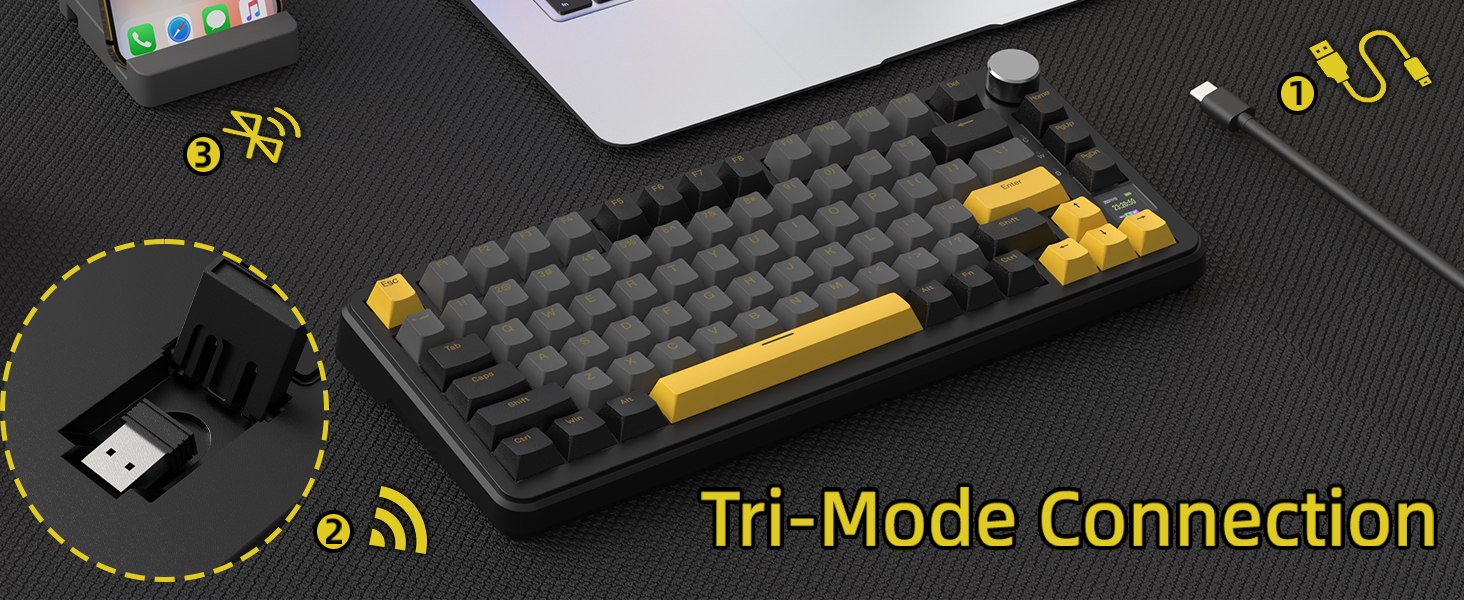
Image 2.1: Overview of the X85PRO's main features.
3. Product Overview
3.1 Key Components
- 75% Layout: Compact design with 81 keys, retaining essential function keys.
- TFT Smart Display: 1.14-inch color screen displaying battery level, time/date, connection mode, and OS status.
- Aluminum Knob: Multi-function knob for controlling volume, RGB effects, and navigating display menus.
- PBT Keycaps: Durable, side-printed keycaps.
- Hot-Swappable Switches: Compatible with 3/5-pin switches, pre-lubed Blueberry linear switches installed.
- Gasket Mount Structure: 5-layer sound-absorbing design for a smooth typing experience.
- Tri-Mode Connectivity: USB-C Wired, 2.4GHz Wireless, and Bluetooth 5.0.
- 4000mAh Battery: Long-lasting power for wireless use.
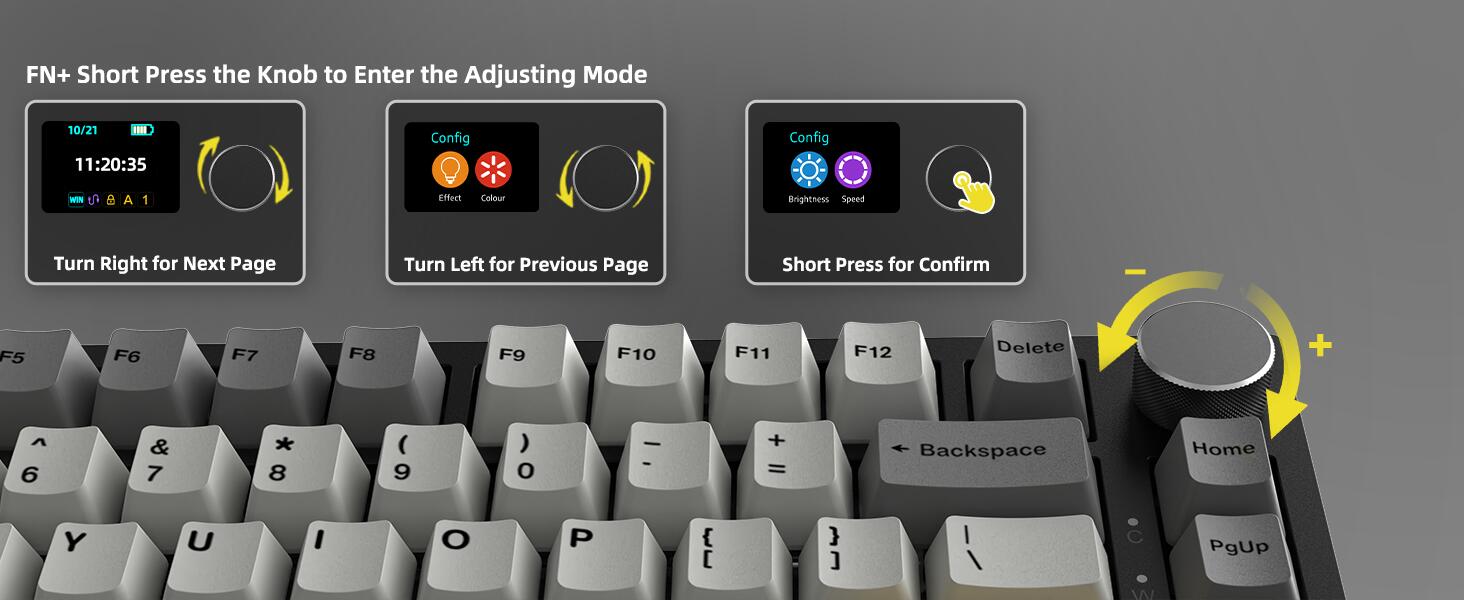
Image 3.1: The multi-function knob and TFT smart display.
4. Setup
4.1 Wired Connection
- Locate the USB-C port on the keyboard.
- Connect one end of the provided USB-C coiled cable to the keyboard.
- Connect the other end (USB-A) to an available USB port on your computer.
- The keyboard will automatically be recognized and ready for use.
4.2 2.4GHz Wireless Connection
- Locate the 2.4GHz wireless receiver, typically stored in a magnetic slot on the keyboard's underside.
- Insert the 2.4GHz receiver into an available USB port on your computer.
- Ensure the keyboard's mode switch (usually on the side or back) is set to 2.4G mode.
- The keyboard should connect automatically.
4.3 Bluetooth Connection
- Ensure the keyboard's mode switch is set to Bluetooth mode.
- On the keyboard, press Fn + 1, Fn + 2, or Fn + 3 to select a Bluetooth channel. The corresponding indicator on the TFT display will flash, indicating pairing mode.
- On your computer or device, open Bluetooth settings and search for new devices.
- Select "ATTACK SHARK X85PRO" from the list of available devices to pair.
- Once paired, the indicator on the TFT display will stop flashing.
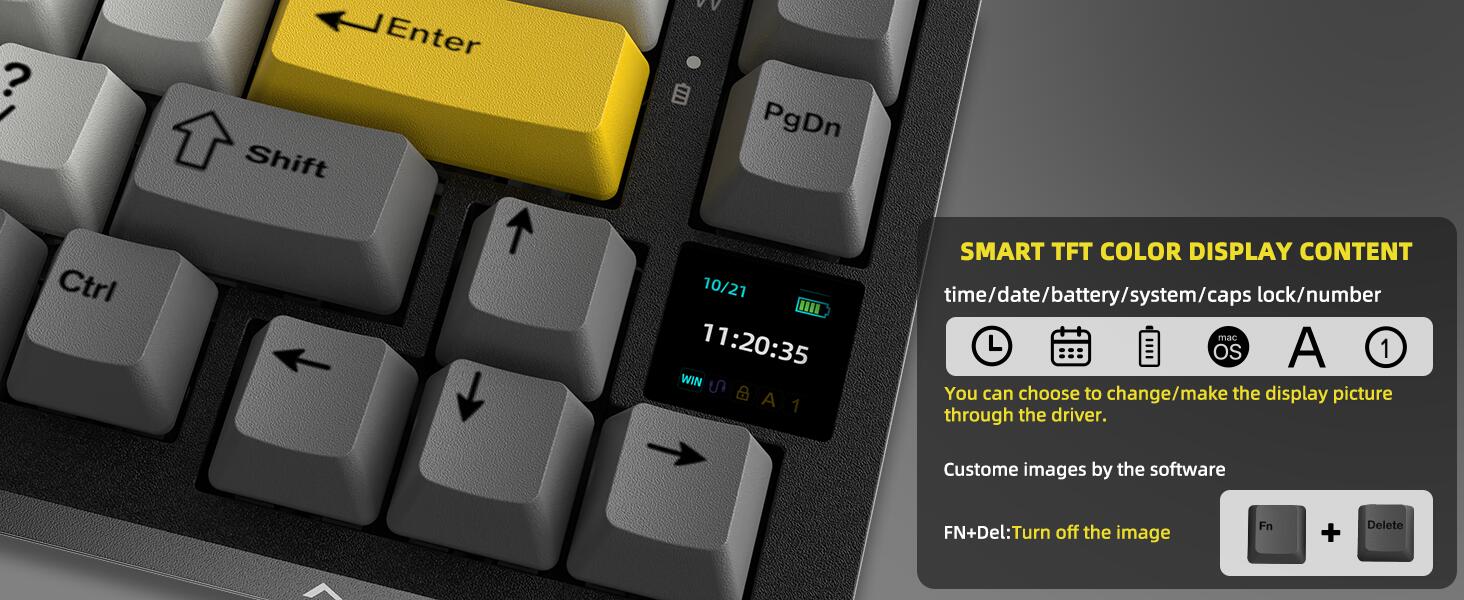
Image 4.1: Tri-mode connection options for the X85PRO keyboard.
5. Operating Instructions
5.1 Power On/Off
The power switch is located on the back or side of the keyboard. Slide it to the 'ON' position to power on and 'OFF' to power off.
5.2 Switching Connectivity Modes
Use the mode switch on the keyboard to select between Wired, 2.4G, and BT (Bluetooth) modes. The TFT display will indicate the current connection mode.
5.3 TFT Smart Display & Knob Functions
The 1.14-inch TFT color screen provides real-time information and customization options:
- Home Screen: Displays date, time, battery level, connection mode, and OS status (Win/Mac).
- Knob Operation:
- Rotate: Adjusts volume, navigates menus, or changes RGB brightness/speed.
- Short Press: Confirms selection or enters adjustment mode.
- Fn + Short Press Knob: Enters the adjusting mode for RGB effects, colors, brightness, and speed. Turn right for the next page, turn left for the previous page. Short press to confirm.
- Fn + Delete: Turns off the display image.
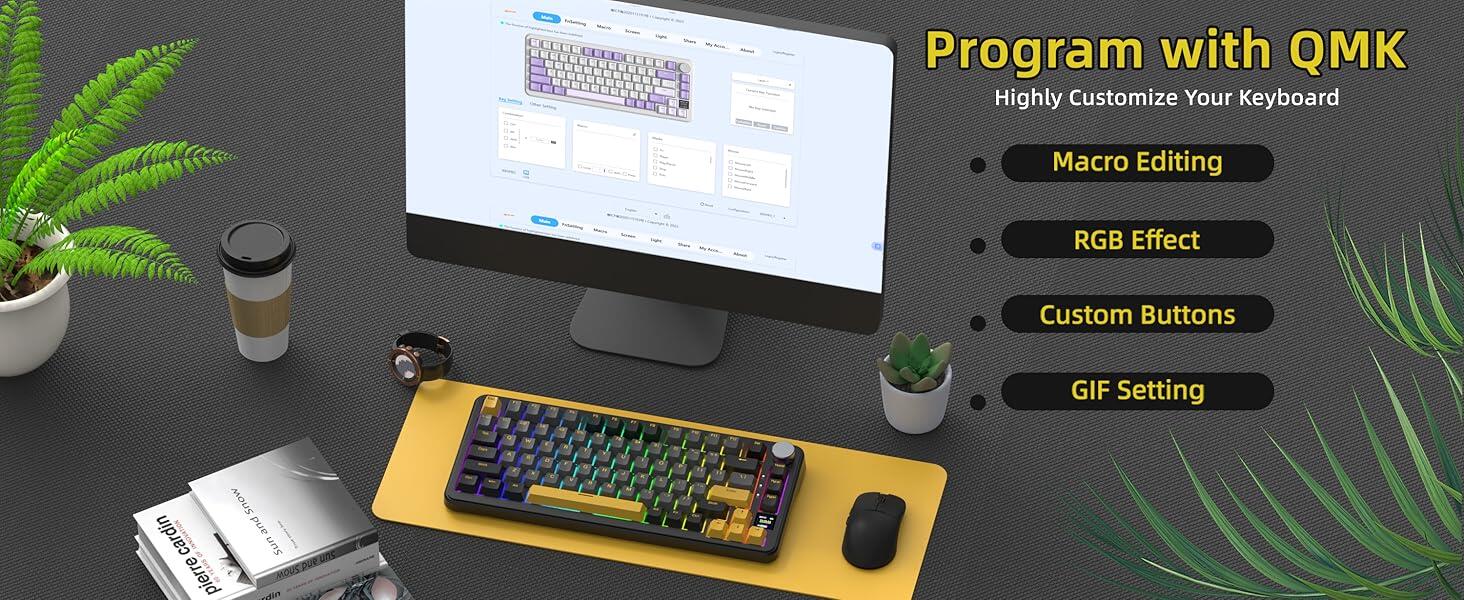
Image 5.1: TFT Smart Display content and knob adjustment functions.
5.4 RGB Lighting Control
The keyboard features programmable RGB lighting with south-facing LEDs. You can customize lighting effects and colors:
- On-board Controls: Use Fn + shortcut keys (refer to keyboard legends) to cycle through 8 monochrome backlights, 1 full-color backlight, and 18 light flow effects.
- Knob Control: As described above, use Fn + Short Press Knob to enter adjustment mode for RGB brightness, effects, and speed.
- Software Control: For advanced customization, use the OMK Cloud Driver software.
5.5 Customization with OMK Cloud Driver
The OMK Cloud Driver software allows for extensive personalization:
- Macro Editing
- RGB Effect Customization
- Custom Button Assignments
- GIF Setting for the TFT Display
Download the OMK Cloud Driver from the official MAGIC-REFINER website.
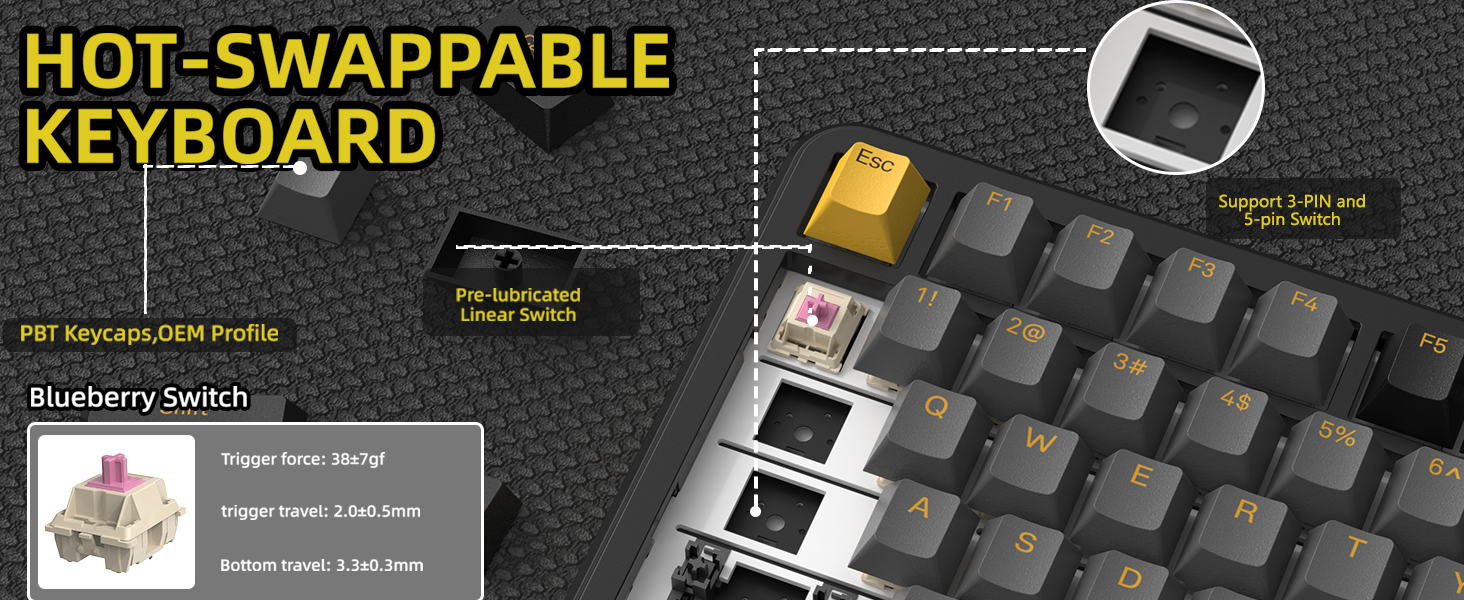
Image 5.2: Customizing the keyboard with OMK Cloud Driver software.
6. Maintenance
6.1 Cleaning
- Keycaps: Use the provided keycap puller to remove keycaps. Clean them with a mild soap solution and a soft cloth, then air dry completely before reattaching.
- Keyboard Surface: Wipe the keyboard surface with a soft, damp cloth. Avoid harsh chemicals or abrasive materials.
- Between Keys: Use compressed air to remove dust and debris from between the keys.
6.2 Battery Management
The X85PRO is equipped with a 4000mAh battery. To ensure optimal battery life:
- Charge the keyboard using the provided USB-C cable. It can be charged while in wired mode.
- Battery life can last over 200 hours with RGB lighting off. With typical RGB usage, expect shorter durations.
- The TFT display shows the current battery level.
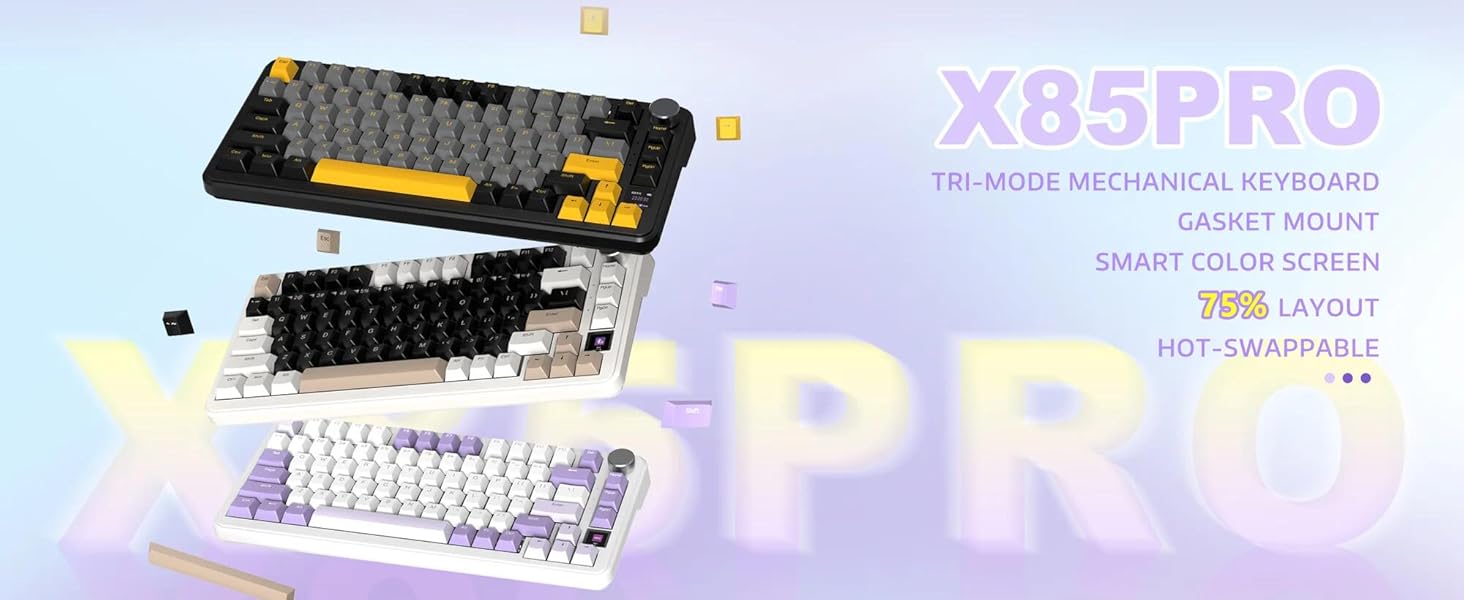
Image 6.1: Battery life and charging information.
6.3 Hot-Swapping Switches and Keycaps
The keyboard supports hot-swapping switches, allowing you to change them without soldering.
- Removing Keycaps: Use the keycap puller to gently grip and pull the keycap straight up.
- Removing Switches: Use the switch puller tool to carefully grip the top and bottom clips of the switch and pull it straight up.
- Installing Switches: Align the pins of the new 3-pin or 5-pin switch with the holes on the PCB. Press down gently until the switch clicks into place. Ensure pins are not bent.
- Installing Keycaps: Align the keycap with the switch stem and press down firmly until it is seated.
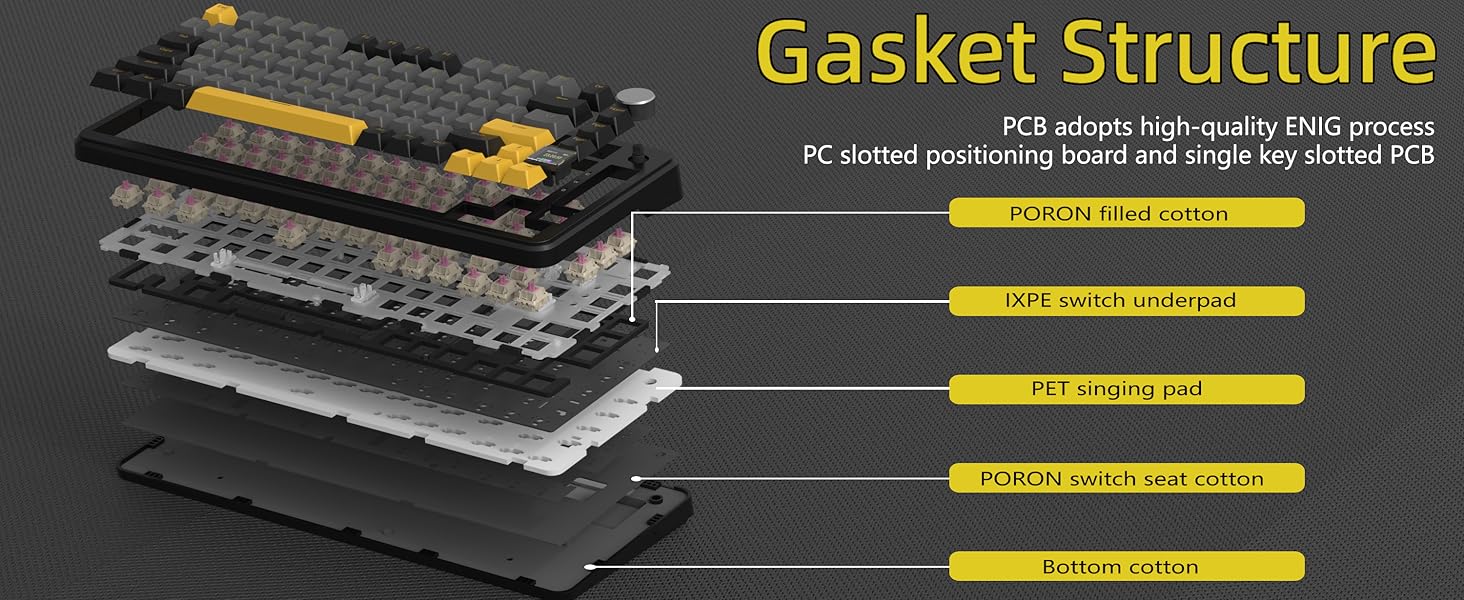
Image 6.2: Gasket structure layers for enhanced typing feel.
Image 6.3: Hot-swappable switch mechanism and Blueberry switch specifications.
7. Troubleshooting
If you encounter issues with your keyboard, refer to the following common problems and solutions:
| Problem | Possible Cause | Solution |
|---|---|---|
| Keyboard not responding (Wired) | Loose cable connection, faulty USB port, incorrect mode. | Ensure USB-C cable is securely connected. Try a different USB port. Check if the keyboard is in Wired mode. |
| Keyboard not responding (2.4GHz) | Receiver not plugged in, incorrect mode, low battery. | Ensure 2.4GHz receiver is plugged in. Set keyboard to 2.4G mode. Charge the keyboard. |
| Keyboard not responding (Bluetooth) | Not paired, incorrect channel, low battery, Bluetooth disabled on device. | Ensure keyboard is in BT mode and paired to the correct channel. Charge the keyboard. Enable Bluetooth on your device. Re-pair if necessary. |
| RGB lighting not working or incorrect | RGB turned off, incorrect setting, software conflict. | Check RGB settings via Fn keys or the knob. Ensure RGB is enabled in OMK Cloud Driver. Restart keyboard. |
| Keys not registering or double-typing | Faulty switch, debris under keycap, software issue. | Remove keycap and clean. If issue persists, hot-swap the switch with a spare. Update keyboard firmware if available. |
| TFT display is blank | Display turned off, low battery. | Press Fn + Delete to toggle the display. Charge the keyboard. |
7.1 Factory Reset
If issues persist, a factory reset may resolve them. Consult the OMK Cloud Driver software or the official product support page for specific instructions on performing a factory reset for the X85PRO model.
8. Specifications
| Feature | Detail |
|---|---|
| Model Number | X85 PRO |
| Layout | 75% ANSI (81 keys) |
| Connectivity | USB-C Wired, 2.4GHz Wireless, Bluetooth 5.0 |
| Switches | Pre-lubed Blueberry Linear (Hot-swappable 3/5-pin) |
| Keycaps | PBT, Side-printed |
| Display | 1.14-inch TFT Color Screen |
| Battery Capacity | 4000mAh |
| RGB Lighting | Programmable, South-facing LEDs |
| Compatible OS | Windows, macOS |
| Material | Aluminum (frame/knob) |
| Item Weight | 2.51 pounds |
| Package Dimensions | 14.29 x 7.6 x 2.17 inches |
9. Warranty and Support
MAGIC-REFINER products are designed and manufactured to the highest quality standards. For information regarding warranty coverage, technical support, or service inquiries, please refer to the warranty card included with your product or visit the official MAGIC-REFINER website. Please retain your proof of purchase for warranty claims.


