
Introduction
This manual provides comprehensive instructions for the installation and operation of your Yomikoo Bluetooth 5.0 Car Audio Adapter. This device integrates Bluetooth 5.0, USB, and AUX input functionalities into your vehicle's factory radio system, enabling modern audio streaming and hands-free calling. Please read this manual thoroughly before installation and use to ensure proper function and safety.
Safety Information
- Ensure the vehicle's ignition is off and the battery is disconnected before beginning installation to prevent electrical shorts or damage.
- Do not place the adapter under direct sunlight exposure on the windshield, as high temperatures can cause product deformation.
- Professional installation is recommended if you are unfamiliar with car audio system wiring.
- Operate the device responsibly and avoid distractions while driving.
Package Contents
Verify that all items are present in your package:
- Bluetooth Adapter (Main Unit)
- Y-Cable (for CD changer port if occupied)
- Microphone (for hands-free calling)
- USB Card Reader (for USB input)

Image: Contents of the Yomikoo Bluetooth 5.0 Car Audio Adapter package, including the main adapter unit, Y-cable, microphone, and USB card reader.
Compatibility
This adapter is designed for specific Honda and Acura factory radio models. It is only compatible with Honda factory radios and is not compatible with Integrated Satellite (AT/PTY/XM/Sirius) systems. Please verify your vehicle's compatibility using the table below and by checking the CD changer port on your radio.

Image: A table detailing compatible Honda and Acura car models and years, along with specific notes for certain models.
- Honda Models: Accord (2003-2011), Civic (2006-2010, not for 5D), City (2002-2011), CR-V (2004-2011), FR-V (2004-2009), Element (2003-2011), Odyssey (2005-2010), Pilot (2005-2011), Fit/Jazz (2006-2011), S2000 (2005-2010), Legend (2006-2011), Ridgeline (2006-2011).
- Acura Models: CSX (2006-2011), MDX (2005-2006), RDX (2007-2011), TSX (2004-2011, except Type S).
- The adapter is designed for 6-CD changer radios.
- The USB port on the adapter is for charging only and does not support music playback directly from a USB drive.
Setup and Installation
Follow these steps to install the Yomikoo Bluetooth 5.0 Car Audio Adapter:
- Prepare the Vehicle: Ensure the vehicle's ignition is off. It is recommended to disconnect the car battery's negative terminal before proceeding.
- Access the Radio: Carefully remove the car's factory radio from the dashboard to access the rear connections. Refer to your vehicle's service manual for specific instructions on radio removal.
- Locate the CD Changer Port: Identify the CD changer port on the back of your factory radio. This is typically a multi-pin connector.
- Connect the Y-Cable (if necessary): If your CD changer port is already occupied by another device, you will need to use the provided Y-cable. Connect the Y-cable to the CD changer port, then connect the existing device and the Yomikoo adapter to the Y-cable's two inputs.
- Connect the Adapter: Plug the main connector of the Yomikoo Bluetooth adapter into the CD changer port (or the Y-cable if used).
- Connect Microphone and USB: Plug the microphone into the designated port on the adapter. If using the USB input for charging, connect the USB card reader.
- Route Cables: Carefully route all cables to avoid interference with vehicle operation and to ensure a tidy installation. Secure the adapter unit in a suitable location, away from excessive heat or moisture.
- Reassemble: Reconnect the car battery's negative terminal. Reinstall the car radio and any removed dashboard panels.

Image: A detailed view of the CD changer port on the back of a car radio, highlighted with an orange box, and the corresponding adapter connector.

Image: The Y-cable, showing its two input connectors and one output connector, used for connecting multiple devices to a single port.
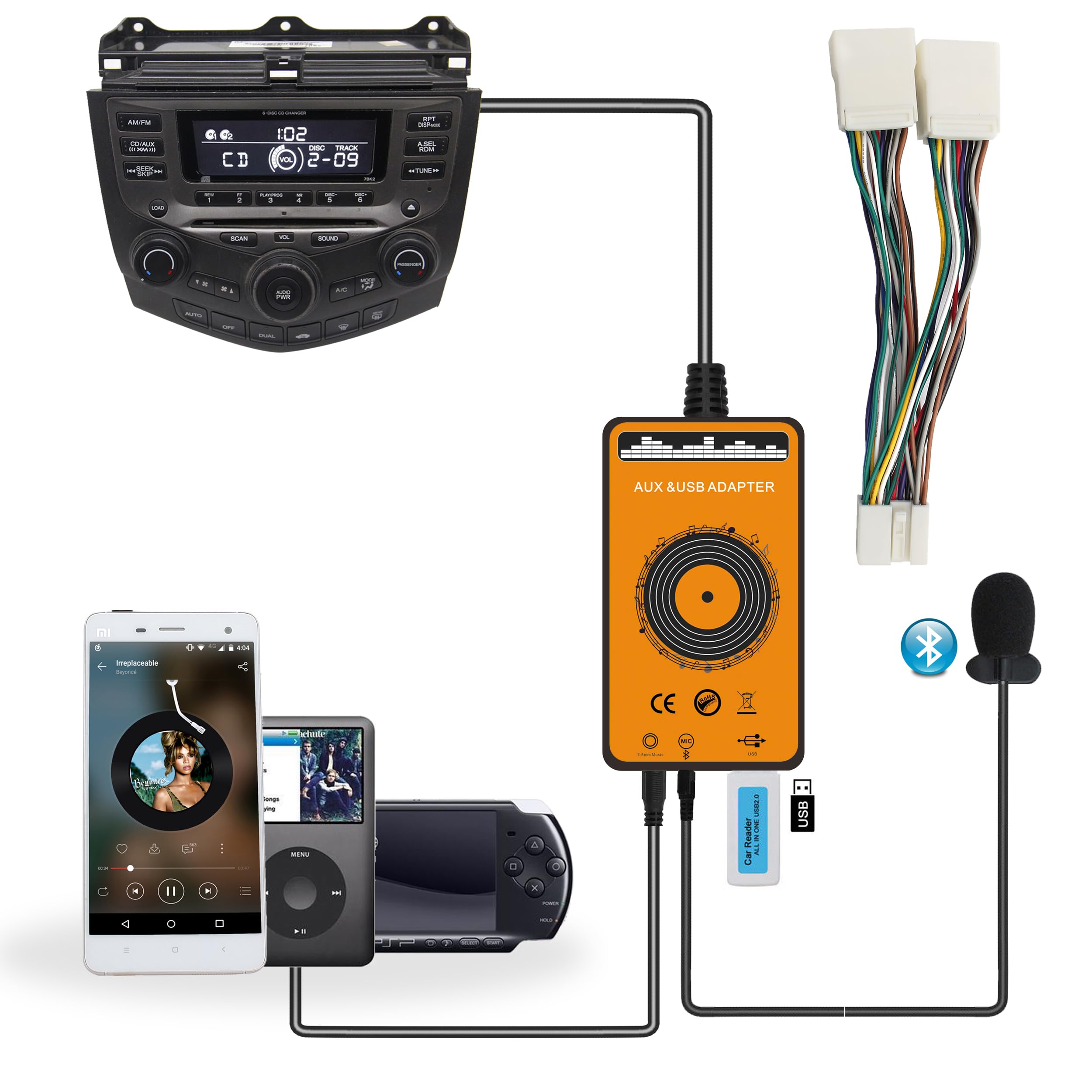
Image: A comprehensive diagram illustrating the connection of the Yomikoo Bluetooth adapter to a car radio, including connections for USB, AUX, and Bluetooth devices.
Operating Instructions
General Operation (CD/AUX/USB Modes)
- To switch between modes (CD, AUX, USB), press the CD/DISC button on your car radio.
- Pressing the CD/DISC button once typically activates CD mode.
- Pressing the CD/DISC button twice will switch to AUX mode.
- To switch to USB mode, press the RDM button. If there is no disc in the CD player, you can switch to USB mode directly using the RDM button.
- The CD key can be used to switch back to CD mode.
Bluetooth Use
- After the car starts, Bluetooth needs to be manually connected to your device.
- To use Bluetooth for music playback, ensure that any connected USB or AUX devices are disconnected first. Then, reconnect your Bluetooth device.
- For hands-free calls, the built-in Bluetooth function supports answering calls.
- When answering a phone call via Bluetooth, some mobile phones may require you to select the car speaker as the audio output; otherwise, the phone's internal speaker might be preferred.

Image: A car radio display indicating how to switch between AUX and USB modes using the RPT and RDM buttons.
Steering Wheel and Radio Panel Control
Both Bluetooth and USB functions support control via your vehicle's steering wheel controls and radio panel, enhancing convenience during driving.
Maintenance
- Keep the adapter unit clean and free from dust. Use a soft, dry cloth for cleaning.
- Avoid exposing the unit to extreme temperatures, direct sunlight, or moisture.
- Ensure all cable connections are secure to prevent intermittent audio or functionality issues.
Troubleshooting
- No Audio Output:
- Ensure the adapter is correctly connected to the CD changer port.
- Verify that the car radio is switched to the correct input mode (AUX or CD changer mode).
- Check your audio source (phone, MP3 player) for proper playback and volume settings.
- Bluetooth Connection Issues:
- Ensure Bluetooth is enabled on your mobile device.
- Make sure no other devices are currently connected to the adapter via Bluetooth.
- If USB or AUX is connected, disconnect them before attempting Bluetooth pairing.
- Restart your mobile device and the car's ignition, then try pairing again.
- Grounding Noise:
- Grounding noise can occur due to ground loops when the audio source and speaker share the same power source.
- Ensure all connections are secure and properly insulated.
- Consider using a ground loop isolator if the noise persists (not included).
- USB Port Not Playing Music:
- The USB port on this adapter is primarily for charging devices and does not support direct music playback from USB drives.
Specifications
- Bluetooth Version: 5.0
- Inputs: Bluetooth, USB (charging only), AUX
- Control: Supports Steering Wheel Control and Radio Panel Control
- Compatibility: Specific 2003-2014 Honda and Acura factory radios (refer to compatibility section)
- Model Number: B0DYTDSRDR
Warranty and Support
For warranty information and technical support, please refer to the manufacturer's official website or contact the seller directly. Keep your purchase receipt as proof of purchase.