
1. Introduction
Thank you for choosing the RECCAZR Ergonomic Wireless Keyboard. This keyboard is designed to provide a comfortable and natural typing experience, reducing strain during prolonged use. Featuring a unique wave-key layout and an integrated wrist rest, it promotes better posture and enhanced productivity. This manual provides essential information for setting up, operating, and maintaining your new keyboard.

Image: The RECCAZR Ergonomic Wireless Keyboard, showcasing its wave-key design and integrated wrist rest, alongside its compact USB receiver.
2. Product Features
- Ergonomic Wave Keys: Designed with a curved surface layout to support natural typing posture and maximize hand comfort. Its compact form factor allows for a more natural shoulder position.
- 2.4GHz Wireless Connection: Provides a stable and reliable wireless connection up to 10 meters (33 feet). The keyboard and mouse (if applicable) share a single nano USB receiver, requiring no additional USB ports.
- Integrated Comfortable Wrist Rest: Improves overall comfort and reduces pressure on hands and wrists, helping maintain a comfortable wrist position and better body posture. Features a foldable stand for adjustable tilt.
- High-Quality Construction: Built with a sturdy internal metal fixing plate for enhanced stability. Features a waterproof membrane switch for durability.
- Spill-Resistant Design: Engineered to withstand minor liquid spills. Equipped with bottom drain holes to facilitate drainage. In case of a spill, disconnect the keyboard and allow it to dry completely before resuming use.
- Plug and Play: Features a standard keyboard layout with full F-keys and a number pad. No additional drivers or software are required for operation.
- Wide Compatibility: Compatible with Windows XP/Vista/7/8/10/11, Mac OS, and other operating systems. Works seamlessly with desktops, PCs, laptops, and other computer devices.

Image: The keyboard positioned on a desk, illustrating its ergonomic compact design, wave-curved ergonomic palm rest, and adjustable kickstands, all contributing to typing comfort.
3. Package Contents
Please check the package contents upon unboxing:
- RECCAZR Ergonomic Wireless Keyboard
- Nano USB Receiver
- User Manual (this document)
Note: 1 AA battery is required for operation and is not included in the package.
4. Setup
- Insert Battery: Locate the battery compartment on the underside of the keyboard. Insert one (1) AA battery, ensuring correct polarity.
- Connect USB Receiver: Plug the nano USB receiver into an available USB-A port on your computer (desktop, laptop, PC).
- Power On: Locate the ON/OFF switch on the keyboard, usually on the top edge or underside, and slide it to the 'ON' position.
- Automatic Connection: The keyboard will automatically connect to your computer. No additional drivers or software installation is required.
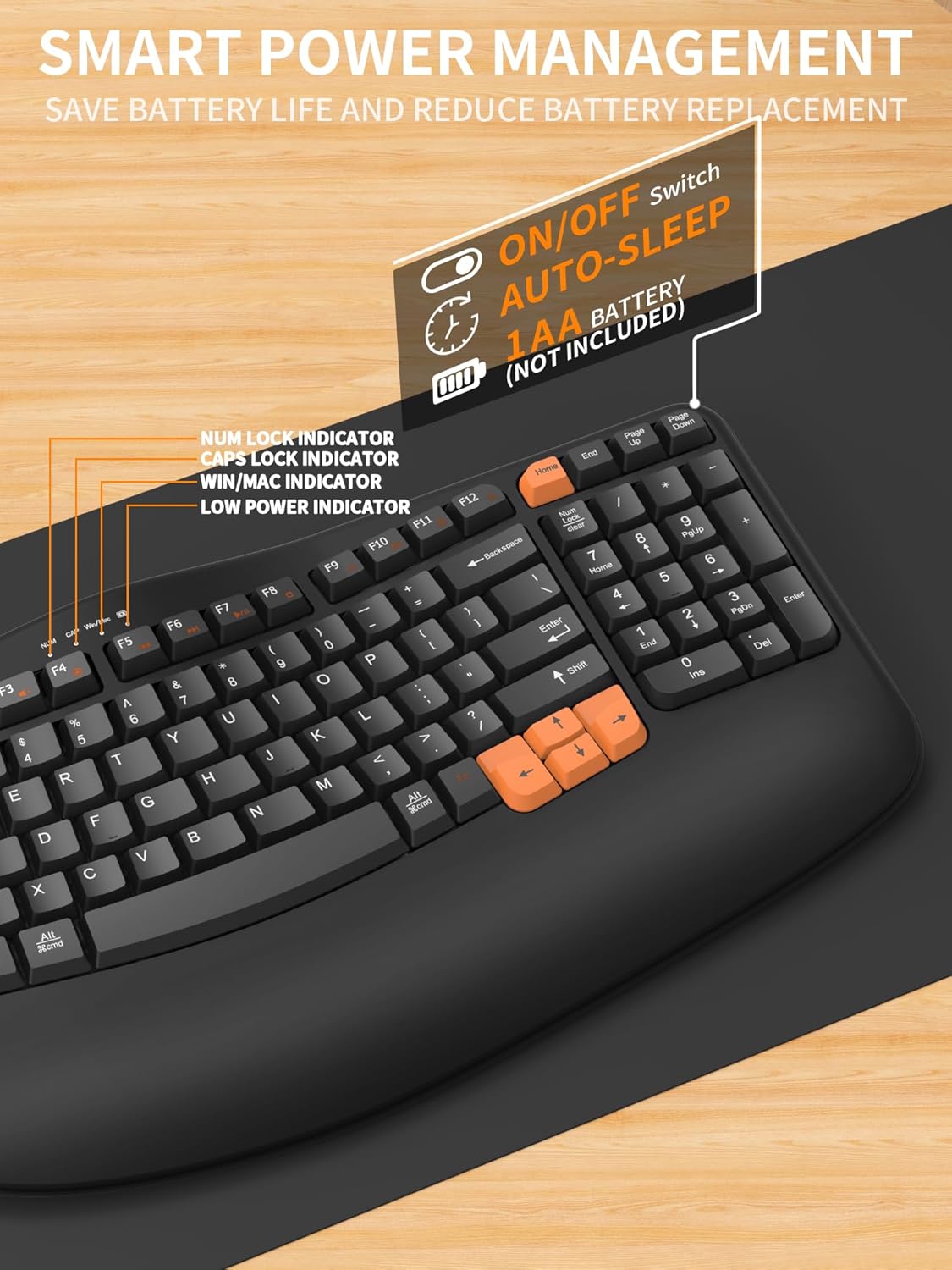
Image: A detailed view of the keyboard's top right section, highlighting the ON/OFF switch, auto-sleep feature, and the location for the 1 AA battery (not included). Indicator lights for Num Lock, Caps Lock, Win/Mac, and Low Power are also visible.
5. Operating Instructions
5.1. Wireless Connection
The keyboard utilizes a 2.4GHz wireless connection for stable and efficient communication with your device. Ensure the USB receiver is securely plugged into your computer and the keyboard is powered on.

Image: The keyboard on a desk, illustrating its 2-in-1 plug & play functionality, 2.4GHz wireless connection, and a wireless range of up to 33 feet. Icons indicate compatibility with Windows, Mac OS, and Linux.
5.2. Multimedia Keys and Functionality
The keyboard includes dedicated multimedia function keys (F1-F12) that can be accessed directly or by pressing the 'Fn' key in combination with the respective F-key, depending on your operating system and settings.
| Key | Function |
|---|---|
| F1 | Music |
| F2 | Volume Down |
| F3 | Volume Up |
| F4 | Mute |
| F5 | Previous Track |
| F6 | Next Track |
| F7 | Play/Pause |
| F8 | Stop |
| F9 | Browser |
| F10 | |
| F11 | My Computer |
| F12 | Calculator |
5.3. Operating System Layout Switching
The keyboard supports both Windows and Mac OS layouts. Use the following key combinations to switch between modes:
- FN + Q: Switches to Mac OS layout (Option, Cmd, Clear functions).
- FN + W: Switches to Windows layout (Win, Alt, Num Lock functions).

Image: The keyboard positioned between a Windows laptop and a Mac OS laptop, illustrating its broad compatibility with both operating systems.
5.4. Smart Power Management
To conserve battery life, the keyboard features an ON/OFF switch and an auto-sleep function. The keyboard will enter a low-power sleep mode after a period of inactivity. Press any key to wake it up.
Indicator lights on the keyboard provide status information:
- Num Lock Indicator: Illuminates when Number Lock is active.
- Caps Lock Indicator: Illuminates when Caps Lock is active.
- Win/Mac Indicator: Indicates the currently selected operating system layout.
- Low Power Indicator: Illuminates or blinks when the battery level is low, signaling that the battery needs replacement.
6. Maintenance
6.1. Spill-Resistant Care
While the keyboard features a spill-resistant design, it is not fully waterproof. In case of accidental liquid spills:
- Immediately disconnect the keyboard from your computer.
- Turn the keyboard upside down to allow liquid to drain through the bottom drain holes.
- Wipe the surface with a clean, dry cloth.
- Allow the keyboard to air dry completely before reconnecting and resuming use. Do not use external heat sources to dry.

Image: A close-up view of the keyboard keys with water droplets, demonstrating its spill-resistant design.
6.2. General Cleaning
To clean the keyboard, gently wipe the surface with a soft, slightly damp cloth. Avoid using abrasive cleaners, solvents, or harsh chemicals, as these may damage the keyboard's finish or internal components.
7. Troubleshooting
If you encounter issues with your RECCAZR Ergonomic Wireless Keyboard, please refer to the following common troubleshooting steps:
- Keyboard Not Responding:
- Ensure the keyboard is powered on (ON/OFF switch).
- Check the battery level and replace the AA battery if the low power indicator is on or if the keyboard has been in use for an extended period.
- Verify that the nano USB receiver is securely plugged into a working USB port on your computer. Try a different USB port if necessary.
- Move the keyboard closer to the USB receiver to ensure it is within the 10-meter (33-foot) wireless range and free from interference.
- Keys Not Registering or Delayed Response:
- Ensure there are no obstructions under the keys.
- Check for strong wireless interference from other 2.4GHz devices. Try moving the receiver or keyboard to a different location.
- If the keyboard has entered auto-sleep mode, press any key to wake it up.
- Incorrect Key Output (e.g., 'Q' types 'A'):
- Verify that the keyboard is set to the correct operating system layout (Windows or Mac OS) using the FN+Q or FN+W key combinations as described in Section 5.3.
8. Specifications
| Feature | Detail |
|---|---|
| Model | B0DYSDK4J2 |
| Brand | RECCAZR |
| Connectivity Technology | 2.4GHz Wireless (USB-A Receiver) |
| Keyboard Description | Membrane |
| Number of Keys | 97 |
| Special Features | Ergonomic, Wrist Rest, Spill-Resistant |
| Color | Black&Orange |
| Compatible Devices | PC (Windows XP/Vista/7/8/10/11, Mac OS) |
| Item Weight | 2.61 pounds |
| Package Dimensions | 16.97 x 9.33 x 1.73 inches |
| Country of Origin | China |

Image: Technical drawing showing the top-down dimensions (389.6mm width) and side profile dimensions (41.6mm height) of the keyboard, including the adjustable kickstand.

Image: An exploded diagram illustrating the internal structure of the keyboard, including the Ergonomic Wave Keys, High Quality ABS Cover, Waterproof Membrane Switch, Metal Fixed Plate, High Quality ABS Bottom Cover, and Drain Hole.
9. Warranty and Support
RECCAZR is committed to providing high-quality products and excellent customer service. If you encounter any problems during the use of your keyboard or have any suggestions, please do not hesitate to contact us via Amazon email.
Our dedicated RECCAZR Service Team is available to provide 24-hour, 365-day support to ensure a satisfactory solution to any issues you may experience.

Image: A graphic indicating the availability of the RECCAZR Service Team for 24-hour, 365-day support, encouraging customers to reach out with problems or suggestions.