
1. Introduction
The TUOPUONE LCD1602 I2C Module is a character liquid crystal display designed for integration with various microcontrollers and development boards. It features a 16x2 character display and utilizes an I2C communication interface, requiring only two signal pins (SCL, SDA) for operation, thereby conserving I/O resources on your host device. This module is compatible with both 3.3V and 5V operating voltages and includes an adjustable backlight.
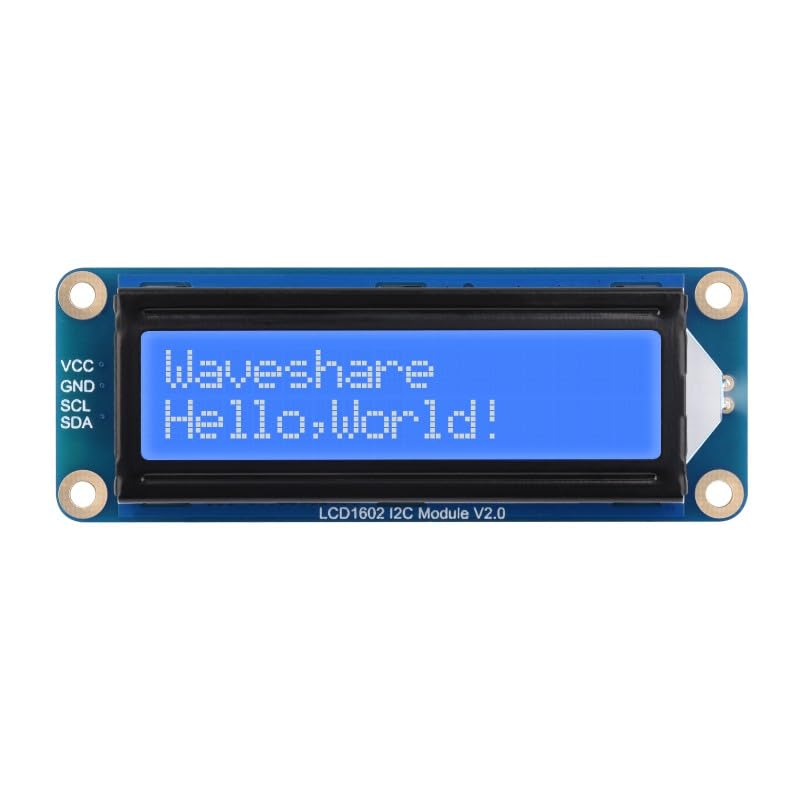
Figure 1: Front view of the LCD1602 I2C Module.
2. Features
- Incorporates a character LCD panel, model LCD1602.
- I2C control interface, requiring only two signal pins (SCL, SDA) to save I/O resources.
- Compatible with 3.3V and 5V operating voltages.
- Onboard AiP31068 LCD driver and SN3193 backlight driver.
- Adjustable backlight for varied lighting conditions.
- Comes with online development resources and example code for Raspberry Pi, Jetson Nano, ESP32, and Arduino.

Figure 2: Overview of LCD1602 I2C Module features and display options.
3. Specifications
| Parameter | Value |
|---|---|
| Communication Interface | I2C |
| LCD Controller | AiP31068 |
| Operating Voltage | 3.3V ~ 5V |
| Backlight Driver | SN3193 |
| Display Panel | Character LCD |
| Characters | 16 × 2 |
| Display Size | 64.5 × 16.0 mm |
| Operating Temperature | -20 ~ +70 °C |
| Dimensions | 87.0 × 32.0 × 13.0 mm |

Figure 3: Detailed specifications and features summary.
4. Pinout and Interface
The LCD1602 I2C Module uses a 4-pin interface for I2C communication and power supply. The pins are clearly labeled on the module.

Figure 4: Back view of the module highlighting the I2C interface pins.
| Pin | Description |
|---|---|
| VCC | Power supply input (3.3V ~ 5V) |
| GND | Ground |
| SCL | I2C Clock Line |
| SDA | I2C Data Line |
5. Setup and Connection
To connect the LCD1602 I2C Module to your development board (e.g., Raspberry Pi, Arduino), follow these steps:
- Connect the VCC pin of the module to the 3.3V or 5V power output of your development board. Ensure the voltage matches the board's I2C logic level.
- Connect the GND pin of the module to the Ground pin of your development board.
- Connect the SCL pin of the module to the I2C Clock (SCL) pin of your development board.
- Connect the SDA pin of the module to the I2C Data (SDA) pin of your development board.
A typical connection example with a Raspberry Pi is shown below:
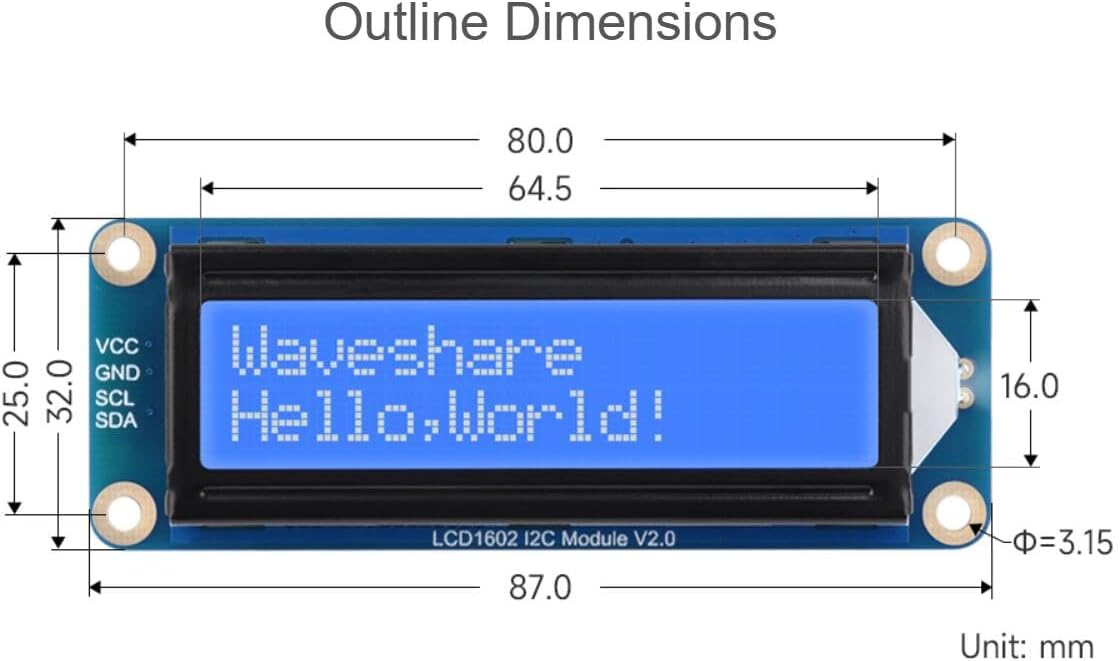
Figure 5: Example connection of the LCD1602 I2C Module to a Raspberry Pi. (Raspberry Pi is not included).
6. Compatibility
The LCD1602 I2C Module is designed for broad compatibility with various popular development platforms, including:
- Raspberry Pi (various models)
- Raspberry Pi Pico
- Jetson Nano
- ESP32
- Arduino (various models)
- STM32
Online development resources and user manuals are available to facilitate integration and development on these platforms.

Figure 6: Compatible development platforms.
7. Operating Instructions
To operate the LCD1602 I2C Module, you will typically need to:
- Install I2C Library: For most platforms (e.g., Arduino, Raspberry Pi), you will need to install a compatible I2C LCD library. Common libraries include the "LiquidCrystal_I2C" library for Arduino or
smbusandi2c-toolsfor Raspberry Pi. - Find I2C Address: The default I2C address for the module is often 0x27 or 0x3F. You may need to run an I2C scanner sketch/script to confirm the address if the display does not initialize.
- Initialize Display: Use the installed library to initialize the LCD with its I2C address and dimensions (16 columns, 2 rows).
- Write Text: Use the library's functions to print text to the display, set cursor position, clear the screen, and control the backlight.
- Adjust Backlight: The module typically has a potentiometer on the back to adjust the backlight brightness.
Refer to the online development resources and examples provided by TUOPUONE for specific code examples and detailed instructions for your chosen platform.
8. Maintenance
- Cleaning: Use a soft, dry cloth to gently clean the display surface. Avoid abrasive cleaners or solvents.
- Storage: Store the module in a dry, dust-free environment away from direct sunlight and extreme temperatures.
- Handling: Handle the module by its edges to avoid touching the display area or sensitive electronic components.
- Power Supply: Always ensure the correct operating voltage (3.3V or 5V) is applied to prevent damage.
9. Troubleshooting
- Display shows blank or blocks:
- Check power connections (VCC, GND).
- Verify I2C connections (SCL, SDA) are correct.
- Adjust the potentiometer on the back of the module. This controls contrast and can make the display appear blank if set incorrectly.
- Ensure the correct I2C address is used in your code. Run an I2C scanner to confirm.
- Backlight is off:
- Check if the backlight control in your code is enabled.
- Ensure the backlight potentiometer is not turned all the way down.
- Garbled text:
- Confirm the correct I2C address and LCD dimensions (16x2) are set in your code.
- Ensure the I2C library is correctly installed and initialized.
- Module not detected by I2C scanner:
- Double-check all wiring, especially SCL and SDA.
- Ensure the host board's I2C interface is enabled (e.g.,
raspi-configfor Raspberry Pi). - Verify the module is receiving power.
10. Outline Dimensions
The physical dimensions of the LCD1602 I2C Module are provided below for integration into your projects.

Figure 7: Outline dimensions of the LCD1602 I2C Module (Unit: mm).
11. Package Content
The standard package includes the following items:
- LCD1602 I2C Module (Blue) x1
- PH2.0 4PIN wire x1
12. Warranty and Support
For warranty information, technical support, and additional resources, please refer to the official TUOPUONE website or contact your retailer. Online development resources and examples for various platforms are available to assist with integration and programming.
For further assistance, visit the TUOPUONE Store on Amazon.