
Aiacmea Z1-02
Aiacmea Indoor Security Camera User Manual
Model: Z1-02
1. Introduction
Thank you for choosing the Aiacmea Indoor Security Camera. This device is designed to provide discreet and effective surveillance for your home or office, offering high-definition video, advanced night vision, and intelligent motion detection capabilities. This manual will guide you through the setup, operation, and maintenance of your new security camera.
Key Features:
- Full HD 1080P Live Streaming: Monitor your property in real-time with vibrant, high-resolution images.
- Easy to Operate and Smart Connection: Connect to the internet via Wi-Fi (2.4GHz only) and view footage remotely using the free "HDlivecam" app on Android or iOS devices.
- Advanced Night Vision: Equipped with 7 infrared (IR) LEDs for clear, detailed images up to 15 feet in total darkness.
- Motion Detection with Alarm: Receive instant alerts on your smartphone when human activity is detected, with customizable monitoring areas.
- Wide-Angle View: A 120-degree ultra-wide-angle lens provides comprehensive room coverage, eliminating blind spots.
2. What's in the Box
Please check the contents of your package to ensure all items are present:
- Camera x 1
- Operating Instruction Manual x 1
- 64GB SD Card x 1
- Micro USB Charging Cable x 1

Figure 2.1: Aiacmea Indoor Security Camera with live feed on a smartphone.
3. Setup Guide
3.1 Component Identification
Familiarize yourself with the camera's components:

Figure 3.1: Component diagram of the Aiacmea Indoor Security Camera.
- Camera Lens: Discreetly located for recording.
- Time Display: Digital clock display.
- Night Vision: Infrared LEDs for low-light conditions.
- Reset Button: Used to reset the device.
- ON/OFF Switch: Powers the device on or off.
- Battery Compartment: Houses the rechargeable battery.
- Mini USB Port: For charging and data transfer.
- Speaker: For audio output.
- TF Card Slot: For inserting the 64GB SD card (included) for local storage.
3.2 Initial Charging and SD Card Installation
- Charge the Camera: Connect the camera to a power source using the provided Micro USB charging cable. Ensure the built-in 18650 rechargeable battery is fully charged before first use.
- Install SD Card: Open the cover and insert the 64GB SD card into the TF Card slot. Ensure it is inserted correctly until it clicks into place.
3.3 App Download and Connection
The camera operates with the "HDlivecam" application, available for Android and iOS devices. Scan the QR code provided in the operating instruction manual or search for "HDlivecam" in your device's app store.
- Download the App: Install the "HDlivecam" app on your smartphone.
- Power On Camera: Turn on the camera using the ON/OFF switch.
- Connect to Camera Hotspot (AP Mode):
- Go to your phone's Wi-Fi settings.
- Locate and connect to the camera's Wi-Fi hotspot (e.g., "FP-630K+..."). This is a direct connection to the camera.
- Open the "HDlivecam" app. The camera should automatically be detected.
- Set up Wi-Fi (Remote Access):
- Within the "HDlivecam" app, navigate to the camera settings.
- Select "Set up camera Wi-Fi" or similar option.
- Choose your home/office 2.4GHz Wi-Fi network from the list and enter the password.
- Once connected, the camera will be accessible remotely via the app from anywhere with an internet connection.
Video 3.2: This video demonstrates the unboxing, component overview, and initial connection process of the Aiacmea Indoor Security Camera to the "HDlivecam" app, including connecting to the camera's hotspot and setting up Wi-Fi for remote access.

Figure 3.3: Three connection methods for the camera: direct recording to SD card, AP mode for local viewing, and remote access via Wi-Fi.
4. Operating Instructions
4.1 Live Streaming and Recording
Once connected via the "HDlivecam" app, you can access the live video feed. The camera supports 1080P resolution for live viewing and 720P for recording.
- Live View: Open the app and select your camera to view the real-time feed.
- Manual Recording: Tap the record button in the app to start/stop recording to the installed SD card or your phone's storage.
- Playback: Access recorded footage from the SD card via the app's playback feature.

Figure 4.1: The camera supports 1080P HD viewing, providing clear and detailed video.

Figure 4.2: Live 1080P view with 120-degree wide-angle coverage.
4.2 Motion Detection
The camera features intelligent motion detection to alert you to activity.
- Enable Motion Detection: In the app settings, enable motion detection.
- Customize Detection Area: You can define specific areas within the camera's view for motion detection to reduce false alarms.
- Receive Alerts: When motion is detected, the camera will send an instant push notification to your smartphone and can automatically begin recording.
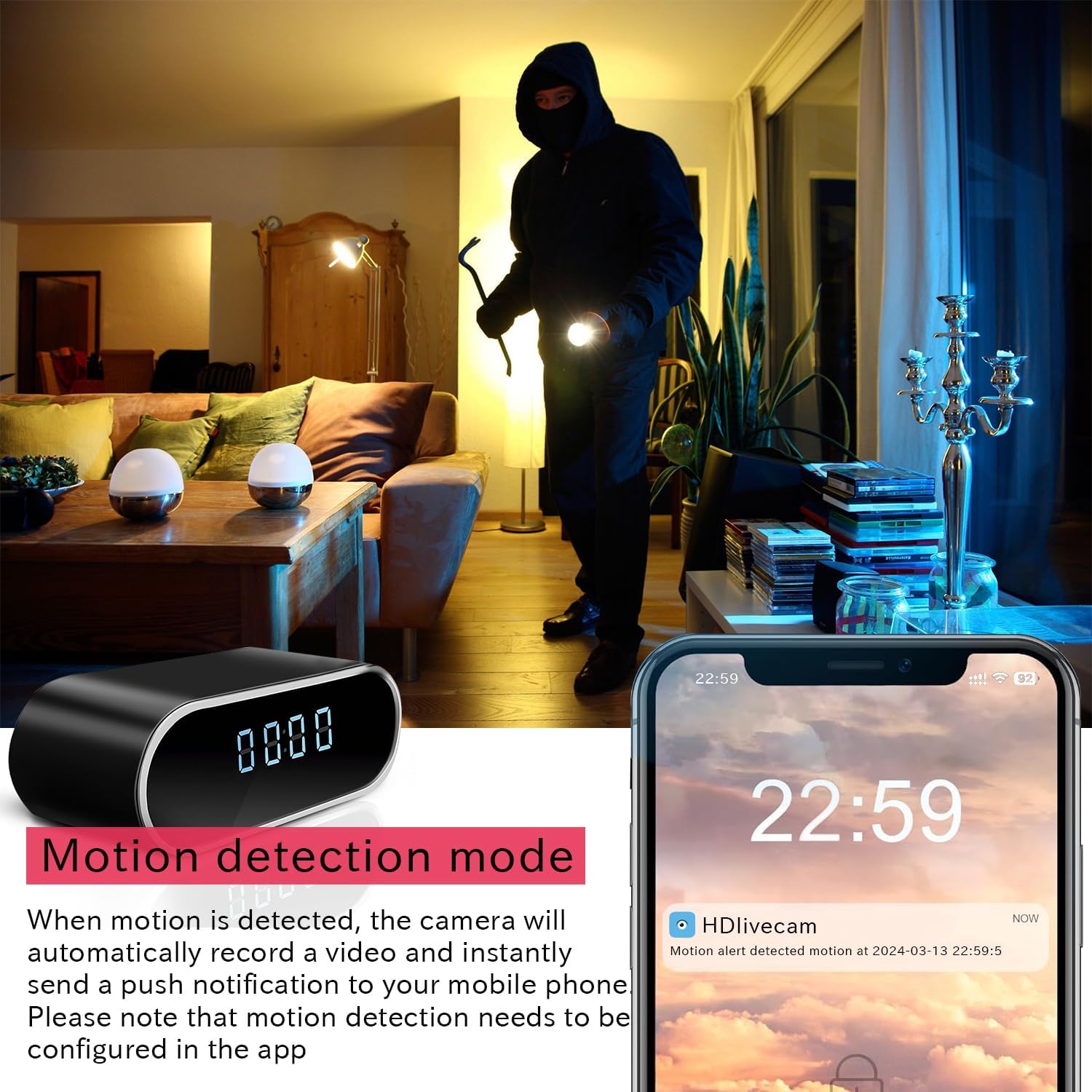
Figure 4.3: Motion detection mode with smartphone alert.

Figure 4.4: Motion detection identifies human or animal activity and sends alerts.
4.3 Night Vision
The camera automatically switches to night vision mode in low-light conditions.
- The 7 IR LEDs provide clear black-and-white video in complete darkness.
- The night vision range is up to 15 feet (approximately 4.5 meters).

Figure 4.5: Day and night vision capabilities, showing clear images in various lighting conditions.
5. Maintenance
- Cleaning: Use a soft, dry cloth to clean the camera lens and body. Do not use liquid cleaners or aerosols.
- Battery Care: To prolong battery life, avoid extreme temperatures and fully charge the battery regularly if not in continuous use.
- Storage: When not in use for extended periods, store the camera in a cool, dry place.
- Firmware Updates: Check the "HDlivecam" app periodically for any available firmware updates to ensure optimal performance and security.
6. Troubleshooting
| Problem | Possible Cause | Solution |
|---|---|---|
| Camera not connecting to Wi-Fi. | Incorrect Wi-Fi password; 5GHz Wi-Fi network; camera too far from router. | Ensure correct password. Confirm your Wi-Fi is 2.4GHz. Move camera closer to the router. Reset camera and try again. |
| No live video feed in app. | Camera is off; not connected to Wi-Fi; app issue. | Check if camera is powered on. Verify Wi-Fi connection. Restart the app or your phone. |
| Motion detection alerts not received. | Motion detection disabled; app notifications off; incorrect sensitivity settings. | Enable motion detection in app. Check phone notification settings. Adjust motion sensitivity. |
| Poor video quality. | Insufficient lighting; dirty lens; weak Wi-Fi signal. | Ensure adequate lighting or rely on night vision. Clean the camera lens. Improve Wi-Fi signal strength. |
| SD card not recording. | SD card full or corrupted; not inserted correctly. | Format the SD card via the app. Reinsert the SD card. Replace if corrupted. |
7. Specifications
| Feature | Detail |
|---|---|
| Model Name | Z1-02 |
| Indoor/Outdoor Usage | Indoor |
| Power Source | Rechargeable Battery |
| Connectivity Protocol | ONVIF |
| Controller Type | APP |
| Mounting Type | Tabletop Mount |
| Video Capture Resolution | 1080p |
| Color | Black |
| Included Components | Camera, Operating instruction, 64G SD Card, Micro USB charging cable |
| Wireless Communication Technology | Wi-Fi (2.4GHz) |
| Viewing Angle | 110 Degrees |
| Night Vision Range | 10 Meters |
| Frame Rate | 30 frames per second |
| Material | Acrylonitrile Butadiene Styrene (ABS) |
| Voltage | 5 Volts (DC) |
| Wattage | 1.5 Watt-hours |
| Item dimensions L x W x H | 4 x 1.4 x 1.7 inches |
| Water Resistance Level | Not Water Resistant |
| Optical Zoom | 1 x |
| Video encoding | H.264 |
| Alert Type | Motion Only |
| Video Capture Format | AVI |
| Photo Sensor Technology | CMOS |
| Maximum Webcam Image Resolution | 2 MP |
| Flash Memory Supported Size Maximum | 128 GB |
| Item Weight | 7 ounces |
| Manufacturer | Aiacmea |
| Country of Origin | China |
8. Warranty and Support
For warranty information and technical support, please refer to the contact details provided on the product packaging or the official Aiacmea website. Keep your purchase receipt as proof of purchase for any warranty claims.
If you encounter any issues not covered in this manual, please contact customer support for assistance.