
Fuluku Fuluku-A7506A3796A4MI2AM62EU-494
Fuluku Android Car Radio for Peugeot 3008 (2009-2015)
Model: Fuluku-A7506A3796A4MI2AM62EU-494
Introduction
This manual provides detailed instructions for the installation, operation, and maintenance of your Fuluku Android Car Radio. This unit is specifically designed for Peugeot 3008 models manufactured between 2009 and 2015, offering advanced features such as wireless Carplay, Android Auto, GPS navigation, Bluetooth 5.0, and a 9-inch HD touchscreen. Please read this manual thoroughly before installation and use to ensure proper functionality and safety.
Safety Information
- Professional Installation Recommended: Due to the complexity of car electrical systems, professional installation is highly recommended to prevent damage to the unit or your vehicle.
- Power Disconnection: Always disconnect the vehicle's battery before performing any installation or wiring work to avoid electrical shorts and damage.
- Wiring: Ensure all wiring connections are secure and correctly matched according to the wiring diagram. Incorrect wiring can cause malfunctions or damage.
- Driving Safety: Do not operate the unit's complex functions or watch videos while driving. Always prioritize road safety.
- Temperature: Avoid exposing the unit to extreme temperatures or direct sunlight for prolonged periods.
- Cleaning: Use a soft, dry cloth for cleaning the screen and unit. Avoid abrasive cleaners or solvents.
Package Contents
Verify that all items listed below are included in your package:
- Android Autoradio Unit (9-inch touchscreen)
- Power Cable Harness (Plug and Play)
- GPS Antenna
- Rear Camera
- Rear Camera Input Cable
- RCA Cable
- USB Cable
- Mounting Bracket
- Screws
- User Manual (this document)

Figure 1: All components included in the Fuluku Android Car Radio package.
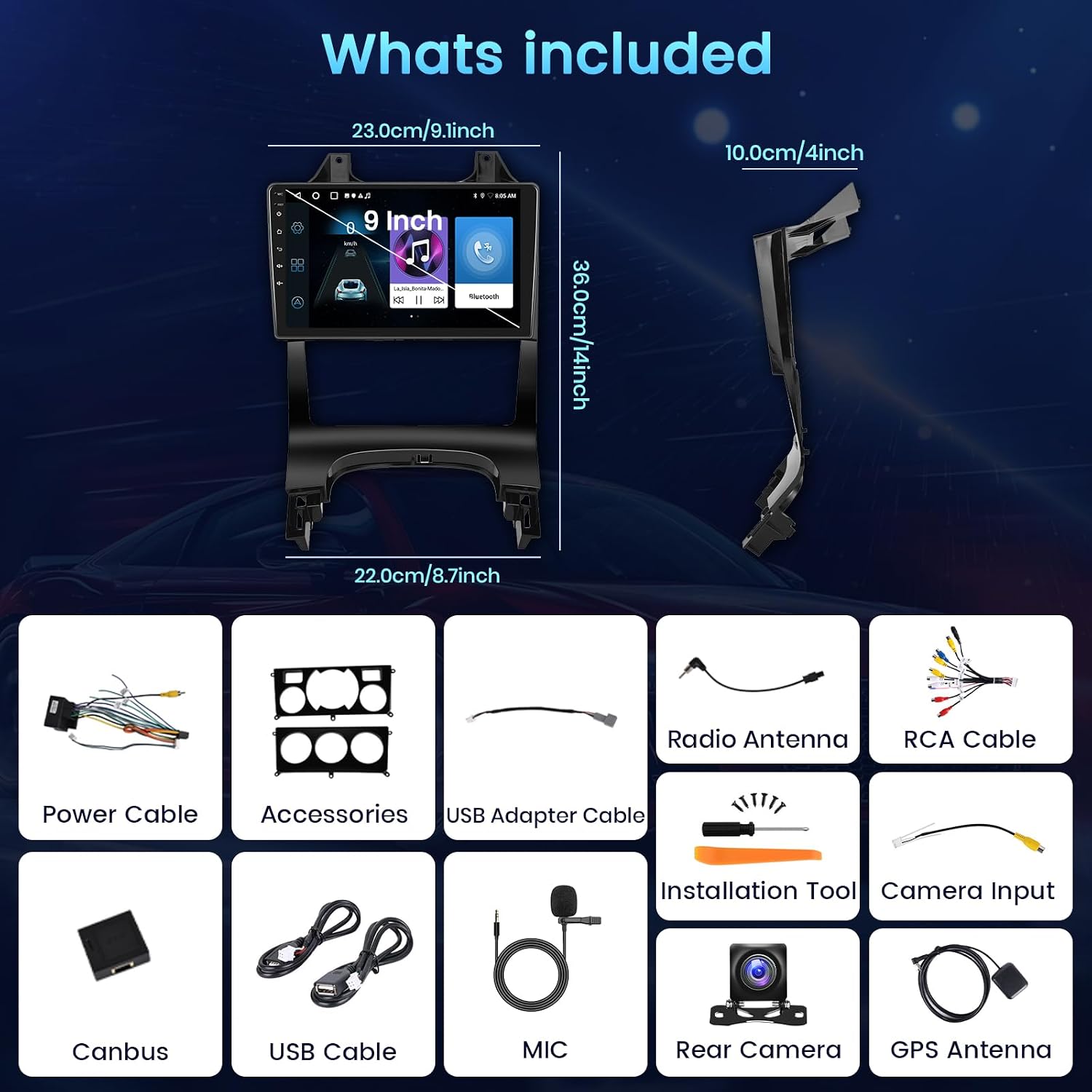
Figure 2: Visual representation of the main unit dimensions and included accessories.
Product Overview
The Fuluku Android Car Radio is an advanced infotainment system designed to enhance your driving experience. Key features include:
- Operating System: Latest Android System (2GB RAM + 64GB ROM)
- Display: 9-inch HD Capacitive Touchscreen
- Smartphone Integration: Wireless Carplay & Android Auto, Mirror Link
- Navigation: Integrated GPS for accurate positioning
- Connectivity: Bluetooth 5.0 for hands-free calls and audio streaming, WiFi for internet access
- Radio: FM/RDS Radio with preset stations
- Camera Support: Includes a 170° wide-angle AHD reversing camera with night vision
- Vehicle Integration: Supports original Steering Wheel Control (SWC)
- Customization: 26 selectable UI themes

Figure 3: Front view of the Fuluku Android Car Radio.
Setup and Installation
This section outlines the general steps for installing your Fuluku Android Car Radio. It is highly recommended to seek professional assistance for installation to ensure correct wiring and avoid damage.
1. Pre-Installation Checks
- Vehicle Compatibility: Confirm your vehicle is a Peugeot 3008 model from 2009-2015.
- Package Contents: Verify all components listed in the "Package Contents" section are present.
- Tools: Gather necessary tools (e.g., screwdrivers, wire strippers, electrical tape).
- Disconnect Battery: Disconnect the negative terminal of your vehicle's battery before starting any work.
2. Removing the Original Radio
Carefully remove the existing car radio and trim panels from your Peugeot 3008 dashboard. Refer to your vehicle's service manual for specific instructions on panel removal.

Figure 4: Before and after installation view in a Peugeot 3008 dashboard.

Figure 5: Installation effect, showing the seamless integration of the new unit.
3. Wiring Connections
Connect the provided wiring harness to the car radio and the vehicle's existing wiring. The harness is designed for plug-and-play compatibility with the Peugeot 3008 (2009-2015). Ensure all connections are firm.
- Power Cable: Connect the main power cable harness.
- GPS Antenna: Connect the GPS antenna and route it to a location with a clear view of the sky (e.g., dashboard corner).
- USB Cables: Connect the USB cables for external devices.
- Rear Camera: If installing the rear camera, connect its video input cable to the unit and the power cable to the reversing light circuit.
- RCA Cables: Connect RCA cables for external amplifiers or video output if applicable.

Figure 6: Wiring diagram and port details on the rear of the unit.

Figure 7: Reverse camera wiring instructions and features (HD, Waterproof, Night Vision, 170° Viewing Angle).
4. Mounting the Unit
Secure the Android Autoradio unit into the dashboard opening using the provided mounting bracket and screws. Ensure it is firmly seated and does not obstruct any vehicle controls.
5. Reconnect Battery and Test
Once all connections are made and the unit is mounted, reconnect the vehicle's battery. Turn on the ignition and test all functions of the car radio, including audio, touchscreen response, GPS, Bluetooth, and camera input.
Operating Instructions
Basic Operation
- Power On/Off: Press and hold the power button (if available) or turn the vehicle ignition on/off.
- Volume Control: Adjust volume using the touchscreen controls or your vehicle's steering wheel controls.
- Home Screen: Tap the "Home" icon to return to the main application menu.
- Navigation: Use the touchscreen to navigate through menus and applications.
Wireless Carplay & Android Auto
This unit supports wireless Carplay and Android Auto for seamless smartphone integration.
- Ensure Bluetooth and Wi-Fi are enabled on your smartphone.
- On the car radio, open the Carplay or Android Auto application.
- Follow the on-screen prompts to pair your phone via Bluetooth. Once paired, the system will establish a Wi-Fi connection for wireless Carplay/Android Auto.
- You can now access compatible phone apps, navigation, calls, and music directly from the car radio screen.

Figure 8: Wireless Carplay, Android Auto, and Mirror Link features.

Figure 9: Interface for smartphone integration features.
GPS Navigation
The unit comes with built-in GPS. You can use pre-installed navigation apps or download others from the Android app store.
- Ensure the GPS antenna is properly installed and has a clear signal.
- Open your preferred navigation application from the main menu.
- Enter your destination and follow the on-screen directions.

Figure 10: GPS navigation in action.
Bluetooth 5.0
Connect your smartphone via Bluetooth for hands-free calling and audio streaming.
- Go to the Bluetooth settings on the car radio.
- Enable Bluetooth on your phone and search for available devices.
- Select the car radio from the list (usually named "CarBT" or similar) and pair.
- Once connected, you can make/receive calls and play music through the car's speakers.
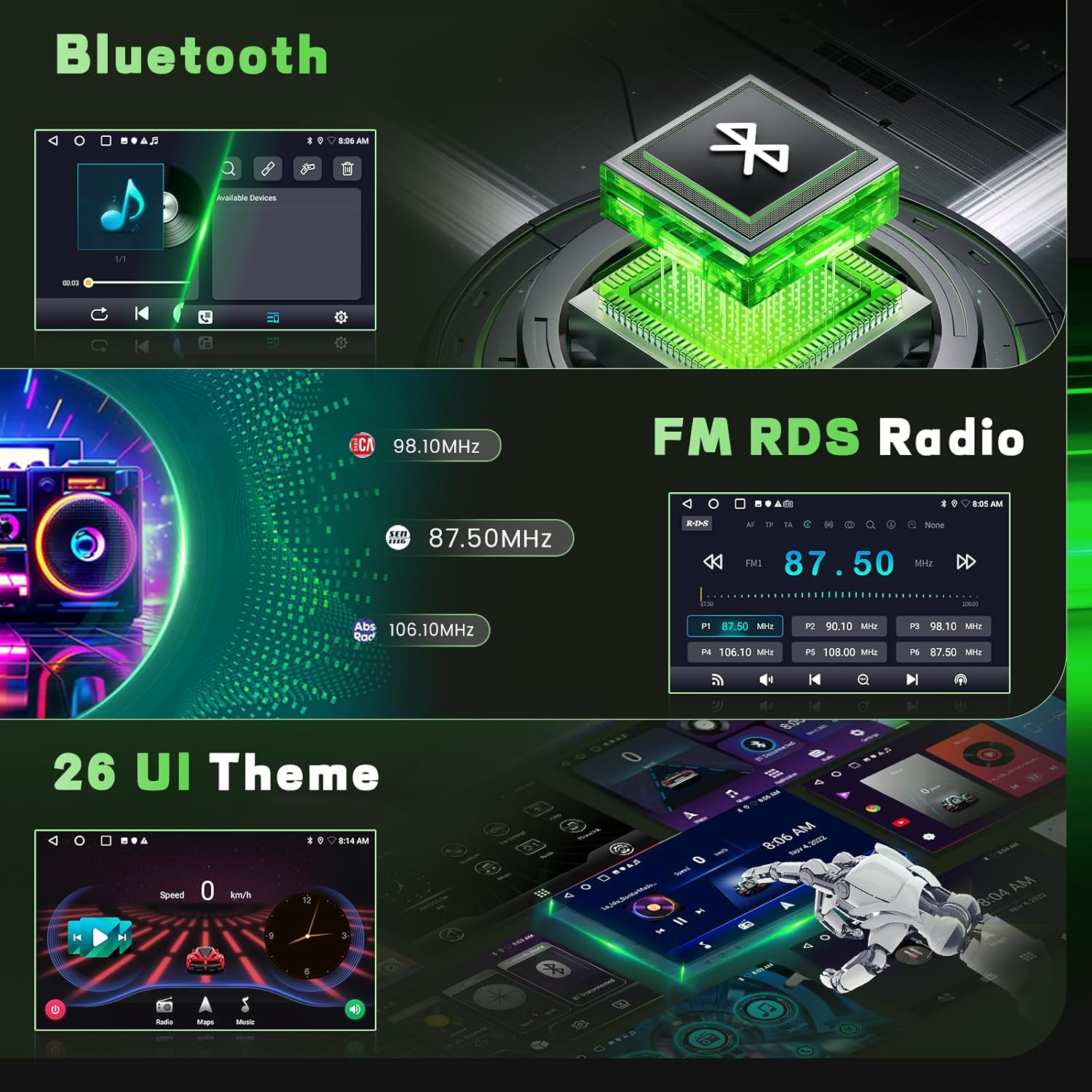
Figure 11: Bluetooth interface.
WiFi Connection
Connect to a Wi-Fi hotspot (e.g., from your phone) to access online features, browse the web, and download apps.
- Go to the Wi-Fi settings on the car radio.
- Scan for available networks and select your desired hotspot.
- Enter the password if required and connect.

Figure 12: WiFi connectivity for online access.
Steering Wheel Control (SWC)
The unit supports your vehicle's original steering wheel controls for convenient operation.
- After installation, access the SWC settings in the car radio menu.
- Follow the on-screen instructions to map your steering wheel buttons to the desired functions (e.g., volume up/down, track skip, answer call).

Figure 13: Steering Wheel Control functionality.
Figure 14: Steering Wheel Control interface for mapping functions.
Rear Camera
The included AHD rear camera provides a clear view when reversing.
- When the vehicle is shifted into reverse gear, the car radio will automatically display the rear camera feed.
- The camera features a 170° wide-angle lens and night vision for improved visibility.
Maintenance
- Screen Cleaning: Use a soft, lint-free cloth to gently wipe the touchscreen. For stubborn smudges, slightly dampen the cloth with water or a screen-safe cleaner. Do not spray cleaner directly onto the screen.
- General Cleaning: Keep the unit free from dust and debris. Use a soft brush or compressed air to clean vents and ports.
- Software Updates: Periodically check for software updates through the unit's settings menu or the manufacturer's website to ensure optimal performance and access to new features.
- Avoid Liquids: Prevent any liquids from entering the unit, as this can cause severe damage.
Troubleshooting
| Problem | Possible Cause | Solution |
|---|---|---|
| Unit does not power on. | Loose power connection, blown fuse, vehicle battery disconnected. | Check power cable connections. Inspect vehicle fuses. Ensure battery is connected. |
| No sound. | Volume too low, mute activated, incorrect audio source, speaker wiring issue. | Increase volume. Check if mute is active. Select correct audio source. Verify speaker wiring. |
| GPS signal lost or inaccurate. | GPS antenna obstructed or improperly installed. | Ensure GPS antenna has a clear view of the sky and is securely connected. |
| Bluetooth/Carplay/Android Auto not connecting. | Bluetooth/Wi-Fi off on phone/unit, incorrect pairing, interference. | Ensure Bluetooth/Wi-Fi is on for both devices. Delete previous pairings and re-pair. Restart both devices. |
| Rear camera not displaying. | Camera power/video cable loose, incorrect wiring to reverse light. | Check all camera connections. Ensure the camera is receiving power when reverse gear is engaged. |
| Touchscreen unresponsive. | Temporary software glitch, screen damage. | Restart the unit. If issue persists, contact support. |
If you encounter problems not listed here or if the suggested solutions do not resolve the issue, please contact Fuluku customer support.
Specifications
| Brand | Fuluku |
| Model Number | Fuluku-A7506A3796A4MI2AM62EU-494 |
| Operating System | Android |
| RAM + ROM | 2GB RAM + 64GB ROM |
| Screen Size | 9 Inches |
| Screen Type | Capacitive LCD Touchscreen |
| Connectivity | Bluetooth 5.0, USB, WiFi, AirPlay, FM, RDS |
| Special Features | Wireless Carplay, Android Auto, Mirror Link, Steering Wheel Control, Split Screen, FM/RDS Radio, 26 UI Themes, 1080P HD Backup Camera, Microphone, GPS |
| Vehicle Service Type | Car (Peugeot 3008 2009-2015) |
| Mounting Type | Dashboard Mount |
| Audio Output Mode | Stereo |
| Package Dimensions | 41.2 x 26.8 x 15.2 cm |
| Item Weight | 1.76 kg |
| Country of Origin | China |
Warranty and Support
Fuluku is committed to providing high-quality products and excellent customer service.
- Warranty: The product comes with a 365-day replacement available. Please retain your proof of purchase for warranty claims.
- Returns: Enjoy a 60-day no-worry return policy.
- Technical Support: Lifetime technical support is provided.
- Customer Service: For any questions, issues, or technical assistance, please contact us via email. We aim for a 24-hour quick reply.
Contact Email: fulukusupports@126.com

Figure 15: Fuluku Customer Support Information.
Ask a question about this manual
Ask about setup, troubleshooting, compatibility, parts, safety, or missing instructions. Manuals+ will review the question and use this page’s manual context to help answer it.