
1. Introduction
This manual provides instructions for the installation, operation, and maintenance of your corfhy 10-inch Android 14 Car Stereo Radio. Please read this manual thoroughly before using the product to ensure proper function and safety.
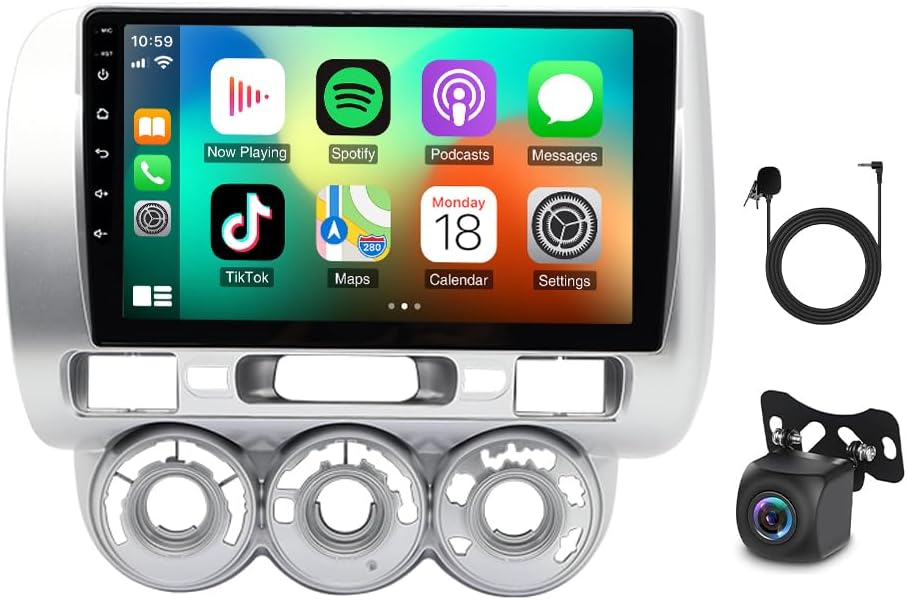
Image 1.1: The corfhy 10-inch Android 14 Car Stereo Radio unit, showcasing its large touchscreen display with a CarPlay interface, along with an external microphone and a backup camera.
2. Package Contents
Verify that all components are present in the package before proceeding with installation:
- 1 x Car Stereo Radio Unit
- 1 x Power Cable
- 1 x RCA Input/Output Cable Set
- 2 x USB Cables
- 1 x Camera Input Cable
- 1 x GPS Antenna
- 1 x Backup Camera
- 1 x External Microphone
- 1 x Instruction Manual (this document)
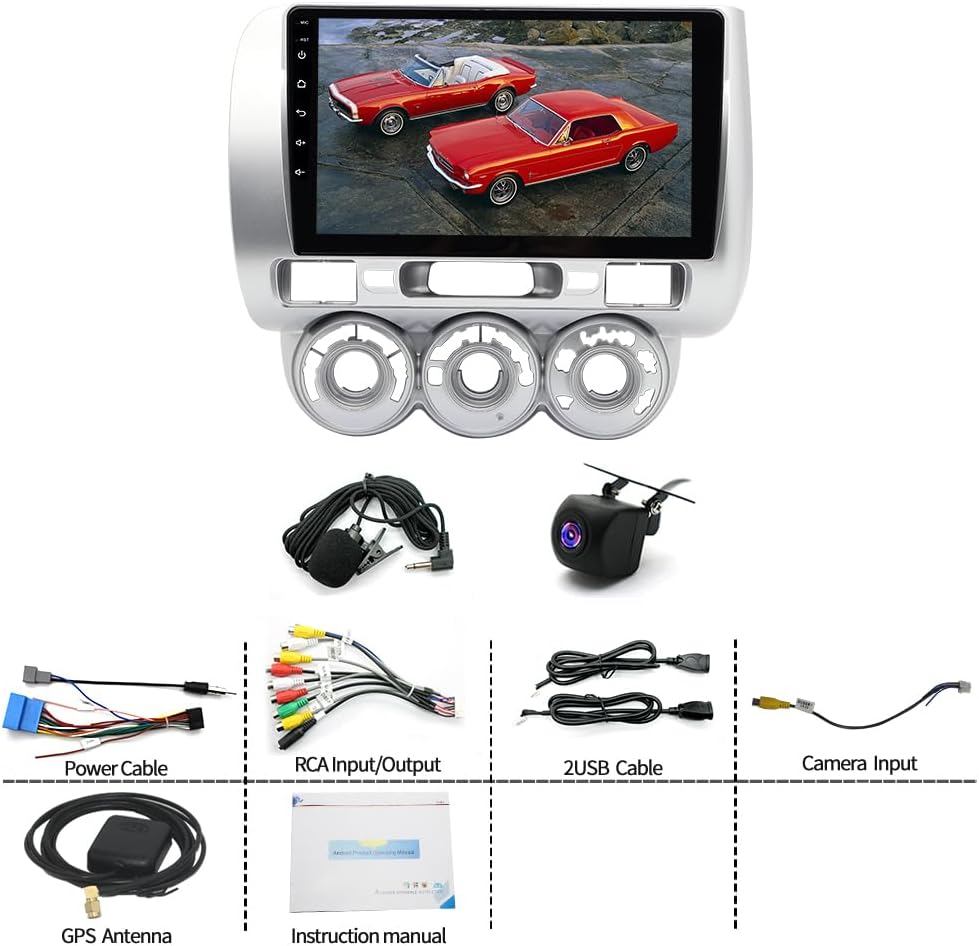
Image 2.1: An overview of all items included in the product package, featuring the main head unit, power cable, RCA cables, USB cables, camera input, GPS antenna, backup camera, and the instruction manual.
3. Setup and Installation
Professional installation is recommended for this product. Incorrect wiring can cause damage to the unit or your vehicle. Ensure the vehicle's battery is disconnected before beginning installation.
3.1. Component Identification
Familiarize yourself with the main unit and all included cables and accessories as shown in Image 2.1.
3.2. Wiring Connections
- Power Cable: Connect the main power harness to the vehicle's wiring according to the wiring diagram provided with the power cable. Ensure correct connections for constant power (B+), accessory power (ACC), and ground (GND).
- RCA Input/Output: Connect external amplifiers, subwoofers, or auxiliary audio/video sources using the RCA cables.
- USB Cables: Route the USB cables to an accessible location for connecting USB devices or for data transfer.
- Camera Input: Connect the provided backup camera to the camera input cable. Ensure the camera's power and ground are connected correctly, typically to the vehicle's reverse light circuit.
- GPS Antenna: Mount the GPS antenna in a location with a clear view of the sky, typically on the dashboard or under the windshield, ensuring it is securely attached.
- External Microphone: Connect the external microphone and route it to a suitable location for clear voice pickup, such as near the rearview mirror or on the A-pillar.
3.3. Initial Power On
After all connections are made and verified, reconnect the vehicle's battery. Turn on the vehicle's ignition to power on the car stereo. Follow any on-screen prompts for initial setup.
4. Operating Instructions
The car stereo operates on Android 14, providing a user-friendly interface. Navigate using the touchscreen and physical buttons (if present).
4.1. Wireless CarPlay & Android Auto
This unit supports both Wireless CarPlay for iOS devices and Wireless Android Auto for Android devices.
- For Wireless CarPlay:
- Enable Bluetooth and Wi-Fi on your iOS device.
- On the car stereo, open the "Car Link" or similar application.
- Pair your iOS device with the car stereo via Bluetooth.
- Confirm the CarPlay connection on your iOS device.
- For Wireless Android Auto:
- Ensure Android Auto is installed on your Android device.
- Enable Bluetooth and Wi-Fi on your Android device.
- On the car stereo, open the "Car Link" or similar application.
- Pair your Android device with the car stereo via Bluetooth.
- Confirm the Android Auto connection on your Android device.
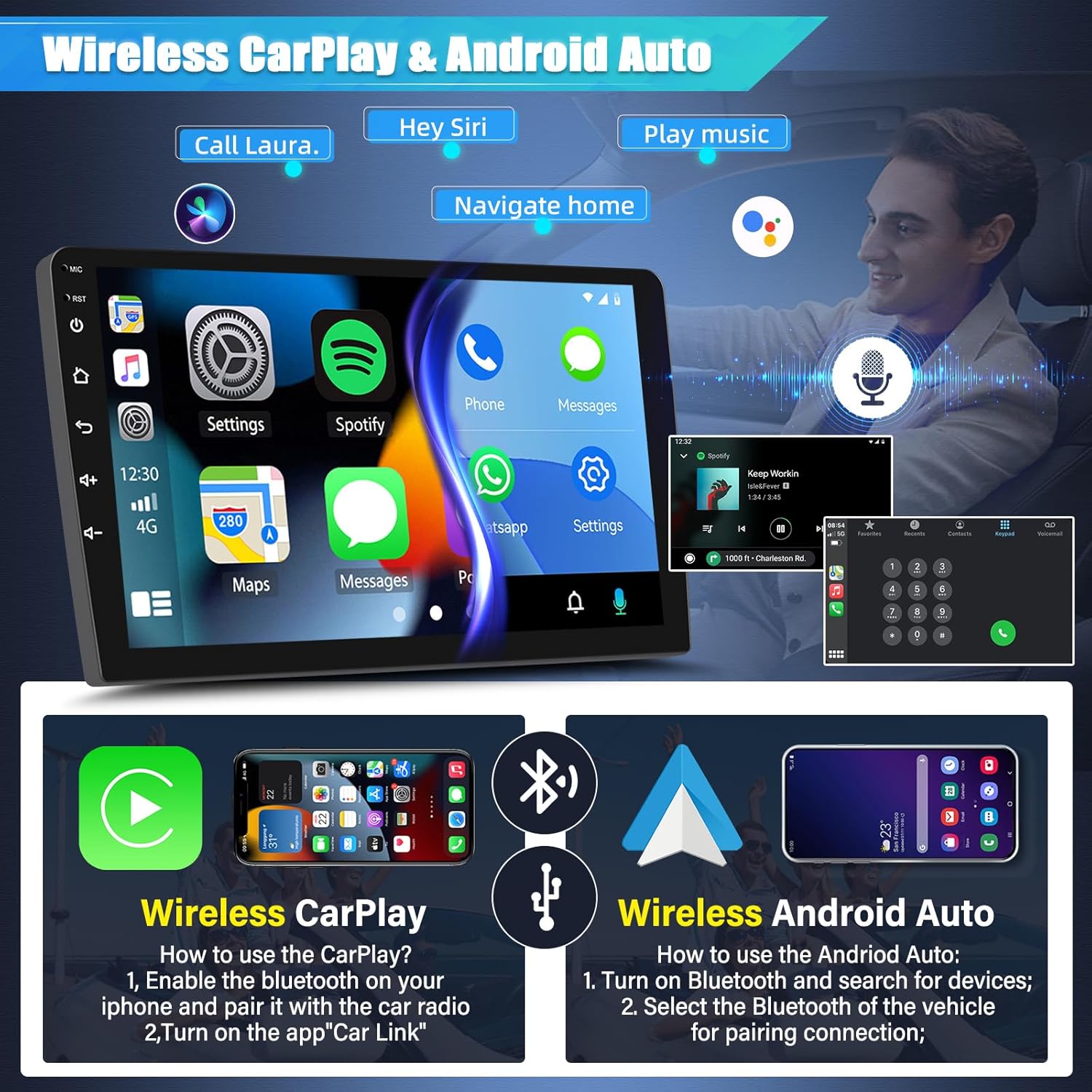
Image 4.1: The car stereo display showing both Wireless CarPlay and Android Auto interfaces, demonstrating voice commands and app integration.
4.2. GPS Navigation and WiFi
The unit supports both offline and online navigation. Offline maps are pre-installed. For online maps and other internet features, connect to a Wi-Fi network.
- Offline Maps: Access the pre-installed navigation application.
- Online Maps: Connect the stereo to a Wi-Fi hotspot (e.g., from your smartphone) via the settings menu. Once connected, you can use online navigation apps and download additional applications.
4.3. Bluetooth Connectivity
The built-in Bluetooth module allows for hands-free calling and audio streaming (A2DP).
- Go to the Bluetooth settings on the car stereo.
- Enable Bluetooth on your mobile device and search for available devices.
- Select the car stereo's Bluetooth name from your device list and pair.
- Once paired, you can make/receive calls and play music wirelessly. The phonebook can be automatically loaded.
4.4. FM/RDS Radio
Access the FM radio application to listen to local radio stations. The RDS (Radio Data System) feature displays station information where available.
- Use the scan function to find available stations.
- Save your favorite stations as presets for quick access.
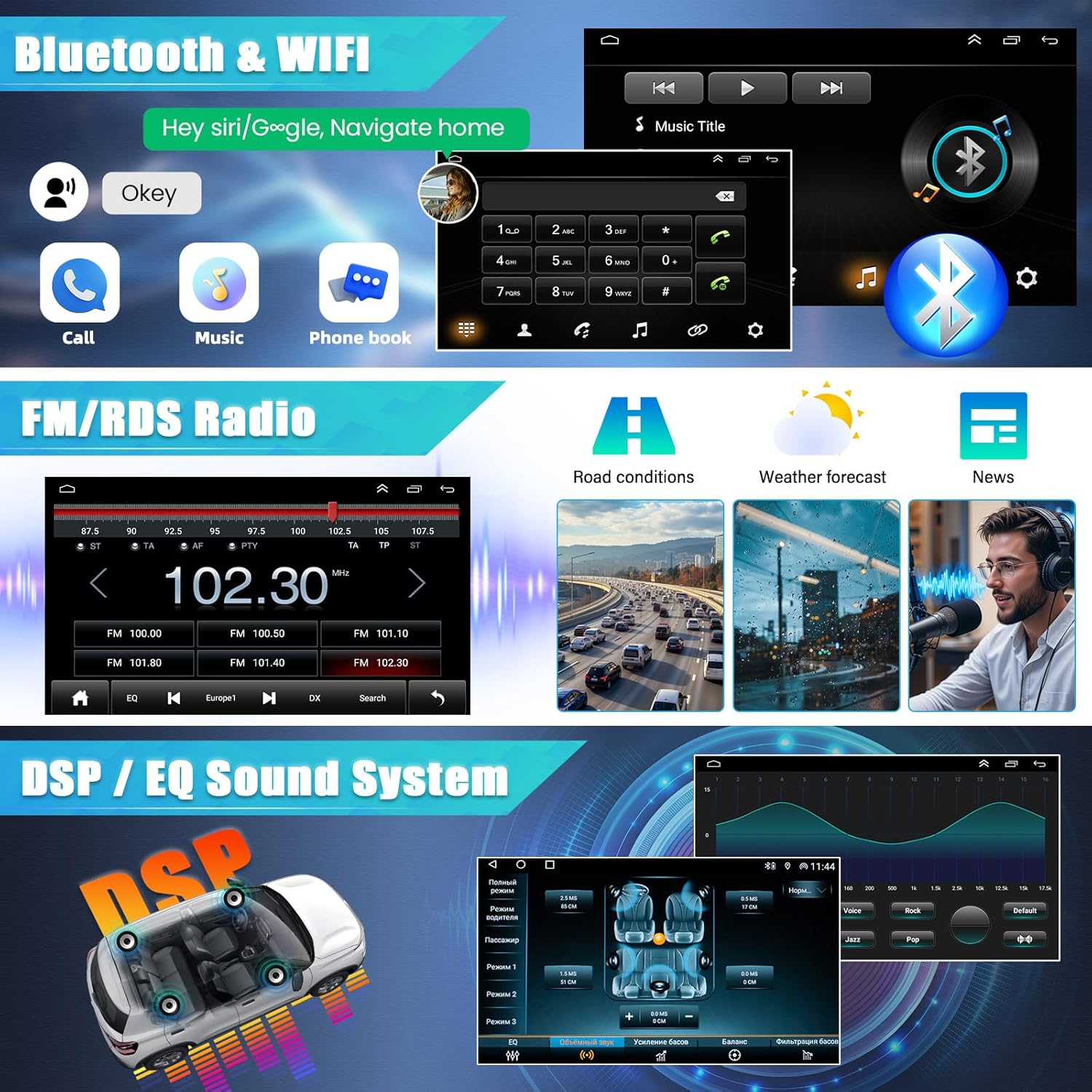
Image 4.2: Displays the Bluetooth interface for calls and music, Wi-Fi connectivity, the FM/RDS radio tuner, and the DSP/EQ sound system interface for audio customization.
4.5. Steering Wheel Control
The unit supports steering wheel controls for convenience. This feature allows you to control basic functions without taking your hands off the wheel.
- Access the "Steering Learn" or "Steering Wheel Control" settings in the system menu.
- Follow the on-screen instructions to program each button on your steering wheel to the desired function (e.g., volume up/down, track skip, mode).
4.6. Rearview Camera
When the vehicle is shifted into reverse, the display will automatically switch to the rearview camera feed, assisting with parking and maneuvering.
- Ensure the backup camera is correctly installed and wired to the reverse light trigger.
- The camera provides a 170-degree wide-angle view with night vision and HD image quality.

Image 4.3: Illustrates the GPS navigation interface with online and offline map options, the rearview camera display showing a wide-angle, night vision, HD image, and the steering wheel control learning interface.
4.7. Split Screen Functionality
The split-screen feature allows you to display two applications simultaneously, such as navigation and music playback.
- To activate, long-press the recent apps button or use a gesture (if configured) to enter split-screen mode.
- Select the two applications you wish to display.
4.8. Mirror Link
Mirror Link allows you to mirror your smartphone's screen onto the car stereo display.
- For iOS: Connect via Wi-Fi.
- For Android: Connect via Wi-Fi or USB.
- Open the Mirror Link application on the car stereo and follow the pairing instructions for your specific device.
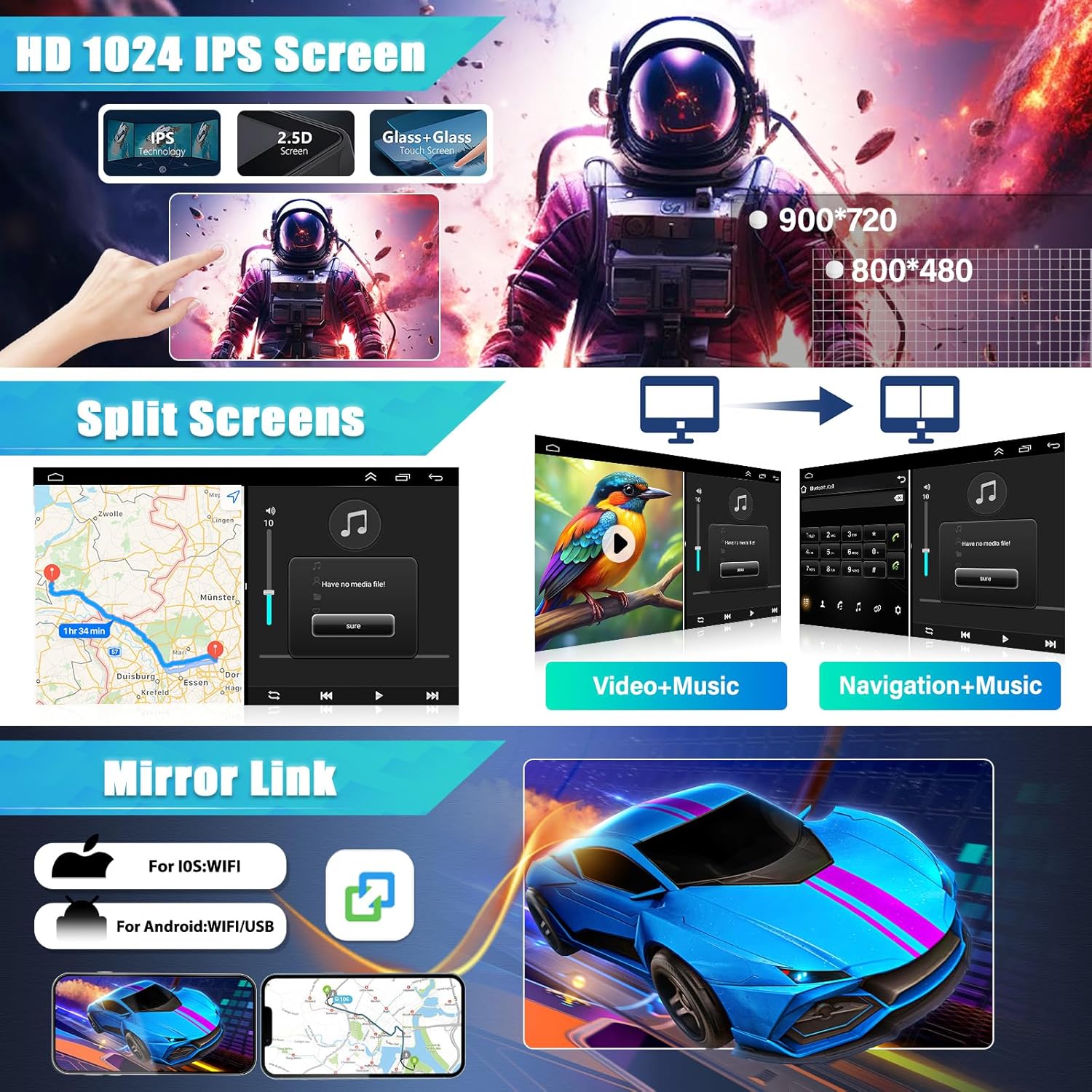
Image 4.4: Highlights the HD 1024 IPS screen technology, examples of split-screen functionality (video+music, navigation+music), and the Mirror Link feature for both iOS and Android devices.
5. Maintenance
Proper maintenance ensures the longevity and optimal performance of your car stereo.
- Screen Cleaning: Use a soft, lint-free cloth to gently wipe the touchscreen. For stubborn smudges, slightly dampen the cloth with water or a screen-safe cleaner. Avoid harsh chemicals or abrasive materials.
- Software Updates: Periodically check for system updates via the settings menu (requires Wi-Fi connection). Keeping the software updated can improve performance and add new features.
- Environmental Conditions: Avoid exposing the unit to extreme temperatures, direct sunlight for prolonged periods, or excessive moisture.
- Cable Connections: Periodically check all cable connections to ensure they are secure and free from damage.
6. Troubleshooting
If you encounter issues, refer to the following common problems and solutions:
| Problem | Possible Cause | Solution |
|---|---|---|
| No Power | Incorrect wiring, blown fuse, loose connection. | Check power cable connections (B+, ACC, GND). Inspect vehicle's fuse box and the stereo's inline fuse. Ensure all connections are secure. |
| No Sound | Volume too low, mute activated, incorrect speaker wiring, amplifier issue. | Increase volume. Check if mute is active. Verify speaker wiring. If using an external amplifier, check its power and connections. |
| GPS Not Working / Inaccurate | GPS antenna not properly installed, poor signal, outdated maps. | Ensure GPS antenna has a clear view of the sky. Check antenna connection. Update maps if necessary (for offline maps). Ensure Wi-Fi is connected for online maps. |
| Bluetooth Connection Issues | Device not discoverable, incorrect pairing, interference. | Ensure Bluetooth is enabled on both devices. Delete previous pairings and re-pair. Move devices closer. Restart both devices. |
| Touchscreen Unresponsive | Software glitch, screen damage. | Restart the unit (turn vehicle ignition off and on). If issue persists, contact support. |
If the problem persists after attempting these solutions, please contact customer support.
7. Specifications
| Feature | Detail |
|---|---|
| Material | Plastic, Metal |
| Operation System | Android 14 |
| Screen Size | 10 inch |
| Screen Resolution | 1280x720 (720P) |
| Memory | 2GB (RAM) + 32GB (ROM) |
| Audio Channels | 4 channel |
| Output Power | 4x45W |
| Fitment | Compatible for Transit Custom 2020-2024 |
| Manufacturer | corfhy |
| ASIN | B0DYNTXMK8 |
8. Warranty and Support
8.1. Warranty Information
Warranty terms and conditions are typically provided with your purchase documentation or can be found on the manufacturer's official website. Please retain your proof of purchase for any warranty claims.
8.2. Customer Support
For technical assistance, troubleshooting beyond this manual, or warranty inquiries, please contact the seller or manufacturer directly. Refer to your purchase platform or the product packaging for contact details.