
1. Introduction
Welcome to the Bscame C25 Ultra 5G Unlocked Smartphone user manual. This guide provides comprehensive instructions to help you set up, operate, maintain, and troubleshoot your new device. The C25 Ultra is designed for seamless performance, featuring a powerful processor, high-resolution cameras, and a vibrant display, all complemented by a built-in stylus for enhanced interaction.
Please read this manual carefully to ensure optimal use and longevity of your smartphone.
2. Setup
2.1 What's in the Box
- C25 Ultra 5G Unlocked Smartphone
- Built-in Stylus
- Screen Protector (pre-applied or included)
- Earphones
- Phone Case
- Power Adapter
- USB Cable
- SIM Eject Tool

Image: The C25 Ultra smartphone in purple, shown with its integrated stylus. The phone features a sleek design with multiple camera lenses on the back.

Image: A close-up of the C25 Ultra smartphone's side, illustrating the dual SIM card tray and how to insert a SIM card and an SD card.
2.2 Inserting SIM Cards and SD Card
- Locate the SIM card tray on the side of your phone.
- Insert the SIM eject tool into the small hole next to the tray and push gently until the tray pops out.
- Place your Nano-SIM cards (up to two) and/or a microSD card (up to 128GB) into the designated slots on the tray. Ensure the gold contacts are facing down.
- Carefully push the tray back into the phone until it clicks into place.
2.3 Powering On/Off
- To Power On: Press and hold the Power button (located on the right side) until the screen lights up and the Bscame logo appears.
- To Power Off: Press and hold the Power button until the power options menu appears. Tap "Power off" and confirm.
- To Restart: From the power options menu, tap "Restart" and confirm.
3. Operating Your Smartphone
3.1 Display and Navigation
The C25 Ultra features a vivid 6.8-inch HD screen with a high screen-to-body ratio, providing an immersive viewing experience. You can navigate the interface using your fingers or the built-in stylus.
- Touch Gestures: Tap, swipe, pinch-to-zoom, and long-press are standard Android gestures.
- Stylus Use: The built-in stylus allows for precise input, ideal for drawing, note-taking, and navigating small elements on the screen. To remove the stylus, gently press its end until it clicks out, then pull it out. To reinsert, push it back into its slot until it clicks.

Image: The C25 Ultra displaying a vibrant image, highlighting its 6.8-inch HD screen and high resolution for an immersive visual experience.
Video: This video demonstrates the physical features of the C25 Ultra, including its various color options, the SIM card slot, and the functionality of the built-in stylus for navigating applications and web pages.
3.2 Camera Features
Capture stunning photos and videos with the C25 Ultra's upgraded 48MP + 108MP dual-camera system. The advanced image processing ensures crystal-clear, professional-quality results.
- Taking Photos: Open the Camera app. Frame your shot and tap the shutter button.
- Recording Videos: Switch to video mode in the Camera app and tap the record button to start/stop.
- Advanced Modes: Explore various modes like Portrait, Night, Panorama, and Pro mode for enhanced photography.

Image: The C25 Ultra smartphone showcasing its dual camera system, emphasizing the 108MP main sensor for high-quality image capture.
3.3 Connectivity
- Wi-Fi: Go to Settings > Network & internet > Wi-Fi to connect to available networks.
- Bluetooth: Go to Settings > Connected devices > Bluetooth to pair with other Bluetooth devices.
- Mobile Data: Ensure your SIM card is active and mobile data is enabled in Settings > Network & internet > Mobile network. Supports 4G/5G networks.
- GPS: Location services are enabled by default for navigation and location-based apps.
3.4 Security Features
- Fingerprint Lock: Set up your fingerprint for quick and secure unlocking in Settings > Security & privacy > Device unlock.
- Facial Recognition: Configure face unlock for convenient access in Settings > Security & privacy > Device unlock.

Image: A visual representation of the C25 Ultra's face recognition feature, indicating its ability to unlock the device even in low-light conditions.
4. Maintenance
4.1 Battery Care and Charging
The C25 Ultra is equipped with a 5000mAh battery supporting 20W super-fast charging. Proper battery care extends its lifespan.
- Use only the original Bscame power adapter and USB cable for charging.
- Avoid exposing the phone to extreme temperatures.
- For optimal battery health, try to keep the charge level between 20% and 80% when possible.
- A 5-minute charge provides approximately 2 hours of talk time, and a full charge takes about 30 minutes.
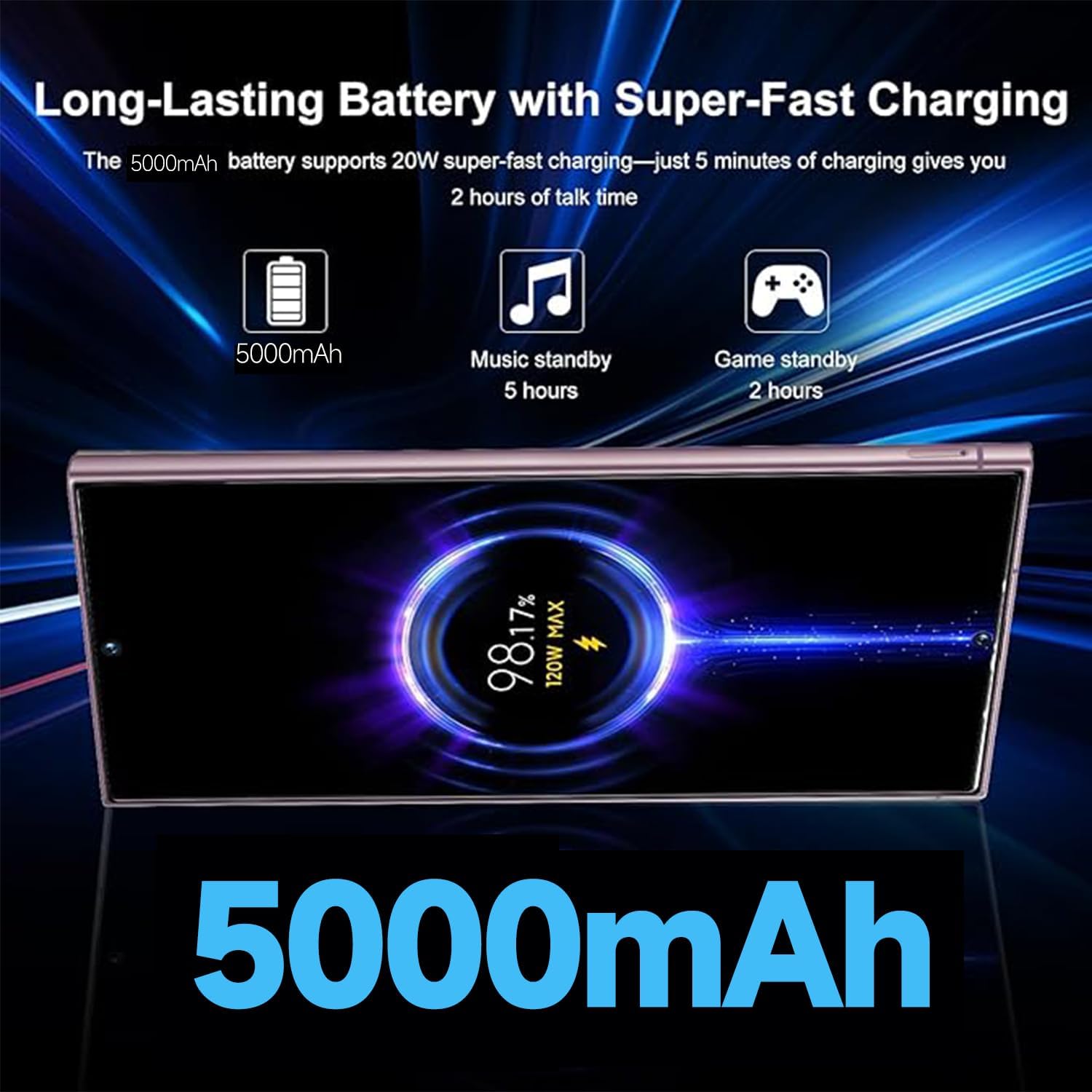
Image: The C25 Ultra displaying its charging status, highlighting the 5000mAh battery and 120W MAX charging capability for extended use.
4.2 Cleaning Your Device
- Use a soft, lint-free cloth to clean the screen and body of the phone.
- Avoid using harsh chemicals, abrasive cleaners, or aerosol sprays.
- Keep ports free of dust and debris.
5. Troubleshooting
5.1 Common Issues and Solutions
| Issue | Possible Solution |
|---|---|
| Phone not turning on | Ensure the battery is charged. Press and hold the Power button for at least 10 seconds to force restart. |
| Apps crashing or freezing | Close background apps. Clear app cache (Settings > Apps > [App Name] > Storage > Clear cache). Restart the phone. |
| Poor network signal | Check SIM card insertion. Toggle Airplane mode on/off. Restart the phone. Contact your carrier. |
| Battery draining quickly | Reduce screen brightness. Close unused apps. Disable Wi-Fi/Bluetooth when not in use. Check battery usage in Settings. |
| Stylus not responding | Ensure the stylus is properly inserted and removed. Restart the phone. |
If issues persist, please refer to the support section or contact Bscame customer service.
6. Specifications
| Feature | Detail |
|---|---|
| Model Name | C25 Ultra |
| Brand | Bscame |
| Operating System | Android 14 |
| Processor | Snapdragon 888+ 5G Octa-core |
| RAM | 8 GB |
| Internal Storage | 256 GB |
| Expandable Storage | Up to 128GB via microSD |
| Screen Size | 6.8 Inches HD Screen |
| Resolution | 3120x2520 |
| Rear Camera | 48MP + 108MP Dual Camera System |
| Battery Capacity | 5000 mAh |
| Charging | 20W Super-Fast Charging |
| Cellular Technology | 5G (Unlocked for All Carriers) |
| SIM Support | Dual SIM |
| Connectivity | Wi-Fi, Bluetooth, GPS, FM Radio |
| Security | Fingerprint Lock, Facial Recognition |
| Color | Purple |
| Item Weight | 14.1 ounces |
| Manufacturer | Bscame Mobile |
7. Warranty and Support
7.1 Warranty Information
Your Bscame C25 Ultra smartphone comes with a standard manufacturer's warranty. Please refer to the warranty card included in your product packaging for specific terms and conditions, including warranty period and coverage details.
Keep your proof of purchase for warranty claims.
7.2 Customer Support
For any questions, technical assistance, or support regarding your C25 Ultra smartphone, please contact Bscame customer service. Our team is available 24/7 to assist you promptly.
Contact information can typically be found on the official Bscame website or on the packaging materials.