
Introduction
This instruction manual provides comprehensive guidance for the TaIYanG Detachable Bluetooth Keyboard Case, designed for the iPad A16 11th Generation and iPad 10th Generation 10.9 inch. Please read this manual thoroughly to ensure proper setup, operation, and maintenance of your new keyboard case.

Image: The TaIYanG keyboard case in pink, showcasing the iPad in the case with the detachable keyboard in front.
Compatibility
This keyboard case is compatible with the following iPad models:
- iPad A16 11th Generation 11-inch 2025 (Model Numbers: A3354, A3355, A3356)
- iPad 10th Generation 10.9 inch 2022 (Model Numbers: A2696, A2757, A2777, A3162)
Please verify your iPad's model number on the back of the device before use to ensure compatibility. This case is not suitable for iPad Air 11-inch M3/M2 (2025/2024) or iPad Air 5/4th Generation 10.9" 2022/2020.

Image: A visual guide indicating compatibility with iPad A16 11th Gen and iPad 10th Gen, showing where to find the model number on the back of the iPad.
Product Features
Detachable Magnetic Keyboard
The wireless Bluetooth keyboard is magnetically attached to the case, allowing for easy detachment. This transforms your tablet into a versatile device, functioning as a laptop when the keyboard is attached or a lightweight tablet when removed. The keyboard features a full row of iPadOS shortcuts for enhanced productivity.

Image: The keyboard detaching from the case, illustrating the magnetic connection points.

Image: The keyboard and case separated, highlighting the detachable design and the integrated iPad pencil holder.
Built-in Pen Holder & Powerful Battery
The case includes a dedicated holder for your Apple Pencil, along with slots for the cap and adapter, ensuring your stylus is always secure and accessible. The keyboard is powered by a strong, energy-saving battery that fully charges in 2-3 hours, providing over 100 hours of working time and 120 days of standby time. The inner layer of the case features a honeycomb grid pattern designed to release heat efficiently, preventing your iPad from overheating.
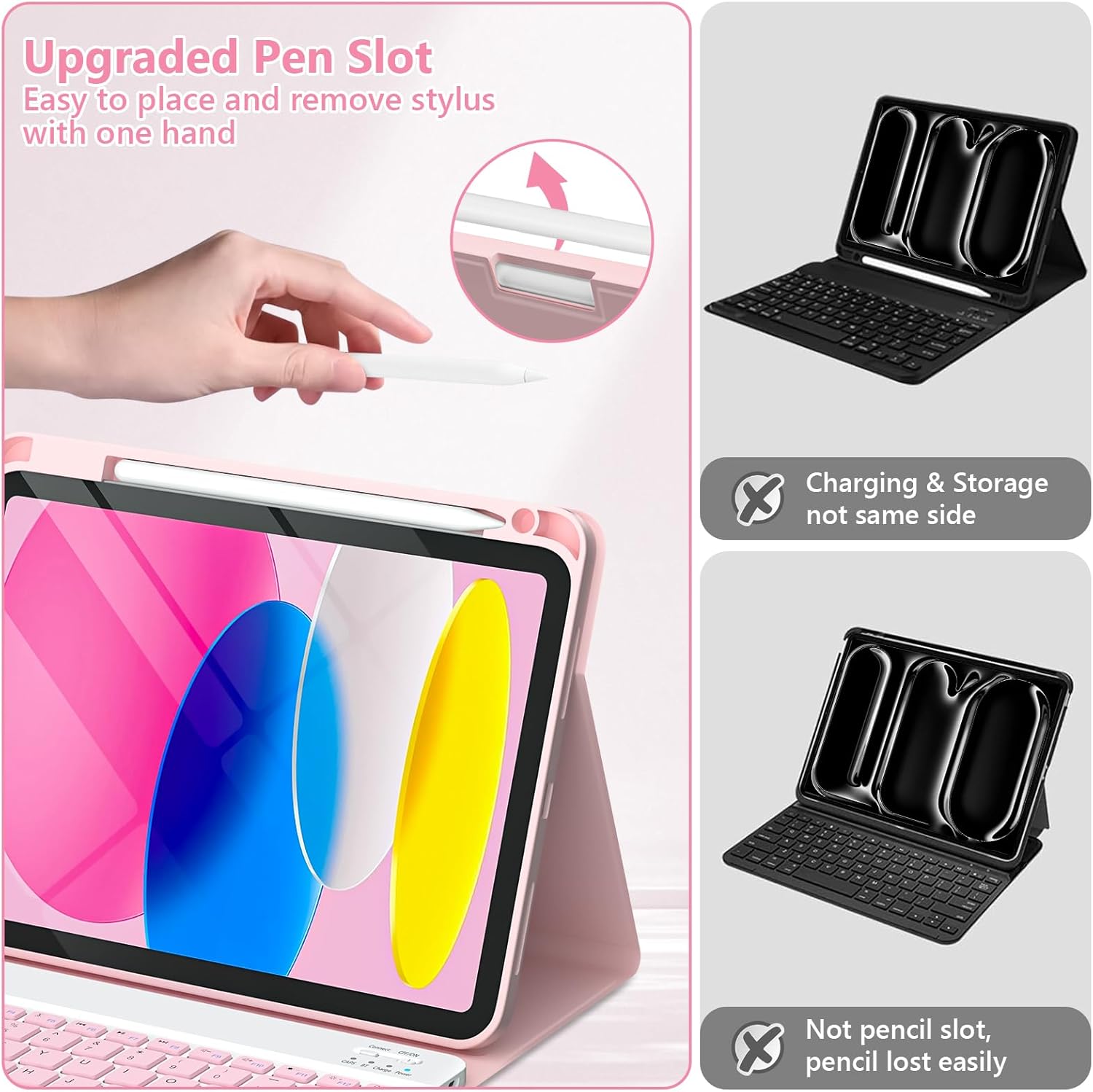
Image: A close-up of the upgraded pen slot, demonstrating easy placement and removal of the stylus.

Image: The USB-C fast charging port on the keyboard, with indicators for charging time, standby time, and working time.
Multiple Viewing Angles
Crafted with a premium synthetic leather exterior and a durable interior plastic case, the design incorporates three distinct indents to support your tablet at various viewing angles (110°, 120°, 130°). This allows you to easily adjust the iPad to the most comfortable position for working, writing, or watching videos.
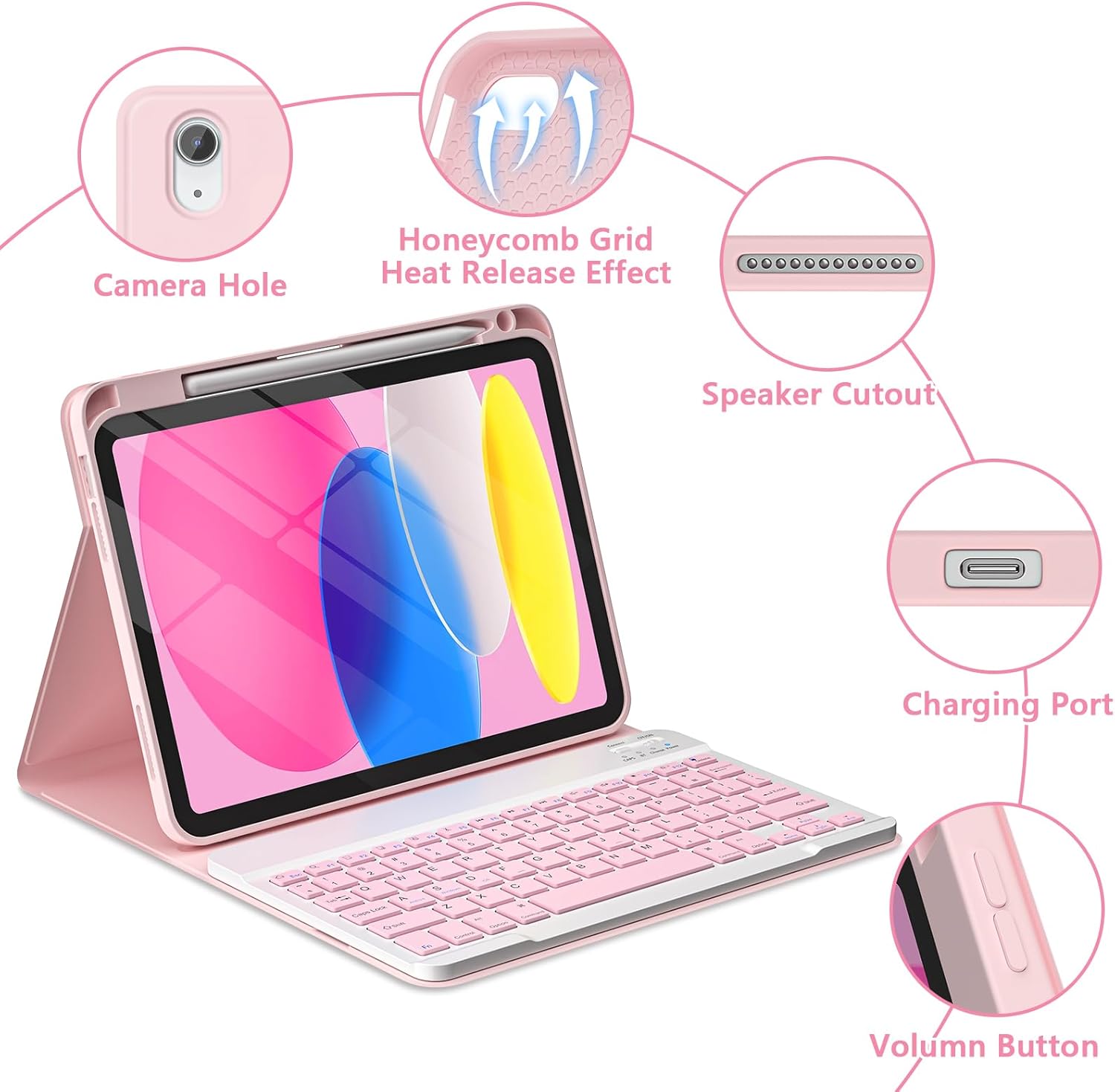
Image: The iPad case adjusted to show three different viewing angles: 110°, 120°, and 130°.

Image: A user typing on the keyboard with the iPad propped up at an adjustable angle, demonstrating practical use.

Image: A diagram illustrating the anti-slip kickstand design and the magnetic stick for stable multi-angle viewing.
360° Full Protection
The keyboard case features an anti-slide design and provides 360° full protection against drops, bumps, and bends, safeguarding your tablet from various accidents. The soft anti-slip interior protects the screen and prevents scratches from the keyboard. The case also helps prevent liquids or other objects from entering the keyboard area.

Image: A detailed view of the case highlighting precise cutouts for the camera, speaker, charging port, and volume buttons, along with the honeycomb grid for heat release.

Image: A visual breakdown of the case's protective features, including precise cutouts, soft honeycomb interior, all-round protection, and easy pen removal.
Setup Guide
1. What's in the Box
Upon opening the package, you should find the following items:
- 1 x Magnetic Protective Case
- 1 x Wireless Bluetooth Keyboard
- 1 x Type-C Charging Cable
- 1 x User Guide

Image: A visual representation of the items included in the box: magnetic case, wireless BT keyboard, Type-C charging cable, and user guide.
2. Installing the iPad
- Gently align your iPad with the case, ensuring the camera cutout and ports match.
- Press the iPad firmly into the case until it is securely seated. The precise cutouts ensure a snug fit.
3. Charging the Keyboard
Before first use, it is recommended to fully charge the keyboard.
- Locate the USB-C charging port on the side of the keyboard.
- Connect the provided Type-C charging cable to the keyboard's charging port.
- Plug the other end of the cable into a USB power adapter (not included) or a computer's USB port.
- The charging indicator light on the keyboard will illuminate. Once fully charged (approximately 2-3 hours), the light may change color or turn off.
4. Pairing the Bluetooth Keyboard
Follow these steps to connect your keyboard to your iPad via Bluetooth:
- Power On: Push the power button (usually labeled CFF/ON) on the keyboard to the "ON" position. The power indicator light will turn on.
- Activate Pairing Mode: Press the "CONNECT" button on the keyboard. The Bluetooth (BT) indicator light will start blinking, indicating it is in pairing mode.
- Enable Bluetooth on iPad: On your iPad, go to Settings > Bluetooth and turn Bluetooth ON.
- Select Keyboard: In the "MY DEVICES" list on your iPad, you will see "Bluetooth Keyboard" (or a similar name). Tap on it to connect.
- Confirm Connection: Once connected, the Bluetooth indicator light on the keyboard will stop blinking and remain solid, and your iPad will show the keyboard as "Connected".

Image: A step-by-step diagram illustrating how to power on the keyboard, activate Bluetooth pairing, and select the keyboard on the iPad's Bluetooth settings.
Operating Instructions
1. Using the Detachable Keyboard
The keyboard functions like a standard laptop keyboard, providing a comfortable typing experience. It includes dedicated function keys for iPadOS shortcuts.
Switching Operating Systems (OS)
The keyboard supports multiple operating systems. Use the following key combinations to switch modes:
- For iOS (iPadOS): Press Fn + E
- For Android: Press Fn + Q
- For Windows: Press Fn + W

Image: A diagram of the keyboard layout, highlighting the function keys (F1-F12) and the Fn key combinations for switching between iOS, Android, and Windows systems.
2. Adjusting Viewing Angles
The case offers three adjustable viewing angles for optimal comfort:
- Open the case and position the iPad.
- Locate the three indents on the case's interior.
- Place the bottom edge of your iPad into one of the indents to set the desired viewing angle (110°, 120°, or 130°).
3. Using the Pencil Holder
The integrated pencil holder allows for convenient storage and access to your Apple Pencil.
- To store the Apple Pencil, gently slide it into the designated slot on the side of the case.
- To remove, push the pencil from the back opening or gently pull it from the front.
Maintenance
1. Cleaning the Case and Keyboard
- Case: Wipe the exterior of the case with a soft, damp cloth. Avoid using harsh chemicals or abrasive cleaners.
- Keyboard: Use a soft, dry cloth to clean the keyboard surface. For dust between keys, use compressed air. Do not immerse the keyboard in water or use liquid cleaners directly on the keys.
2. Battery Care
- Charge the keyboard regularly to maintain battery health.
- Avoid fully discharging the battery frequently.
- Store the keyboard in a cool, dry place when not in use for extended periods.
Troubleshooting
Keyboard Not Connecting to iPad
- Ensure the keyboard is powered on and fully charged.
- Make sure Bluetooth is enabled on your iPad.
- Press the "CONNECT" button on the keyboard to enter pairing mode.
- Forget the device on your iPad's Bluetooth settings (if previously paired) and attempt to re-pair.
- Restart both your iPad and the keyboard.
Keyboard Not Charging
- Verify that the USB-C cable is securely connected to both the keyboard and the power source.
- Try using a different USB-C cable or power adapter.
- Ensure the power source (e.g., wall adapter, computer USB port) is functional.
Keys Not Responding
- Check if the keyboard is properly connected via Bluetooth.
- Ensure the keyboard battery is not critically low.
- Try switching the keyboard's operating system mode (Fn + E for iOS) to ensure it's set correctly for your iPad.
- Restart the keyboard and your iPad.
Specifications
| Feature | Detail |
|---|---|
| Product Dimensions | 9.84 x 8.07 x 0.59 inches |
| Item Weight | 1.98 pounds |
| Batteries | 1 Lithium Ion battery (included) |
| Connectivity Technology | Bluetooth |
| Special Features | Ergonomic, Rechargeable |
| Form Factor | Cover |
| Color | Pink |
| Manufacturer | TaIYanG |
| Date First Available | February 27, 2025 |
| Compatible Devices | iPad 10th Generation 10.9inch 2022 (A2696, A2757, A2777, A3162), iPad A16-11inch 11th Generation 2025 (A3354, A3355, A3356) |
| Shell Type | Hard |
Warranty and Support
Your TaIYanG keyboard case comes with a standard return policy. For any questions regarding the model or function of your TaIYanG keyboard case, or for after-sales service, please contact us through your order history on Amazon. We are committed to providing a satisfactory solution for any issues you may encounter.
To contact support:
- Log in to your Amazon account.
- Go to "Your Orders".
- Locate the order for your TaIYanG keyboard case.
- Click on "Get product support" or "Contact seller" to reach our customer service team.
