
1. Introduction
This manual provides essential instructions for the proper setup, operation, and maintenance of your Generic Delux KF18 MF10 Foldable Keyboard and Mouse Set. Please read this manual thoroughly before using the product to ensure optimal performance and longevity.
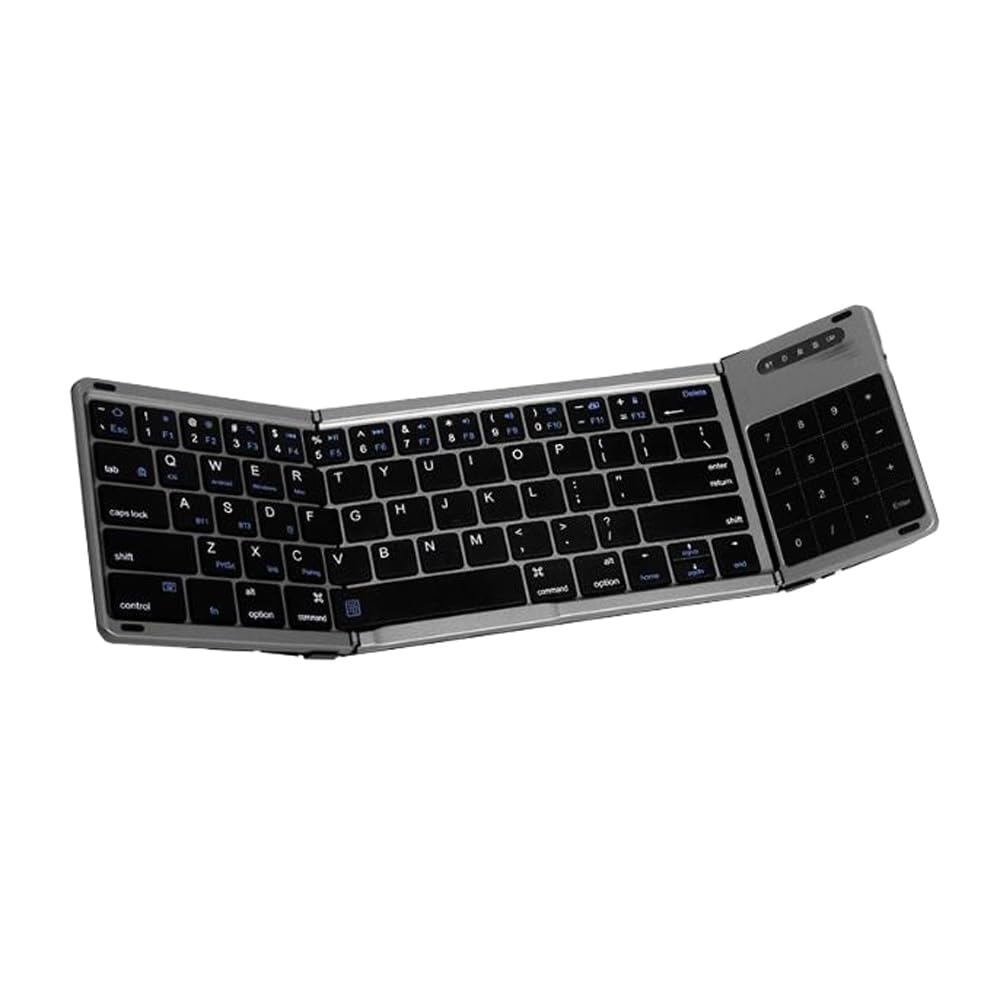
Image showing the Generic Delux KF18 MF10 Foldable Keyboard and Mouse Set in its unfolded state, ready for use.
2. Safety Information
- Do not expose the device to extreme temperatures, humidity, or direct sunlight.
- Avoid dropping or subjecting the device to strong impacts.
- Keep the device away from water and other liquids.
- Do not attempt to disassemble or repair the device yourself. Contact qualified service personnel for assistance.
- Use only the specified charging cables and power adapters.
3. Package Contents
Please check the package contents upon unboxing. If any items are missing or damaged, contact your retailer.
- Foldable Wireless Keyboard
- Wireless Mouse
- USB Charging Cable
- User Manual (this document)
4. Product Overview
Familiarize yourself with the components of your keyboard and mouse set.
4.1 Keyboard Components
- Folding Hinges: Allow the keyboard to fold into a compact size.
- Power Switch: Located on the side or back of the keyboard.
- Charging Port: Micro USB or USB-C port for charging.
- Status Indicator Light: Shows power, charging, and connection status.
4.2 Mouse Components
- Left/Right Click Buttons: Standard mouse functions.
- Scroll Wheel: For navigation.
- DPI Button: Adjusts mouse sensitivity (if applicable).
- Power Switch: Located on the bottom of the mouse.
- Charging Port: Micro USB or USB-C port for charging.
5. Setup
5.1 Charging the Devices
- Connect the provided USB charging cable to the charging port on both the keyboard and the mouse.
- Plug the other end of the cable into a USB power source (e.g., computer USB port, USB wall adapter).
- The status indicator light will typically show red during charging and turn off or change color when fully charged.
5.2 Unfolding the Keyboard
Gently unfold the keyboard until it lies flat and locks into position. Ensure the hinges are fully extended for stable typing.
5.3 Connecting via Bluetooth
- Turn on the Keyboard: Slide the power switch to the 'ON' position. The status indicator light will flash.
- Enter Pairing Mode: Press the dedicated Bluetooth pairing button (often labeled 'Fn + C' or a specific Bluetooth icon) on the keyboard. The indicator light will flash rapidly.
- Turn on the Mouse: Slide the power switch on the bottom of the mouse to the 'ON' position.
- Activate Bluetooth on Your Device: On your computer, tablet, or smartphone, go to Bluetooth settings and turn Bluetooth on.
- Select Device: Look for "Delux KF18" (for keyboard) and "Delux MF10" (for mouse) or similar names in the list of available devices and select them to pair.
- Confirm Pairing: Follow any on-screen prompts. The indicator lights on the keyboard and mouse will stop flashing once successfully paired.
6. Operating Instructions
6.1 Keyboard Usage
- Typing: Use the keyboard as you would a standard QWERTY keyboard.
- Function Keys: Many keys have secondary functions accessible by holding down the 'Fn' key and pressing the desired function key (e.g., volume control, media playback). Refer to the keycap legends for specific functions.
- Folding: To store, gently fold the keyboard along its hinges until it is compact. Ensure it is powered off before folding to conserve battery.
6.2 Mouse Usage
- Basic Navigation: Use the mouse for cursor movement, clicking, and scrolling.
- DPI Adjustment: If your mouse has a DPI button, press it to cycle through different sensitivity levels.
- Power Off: Slide the power switch to the 'OFF' position when not in use to save battery.
7. Maintenance
7.1 Cleaning
- Ensure both devices are powered off before cleaning.
- Use a soft, dry, lint-free cloth to wipe the surfaces.
- For stubborn dirt, slightly dampen the cloth with water or a mild, non-abrasive cleaner. Avoid getting moisture into openings.
- Do not use harsh chemicals, solvents, or abrasive materials.
7.2 Storage
- When not in use, fold the keyboard and store it in a protective pouch or case to prevent scratches and damage.
- Store the mouse in a safe place where it won't be crushed or exposed to excessive pressure.
- Keep devices in a cool, dry environment.
8. Troubleshooting
8.1 Device Not Connecting
- Check Power: Ensure both the keyboard and mouse are turned on and fully charged.
- Re-enter Pairing Mode: Put the device back into Bluetooth pairing mode.
- Device Bluetooth: Ensure Bluetooth is enabled on your host device (computer, tablet, phone).
- Forget Device: On your host device, try forgetting the keyboard/mouse from your Bluetooth device list and then re-pairing.
- Restart Devices: Restart both the keyboard/mouse and your host device.
8.2 Keyboard Not Typing / Mouse Not Moving
- Battery Level: Check if the battery is low. Charge the devices.
- Connection: Verify that the devices are still connected via Bluetooth. If not, re-pair them.
- Interference: Move closer to your host device or away from potential sources of wireless interference.
9. Specifications
| Feature | Detail |
|---|---|
| Product Dimensions | 3.94 x 7.87 x 11.81 inches (unfolded) |
| Item Weight | 2.2 pounds |
| Manufacturer | Generic |
| Model Number | KF18 MF10 |
| Connectivity | Wireless (Bluetooth) |
| Keyboard Layout | English US |
10. Warranty and Support
10.1 Warranty Information
This product comes with a 90-day warranty from the date of purchase. This warranty covers manufacturing defects under normal use. It does not cover damage caused by misuse, accidents, unauthorized modifications, or external causes.
10.2 Customer Support
For technical support, warranty claims, or further assistance, please contact your retailer or the manufacturer's customer service. Refer to your purchase documentation for specific contact details.