
1. Introduction
This manual provides essential information for the proper setup, operation, and maintenance of your KAMRUI Mini PC E3B. Please read these instructions carefully before using the device to ensure optimal performance and longevity.

Image 1.1: The KAMRUI Mini PC E3B, demonstrating its compact and portable design.
2. Package Contents
Verify that all items are present in the package:
- KAMRUI Mini PC E3B
- Power Adapter
- HDMI Cable
- VESA Mount with Screws
- User Manual (this document)
3. Product Overview
The KAMRUI Mini PC E3B is a high-performance micro desktop computer designed for various applications, from office work to light gaming. It features an AMD Ryzen 5 7430U processor, 32GB DDR4 RAM, and a 512GB NVMe SSD.
3.1. Key Features
- Processor: AMD Ryzen 5 7430U (6 Cores/12 Threads, up to 4.3GHz)
- Graphics: AMD Radeon Vega 8 Graphics (4K@60Hz support)
- Memory: 32GB DDR4 Dual-Channel RAM (expandable up to 64GB)
- Storage: 512GB M.2 2280 NVMe SSD (expandable up to 4TB total)
- Connectivity: WiFi 6, Bluetooth 5.2, Gigabit Ethernet
- Display Output: Triple Display support (HDMI 2.0, DisplayPort 1.4, USB-C with DP1.4)

Image 3.1: Overview of the KAMRUI Mini PC E3B's main features and specifications.
3.2. Ports and Interfaces
Familiarize yourself with the available ports on your Mini PC:
- Front Panel: Power Button, 3.5mm Audio Jack, 2x USB 3.2 Gen2 Type-A (10Gbps), 1x USB 3.2 Gen2 Type-C (Data Transfer + 4K@60Hz DisplayPort 1.4, PD output)
- Rear Panel: DC IN, 1x HDMI 2.0 (4K@60Hz), 1x DisplayPort 1.4 (4K@60Hz), 1x RJ45 Gigabit Ethernet Port, 4x USB 3.2 Gen1 Type-A (5Gbps)

Image 3.2: Detailed view of the KAMRUI Mini PC E3B's front and rear interfaces.
4. Setup Instructions
Follow these steps to set up your KAMRUI Mini PC E3B:
- Connect Peripherals: Connect your monitor(s) using HDMI, DisplayPort, or USB-C. Connect your keyboard and mouse to the available USB ports.
- Network Connection: For a wired connection, plug an Ethernet cable into the RJ45 port. For wireless, ensure your WiFi network is available after powering on.
- Power Connection: Connect the power adapter to the DC IN port on the Mini PC, then plug the adapter into a power outlet.
- Power On: Press the power button on the front panel. The system will boot up.
- Initial Setup: Follow the on-screen instructions to complete the operating system setup (e.g., Windows initial configuration).
4.1. Triple Display Setup
The Mini PC supports connecting up to three displays simultaneously for enhanced productivity:
- Connect the first monitor via the HDMI 2.0 port.
- Connect the second monitor via the DisplayPort 1.4 port.
- Connect the third monitor via the USB 3.2 Gen2 Type-C port (ensure your monitor or adapter supports DisplayPort Alternate Mode).

Image 4.1: Example of a triple-screen display setup with the KAMRUI Mini PC E3B.
4.2. VESA Mount Installation
The included VESA mount allows you to attach the Mini PC to the back of a compatible monitor or to a wall mount:
- Attach the VESA bracket to the back of your monitor using the provided screws.
- Slide the Mini PC onto the bracket until it clicks securely into place.

Image 4.2: The KAMRUI Mini PC E3B shown with its VESA mount capability and compact dimensions.
5. Operating Instructions
5.1. Power On/Off and Restart
- Power On: Press the power button once.
- Shut Down: From the operating system, select 'Shut Down'. Alternatively, press and hold the power button for 5 seconds to force a shutdown (use only if necessary).
- Restart: From the operating system, select 'Restart'.
5.2. Network Connectivity
The Mini PC supports both wired and wireless network connections:
- Wired (Ethernet): Connect an Ethernet cable to the RJ45 port for a stable, high-speed connection.
- Wireless (WiFi 6): The device features WiFi 6 for fast and stable wireless connectivity. Access network settings in your operating system to connect to a WiFi network.
- Bluetooth 5.2: Use Bluetooth 5.2 to connect wireless peripherals such as keyboards, mice, and headphones with low latency.

Image 5.1: The KAMRUI Mini PC E3B offers stable and fast WiFi 6 connectivity.
5.3. USB 3.2 Gen2 Type-C Port Usage
The versatile USB 3.2 Gen2 Type-C port supports multiple functions:
- 10Gbps Data Transfer: Connect compatible external storage devices for high-speed data transfer.
- 4K UHD Display: Use it as a display output for a 4K monitor (requires DisplayPort Alternate Mode support).
- Charge External Devices: Power or charge compatible external devices.

Image 5.2: The USB 3.2 Gen2 Type-C port provides high-speed data, display, and charging functions.
6. Maintenance and Upgrades
6.1. General Care
- Keep the Mini PC in a well-ventilated area to prevent overheating.
- Clean the exterior with a soft, dry cloth. Avoid liquid cleaners.
- Ensure the cooling fan vents are clear of obstructions. The built-in cooling fan helps manage heat during operation.
6.2. Storage and Memory Upgrades
The KAMRUI Mini PC E3B offers flexible upgrade options for storage and memory:
- RAM: The device comes with 32GB DDR4 dual-channel RAM and can be upgraded to a maximum of 64GB.
- SSD: It includes a 512GB M.2 2280 SSD. There are two M.2 2280 slots, supporting up to 2TB per slot, for a total expandable storage of up to 4TB. These slots are compatible with high-speed NVMe PCIe and SATA SSDs.
For detailed upgrade instructions, please refer to the official KAMRUI support resources or consult a qualified technician.

Image 6.1: Internal components highlighting RAM and SSD upgrade capabilities.
7. Troubleshooting
If you encounter issues with your Mini PC, refer to the following common problems and solutions:
- No Power:
- Ensure the power adapter is securely connected to both the Mini PC and a working power outlet.
- Verify the power outlet is functional.
- No Display:
- Check that the monitor is powered on and the correct input source is selected.
- Ensure the HDMI, DisplayPort, or USB-C cable is securely connected to both the Mini PC and the monitor.
- Try a different display cable or monitor if available.
- No Network Connection:
- For wired connections, check the Ethernet cable and router status.
- For wireless connections, ensure WiFi is enabled in the operating system and you are connected to the correct network with the correct password.
- Restart your router/modem.
- System Slowdown:
- Close unnecessary applications running in the background.
- Check for available operating system updates and install them.
- Ensure sufficient free storage space on the SSD.
If the issue persists, please contact KAMRUI customer support.
8. Specifications
Detailed technical specifications for the KAMRUI Mini PC E3B:
| Feature | Specification |
|---|---|
| Processor | AMD Ryzen 5 7430U (6C/12T, up to 4.3GHz) |
| Graphics Coprocessor | AMD Radeon Graphics |
| RAM | 32 GB DDR4 SDRAM |
| Hard Drive | 512 GB M.2 2280 NVMe SSD |
| Operating System | OS (Pre-installed) |
| Hardware Platform | PC |
| Item Weight | 3.05 pounds |
| Package Dimensions | 6.46 x 6.42 x 4.45 inches |
| Color | Black |
| Connectivity | WiFi 6, Bluetooth 5.2, Gigabit Ethernet |
| Display Outputs | HDMI 2.0, DisplayPort 1.4, USB-C (DP1.4) |
9. Warranty and Support
KAMRUI provides maintenance points for exchange or repair of your Mini PC during the warranty period. For specific warranty terms and conditions, please refer to your purchase documentation or contact customer support.
9.1. Customer Support
For technical assistance, warranty claims, or any product-related inquiries, please use the following contact methods:
- Email: support@kamrui.com
- Phone (US): +1-833-670-1528 (Monday - Friday, 9 AM - 5 PM EST)
- Online: Log in to your Amazon account, navigate to 'Your Account' > 'Your orders', and select 'Ask Product Question' for your purchase.
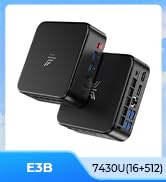
Image 9.1: KAMRUI customer support contact information.
10. Official Product Videos
No official product videos from the seller were provided for embedding in this manual.


