
1. Product Overview
The MOVOLS Dual-Lens PoE Security Camera X1600P is an outdoor surveillance device featuring dual 3.6mm lenses, providing a comprehensive 360° coverage with two distinct views. It offers 6MP resolution (3MP+3MP) for clear 2560x1440 pixel images and supports three night vision modes: black and white, full-color, and smart night vision. Key functionalities include AI human detection, auto-tracking, instant alerts, and two-way audio communication. This camera is designed for Power over Ethernet (PoE) connectivity and must be connected to an appointed PoE NVR system for operation.

Image: The MOVOLS Dual-Lens PoE Security Camera displaying its dual-screen preview capability, showing a fixed position camera view and a PTZ camera view simultaneously.

Image: This diagram illustrates how the dual-lens camera combines the functions of a fixed bullet camera and a pan/tilt/zoom (PTZ) camera, offering multiple views from a single unit.
2. Setup and Installation
2.1 Package Contents
- Camera x 1
- Fixed bracket x 1
- Waterproof Lid x 1
- Pack of Screws x 1
- Instruction Manual x 1

Image: An illustration detailing the components included in the product package, such as the camera, mounting bracket, waterproof lid, screws, and instruction manual.
2.2 Power and Network Connection
This camera is a Power over Ethernet (PoE) device. It requires a PoE compatible router, switch, or Network Video Recorder (NVR) for both power and data transmission. The camera cannot work alone and must be connected to an appointed PoE NVR system. If your network device is not PoE compatible, the camera can be powered using a DC12V, 2A adapter (not included) with a network cable connection to a standard router.

Image: This diagram illustrates various connection methods for the camera, including direct connection to a PoE NVR, a PoE router/switcher, or a standard router using a DC12V 2A adapter.
2.3 Physical Installation
The camera can be mounted under a ceiling or on a wall. Use the provided fixed bracket and screws for secure installation. Ensure the mounting location provides a clear field of view and is within range of your network connection.
- Choose Location: Select a suitable outdoor or indoor location that offers optimal surveillance coverage.
- Mount Bracket: Secure the fixed bracket to the chosen surface using the provided screws.
- Attach Camera: Mount the camera onto the fixed bracket.
- Connect Cables: Connect the network cable (and power adapter if not using PoE) to the camera. Ensure the waterproof lid is properly secured over the connections for outdoor use.

Image: Two examples of camera installation: one showing the camera mounted under a ceiling and another showing it mounted on a wall side.
3. Operation
3.1 Initial Configuration and App Access
To configure and operate the camera, you must install the dedicated mobile application (e.g., iCSee app) on your smartphone or a client application on your PC. The camera's web interface may require specific browser plugins or direct app usage for full functionality.

Image: This graphic illustrates the camera's compatibility with multiple platforms, including iPhone, Android, Windows, and web browsers, for remote access and viewing.
3.2 Pan, Tilt, and Zoom (PTZ) Control
The PTZ camera lens can be rotated 355° horizontally (pan) and 90° vertically (tilt) via the mobile application, providing a 360° field of view. Note that the camera features digital zoom, not optical zoom, which can be controlled by pinching in the app.

Image: A smartphone screen displaying the camera's interface, demonstrating the ability to control the 355° pan and 90° tilt movements for full range monitoring.
3.3 Night Vision Modes
The camera is equipped with 8 infrared and 8 white lights, offering three distinct night vision modes:
- Black and White Mode: Infrared lights provide clear monochrome images in low light.
- Full-Color Mode: White lights activate to provide full-color night vision.
- Smart Night Vision: Automatically switches to full-color mode when motion is detected, otherwise uses infrared for black and white.

Image: A comparison of the camera's three night vision modes: full-color with white lights on, black and white with only IR lights, and smart mode which activates white lights upon motion detection.
3.4 AI Human Detection and Auto Tracking
The camera utilizes an AI algorithm for motion detection, specifically identifying human or vehicle movement. Upon detection, it can automatically track the subject, activate spotlights, trigger a siren alarm, and send real-time alerts to your phone.
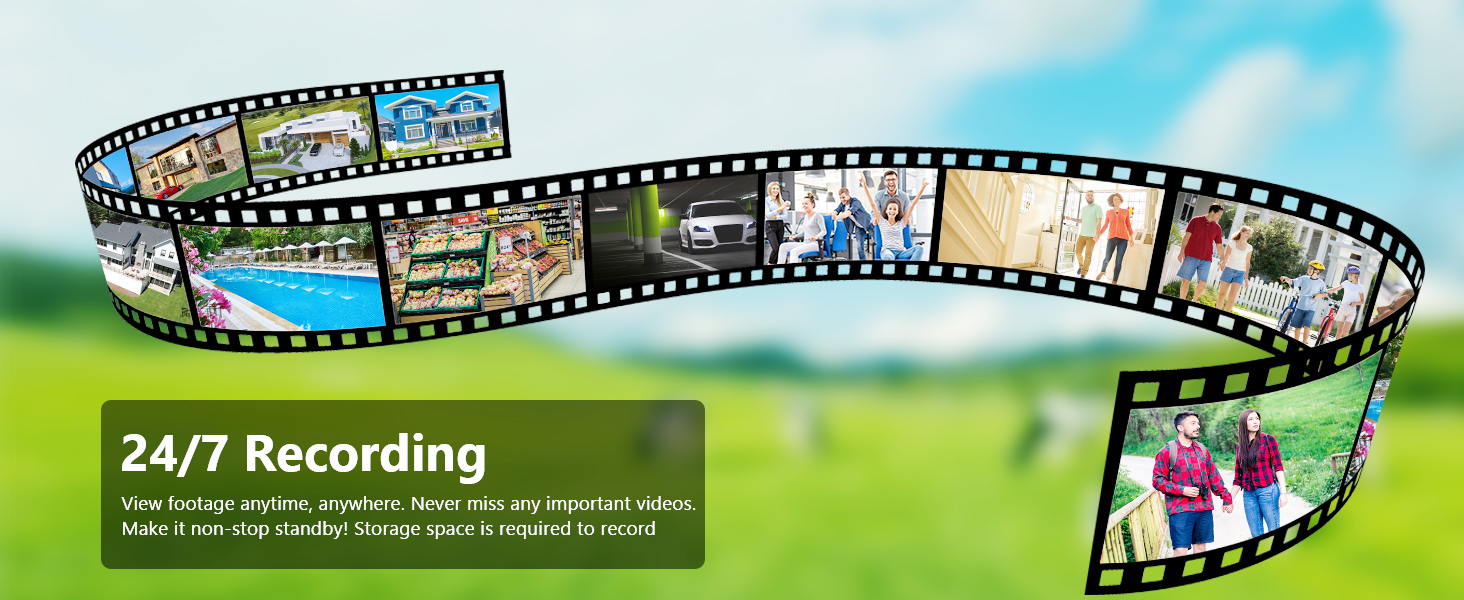
Image: This graphic illustrates the camera's ability to detect human figures, trigger push alerts to a smartphone, and automatically track the detected individual within the monitoring area.
3.5 Two-Way Audio
Equipped with a built-in speaker and microphone, the camera supports two-way audio communication. This allows you to speak with visitors or deter intruders directly through the camera via the mobile application.

Image: A visual representation of the two-way audio feature, showing a person speaking into their phone to communicate with someone at the door via the camera.
3.6 Continuous Recording and Storage
The camera supports 24/7 continuous recording when connected to a compatible NVR system. It also features a memory card slot (supports up to 128GB TF Card) for local storage.

Image: A filmstrip graphic illustrating the camera's 24/7 recording feature, capturing continuous footage for constant surveillance.
4. Maintenance
4.1 Weather Resistance
The camera has an IP66 International Protection Rating, indicating it is water-resistant and dustproof. It is designed to withstand various outdoor weather conditions, including rain, snow, and temperatures ranging from -35°C to 50°C (-31°F to 122°F).

Image: This image emphasizes the camera's IP66 waterproof rating, showing it in a rainy environment with icons representing waterproof, dustproof, heat resistance, cold resistance, and thunderstorm protection.
4.2 Cleaning
To ensure optimal performance, periodically clean the camera's lenses and exterior. Use a soft, damp cloth to wipe away dust and debris. Avoid using harsh chemicals or abrasive materials that could damage the camera's surface or lenses.
4.3 Storage Management
If using a TF card for local storage, regularly check its capacity and manage recorded footage as needed. The camera supports a maximum of 128GB TF card. For continuous recording, ensure sufficient storage is available on your NVR system.
5. Troubleshooting
- Camera Not Powering On: Ensure the camera is properly connected to a PoE NVR/switch or a DC12V 2A power adapter if not using PoE. Verify all cable connections are secure.
- No Video Feed: Confirm the camera is connected to a compatible PoE NVR system. Ensure the network cable is functioning correctly. Check the mobile app or NVR interface for camera status.
- App Connectivity Issues: Ensure your smartphone or PC has a stable internet connection. Verify the camera is properly added and configured within the application. If experiencing stretched or squeezed images, check for app updates or contact support.
- PTZ Control Not Responding: Ensure the camera has power and network connectivity. Check the app for any error messages.
- Night Vision Problems: Verify that the infrared and white lights are not obstructed. Check night vision settings in the app to ensure the desired mode is selected.
- Two-Way Audio Issues: Ensure microphone and speaker settings are enabled in the app. Check your device's volume settings.
- Camera Not Working Alone: This camera is designed to work with an appointed PoE NVR system. It cannot function as a standalone device without a compatible NVR or a network connection with a DC power adapter.
6. Specifications
| Feature | Specification |
|---|---|
| Model Name | X1600P |
| Brand | Movols Guard your home |
| Effective Still Resolution | 6 MP (3MP+3MP) |
| Video Capture Resolution | 1440p |
| Indoor/Outdoor Usage | Indoor, Outdoor |
| Connectivity Technology | Wired (PoE) |
| Power Source | DC (12V) |
| Voltage | 12 Volts |
| Wattage | 24 watts |
| Viewing Angle | 360 Degrees (Pan/Tilt) |
| Pan/Tilt Range | 355° Pan, 90° Tilt |
| Zoom Type | Digital Zoom |
| Low Light Technology | Night Color |
| Number of IR LEDs | 8 |
| International Protection Rating | IP66 |
| Control Method | App |
| Alert Type | Audio and Motion |
| Product Dimensions | 3.23 x 3.55 x 6.7 inches |
| Item Weight | 1 pounds (16 ounces) |
7. Warranty and Support
7.1 Technical Support
Movols is committed to providing professional and continuous product services and technical support. For any technical assistance, setup guidance, or troubleshooting not covered in this manual, please refer to the contact information provided with your product packaging or visit the official Movols website for support resources.
7.2 Warranty Information
Specific warranty details are typically included with your product purchase documentation. Please retain your proof of purchase for warranty claims. For detailed warranty terms and conditions, refer to the information provided by Movols or contact customer service.