Introduction
This manual provides detailed instructions for the setup, operation, and maintenance of your KINESIS mWave Ergonomic Keyboard for Mac (White). This keyboard features a unique wave layout, low-profile mechanical switches, and versatile connectivity options including Bluetooth and USB. It is designed to enhance comfort and productivity for macOS users.

Figure 1: KINESIS mWave Ergonomic Keyboard for Mac (White)
What's in the Box
Please verify that all items are present in your package:
- KINESIS mWave for Mac Keyboard (KB150M-TAC)
- USB-C to USB-A Cable (6 ft)
- 3 Magnetic Feet for Negative Tilting
- 2 AA Batteries (pre-installed or separate)
- Quick Start Guide

Figure 2: Battery Compartment with AA Batteries
Setup and Connectivity
1. Battery Installation
The keyboard requires two AA batteries for wireless operation. These are typically included. If not already installed, open the battery compartment on the underside of the keyboard and insert the batteries, ensuring correct polarity.
2. Wired Connection (USB)
For a direct and reliable connection, use the provided USB-C to USB-A cable. Connect the USB-C end to the port on the front of the keyboard and the USB-A end to an available USB port on your Mac computer.

Figure 3: USB-C Port Location
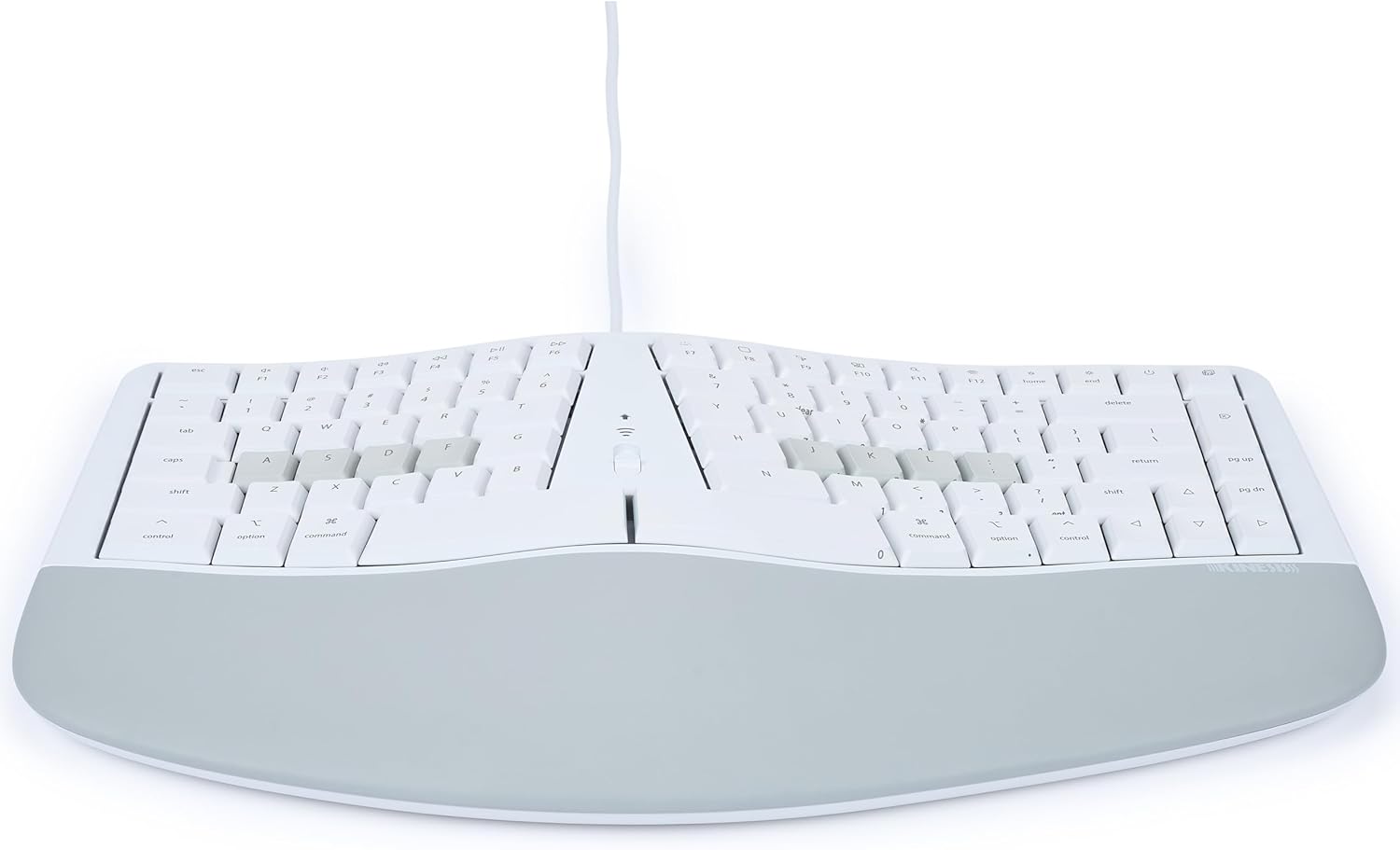
Figure 4: Keyboard Connected via USB Cable
3. Wireless Connection (Bluetooth)
The mWave keyboard can pair with up to two different Bluetooth devices. To connect:
- Ensure the keyboard is powered on.
- Press and hold the Bluetooth pairing key (usually indicated by a Bluetooth icon) for a few seconds until the indicator light flashes, signifying pairing mode.
- On your Mac, navigate to System Settings > Bluetooth.
- Select the KINESIS mWave keyboard from the list of available devices and follow any on-screen prompts to complete pairing.
- To switch between paired devices, briefly press the corresponding Bluetooth channel key.
Operation
Ergonomic Design and Posture
The mWave keyboard features a popular "wave" layout and a thick padded palm support. This design helps position your hands and arms in a neutral posture, reducing strain during extended use. The keyboard also includes three magnetic feet that can be attached to the underside to achieve a negative tilt, further optimizing wrist alignment.
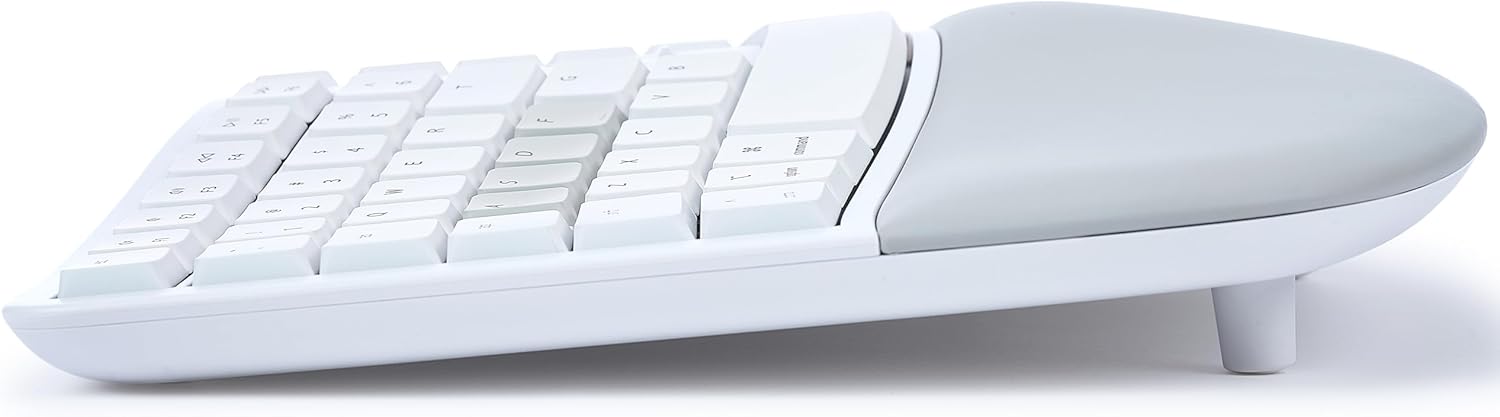
Figure 5: Keyboard with Magnetic Feet for Negative Tilt
Programmability with Kinesis Clique
The keyboard offers powerful programmability. You can re-program any key using the Kinesis Clique software, accessible via a Chrome or Edge browser. This allows for over 350 USB actions, mouse clicks, basic macros, tap-and-hold functions, and up to 8 layers of customization.

Figure 6: Kinesis Clique Software Interface
Backlighting
When connected via USB, the keyboard's backlighting illuminates the upper key legends. This feature helps reduce eye strain in low-light environments. Adjust backlighting intensity using the dedicated function keys.
Integrated Keypad
The keyboard includes an integrated numeric keypad. Tap the Fn key to access standard numeric keypad actions without needing to move your hands from the home row.
Maintenance
To ensure the longevity and optimal performance of your KINESIS mWave keyboard, follow these maintenance guidelines:
- Cleaning: Use a soft, lint-free cloth slightly dampened with water or a mild cleaning solution to wipe down the keycaps and palm rest. Avoid harsh chemicals or abrasive materials.
- Dust Removal: Use compressed air to remove dust and debris from between the keycaps.
- Storage: When not in use for extended periods, store the keyboard in a clean, dry environment away from extreme temperatures.
- Battery Replacement: Replace AA batteries when the low battery indicator appears or when wireless connectivity becomes unreliable.
Troubleshooting
If you encounter issues with your KINESIS mWave keyboard, refer to the following common solutions:
- Keyboard Not Responding:
- Wired: Ensure the USB cable is securely connected to both the keyboard and your computer. Try a different USB port or cable.
- Wireless: Check if the keyboard is powered on and batteries are charged. Re-establish the Bluetooth connection by re-pairing the device. Ensure the keyboard is within range of your computer.
- Keys Not Registering or Double-Typing:
- Clean around the affected key with compressed air to remove any debris.
- If the issue persists, a factory reset may be necessary (refer to the Quick Start Guide for specific instructions).
- Backlighting Not Working:
- Ensure the keyboard is connected via USB, as backlighting is primarily supported in wired mode.
- Check backlighting intensity settings using the function keys.
- Bluetooth Pairing Issues:
- Ensure no other Bluetooth devices are interfering.
- Remove the keyboard from your computer's Bluetooth device list and attempt to pair again.
For further assistance, please visit the official Kinesis support website.
Specifications
| Product Dimensions | 15.25 x 9.5 x 1.75 inches |
| Item Weight | 2.75 pounds |
| Item Model Number | KB150M-TAC |
| Batteries | 2 AA batteries (included) |
| Connectivity Technology | Bluetooth, USB-C |
| Keyboard Description | Mechanical |
| Special Features | Backlit, Ergonomic, Hotkeys and Media Keys, Programmable Keys, Wrist Rest |
| Keyboard Backlighting Color | Single Color |
| Material | Plastic |
Warranty and Support
Kinesis products are designed for durability and performance. For information regarding product warranty, returns, or technical support, please refer to the Quick Start Guide included with your product or visit the official Kinesis website. Protection plans may also be available for extended coverage.
For the latest support resources and contact information, please visit: www.kinesis.com/support


