
YEEHAO DHC-A-DC501L-0Purple
YEEHAO 32MP Dual Lens Toddler Camera User Manual
Model: DHC-A-DC501L-0Purple
1. Introduction
Thank you for choosing the YEEHAO 32MP Dual Lens Toddler Camera. This digital camera is designed specifically for young children, offering a fun and safe way to explore photography and videography. Its intuitive interface and durable design make it an ideal gift for children aged 3-9.
Key Features
- 32MP Dual Lens: Capture high-resolution photos and selfies with both front and rear lenses.
- 1080P HD Video Recording: Record clear and vibrant videos.
- Intuitive Interface: Easy-to-use controls designed for children, preventing freezing issues.
- No Games: Focuses purely on photography and videography, limiting screen time.
- Multiple Funny Photo Frames & Filters: Enhance creativity with various built-in effects.
- Rechargeable Battery & USB Transfer: Convenient charging and easy file transfer to a computer.
- 32GB TF Card Included: Ample storage pre-installed for immediate use.
- Shockproof Soft Case & Safety Lanyard: Durable design with comfortable and secure carrying options.
2. What's in the Box
Please check the package contents to ensure all items are present:
- 1 x Kids Camera
- 1 x Protective Case
- 1 x 32GB TF Card (pre-installed)
- 1 x USB Charge Cable
- 1 x Lanyard
- 1 x User Manual
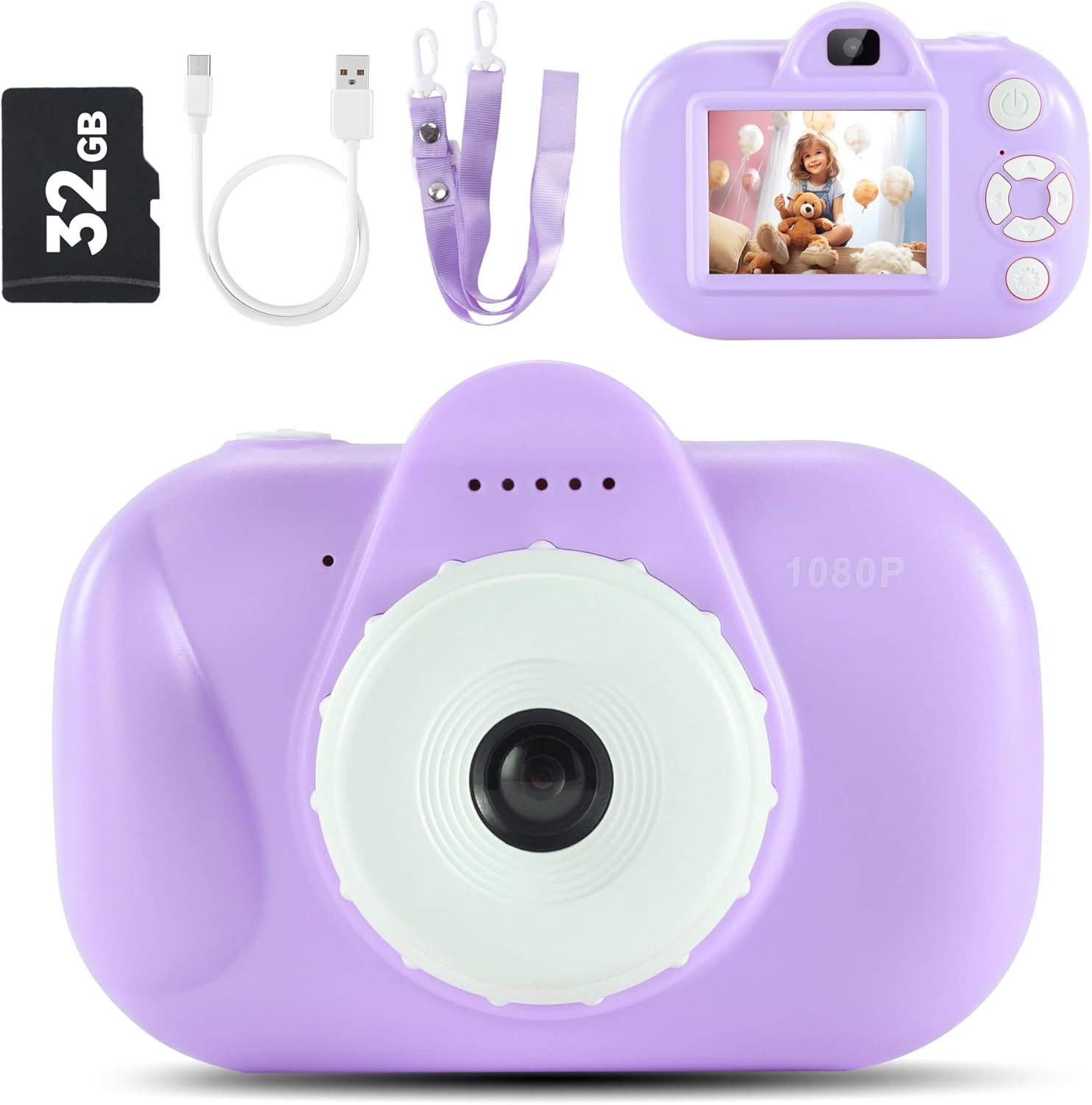
Image: Contents of the YEEHAO Kids Camera package.
3. Setup
3.1 Charging the Camera
Before first use, fully charge the camera. Connect the included USB cable to the camera's charging port and the other end to a USB power source (e.g., computer, wall adapter). The charging indicator light will show the charging status.

Image: Charging the camera and transferring files via USB.
3.2 Inserting the TF Card
The 32GB TF card is pre-installed. If you need to remove or re-insert it, gently push the card into the slot until it clicks. To remove, push again until it springs out.
3.3 Attaching the Lanyard
Attach the safety breakaway lanyard to the designated loop on the camera. This allows for easy and secure carrying around the neck, preventing accidental drops.
4. Operating Your Camera
4.1 Power On/Off
Press and hold the power button (usually located on the top or side) to turn the camera on or off.
4.2 Taking Photos
Navigate to photo mode using the mode button. Frame your shot using the screen, then press the shutter button to capture the image. The camera features a 32MP dual lens for both front and rear photography.
4.3 Recording Videos
Switch to video recording mode. Press the shutter button once to start recording and again to stop. The camera supports 1080P HD video recording.

Image: Kids camera recording 1080P HD video.
4.4 Using Photo Frames and Filters
In photo mode, use the navigation buttons to browse through various fun photo frames and filters. Select your desired effect before taking a picture to add a creative touch.

Image: Examples of funny frames and filters available on the camera.
4.5 Playing Back Media
Enter playback mode to view your captured photos and videos. Use the navigation buttons to scroll through your media. Press the OK button to view videos.
4.6 Transferring Files to Computer
Connect the camera to your computer using the provided USB cable. The camera will appear as a removable disk. You can then drag and drop photos and videos to your computer.
5. Maintenance
5.1 Cleaning
Use a soft, dry cloth to clean the camera body. For the lens and screen, use a microfiber cloth specifically designed for optics. Do not use liquid cleaners or abrasive materials.
5.2 Storage
Store the camera in a cool, dry place away from direct sunlight and extreme temperatures. When not in use for extended periods, ensure the battery is partially charged (around 50%) to prolong its lifespan.
5.3 Battery Care
To maximize battery life, avoid fully discharging the battery frequently. Charge the camera regularly, even if not in constant use. Do not attempt to replace the internal battery yourself.
6. Troubleshooting
| Problem | Possible Cause | Solution |
|---|---|---|
| Camera won't turn on. | Low battery. | Charge the camera for at least 2 hours. |
| Cannot take photos/videos. | TF card full or not inserted correctly. | Check TF card insertion. Transfer files to computer and delete from card to free up space. |
| Images are blurry. | Lens is dirty; insufficient light; camera shake. | Clean the lens. Ensure adequate lighting. Hold the camera steady. |
| Camera freezes. | Software glitch. | Press the reset button (if available, usually a small pinhole) or hold the power button for 10 seconds to force a restart. |
7. Specifications
| Feature | Detail |
|---|---|
| Model Name | DHC-A-DC501L-0Purple |
| Brand | YEEHAO |
| Maximum Webcam Image Resolution | 32 MP |
| Video Resolution | 1080P HD |
| Supported File Format | AVI |
| Storage | 32GB TF Card (included) |
| Batteries | 1 9V batteries required. (included) |
| Product Dimensions | 4.21 x 2.65 x 1.87 inches |
| Item Weight | 6.7 ounces |
| Photo Sensor Technology | CMOS |
| Aspect Ratio | 4:3 |
| Image Stabilization | Digital |
| Optical Zoom | 0.1 |
| Expanded ISO Minimum | 100 |
8. Warranty and Support
YEEHAO products are manufactured to the highest quality standards. For information regarding warranty coverage, please refer to the warranty card included with your purchase or visit the official YEEHAO website.
For technical support, troubleshooting assistance, or any questions about your camera, please contact YEEHAO customer service. Contact details can typically be found on the product packaging or the brand's official website.
Online Resources:
- YEEHAO Store on Amazon: Visit the YEEHAO Store
Ask a question about this manual
Ask about setup, troubleshooting, compatibility, parts, safety, or missing instructions. Manuals+ will review the question and use this page’s manual context to help answer it.