
1. Introduction
The ThorBolt X1 Smart Lock offers advanced keyless entry and robust security for your home. Designed with Apple Home Key compatibility and Thread support, it provides a fast, secure, and seamless experience. This manual will guide you through the installation, setup, and operation of your new smart lock.
Key Features:
- Apple Home Key & Thread Support: Tap to lock/unlock using your iPhone or Apple Watch, even when devices are low on power. Thread ensures ultra-reliable and energy-efficient communication within your Apple Home ecosystem.
- Multiple Unlocking Methods: Choose from Home Key, Siri, the Sleekpoint App, Fingerprint, Touch Keypad, or traditional physical keys.
- Advanced Access Management: Manage up to 50 users (100 passcodes, 100 fingerprints) via the Sleekpoint App, with customizable settings like Auto-Lock and Anti-Peep Passcode.
- Long Battery Life: Up to 1 year on 8 AA alkaline batteries.
- Weatherproof Design: IP65 rated exterior panel for durability in various weather conditions.
2. Package Contents
Ensure all items are present before beginning installation:
- X1 Smart Lock Set (Interior & Exterior Lockset)
- Deadbolt Latch Set
- Mounting Hardware Kit (Screws, Mounting Plate)
- Two Backup Keys
- User Manual & Drill Template

Image: ThorBolt X1 Smart Lock components.
3. Specifications
| Brand | ThorBolt |
| Model Name | X1 |
| Lock Type | Biometric, Deadbolt |
| Material | Aluminum |
| Color | X1 Gray |
| Item Dimensions (L x W x H) | 6.18 x 2.76 x 1.34 inches |
| Item Weight | 1.76 Pounds |
| Connectivity Protocol | Thread |
| Controller Type | Apple HomeKit |
| Special Features | 6 Unlocking Methods, Apple Home Key & Thread Support, Easy DIY Installation, Smart Access Management, Up to 12 months Battery Life |
| Power Source | 8 AA Alkaline Batteries (not included) |
4. Installation Guide
Follow these steps to install your ThorBolt X1 Smart Lock. For a visual guide, scan the QR code in your user manual for an installation video.
4.1 Door Compatibility
The X1 Smart Lock is compatible with most standard USA & Canada deadbolts. Verify your door dimensions before installation:
- Door Thickness: 1-3/8" to 1-3/4" (35-55mm)
- Adjustable Latch Backset: 2-3/8" to 2-3/4" (60-70mm)
- Door Holes: Suitable for 2-1/8" (54mm) and 1-1/2" (38mm) door holes.

Image: Door compatibility measurements.
4.2 Step-by-Step Installation
- Prepare the Door: Use the provided door marking template to ensure accurate placement of the latch and lock components.
- Install the Latch: Insert the deadbolt latch into the door edge and secure it with screws. Ensure the latch is oriented correctly for your door's swing.
- Install Exterior Panel: Route the cable from the exterior panel through the door hole and attach the exterior panel to the door.
- Install Interior Mounting Plate: Secure the mounting plate to the interior side of the door, ensuring the cable passes through it.
- Connect Cables & Install Interior Panel: Connect the cables from the exterior panel to the interior panel. Attach the interior panel to the mounting plate.
- Insert Batteries: Open the battery cover on the interior panel and insert 8 AA alkaline batteries (not included). Close the cover.
- Test the Lock: Manually test the deadbolt to ensure smooth operation.
4.3 Initial Setup & Calibration
After physical installation, use the Sleekpoint App for initial setup and lock side calibration.

Image: Automatic Lock Side Calibration in the Sleekpoint App.
4.4 Installation Video
Video: FULL DEMO, ThorBolt X1 Apple Home Key Tap to Unlock. This video provides a comprehensive demonstration of the lock's features and installation process.
5. Operating Instructions
The ThorBolt X1 offers multiple convenient ways to lock and unlock your door.
5.1 Unlocking Methods
- Apple Home Key (iPhone/Apple Watch): Tap your iPhone (XS or later with iOS 15+) or Apple Watch (Series 4 or later with watchOS 8+) to the NFC sensing zone on the lock. This works even if your device battery is low (Express Mode for up to 5 hours).
Image: Your iPhone is Your Key, So is Your Watch.

Image: Express Mode for Home Key.
- Fingerprint: Place your registered fingerprint on the sensor for lightning-fast entry. The lock features intelligent learning for improved accuracy over time.

Image: Ultra-fast Fingerprint Entry.
- Touch Keypad: Enter your passcode on the matte keypad. The keypad offers a smooth tactile sensation.

Image: Matte Keypad.
- Sleekpoint App: Use the app to remotely lock or unlock your door.
- Siri: Control your lock using Siri voice commands.
- Traditional Keys: For backup, use the physical keys provided. The keyhole is discreetly located under a cover.
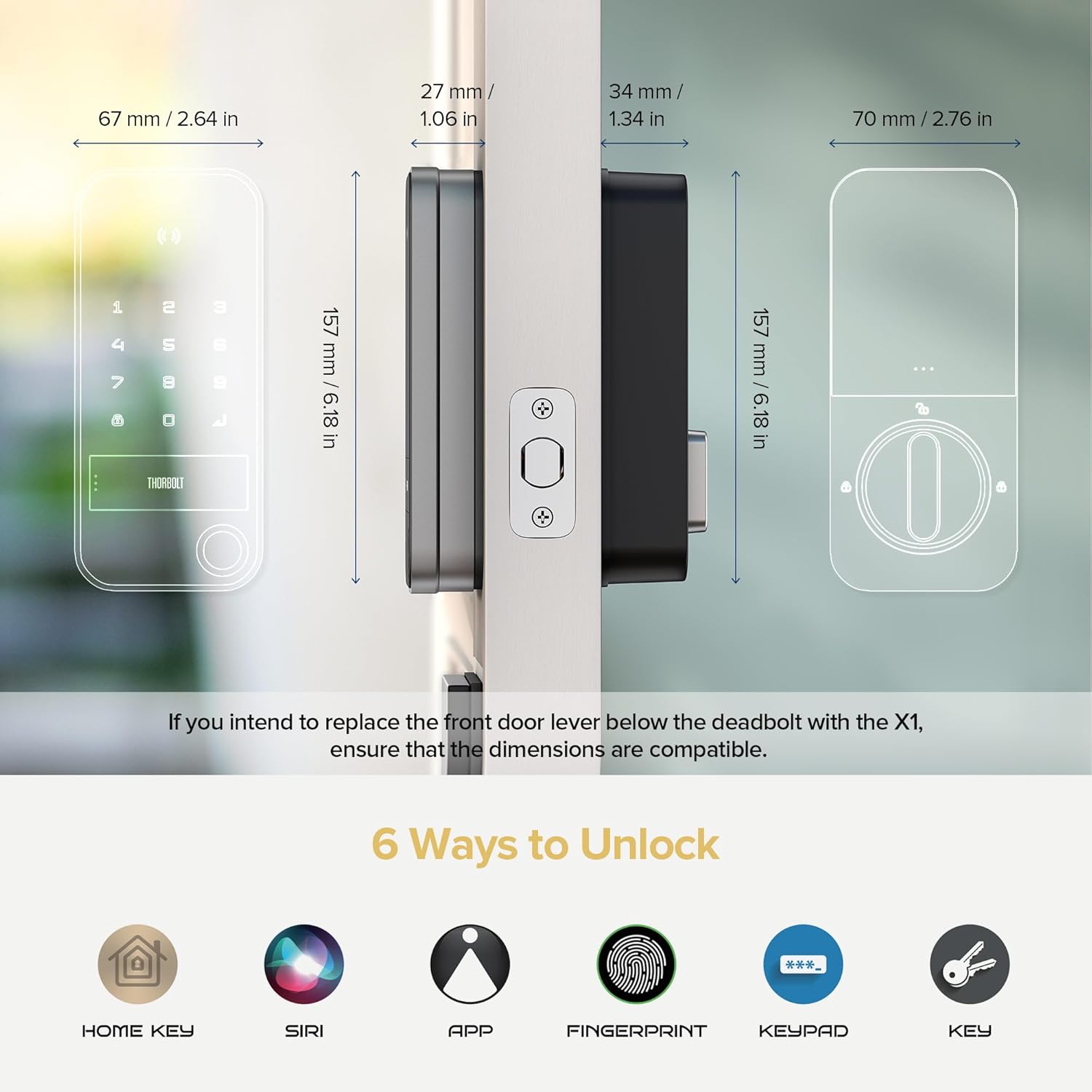
Image: Six Ways to Unlock.
5.2 Sleekpoint App Features
Download the Sleekpoint App to manage your lock:
- Access Management: Add or remove users, set temporary passcodes, and manage fingerprint access for up to 50 users.
- Activity Logs: Monitor lock activities in real-time.
- Customizable Settings: Adjust Auto-Lock duration, enable Anti-Peep Passcode, calibrate lock side, manage power saving, and feedback sounds.
- Firmware Updates: Receive exclusive and ongoing firmware updates for optimal performance.

Image: Access Management Pro via Sleekpoint App.

Image: Activity Logs in Sleekpoint App.

Image: Advanced Settings in Sleekpoint App.
6. Maintenance
6.1 Battery Replacement
The ThorBolt X1 is designed for up to 1 year of battery life using 8 AA alkaline batteries. The lock will provide alerts when the battery is low. To replace batteries:
- Remove the interior panel's battery cover.
- Replace all 8 AA batteries with new, high-quality alkaline batteries.
- Close the battery cover securely.

Image: 1 Year+ Battery Life with 8 AA Alkaline Batteries.
6.2 Emergency Power
In case of complete battery depletion, you can provide emergency power via the USB-C port located under the keyhole cover on the exterior panel. Connect a portable power bank to temporarily power the lock and gain entry.

Image: Emergency Power via Type-C Port.
6.3 Cleaning and Care
Clean the lock's exterior with a soft, damp cloth. Avoid abrasive cleaners or solvents that could damage the finish. The exterior panel is IP65 weatherproof, offering protection against dust and water splashes.

Image: IP65 Weatherproof.
7. Troubleshooting
If you encounter issues with your ThorBolt X1 Smart Lock, refer to the following common problems and solutions:
- Lock not responding: Check battery levels. If low, replace batteries or use emergency power. Ensure the lock is properly installed and all cables are connected.
- Fingerprint not recognized: Ensure your finger is clean and dry. Try re-registering your fingerprint in the Sleekpoint App.
- Keypad not responding: Ensure the keypad is active. If multiple incorrect attempts are made, the keypad may temporarily lock. Wait a few minutes before trying again.
- App connectivity issues: Ensure your Apple Home Hub (required for remote access) is within 33 feet of the X1 lock and connected to your network. Check your phone's Bluetooth and Wi-Fi connection.
- Home Key not working: Ensure your iPhone (XS/iOS 15+) or Apple Watch (Series 4/watchOS 8+) is compatible and Home Key is set up in the Wallet app. Tap the device directly to the NFC sensing zone.
8. Warranty & Support
For any product issues, questions, or support, please contact ThorBolt customer service. Do not return the product to the store without first contacting support.
Email: support@thorbolt.co
Website: www.thorbolt.co
Video: Everything to know about ThorBolt X1. This video provides a detailed overview of the product and its functionalities.