
Josbuynls Cash Register for Small Businesses
ECR600 Electronic Cash Register User Manual
Model: Cash Register for Small Businesses
Brand: Josbuynls
1. Introduction
This manual provides comprehensive instructions for the setup, operation, maintenance, and troubleshooting of your ECR600 Electronic Cash Register. Designed for efficiency and reliability, this system is ideal for various retail and service environments.
The ECR600 cash register combines powerful functionality, durability, aesthetics, and safety to improve business efficiency. It offers a secure and flexible solution for managing transactions, storing money, and organizing coins, enhancing overall work efficiency and customer service.
Package Contents:
- 1 x Electronic Cash Register
- 1 x USB Cable
- 1 x Power Adapter
- 2 x Cash Box Keys
- 1 x English Manual (this document)
- 1 Roll of Printing Paper

Figure 1: ECR600 Electronic Cash Register with its cash drawer open, showing compartments for bills and coins.
2. Setup Guide
Follow these steps to set up your ECR600 Electronic Cash Register for first-time use.
2.1 Unpacking and Placement
- Carefully remove all components from the packaging.
- Place the cash register on a stable, flat surface. Ensure adequate ventilation around the unit.
- The unit features rubber foot pads for stability and to prevent surface wear.
2.2 Power Connection
- Connect the provided power adapter to the cash register's power input port.
- Plug the power adapter into a standard US electrical outlet (90-260V).
- Turn on the cash register using the power switch, typically located at the rear or side of the unit.
2.3 Installing Printing Paper
- Open the thermal printer cover, usually located at the top of the unit.
- Insert the provided roll of 58mm thermal printing paper, ensuring the paper feeds correctly into the print head.
- Close the printer cover securely.
2.4 Cash Drawer Setup
- The cash drawer is integrated with the main unit. Use the provided keys to unlock the drawer if it is locked.
- Familiarize yourself with the internal layout: four compartments with clips for bills, four coin compartments, and one check compartment. The check compartment can be removed for additional coin slots.
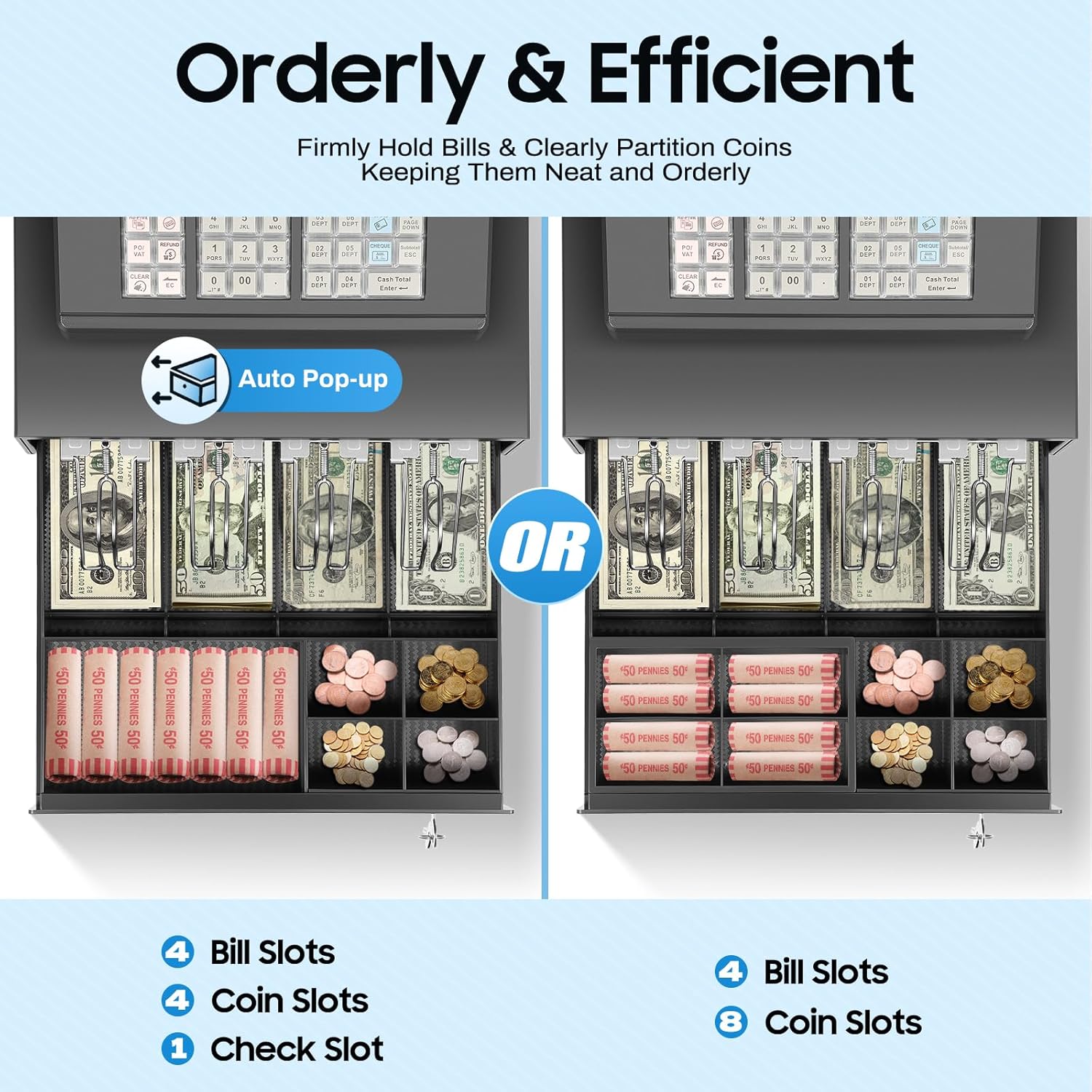
Figure 2: Detailed view of the cash drawer's internal organization, highlighting bill and coin compartments and the auto pop-up mechanism.
3. Operating Instructions
This section details the primary functions and operational procedures of the ECR600 Electronic Cash Register.
3.1 User Interface and Displays
- Employee Screen: A clear LCD screen displays cashiering information, time, date, and other operational details.
- Customer Screen: An 8-digit LED display provides clear visibility of transaction amounts for customers.
- Keyboard: Features 39 keys with clear markings and color divisions for intuitive operation. Keycaps prevent dust and water ingress.
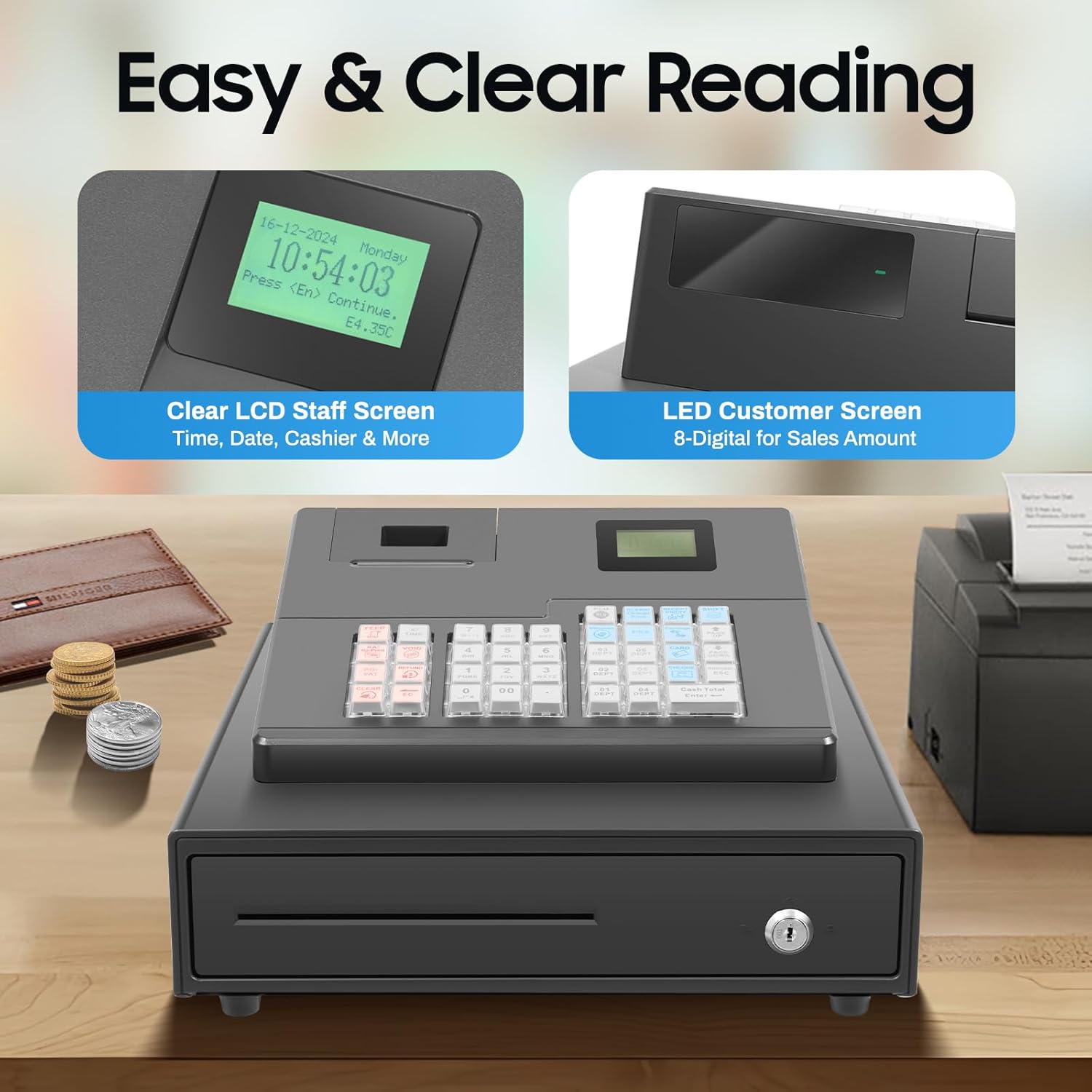
Figure 3: View of the employee LCD screen showing time and date, and the customer 8-digit LED screen for transaction amounts.
3.2 Sales and Transaction Management
The ECR600 supports various sales methods and transaction functionalities:
- Basic Sales: Enter item prices and quantities using the numeric keypad.
- Price Changes: Adjust prices for items as needed during a transaction.
- Refunds: Process returns and issue refunds.
- VAT/TAX Sales: Apply appropriate sales tax to transactions.
- Departments: Manage up to 32 different departments for product categorization.
- PLUs (Price Look-Ups): Store and recall up to 1000 PLUs for quick item entry.
- Clerks: Support for up to 10 different clerks, allowing individual tracking of sales.

Figure 4: Illustration of the cash register's capabilities, including various sales methods like price changes and refunds, and report generation.

Figure 5: The ECR600 supports a large capacity for managing sales, including 32 departments, 10 clerks, and 1000 PLUs.
3.3 Payment Methods
The cash register supports five distinct payment methods:
- Cash: Standard cash transactions.
- Credit Card: For card payments (requires external card reader connection via USB/RS232 if not integrated).
- Foreign Currency 1: For a primary foreign currency.
- Foreign Currency 2: For a secondary foreign currency.
- Sign-Off: For account-based or deferred payments.

Figure 6: Visual representation of the five payment options available on the ECR600 cash register.
3.4 Reporting Functions
Generate various reports to monitor sales performance and manage system configurations:
- X/Z Reports: End-of-day or shift reports for sales summaries.
- Monthly Sales Reports: Overview of sales performance over a month.
- Daily Reports: Detailed daily transaction summaries.
3.5 Connectivity
The ECR600 offers multiple interfaces for expanded functionality:
- 1 x RS232 Interface: For connecting peripherals like external printers or barcode scanners.
- 1 x USB Interface: For connecting to a PC or other USB devices.
- 1 x TF Card Slot: For data backup or system updates using a TF (MicroSD) card.

Figure 7: Overview of the available interfaces for connecting the cash register to external devices.
4. Maintenance and Care
Proper maintenance ensures the longevity and optimal performance of your ECR600 Electronic Cash Register.
4.1 Cleaning
- Exterior: Wipe the exterior surfaces with a soft, damp cloth. Avoid abrasive cleaners or solvents.
- Keyboard: The keycaps are designed to prevent dust and water ingress. Use a soft brush or compressed air to remove debris from around the keys.
- Display Screens: Use a microfiber cloth specifically designed for electronics to clean the LCD and LED screens. Do not spray liquid directly onto the screens.
- Thermal Print Head: Periodically clean the thermal print head with a specialized thermal printer cleaning pen or isopropyl alcohol on a cotton swab. Ensure the unit is powered off before cleaning.
4.2 General Care
- Avoid placing the cash register in direct sunlight or near heat sources.
- Do not expose the unit to excessive moisture or humidity.
- Ensure the cash drawer is not overloaded to prevent damage to the mechanism.
- Always use the correct type and size of thermal paper (58mm width).
5. Troubleshooting
This section addresses common issues you might encounter with your ECR600 Electronic Cash Register and provides basic solutions.
| Problem | Possible Cause | Solution |
|---|---|---|
| Unit does not power on. | Power cable disconnected; power outlet issue; power switch off. | Ensure power cable is securely connected. Try a different power outlet. Verify power switch is in the 'On' position. |
| Printer not printing. | No paper; paper incorrectly loaded; print head dirty; printer error. | Check paper roll and reload if necessary. Ensure paper is feeding correctly. Clean the thermal print head. Refer to the display for any error messages. |
| Cash drawer not opening. | Drawer locked; no power; mechanism jammed. | Ensure the drawer is unlocked with the key. Check power connection. Clear any obstructions inside the drawer. |
| Display is blank or unreadable. | Power issue; display settings; internal fault. | Check power connection. Adjust display brightness/contrast if available. Power cycle the unit. |
| Keys are unresponsive. | Debris under keys; internal keyboard issue. | Clean around the keys with compressed air. Power cycle the unit. |
If the problem persists after attempting these solutions, please contact customer support.
6. Specifications
Detailed technical specifications for the ECR600 Electronic Cash Register.
| Feature | Detail |
|---|---|
| Model | Cash Register for Small Businesses (ECR600) |
| Brand | Josbuynls |
| Color | Black-grey |
| Style | Modern |
| Plug Type | US Standard |
| Keyboard | 39 Keys |
| Material | Rubber, Stainless Steel, Plastic |
| Surface Treatment | Spray Painting |
| Mounting Type | Freestanding, Tabletop |
| Employee Screen | LCD |
| Customer Screen | 8-digit LED |
| Print Head | Thermal Print Head |
| Printing Speed Max | 60mm/s |
| Interfaces | 1 x RS232, 1 x USB, 1 x TF Card Slot |
| Assembly Required | No |
| Voltage | 90-260V |
| Paper Width | 58mm |
| Departments | 32 |
| Clerks | 10 |
| PLUS Max. | 1000 |
| Gross Weight | 5.6kg (12.35lbs) |
| Net Weight | 4.8kg (10.58lbs) |
| Cash Box Size (L*W) | 30 x 24cm (11.8 x 9.45in) |
| Upper Part Size (L*H) | 28 x 8cm (11 x 3.15in) |
| Lower Part Size | 34 x 37 x 9cm (13.4 x 14.57 x 3.54in) |

Figure 8: Dimensional overview of the ECR600 Electronic Cash Register.
7. Warranty and Support
For specific warranty terms and conditions, please refer to the warranty card or documentation included with your purchase. Warranty details may vary based on region and retailer.
For technical support, service, or inquiries regarding your Josbuynls ECR600 Electronic Cash Register, please contact the manufacturer or your point of purchase. Keep your purchase receipt and product serial number readily available when seeking support.
The built-in system operates independently and does not require networking, which helps ensure data localization and reduces concerns about information leakage or system crashes due to network issues.
Related Documents - Cash Register for Small Businesses
 |
SecureTill-460F Cash Drawer User Manual | HDWR User manual for the HDWR SecureTill-460F cash drawer, detailing specifications, features, installation, operation, maintenance, and safety guidelines for POS systems. |
 |
HD-KER41 Cash Drawer User Manual | HDWR Comprehensive user manual for the HDWR HD-KER41 cash drawer. Includes detailed specifications, package contents, installation guide, operating instructions, and maintenance tips for optimal performance. |
 |
User Manual for HD-KER20 Cash Drawer This user manual provides detailed specifications, installation instructions, operating procedures, and maintenance guidelines for the HD-KER20 small under-counter cash drawer. Learn how to open, remove, and maintain your cash drawer for optimal performance. |
 |
HD-KR35 Under-Counter Cash Drawer User Manual User manual for the HD-KR35 under-counter cash drawer, detailing specifications, installation, operation, and maintenance. |
 |
Royal 120cx Programmable Electronic Cash Register Instruction Manual Comprehensive instruction manual for the Royal 120cx Cash Management System, a programmable electronic cash register. Covers setup, operation, programming, transactions, error handling, and management reports. |
 |
Royal 210dx Electronic Cash Register Instruction Manual Comprehensive instruction manual for the Royal 210dx Electronic Cash Register, covering setup, operation, programming, troubleshooting, and specifications. Learn to use features like departments, PLUs, tax computation, and management reports. |
Ask a question about this manual
Ask about setup, troubleshooting, compatibility, parts, safety, or missing instructions. Manuals+ will review the question and use this page’s manual context to help answer it.