
Introduction
Thank you for choosing the Fuluku Android 2 DIN Car Radio. This device offers a comprehensive in-car entertainment and navigation system, featuring the latest Android 13 operating system, an 8-core processor, 2GB RAM, and 64GB ROM. It supports wireless Carplay and Android Auto, GPS navigation, WiFi, Bluetooth 5.0, FM/RDS radio, 32-band EQ DSP, split-screen functionality, steering wheel control, and voice control. This manual provides detailed instructions for installation, operation, and maintenance to ensure optimal performance and user experience.

Figure 1: Fuluku Android 2 DIN Car Radio.
Package Contents
Before installation, please verify that all items listed below are present in your package:
- Android Car Radio Unit
- GPS Antenna
- AHD Rear View Camera
- Microphone
- Power Cable
- USB Cable
- Camera Input Cable
- RCA Cable
- Mounting Bracket
- User Manual

Figure 2: Included accessories and main unit.
Installation Guide
Proper installation is crucial for the functionality and safety of your car radio. It is recommended that installation be performed by a qualified professional.
General Installation Steps
- Preparation: Disconnect the vehicle's battery before starting any electrical work.
- Remove Old Unit: Carefully remove your existing car radio from the dashboard.
- Connect Main Wiring: Connect the main power cable harness to the unit and your vehicle's wiring. Refer to the "Connection Reference" image for port identification.
- Connect Peripherals:
- GPS Antenna: Connect the GPS antenna to its dedicated port and place it in a location with a clear view of the sky, typically on the dashboard or under the windshield.
- Microphone: Connect the external microphone for improved call quality.
- USB Cables: Connect the USB cables for data transfer and charging.
- RCA Cables: Connect the RCA cables for audio/video input/output as needed.
- Mounting: Secure the Fuluku unit into the dashboard using the provided mounting brackets.
- Reconnect Battery: Once all connections are made and secured, reconnect the vehicle's battery.
- Initial Power On: Turn on the vehicle's ignition and power on the car radio to test its basic functions.
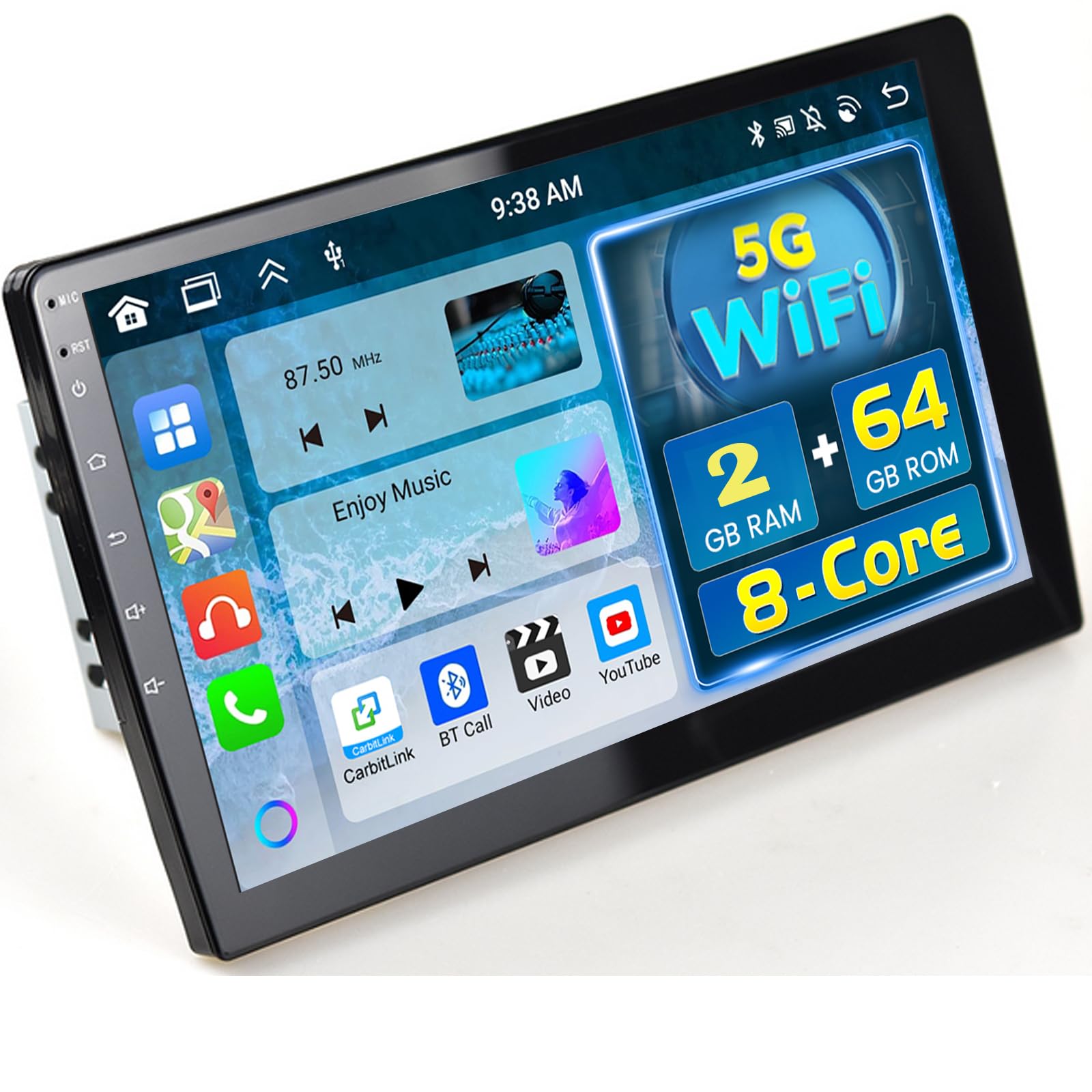
Figure 3: Example of installed unit displaying GPS navigation.
Connection Reference (Rear Panel)
The rear panel of the unit features various ports for connecting power, audio, video, and other peripherals. Refer to the diagram below for port identification:

Figure 4: Rear panel connection reference.
- 1. Power Cable Connector
- 2. RCA Cable Connectors
- 3. USB Cable Connectors
- 4. Rear Camera Input Cable Connector
- 5. GPS Antenna Connector
- 6. Radio Antenna Connector (Antenna not included)
Detailed Wiring Harness
For specific wire functions within the main power harness, consult the detailed wiring diagram:

Figure 5: Main wiring harness details.
- 1. Front Left Speaker +
- 2. Front Left Speaker -
- 3. Rear Right Speaker +
- 4. Rear Right Speaker -
- 5. Front Right Speaker +
- 6. Rear Left Speaker +
- 7. Rear Left Speaker -
- 8. Front Right Speaker -
- 9. Auto Antenna Power
- 10. SW2 (Steering Wheel Control)
- 11. SW1 (Steering Wheel Control)
- 12. ACC (Ignition Switch +12V)
- 13. BACK (Parking Sensor Control Wires)
- 14. Rear Right Speaker
- 15. ILL (Illuminate Backlight)
- 16. B+ (Constant Power Supply +12V)
Backup Camera Connection
The unit includes an AHD 1080P waterproof backup camera. Connect it as shown below:

Figure 6: Backup camera connection diagram.
Connect the camera's video output to the "CAM IN" RCA port on the car radio. The camera's power wire should be connected to the vehicle's reverse light power supply, so it activates automatically when reverse gear is engaged.
Operating Instructions
Wireless Carplay, Android Auto, and Mirror Link
This unit supports wireless and wired Carplay and Android Auto, as well as Mirror Link functionality.
- Carplay (Wireless/Wired): Connect your iPhone via Bluetooth or USB to access navigation, contacts, messages, and music directly on the car radio screen.
- Android Auto (Wireless/Wired): Connect your Android smartphone via Bluetooth or USB to use Google Maps, make calls, send messages, and play music.
- Mirror Link (WiFi/USB): Sync your smartphone's screen content to the 10-inch IPS display via WiFi hotspot or USB connection.

Figure 7: Carplay, Android Auto, and Mirror Link interfaces.
GPS Navigation & WiFi Connectivity
The car radio has built-in GPS navigation supporting both online and offline maps. Connect to your mobile phone's hotspot or a WiFi network to access online maps, browse websites, stream videos, and download applications from the APP Store.

Figure 8: GPS Navigation and WiFi Connection.
Audio Features: DSP, FM/RDS, Bluetooth 5.0
- 32-Band EQ DSP: Optimize audio quality and resolve frequency anomalies for a superior musical experience.
- FM/RDS Radio: Enjoy FM radio with 30 preset stations and RDS functionality for station information.
- Bluetooth 5.0: Make and receive calls hands-free, stream music, and download phone contacts for convenient and safe driving.

Figure 9: Key system and audio features.
Split Screen Functionality
The split-screen function allows you to run two applications simultaneously on the display. For example, you can use navigation on one side and music playback on the other. To switch applications in split-screen mode, long-press the desired app icon.

Figure 10: Split Screen Function in action.
Steering Wheel Control (SWC)
The unit supports steering wheel control, allowing you to easily change songs, adjust volume, and manage calls without taking your hands off the wheel. Ensure the SWC wires (SW1, SW2) are correctly connected during installation and configure the controls in the system settings.
User Interface Themes
Customize your car radio's appearance with 59 different UI themes available. Navigate to the settings menu to select your preferred theme.

Figure 11: Multiple UI Themes for customization.
Maintenance
To ensure the longevity and optimal performance of your Fuluku Android Car Radio, follow these maintenance guidelines:
- Cleaning: Use a soft, dry cloth to clean the touchscreen and unit exterior. Avoid abrasive cleaners or solvents.
- Software Updates: Periodically check for software updates through the system settings to ensure you have the latest features and bug fixes.
- Temperature: Avoid exposing the unit to extreme temperatures, both hot and cold, for extended periods.
- Scratch Prevention: The screen features 2.5D Radian design for scratch prevention. However, avoid sharp objects.

Figure 12: Screen features for durability.
Troubleshooting
If you encounter issues with your Fuluku Android Car Radio, please refer to the following common solutions:
- No Power: Check all power connections, including the B+ (constant 12V) and ACC (ignition 12V) wires. Ensure the vehicle's battery is properly connected.
- No Sound: Verify speaker connections. Check audio settings (volume, mute, EQ).
- Carplay/Android Auto Not Connecting: Ensure Bluetooth and/or USB connections are secure. For wireless connections, check your phone's Bluetooth and Wi-Fi settings. Make sure the correct app is selected on the car radio.
- GPS Signal Issues: Ensure the GPS antenna is properly connected and placed in a location with a clear view of the sky.
- Backup Camera Not Displaying: Check the camera input cable connection. Ensure the camera's power wire is correctly connected to the reverse light circuit.
- Steering Wheel Controls Not Working: Verify SW1 and SW2 connections. Access the system settings to configure or recalibrate the steering wheel controls.
- Factory Settings Keyword: The factory setting keyword is 1234.
Important Compatibility Note: The wiring harness of this radio is not compatible with factory premium audio systems (e.g., BOSE, amplified sound systems, or OnStar). Please verify your vehicle's audio specifications before purchasing or installing.
Specifications
| Feature | Specification |
|---|---|
| Model Number | Fuluku-A3477A4MI2AM62EU-494 |
| Operating System | Android 13 |
| Processor | 8-Core |
| RAM | 2GB |
| ROM | 64GB |
| Display Size | 10 Inches |
| Display Resolution | 1280 x 720 IPS |
| Connectivity | Bluetooth 5.0, WiFi, USB |
| Special Functions | Wireless Carplay, Android Auto, GPS Navigation, DSP (32-band EQ), RDS, Touchscreen, Split Screen, Voice Control, SWC |
| Audio Output Mode | Stereo |
| Surround Sound Channels | 5.1 |
| Output Power | 180 Watts (4 Channels) |
| Video Encoding | MKV/RMVB/AVI/MP4/MDV |
| Supported Audio Formats | AVI, WAV, WMA |
| Control Method | Touch |
| Product Weight | 1.37 Kilograms |
| Package Dimensions | 34.7 x 24 x 8.3 cm |
Warranty and Support
Fuluku provides comprehensive support for your product:
- Money Back Guarantee: 30 days.
- Replacement Warranty: 12 months.
- Technical Support: Lifetime technical support.
For any installation or usage issues, please contact our customer support team. You can reach us by clicking on the seller name "Fuluku Direct" on the product page and selecting "Ask a question" or by sending an email to: fulukusupports@126.com. We aim to reply within 24 hours.

Figure 13: Fuluku Customer Support Information.