
Introduction
This manual provides essential information for the safe and effective use of your Canon EOS R7 Mirrorless Camera, equipped with the RF-S 18-150mm f/3.5-6.3 IS STM Lens. Please read this manual thoroughly before using the camera to ensure proper operation and to maximize its capabilities. Keep this manual in a safe place for future reference.
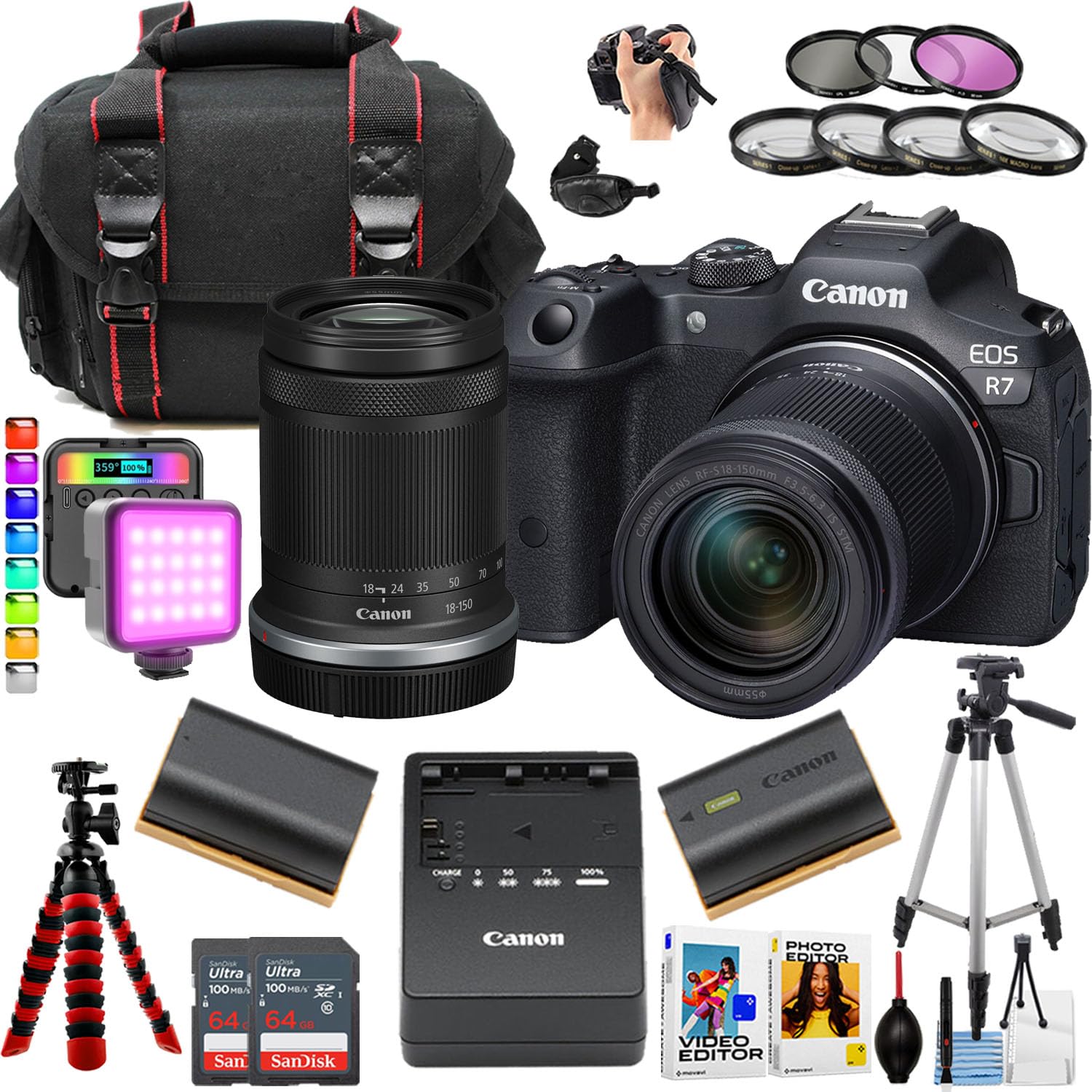
Figure 1: Front and side view of the Canon EOS R7 Mirrorless Camera with the RF-S 18-150mm lens attached.
1. Setup
1.1 Charging and Installing the Battery
- Insert the Canon LP-E6NH Lithium-Ion Battery into the Canon LC-E6 Charger. Ensure the battery is correctly oriented.
- Plug the charger into a power outlet. The charging indicator light will show the charging status. Charge until the light indicates a full charge.
- Open the battery compartment cover on the bottom of the camera.
- Insert the charged battery into the compartment, ensuring it clicks into place. Close the battery compartment cover securely.

Figure 2: Bottom view of the camera, illustrating the battery compartment location.
1.2 Attaching the Lens
- Remove the camera body cap and the rear lens cap.
- Align the red index mark on the lens with the red index mark on the camera body.
- Mount the lens by turning it clockwise until it clicks into place.
1.3 Inserting a Memory Card
The Canon EOS R7 supports SDHC cards. Two Sandisk 64GB Ultra Memory Cards are included.
- Open the memory card slot cover on the side of the camera.
- Insert the memory card(s) into the slot(s) with the label facing the correct direction, until it clicks into place.
- Close the memory card slot cover securely.

Figure 3: Side view of the camera with the memory card slot open, showing card insertion.
1.4 Initial Settings
Upon first power-on, the camera may prompt you to set the date, time, and time zone. Follow the on-screen instructions to complete these settings.
2. Operating the Camera
2.1 Power On/Off
To power on the camera, slide the ON/OFF switch located on the top plate. To power off, slide the switch to OFF.

Figure 4: Top view of the camera, highlighting the mode dial and ON/OFF switch.
2.2 Basic Shooting Modes
Rotate the mode dial on the top of the camera to select your desired shooting mode. Common modes include:
- P (Program AE): Camera automatically sets aperture and shutter speed.
- Av (Aperture-priority AE): You set the aperture, camera sets shutter speed.
- Tv (Shutter-priority AE): You set the shutter speed, camera sets aperture.
- M (Manual Exposure): You set both aperture and shutter speed.
- Scene Modes: Pre-set modes for specific situations (e.g., Portrait, Landscape).
2.3 Autofocus System
The EOS R7 features a Dual Pixel CMOS AF II focusing system. To focus, half-press the shutter button. The camera will automatically detect and track subjects. You can also use the AF-ON button for back-button focusing.

Figure 5: Rear view of the camera, displaying the LCD screen and various control buttons including AF-ON and INFO.
2.4 Image Stabilization
The camera incorporates an In-Body Image Stabilizer (IBIS) that corrects up to 7 stops of camera shake. This system works in conjunction with optically stabilized lenses for enhanced stability.
2.5 Video Recording
The EOS R7 supports 4K video recording at up to 60p, or 30p when oversampled from a 7K area. To start recording, press the dedicated video record button.
2.6 Connectivity
The camera offers various connectivity options:
- Wi-Fi & Bluetooth: For wireless transfer of photos/videos and remote camera control via a smartphone app.
- USB Type-C 3.2 Gen 2: For high-speed data transfer to a computer.
- Micro-HDMI: For connecting to an external display.
- 3.5mm Microphone Port: For connecting an external microphone.
- 3.5mm Headphone Port: For audio monitoring during video recording.

Figure 6: Side view of the camera, illustrating the USB-C, HDMI, microphone, and headphone ports.
3. Maintenance
3.1 Cleaning the Camera and Lens
- Use a soft, lint-free cloth to clean the camera body. For stubborn dirt, slightly dampen the cloth with water.
- For the lens, use a lens blower to remove dust, then a lens brush, and finally a lens cleaning solution with a microfiber cloth if necessary. Avoid touching the lens surface directly.
- Keep the image sensor clean by using the camera's built-in sensor cleaning function or a professional cleaning kit.
3.2 Battery Care
- Store batteries in a cool, dry place when not in use.
- Avoid fully discharging the battery frequently to prolong its lifespan.
- Do not expose batteries to extreme temperatures.
3.3 Storage
When storing the camera for extended periods, remove the battery and memory card. Store the camera in a dry, dust-free environment, preferably with a desiccant to prevent mold growth.
4. Troubleshooting
If you encounter issues with your Canon EOS R7, refer to the following common solutions:
- Camera does not power on: Ensure the battery is charged and correctly inserted. Check that the battery compartment cover is closed.
- Cannot take pictures: Verify that a memory card is inserted and has sufficient free space. Check the shooting mode and lens attachment.
- Autofocus issues: Ensure the lens AF/MF switch is set to AF. Check for sufficient light and contrast in the scene.
- Image quality issues: Check ISO settings, shutter speed, and aperture. Ensure the lens is clean.
For more detailed troubleshooting or persistent issues, please consult the official Canon support website or contact customer service.
5. Specifications
| Feature | Specification |
|---|---|
| Model Name | Canon R7 Mirrorless Camera |
| Sensor Type | APS-C CMOS |
| Compatible Mountings | Canon RF |
| Image Stabilization | Digital (In-Body Image Stabilizer) |
| Video Resolution | 1080p, 4K UHD 2160p |
| Continuous Shooting | Up to 30 FPS (electronic shutter), 15 FPS (mechanical shutter) |
| ISO Range | 100-12800 |
| Screen Size | 3 Inches |
| Connectivity Technology | Wi-Fi, USB Type-C, HDMI |
| Supported Media Type | SDHC Card |
| Item Weight | 0.78 Pounds |
| Lens Included | RF-S 18-150mm f/3.5-6.3 IS STM Lens |
6. Warranty Information
This Canon EOS R7 Mirrorless Camera comes with a 90 days limited warranty. Please retain your proof of purchase for warranty claims. For full details regarding warranty terms and conditions, refer to the documentation provided with your purchase or visit the official Canon website.
7. Support
For further assistance, technical support, or to download the latest firmware updates and software, please visit the official Canon support website. You can also find FAQs and contact information for customer service there.