
1. Introduction
This manual provides instructions for the BeeJovial L018AA Mini Projector. This device features native 1080P resolution with 4K support, dual-band WiFi 6, Bluetooth 5.2, and a built-in Android 13 operating system with pre-installed streaming applications. Its compact design and 360° rotatable stand offer versatile projection options.

The BeeJovial L018AA Mini Projector, showcasing its compact design, included remote, and support for various streaming applications.
2. Package Contents
Verify that all items are present in the package:
- Netflix-Licensed Mini Portable Projector (L018AA)
- User Manual
- Cleaning Bag
- Power Cord
- Remote Control
- HDMI Cable
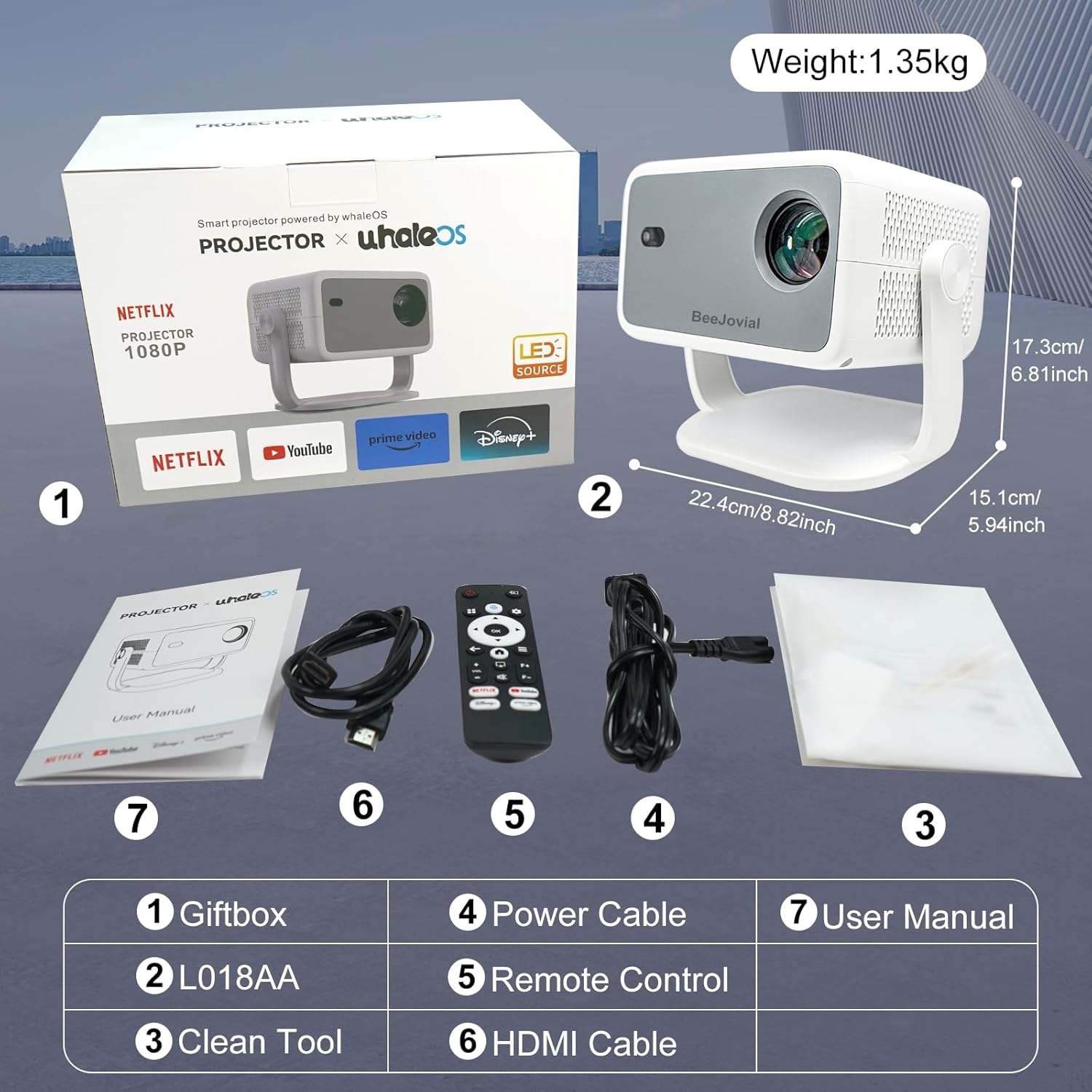
This image displays the items included in the product package: the L018AA projector, user manual, cleaning tool, power cable, remote control, and HDMI cable.
3. Product Overview
3.1. Connectivity Ports
The projector features multiple ports for various connections:
- HDMI Port: For connecting devices such as laptops, gaming consoles (PS5, Xbox), TV sticks, and DVD players.
- USB Port: For connecting USB drives to play media files.
- 3.5mm Audio Port: For connecting external wired speakers or headphones.
- Power Input: For connecting the power cord.

The rear panel of the projector, illustrating the USB, HDMI, and 3.5mm audio ports, along with the power input.
4. Setup
4.1. Placement
Position the projector on a stable surface. The 360° rotatable stand allows for flexible projection angles, including walls, screens, and ceilings. Ensure there are no obstructions in the projection path.

The projector positioned to utilize its 360° rotatable stand for projecting content onto a ceiling, demonstrating flexible placement options.
4.2. Power Connection
- Connect the power cord to the projector's power input port.
- Plug the other end of the power cord into a power outlet.
4.3. Initial Power On and Auto-Adjustments
Upon powering on, the projector will automatically perform the following adjustments:
- Auto Focus: Adjusts the image clarity.
- Auto Keystone Correction: Corrects trapezoidal distortion to ensure a rectangular image.
- Auto Obstacle Avoidance: Detects and adjusts the image to avoid obstacles in the projection area.
- Auto Screen Alignment: Optimizes the image to fit the projection surface.
These adjustments typically complete within 3 seconds.
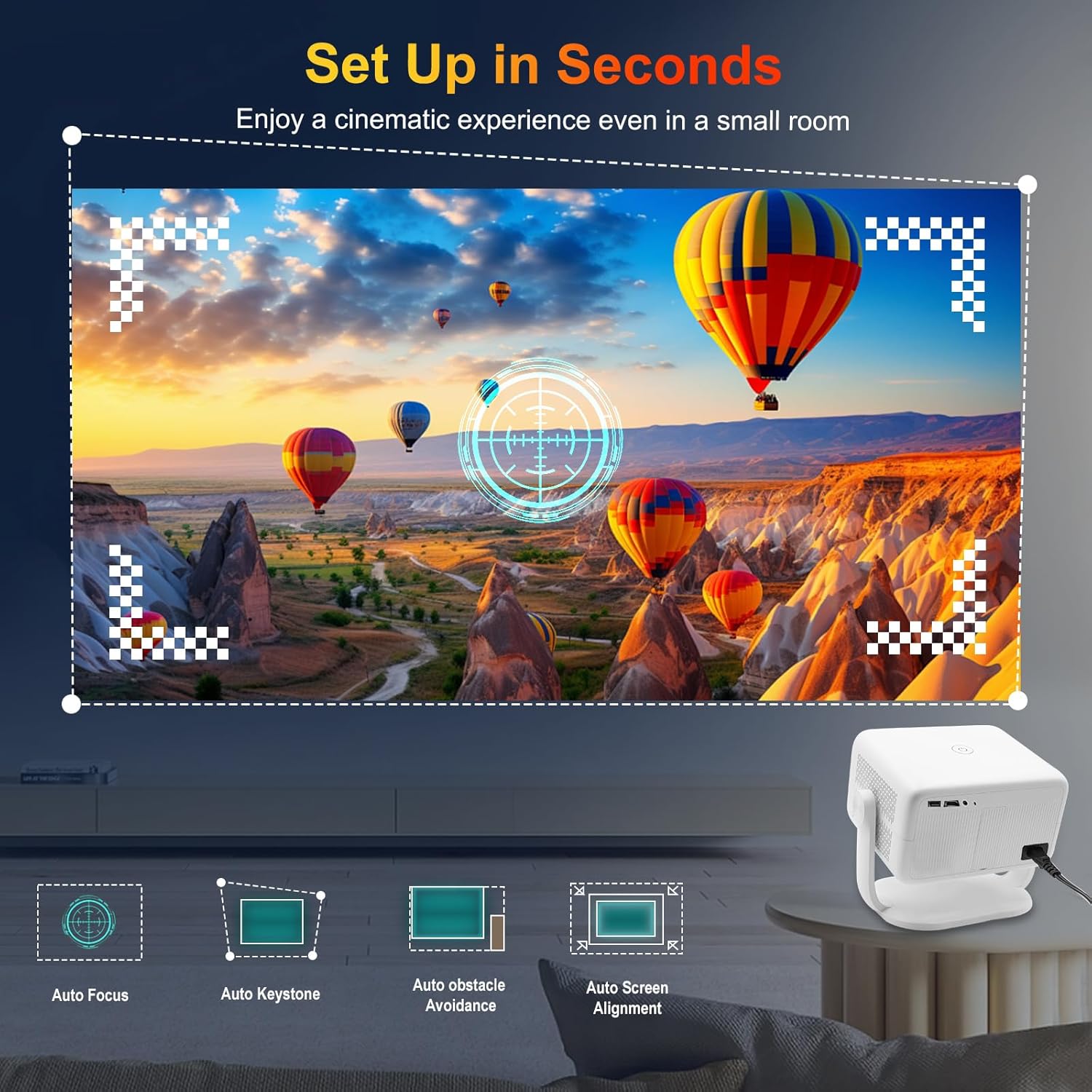
A visual representation of the projector's automatic adjustment capabilities, including auto-focus, keystone correction, obstacle avoidance, and screen alignment for quick setup.
5. Operating Instructions
5.1. Remote Control
The projector is primarily operated using the included remote control. Ensure AAA batteries are installed correctly. There are no physical buttons on the projector unit itself for navigation.
5.2. Navigating the Android 13 Interface
Use the directional buttons and 'OK' button on the remote to navigate through the Android 13 operating system. The home screen provides access to installed applications and settings.
5.3. Accessing Streaming Applications
The projector comes with officially licensed Netflix, YouTube, Prime Video, Disney+, ESPN, and Hulu pre-installed. Select the desired app from the home screen to launch it. Log in with your account credentials as required.

An interface view showing a selection of pre-installed and accessible streaming applications like Netflix, YouTube, Prime Video, Disney+, and Hulu.
5.4. AI Voice Control
Utilize the AI voice control feature on the remote for hands-free operation. Press the dedicated voice button and speak commands to search for content, open apps, or adjust settings.
5.5. Image Adjustments
- Zoom: The projector supports a 50% zoom function to adjust the image size without moving the unit.
- Picture Modes: Access settings to select various picture modes (e.g., Standard, Softness, Dynamic, Energy Saving, Vivid, User) for optimal viewing experience.
6. Connectivity
6.1. Wi-Fi Setup
The projector supports 2.4G/5G dual-band WiFi 6. To connect to a wireless network:
- Navigate to the 'Settings' menu on the projector.
- Select 'Network & Internet' or 'Wi-Fi'.
- Choose your desired Wi-Fi network from the list.
- Enter the password if prompted and confirm the connection.
6.2. Bluetooth Pairing
The projector features Bluetooth 5.2 for connecting external audio devices.
- Ensure your Bluetooth speaker, headphones, or AirPods are in pairing mode.
- On the projector, go to 'Settings' and select 'Bluetooth'.
- Scan for available devices and select your audio device from the list to pair.
6.3. Wired Connections
- HDMI: Connect an HDMI cable from your external device (e.g., laptop, game console) to the projector's HDMI port. The projector will automatically switch to the HDMI input or you may need to select it from the input source menu.
- USB: Insert a USB drive into the USB port to access stored media files. Use the file manager application on the projector to browse and play content.
- 3.5mm Audio: Connect external speakers or headphones to the 3.5mm audio jack for enhanced sound.
6.4. Screen Mirroring
The projector supports wireless screen mirroring via Airplay (for iOS devices) and Miracast (for Android devices).
- Ensure your mobile device and the projector are connected to the same Wi-Fi network.
- On the projector, select the Airplay or Miracast application.
- On your mobile device, activate the screen mirroring function (e.g., 'Screen Mirroring' on iOS, 'Smart View' or 'Cast' on Android) and select the projector from the list of available devices.
7. Maintenance
7.1. Cleaning
- Lens: Use a soft, lint-free cloth or lens cleaning paper to gently wipe the projector lens. Avoid abrasive materials or harsh chemicals.
- Exterior: Wipe the projector's exterior with a soft, dry cloth. Do not use liquid cleaners directly on the device.
- Ventilation: Ensure the ventilation openings are clear of dust and debris to prevent overheating.
7.2. Storage
When not in use, store the projector in a cool, dry place, away from direct sunlight and extreme temperatures. Use the provided cleaning bag or a similar protective cover to prevent dust accumulation.
8. Troubleshooting
| Issue | Possible Cause | Solution |
|---|---|---|
| No image projected | Power not connected, input source incorrect, lens cap on. | Check power connection, select correct input source (HDMI, internal apps), remove lens cap. |
| Image blurry | Auto-focus issue, projector moved. | Ensure projector is stable. If auto-focus does not correct, check for manual focus options in settings (if available). |
| Remote control unresponsive | Low batteries, line of sight blocked. | Replace remote control batteries. Ensure clear line of sight between remote and projector's IR receiver. |
| Poor Wi-Fi connection or streaming issues | Weak Wi-Fi signal, network congestion. | Move projector closer to the Wi-Fi router. Reduce other network activity. Consider using a wired HDMI connection for external devices if possible. |
| Low or 'tinny' sound | Internal speaker limitations. | Connect external Bluetooth speakers or wired speakers via the 3.5mm audio port for improved audio quality. |
| Streaming apps not working or showing 'not compatible' | App updates required, system firmware outdated. | Check for app updates within the Android system. Go to 'Settings' to check for and install system firmware updates. |
| Screen mirroring lag or disconnection | Network interference, device compatibility. | Ensure both devices are on the same, stable Wi-Fi network. Try restarting both devices. For critical applications, a wired HDMI connection is recommended. |
9. Specifications
| Feature | Detail |
|---|---|
| Brand | BeeJovial |
| Model Number | L018AA |
| Display Resolution | Native 1920 x 1080 (1080P), 4K Supported |
| Brightness | 400 ANSI Lumens |
| Operating System | Android 13 (Google CTS-approved) |
| Processor | Amlogic T950D4 chip |
| GPU | Mali-G31 |
| Wi-Fi | 2.4G/5G Dual-band WiFi 6 |
| Bluetooth | Bluetooth 5.2 |
| Connectivity Technology | HDMI, USB, 3.5mm Jack, Wi-Fi, Bluetooth |
| Special Features | Auto Focus, Auto Keystone Correction, Auto Obstacle Avoidance, 360° Rotatable Stand, AI Voice Control, 50% Zoom, Built-in Streaming Apps (Netflix, Prime Video, Disney+), Airplay/Miracast |
| Product Dimensions | 8.74 x 5.94 x 6.89 inches |
| Item Weight | 2.98 pounds (approx. 1.35 kg) |
| Color | White |
10. Warranty and Support
BeeJovial is committed to customer satisfaction. The following support services are available:
- 24-Hour Online After-Sales Service: Assistance is available around the clock for any product-related inquiries.
- 30-Day Free Return & Exchange: Products can be returned or exchanged within 30 days of purchase.
- Regular Firmware & Software Updates: The projector's operating system and applications receive periodic updates to enhance performance and add features.
- Lifetime Technical Support: Ongoing technical assistance is provided for the lifespan of the product.
For support, please refer to the contact information provided with your purchase or visit the official BeeJovial website.


