
1. Introduction
This manual provides detailed instructions for the proper use, setup, and maintenance of your Vemfay External USB 3.0 Type-C CD DVD +/-RW Drive. Please read this manual thoroughly before operating the device to ensure optimal performance and longevity.
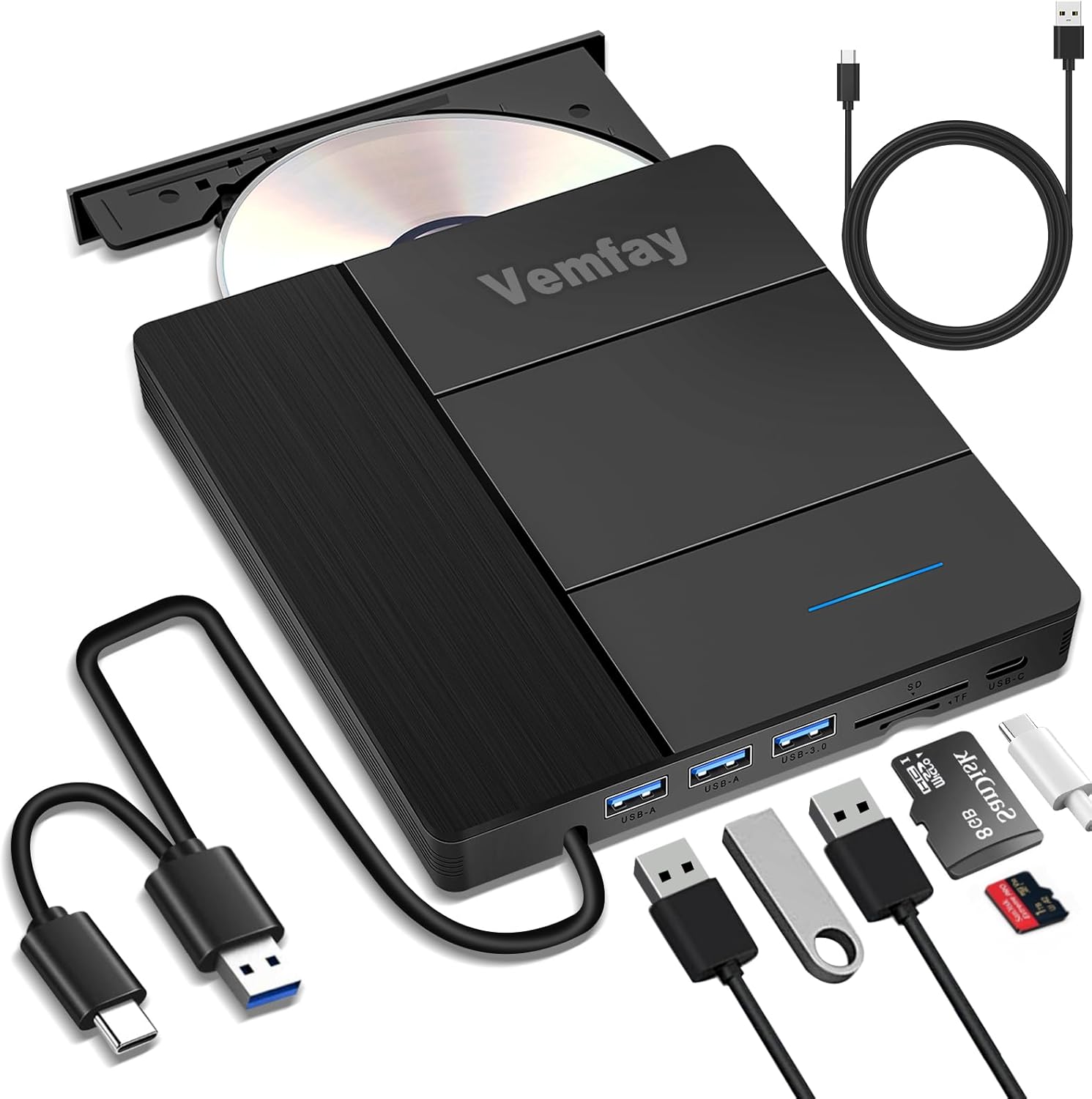
Image 1.1: The Vemfay External CD DVD Drive, showcasing its compact design, included USB-A and USB-C cables, and slots for SD and TF cards, along with additional USB ports.
2. Safety Information
- Do not expose the device to water or excessive moisture.
- Avoid extreme temperatures and direct sunlight.
- Do not attempt to disassemble or repair the device yourself. Contact customer support for assistance.
- Use only the provided cables or certified replacements.
- Ensure the device is placed on a stable, flat surface during operation.
3. Package Contents
Verify that all items are present in your package:
- 1x Vemfay External CD DVD Drive
- 1x USB Data Cable (integrated USB-A and USB-C connectors)
- 1x User Manual (this document)
4. Product Overview
The Vemfay External CD DVD Drive is a versatile peripheral designed for reading and writing CDs and DVDs, featuring additional ports for enhanced connectivity.

Image 4.1: Detailed view of the Vemfay External CD DVD Drive, highlighting its various ports including TF card slot, SD card slot, USB 3.0 ports, USB 2.0 port, and a Micro USB port.
Key Features:
- Plug and Play: No external drivers required for most operating systems.
- High-Speed Data Transfer: Utilizes USB 3.0 technology for fast read and write speeds.
- Multi-functional: Supports CD/DVD reading and writing, with integrated SD/TF card reader and additional USB ports.
- Wide Compatibility: Works with Windows, Linux, and Mac OS.
- Portable Design: Ultra-thin and lightweight with an integrated data cable.
5. Setup Instructions
5.1 Connecting the Drive
- Locate an available USB port (USB-A or USB-C) on your computer.
- Connect the integrated USB data cable from the Vemfay External CD DVD Drive to your computer's USB port.
- The drive should be automatically recognized by your operating system. No additional driver installation is typically required.
Important Note: When using the CD/DVD drive function, especially for writing or intensive reading, ensure the power cable is securely plugged into a sufficient power source (e.g., a powered USB port or an external USB power adapter, if available and required by your system). Insufficient power can lead to recognition issues or playback/burning failures.

Image 5.1: The Vemfay External CD DVD Drive connected to a laptop via its USB cable, emphasizing the importance of a stable power supply for high performance and reliable operation.
5.2 System Compatibility
The drive is compatible with the following operating systems:
- Windows 11, 10, 8.1, 8, 7, XP
- Linux
- Mac OS (all versions)
The drive is designed for use with computers such as MacBook Pro/Air, iMac, Mac Mini, laptops, and desktop PCs.
Compatibility Restrictions: This device is not compatible with cars, televisions, tablets, smartphones, projectors, or Blu-ray discs.

Image 5.2: Visual representation of the drive's broad compatibility with various operating systems (Windows, Linux, Mac OS) and its specific incompatibility with devices like TVs, tablets, phones, and car systems.
6. Operating Instructions
6.1 Inserting and Ejecting Discs
- To Insert: Gently press the eject button on the drive. The disc tray will slide out. Place your CD or DVD onto the tray with the label side facing up. Carefully push the tray back into the drive until it clicks into place.
- To Eject: Press the eject button on the drive, or use the eject function within your computer's operating system (e.g., right-click the drive icon and select 'Eject').
6.2 Reading and Writing CDs/DVDs
Once a disc is inserted and recognized, your computer's operating system will typically prompt you with options for how to handle the disc (e.g., play a movie, open files, burn files). You can also access the drive through 'My Computer' or 'Finder'.
- Reading: The drive supports reading CD, VCD, SVCD, CD-R/RW, DVD-R/RW.
- Writing: The drive supports writing CD+/-RW, DVD+/-RW. For burning discs, you may need third-party burning software (not included).

Image 6.1: Step-by-step guide for burning a disc: 1. Insert an empty disc and open burning software. 2. Drag files to be burned onto the CD-ROM. 3. The CD-ROM drive automatically ejects the disc upon completion.
6.3 Using the Card Reader (SD/TF)
The drive includes dedicated slots for SD and TF (Micro SD) cards.
- Insert your SD or TF card into the corresponding slot.
- The card will appear as a removable drive on your computer, allowing you to transfer photos, videos, and other files.
Note: The SD card slot and the TF card slot cannot be used simultaneously.
6.4 Using the Additional USB Ports
The drive features a USB 3.0 port and a USB 2.0 port.
- These ports can be used to connect USB flash drives (U-Disk) for data transfer.
- They can also be used for charging electronic devices like smartphones, though charging speed may vary.

Image 6.2: The Vemfay External CD DVD Drive facilitating various functions such as listening to music, watching movies, burning CDs/DVDs, performing data backups, installing software, and playing games.
7. Maintenance
- Cleaning: Use a soft, dry cloth to clean the exterior of the drive. Do not use liquid cleaners or abrasive materials. For the disc tray, use a specialized CD/DVD lens cleaner if necessary, following its instructions.
- Storage: Store the drive in a cool, dry place away from direct sunlight and dust when not in use.
- Cable Care: Avoid bending or twisting the integrated USB cable excessively to prevent damage.
8. Troubleshooting
8.1 Drive Not Recognized
- Check Connection: Ensure the USB cable is securely connected to both the drive and your computer. Try a different USB port.
- Power Supply: Verify that the drive is receiving sufficient power. If using a USB hub, try connecting directly to the computer. Some older or low-power USB ports may require an external powered USB hub.
- Restart Computer: Sometimes a simple restart can resolve recognition issues.
- Check Device Manager (Windows) / System Information (Mac): Confirm if the device appears in your system's hardware list. If there's a yellow exclamation mark, it might indicate a driver issue (though typically not required for this plug-and-play device).
- Test on Another Computer: If possible, test the drive on a different computer to rule out an issue with your primary system.
8.2 Disc Not Reading/Writing Properly
- Clean Disc: Ensure the CD/DVD is clean and free of scratches or smudges.
- Disc Type: Verify that the disc type (CD-R, DVD-RW, etc.) is supported by the drive and your software.
- Power Supply: As mentioned in Section 5.1, insufficient power can cause read/write errors. Ensure adequate power.
- Burning Software: If burning, ensure your burning software is up-to-date and correctly configured.
- Try Another Disc: Test with a different disc to determine if the issue is with the drive or the specific disc.
8.3 SD/TF Card Not Detected
- Correct Insertion: Ensure the card is inserted correctly into the appropriate slot.
- One Card at a Time: Remember that the SD and TF slots cannot be used simultaneously. Remove one if both are inserted.
- Card Condition: Check if the card is damaged or corrupted. Test it in another device if possible.
9. Specifications
| Feature | Specification |
|---|---|
| Brand | Vemfay |
| Model Number | External CD DVD Drive |
| Hardware Interface | USB 3.0 Type A, USB Type C |
| Optical Storage Read Speed | 8X DVD, 24X CD |
| Optical Storage Write Speed | 8x DVD, 24x CD |
| Supported Disc Formats | CD, VCD, SVCD, CD-R/RW, DVD-R/RW, DVD+/-RW |
| Card Reader Slots | SD, TF (Micro SD) |
| Additional USB Ports | 1x USB 3.0, 1x USB 2.0, 1x Micro USB |
| Operating System Compatibility | Windows 11/10/8.1/7/XP, Linux, macOS |
| Hardware Platform | PC, Laptop |
| Material | Acrylonitrile Butadiene Styrene (ABS) |
| Dimensions (L x W x H) | 19.3 x 16.6 x 2.6 cm (approx.) |
| Weight | 370 g (approx.) |
| Special Feature | Plug & Play |
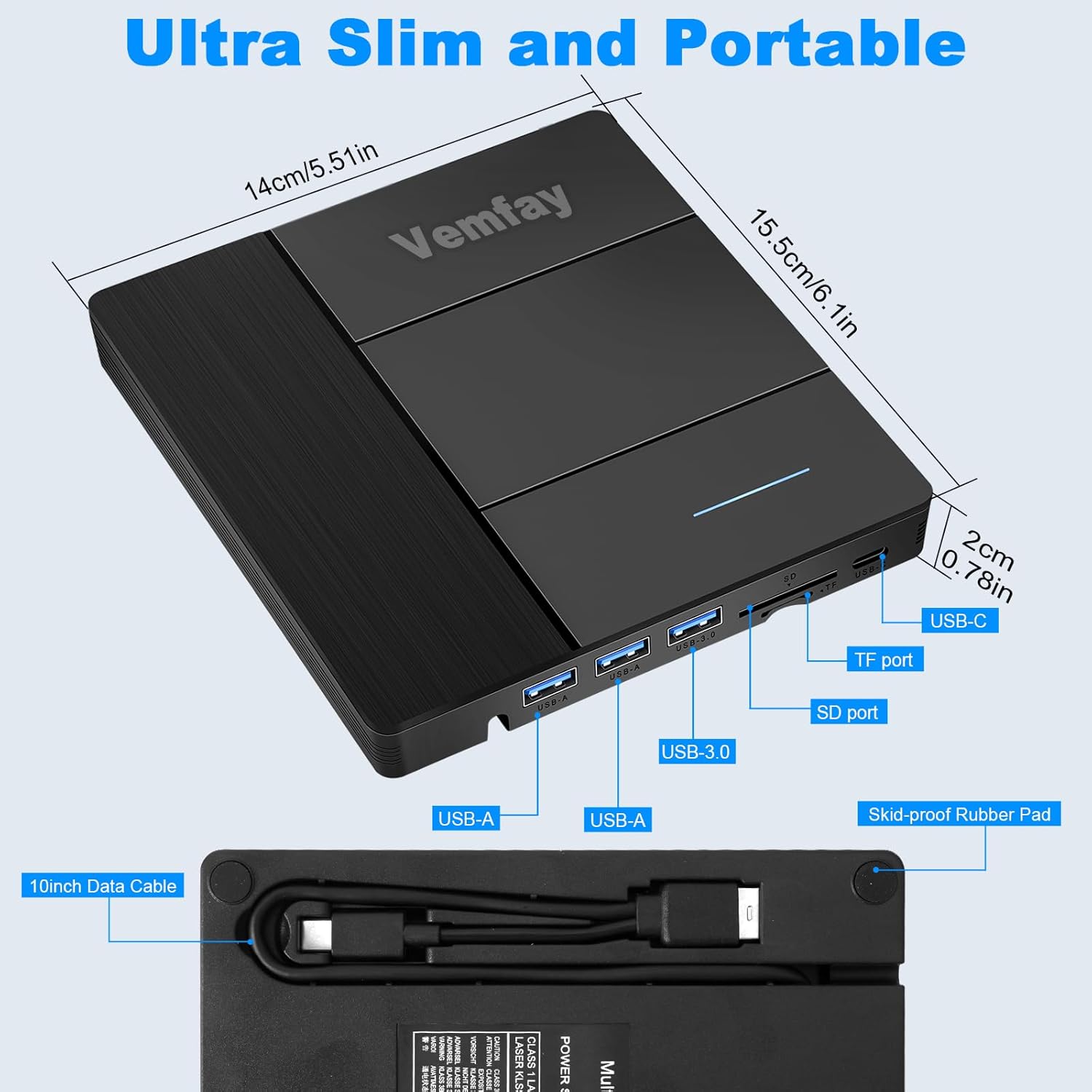
Image 9.1: The Vemfay External CD DVD Drive displaying its physical dimensions and clearly labeled ports for USB-A, USB-C, TF, and SD cards, along with the integrated data cable.
10. Warranty and Support
Your Vemfay External CD DVD Drive comes with a standard manufacturer's warranty. Please refer to the product packaging or the seller's information for specific warranty terms and duration.
If you encounter any issues or have questions regarding your product, please contact Vemfay customer support through the platform where you purchased the device. Provide your order number and a detailed description of the issue for prompt assistance.