
1. Introduction
This manual provides detailed instructions for the installation, operation, and maintenance of your Inefala 9-inch Android 15 Car Radio. Please read this manual thoroughly before using the product to ensure proper function and safety. This unit is designed for Suzuki Splash Ritz and Opel Agila models manufactured between 2004 and 2014.
2. Product Overview
The Inefala Android 15 Car Radio is an advanced multimedia system featuring a 9-inch display, 2GB RAM, and 64GB internal storage. It offers seamless integration with your vehicle's existing systems and provides a range of modern connectivity options.
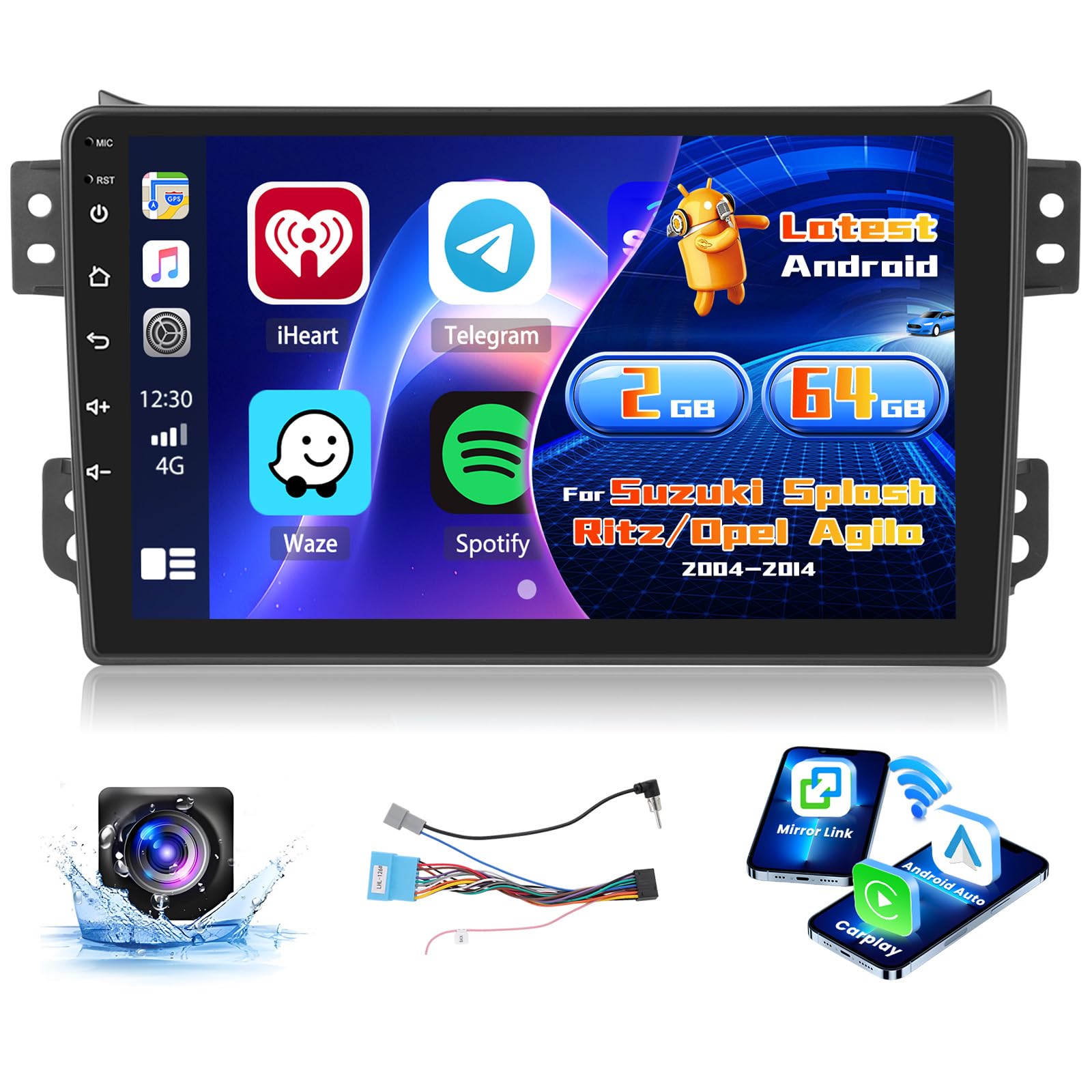
Image: Inefala 9-inch Android 15 Car Radio installed in a vehicle dashboard, displaying a navigation interface. This image provides a general view of the product.
3. Package Contents
Verify that all items listed below are included in your package:
- Inefala Car Radio Unit for Suzuki Splash Ritz/Opel Agila
- Power Cable
- RCA Cable
- GPS Antenna
- Backup Camera Input Cable
- AHD Emergency Camera
- External Microphone
- 3 x USB Cables
- Mounting Bracket
- Installation Tool

Image: Wiring harness details and a list of included accessories. This image illustrates the components provided in the package.
4. Setup and Installation
Professional installation is recommended. Ensure the vehicle's power is disconnected before beginning installation.
4.1. Pre-Installation Check
Before removing the original radio, compare its dimensions and connectors with the new Inefala unit to ensure compatibility.

Image: Before and after installation comparison. The original radio is shown next to the new Inefala touchscreen unit, demonstrating the upgrade for Suzuki Splash Ritz and Opel Agila models.
4.2. Wiring Connections
- Connect the main power cable harness to the vehicle's wiring.
- Attach the GPS antenna to the designated port on the unit and position it for optimal signal reception.
- Connect the RCA cables for audio output and auxiliary inputs as needed.
- For the backup camera, connect the camera's video output to the "CAM IN" port on the unit and the power cable to the reverse light circuit.
- Connect the external microphone for improved call quality.
- Plug in the USB cables for external storage or device charging.

Image: Connection diagram for the radio and backup camera. This image details how to connect the various cables for full functionality.
4.3. Steering Wheel Control (SWC)
If your vehicle has steering wheel controls, connect the SWC wires from the vehicle harness to the corresponding inputs on the radio. The unit supports CANBUS decoding for seamless integration. Refer to your vehicle's wiring diagram for specific connections.

Image: Steering wheel control options. This image illustrates how the unit integrates with existing steering wheel controls, including CANBUS decoder functionality.
5. Operating Instructions
5.1. Initial Power On and System Setup
After installation, turn on your vehicle's ignition. The unit will boot up. Follow the on-screen prompts for initial language and time zone settings.
5.2. Wireless CarPlay / Android Auto & Mirror Link
Connect your smartphone to the unit via USB cable or Wi-Fi for wireless CarPlay or Android Auto functionality. This allows you to access navigation, music, calls, and messages directly from the car radio's screen. Mirror Link functionality also enables mirroring your phone's screen.
- CarPlay: For iPhone users, connect via USB or Wi-Fi. Follow the prompts on your iPhone to enable CarPlay.
- Android Auto: For Android users, connect via USB or Wi-Fi. Ensure Android Auto is installed on your phone.
- Mirror Link: Connect your smartphone via USB or Wi-Fi and select the Mirror Link option on the unit.

Image: Wireless CarPlay, Android Auto, and Mirror Link interfaces. This image demonstrates the various smartphone integration options available.

Image: Wireless CarPlay & Android Auto interface. The screen displays various applications and connectivity options, including music playback, hands-free calling, and GPS navigation.
5.3. GPS Navigation & Wi-Fi
The unit includes GPS navigation with pre-installed maps. You can also download online navigation applications via Wi-Fi. Connect to a Wi-Fi hotspot to access online features, download apps, music, and videos.

Image: Wi-Fi connection and GPS navigation. The top part shows the unit connected to Wi-Fi, while the bottom part displays a detailed GPS map.
5.4. Bluetooth & FM/RDS Radio
Pair your phone via Bluetooth for music streaming, hands-free calls, and file transfer. The FM/RDS radio allows you to listen to your favorite stations with enhanced information display.
- Bluetooth Pairing: Go to the Bluetooth settings on the unit and your phone. Search for the unit's Bluetooth name and pair.
- FM/RDS Radio: Select the Radio application. Use the scan function to find stations or manually tune. RDS provides station information and traffic announcements.
- EQ Function: Adjust audio equalization settings to customize your listening experience.
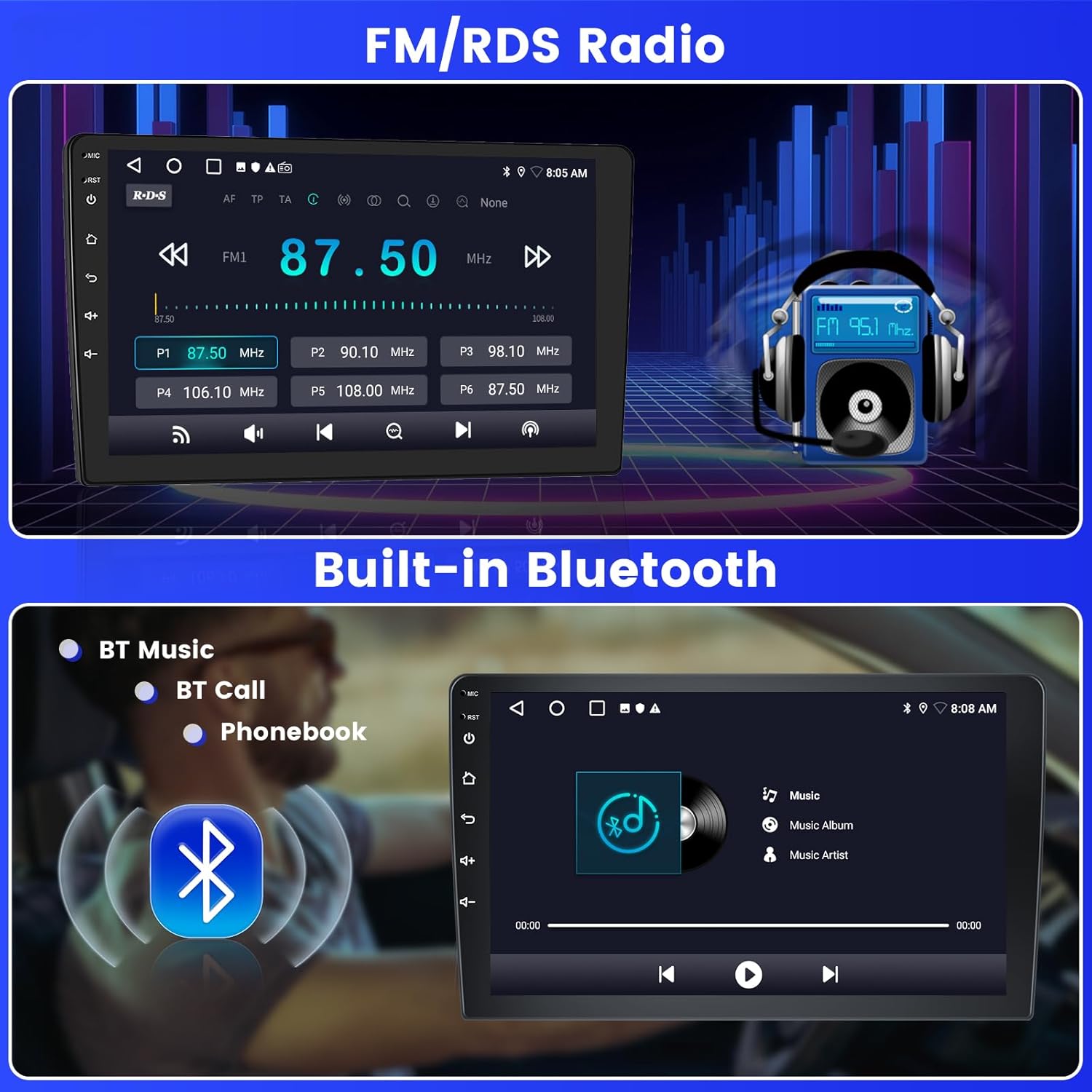
Image: FM/RDS Radio and Built-in Bluetooth. The top section shows the radio interface, and the bottom section displays Bluetooth music playback and call options.
5.5. Split Screen & UI Themes
The split-screen feature allows you to run two applications simultaneously, such as navigation and music. The unit also offers 26 customizable UI themes to personalize your interface.

Image: DSP, Split Screen, and UI Themes. This image highlights the digital sound processing, the ability to view two apps at once, and the variety of user interface themes.
5.6. Backup Camera
When reversing, the unit automatically displays the high-definition image from the AHD backup camera, providing a clear view of your surroundings.
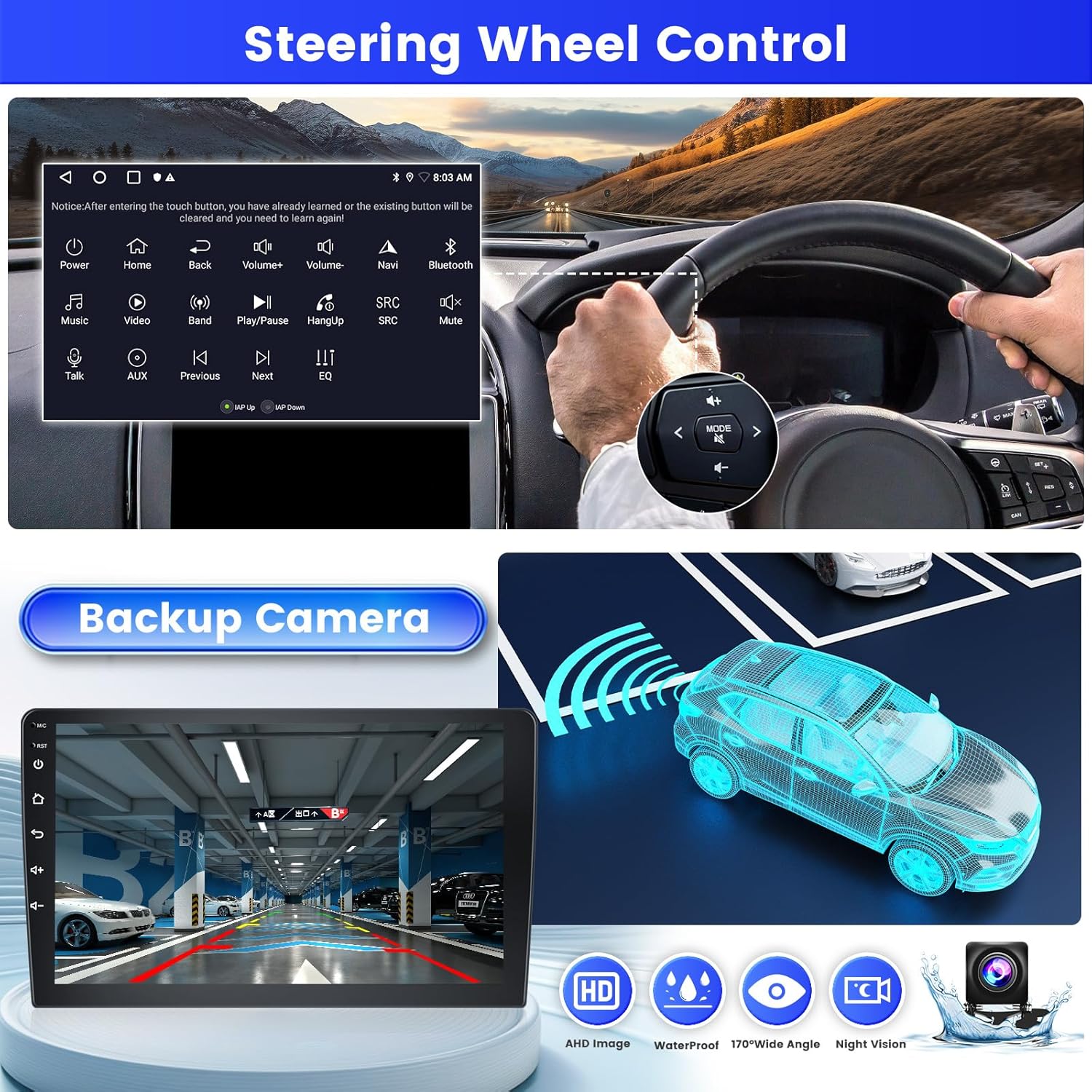
Image: Steering Wheel Control and Backup Camera. The top section shows the steering wheel control interface, while the bottom section displays the backup camera view and its features.

Image: AHD Backup Camera. This image shows the included backup camera with its mounting bracket and connection cables.
6. Maintenance
To ensure the longevity and optimal performance of your Inefala car radio, follow these maintenance guidelines:
- Screen Cleaning: Use a soft, lint-free cloth to gently wipe the screen. Do not use abrasive cleaners or solvents.
- Software Updates: Periodically check for system software updates via Wi-Fi to ensure you have the latest features and security patches.
- Avoid Extreme Temperatures: Do not expose the unit to extreme heat or cold, as this can affect its performance and lifespan.
- Cable Connections: Periodically check all cable connections to ensure they are secure and free from damage.
7. Troubleshooting
If you encounter issues with your car radio, refer to the following common problems and solutions:
| Problem | Possible Cause | Solution |
|---|---|---|
| Unit does not power on. | Loose power connection, blown fuse, vehicle battery issue. | Check power cable connections. Inspect vehicle fuses. Ensure vehicle battery is charged. |
| No sound. | Volume too low, mute activated, speaker wiring issue, incorrect audio source. | Increase volume. Check mute setting. Verify speaker connections. Select correct audio source. |
| GPS signal lost or inaccurate. | GPS antenna obstructed or improperly placed, weak signal area. | Ensure GPS antenna has a clear view of the sky. Relocate antenna if necessary. |
| Bluetooth connection issues. | Phone not discoverable, incorrect pairing, interference. | Ensure phone's Bluetooth is on and discoverable. Delete previous pairings and re-pair. Move closer to the unit. |
| CarPlay/Android Auto not connecting. | Incorrect USB cable, phone software issue, app not installed. | Use a high-quality USB cable. Ensure CarPlay/Android Auto is enabled on your phone. Update phone OS and apps. |
If the problem persists, please contact customer support.
8. Specifications
| Feature | Detail |
|---|---|
| Brand | Inefala |
| Model Number | Inefala-A7210A4092H1MI2IT53-C490 |
| Operating System | Android 15 |
| Memory (RAM) | 2GB |
| Storage (ROM) | 64GB |
| Screen Size | 9 inches |
| Connectivity | Bluetooth, USB, Wi-Fi |
| Special Features | Wireless CarPlay, Android Auto, Mirror Link, FM/RDS Radio, EQ, GPS, 26 UI Themes, Steering Wheel Control (SWC), Dual USB Input |
| Compatible Devices | Smartphone |
| Audio Output Mode | APE/FLAC/WAV/MP3/WMA |
| Surround Sound Channels | 4 |
| Video Encoding | H.264, H.265/HEVC |
| Output Power | 45 Watts x 4 Channels |
| Control Method | Touch |
| Item Weight | 1.29 Kilograms |
| Country of Origin | China |
9. Warranty and Support
9.1. Warranty Information
This Inefala car radio comes with a 24-month warranty from the date of purchase. The warranty covers manufacturing defects and malfunctions under normal use. Please retain your proof of purchase for warranty claims.
9.2. Customer Support
For any inquiries, technical assistance, or warranty claims, Inefala offers lifetime online support. Our support team aims to respond to all inquiries within 24 hours.
Please visit the official Inefala website or contact our customer service department for support. Contact details can typically be found on our website or in your product packaging.