1. Introduction
Thank you for choosing the Kidken Portable Wireless Thermal Printer. This compact and lightweight printer is designed for convenience, offering inkless thermal printing technology for various document types. It supports multiple paper sizes, including A4, A5, and US Letter, and provides versatile connectivity options via Bluetooth for iOS and Android devices, and USB-C for laptops. This manual will guide you through the setup, operation, and maintenance of your new printer.
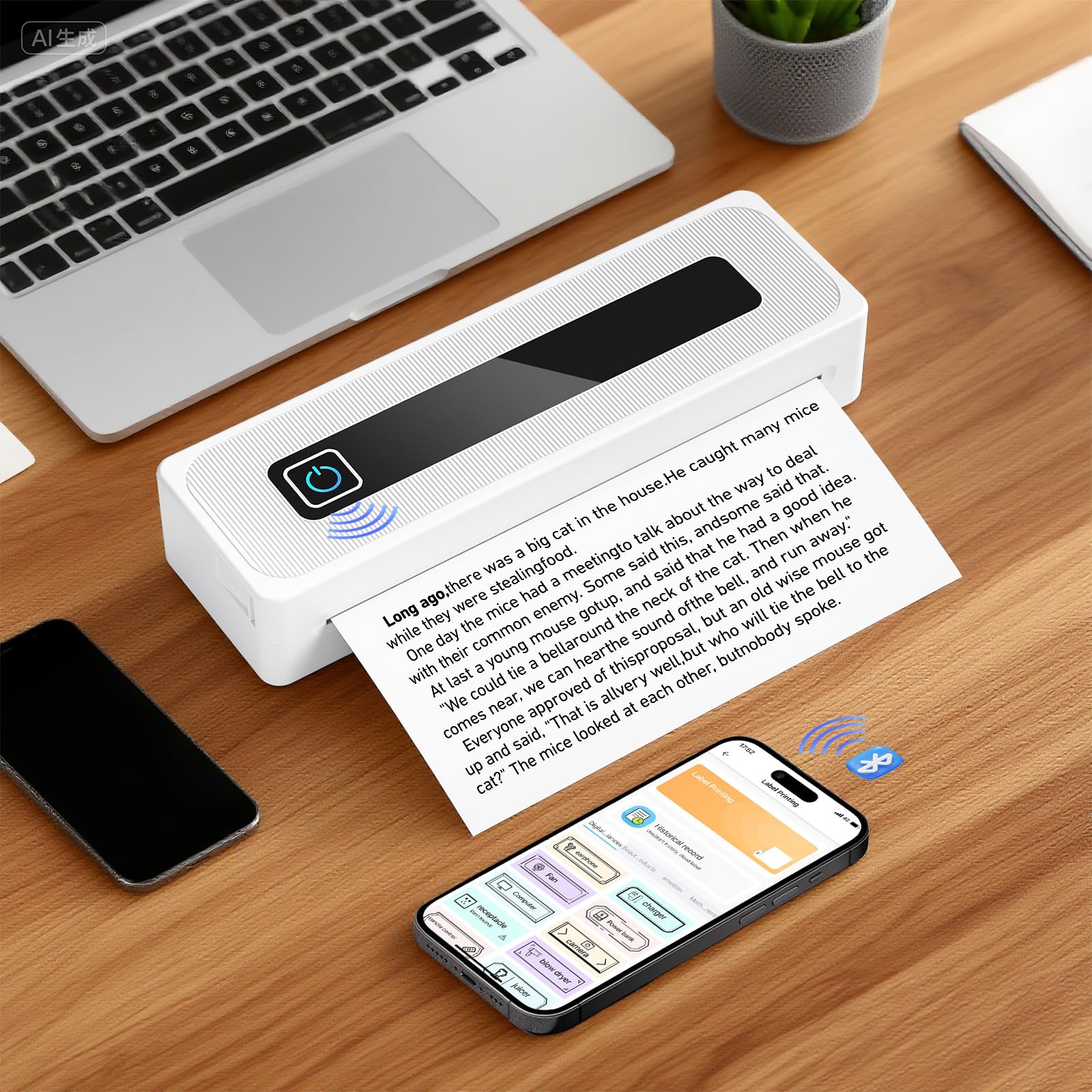
Image 1.1: Kidken Portable Wireless Thermal Printer in use, demonstrating its compact size and output.
2. Package Contents
Please check the package contents to ensure all items are present:
- 1 x Kidken Portable Wireless Thermal Printer
- 1 x Roll of Thermal Paper
- 1 x USB Power Cord (USB-C)
- 1 x User Manual

Image 2.1: The complete package contents of the Kidken Portable Wireless Thermal Printer.
3. Product Overview
The Kidken Portable Wireless Thermal Printer features a minimalist design with essential controls for ease of use.
3.1 Key Components
- Power Button: Located on the top surface, used to turn the printer on/off.
- Paper Output Slot: Where printed documents exit the printer.
- Paper Input Slot: Where thermal paper is loaded.
- USB-C Port: For charging and wired connection to computers.
- Indicator Lights: Provide status information (e.g., power, battery, error).
4. Setup
4.1 Charging the Printer
Before first use, fully charge the printer. Connect the provided USB-C cable to the printer's USB-C port and the other end to a compatible USB power adapter (not included) or a computer's USB port. The indicator light will show charging status and turn off or change color when fully charged. The printer is equipped with a 2000mAh battery.

Image 4.1: The printer's internal battery compartment, highlighting its 2000mAh capacity.
4.2 Loading Thermal Paper
This printer uses thermal paper only. Ensure you are using the correct type of paper for optimal print quality.
- Open the printer's paper cover.
- Insert the thermal paper roll or a single sheet into the paper input slot, ensuring the printable side is facing the print head.
- Adjust the paper guides to fit the width of the paper.
- Close the paper cover securely.
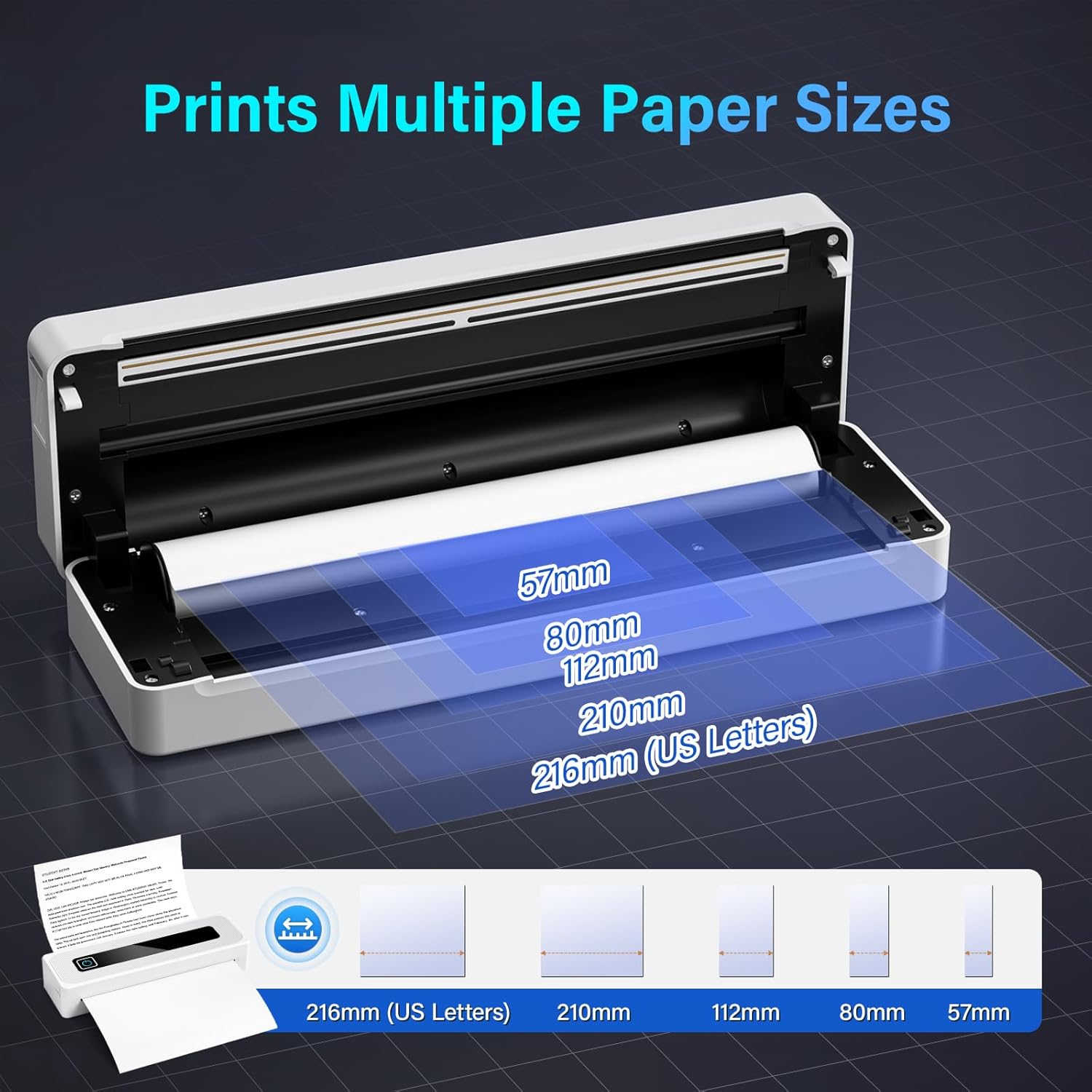
Image 4.2: Illustration of loading various paper sizes (57mm, 80mm, 112mm, 210mm, 216mm US Letters) into the printer.
4.3 Installing the Mobile Application
For wireless printing from your smartphone or tablet, you need to install the dedicated mobile application. Refer to the quick start guide or packaging for the specific app name and download instructions (usually available on iOS App Store and Google Play Store).
5. Operating Instructions
5.1 Powering On/Off
- To Power On: Press and hold the Power Button for a few seconds until the indicator light illuminates.
- To Power Off: Press and hold the Power Button again until the indicator light turns off. The printer also features a customizable auto-off function to conserve energy.
5.2 Connecting to Devices
The printer offers both Bluetooth and USB-C connectivity.
5.2.1 Bluetooth Connection (iOS/Android)
- Ensure the printer is powered on and within range of your mobile device.
- Enable Bluetooth on your mobile device.
- Open the installed mobile printing application.
- Within the app, search for and select your printer from the list of available Bluetooth devices.
- Follow any on-screen prompts to complete the pairing process.
5.2.2 USB-C Connection (Laptops/Computers)
- Connect the printer to your laptop or computer using the provided USB-C cable.
- The computer should automatically detect the printer. If not, you may need to install the printer driver. Drivers are typically available on the manufacturer's website.
- Once installed, the printer will appear in your computer's list of printers, ready for use.

Image 5.1: Universal compatibility with Bluetooth (Android, iPad, iOS) and USB-C (Windows, iOS).
5.3 Printing Documents
- From Mobile App: Open the document or image within the printing app, select print options (e.g., paper size, density), and tap the print button.
- From Computer: Open the document in any application, select 'Print' from the file menu, choose the Kidken printer, adjust settings as needed, and click 'Print'.
6. Maintenance
6.1 Cleaning the Print Head
To maintain print quality, periodically clean the thermal print head. Use a soft, lint-free cloth lightly dampened with isopropyl alcohol. Gently wipe the print head surface. Ensure the printer is off and cool before cleaning.
6.2 Paper Handling
Always use high-quality thermal paper. Store thermal paper in a cool, dry place away from direct sunlight to prevent premature fading or damage. Avoid using wrinkled or damaged paper, as this can affect print quality and potentially cause paper jams.
6.3 Battery Care
To prolong battery life, avoid fully discharging the printer frequently. If storing the printer for an extended period, charge it to about 50% and recharge every few months.
7. Troubleshooting
If you encounter issues with your printer, refer to the following common problems and solutions:
| Problem | Possible Cause | Solution |
|---|---|---|
| Printer does not turn on | Low battery; Power button not pressed correctly | Charge the printer; Press and hold the power button firmly. |
| Poor print quality / Faded prints | Low battery; Incorrect paper type; Dirty print head; Paper loaded incorrectly | Charge the printer; Ensure thermal paper is used; Clean the print head (see Section 6.1); Reload paper correctly. |
| Cannot connect via Bluetooth | Bluetooth off on device; Printer not in pairing mode; App issue | Enable Bluetooth; Restart printer and device; Reinstall app if necessary. |
| Paper jam | Paper loaded incorrectly; Damaged paper | Turn off printer, carefully remove jammed paper; Ensure paper is loaded straight and undamaged. |
If the problem persists, please contact Kidken customer support for further assistance.
8. Specifications
| Feature | Detail |
|---|---|
| Brand | Kidken |
| Model | 1 |
| Printing Technology | Thermal (Inkless) |
| Connectivity | Bluetooth, USB-C |
| Max Print Resolution | 300 dpi (Monochrome) |
| Supported Paper Sizes | A4, A5, US Letter (8.5" x 11"), 57mm, 80mm, 112mm, 210mm |
| Duplex Printing | No |
| Battery Capacity | 2000mAh |
| Product Dimensions | 26 cm (L) x 8 cm (W) x 4.7 cm (H) |
| Product Weight | 700 g |
9. Warranty and Support
For warranty information and customer support, please refer to the documentation included with your purchase or visit the official Kidken website. Keep your proof of purchase for warranty claims.


