
1. Introduction
This manual provides detailed instructions for the installation, configuration, operation, and maintenance of the Generic RG-RAP2266 AX3000 Dual-Band WiFi 6 Ceiling-Mounted Access Point. The RG-RAP2266 is designed to deliver high-performance wireless connectivity in various environments, including hotels and commercial spaces, leveraging WiFi 6 technology for enhanced speed and efficiency.
2. Product Overview
The RG-RAP2266 is a high-performance ceiling-mounted access point featuring:
- WiFi 6 AX3000 Performance: Offers dual-band speeds with improved efficiency and lower latency for a superior wireless experience.
- Ceiling-Mounted Design: An aesthetic circular build that integrates seamlessly into various indoor environments, ideal for hotels and commercial spaces.
- High-Capacity & Reliability: Capable of supporting up to 512 clients, with 110 recommended for optimal performance.
- Flexible Power Options: Supports Power over Ethernet Plus (PoE+ 802.3at, 18W) or a DC 12V/2A power adapter for versatile deployment.
- Cloud & App Management: Easy monitoring and configuration through Ruijie Cloud, WebUI, or a dedicated mobile application.
3. What's in the Box
Please verify that all items are present and undamaged upon unpacking:
- RG-RAP2266 WiFi 6 Ceiling-Mounted Access Point
- Mounting Bracket (pre-attached or separate)
- Screws and Wall Plugs (for mounting)
- Quick Start Guide
Note: A power adapter (DC 12V/2A) or PoE+ injector/switch may be sold separately.
4. Setup Guide
Follow these steps to properly install and configure your RG-RAP2266 Access Point.
4.1. Physical Installation
The RG-RAP2266 is designed for ceiling mounting. Ensure the chosen location provides optimal wireless coverage and is within reach of network cabling.
- Select Location: Choose a central location on the ceiling, away from obstructions and sources of interference.
- Mounting Bracket: Secure the mounting bracket to the ceiling using the provided screws and wall plugs. Ensure it is firmly attached.
- Connect Cables: Route an Ethernet cable (preferably Cat5e or Cat6) from your network switch (PoE+ enabled) or router to the Ethernet port on the access point. If not using PoE+, connect the DC power adapter.
- Attach AP: Align the access point with the mounting bracket and twist it clockwise until it locks securely into place.
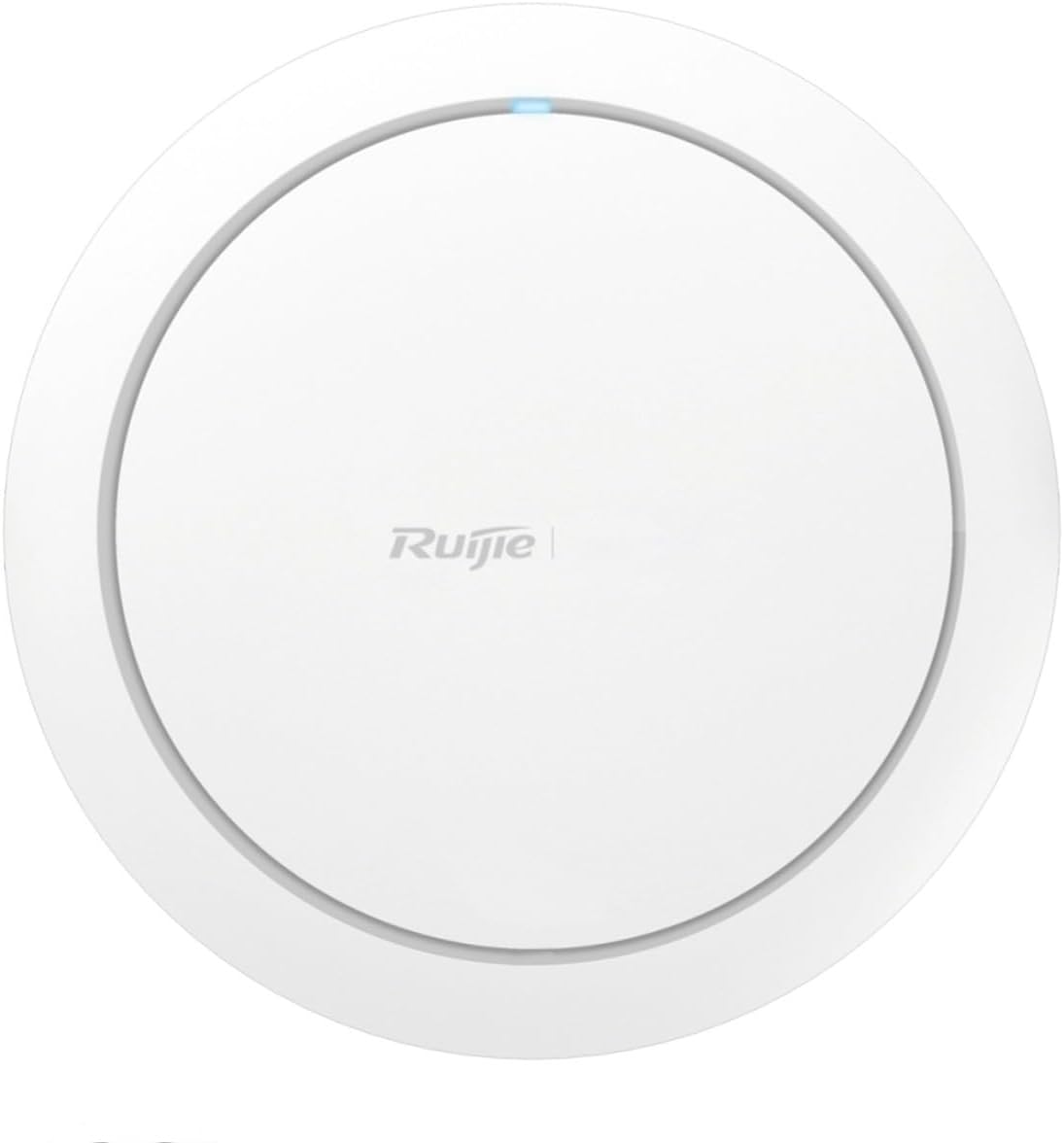
This image displays the front of the RG-RAP2266 Access Point. It features a clean, circular white casing, designed for discreet ceiling mounting. The 'Ruijie' logo is visible in the center, and a small blue LED indicator is located at the top, signifying operational status.
4.2. Powering On
Once physically installed and cabled, the access point will power on. The LED indicator on the device will illuminate, typically blue, to show operational status. Refer to the Quick Start Guide for specific LED behavior.
4.3. Initial Configuration
The RG-RAP2266 can be configured via Ruijie Cloud, WebUI, or a mobile app.
- Ruijie Cloud (Recommended): Download the Ruijie Cloud app or visit the Ruijie Cloud website. Follow the on-screen instructions to add your device by scanning its QR code or entering its serial number. This method allows for centralized management.
- WebUI: Connect a computer directly to the access point's Ethernet port or to the same network segment. Open a web browser and enter the default IP address (refer to the Quick Start Guide for the specific IP, often 192.168.1.1 or similar). Log in with default credentials (e.g., admin/admin) and follow the setup wizard.
- Mobile App: Use the dedicated mobile app (if available) to discover and configure the access point.
During configuration, you will typically set up Wi-Fi network names (SSIDs), passwords, and other network parameters.
5. Operating Instructions
Once configured, the RG-RAP2266 will broadcast your Wi-Fi networks. Devices can connect to these networks using the provided SSIDs and passwords.
- Connecting Devices: On your wireless devices (smartphones, laptops, tablets), search for available Wi-Fi networks, select your configured SSID, and enter the password.
- Monitoring: Use the Ruijie Cloud platform or the local WebUI to monitor network status, connected clients, and performance metrics.
- Guest Network: If configured, provide guest network credentials to visitors for segregated internet access.
6. Maintenance
Regular maintenance ensures optimal performance and longevity of your access point.
- Firmware Updates: Periodically check for and install firmware updates via Ruijie Cloud or the WebUI. Updates often include performance improvements, security patches, and new features.
- Cleaning: Gently wipe the exterior of the access point with a soft, dry cloth. Do not use liquid cleaners or abrasive materials.
- Environmental Conditions: Ensure the access point operates within its specified temperature and humidity ranges to prevent damage.
- Network Review: Periodically review network settings and client connections to ensure efficient operation.
7. Troubleshooting
If you encounter issues with your RG-RAP2266, refer to the following common problems and solutions:
| Problem | Possible Cause | Solution |
|---|---|---|
| No power/LED off | Power cable disconnected, faulty power source, PoE issue. | Check power connections. Ensure PoE+ switch/injector is active. Try a different power outlet or PoE port. |
| Cannot connect to Wi-Fi | Incorrect password, Wi-Fi disabled, out of range, SSID hidden. | Verify Wi-Fi password. Ensure Wi-Fi is enabled on the AP. Move closer to the AP. Check if SSID broadcast is enabled. |
| Slow Wi-Fi speed | Interference, too many clients, outdated firmware, poor AP placement. | Check for sources of interference. Limit client connections if overloaded. Update firmware. Optimize AP placement. |
| Cannot access WebUI | Incorrect IP address, network configuration issue, firewall. | Verify the AP's IP address. Ensure your computer is on the same network segment. Temporarily disable computer firewall. |
For further assistance, consult the official Ruijie Cloud documentation or contact technical support.
8. Technical Specifications
| Feature | Detail |
|---|---|
| Model | RG-RAP2266 |
| Wi-Fi Standard | WiFi 6 (802.11ax) |
| Speed | AX3000 Dual-Band |
| Client Capacity | Up to 512 (110 recommended) |
| Power Options | PoE+ 802.3at (18W) or DC 12V/2A |
| Management | Ruijie Cloud, WebUI, Mobile App |
| Mounting | Ceiling-Mounted |
| Manufacturer | Reyee |
| First Available | February 24, 2025 |
9. Warranty and Support
This product comes with a standard manufacturer's warranty. Please refer to the warranty card included with your product or visit the manufacturer's official website for detailed warranty terms and conditions.
For technical support, product inquiries, or warranty claims, please contact your vendor or the manufacturer's customer service. Ensure you have your product model number (RG-RAP2266) and purchase information ready when seeking support.