1. Introduction
This instruction manual provides detailed guidance for the proper use and maintenance of your Generic AWSBH22 remote control. This remote is designed as a replacement for various soundbar systems, including Aiwa AWSBH22, VMA X-bar, and Geepa GMS11152 models. Please read this manual thoroughly before operating the device to ensure optimal performance and longevity.
2. Safety Information
- Do not expose the remote control to direct sunlight, heat sources, or extreme temperatures.
- Avoid dropping the remote control or subjecting it to strong impacts.
- Do not immerse the remote control in water or any other liquids.
- Keep batteries out of reach of children. If swallowed, seek immediate medical attention.
- Dispose of used batteries according to local regulations. Do not mix old and new batteries, or different types of batteries.
- If the remote control is not used for an extended period, remove the batteries to prevent leakage.
3. Package Contents
Please check that your package contains the following items:
- 1 x Generic AWSBH22 Remote Control
- (Batteries are not included and must be purchased separately.)
4. Product Overview
The Generic AWSBH22 remote control is designed for intuitive operation of your compatible soundbar system. Below is an illustration of the remote with its key functions.
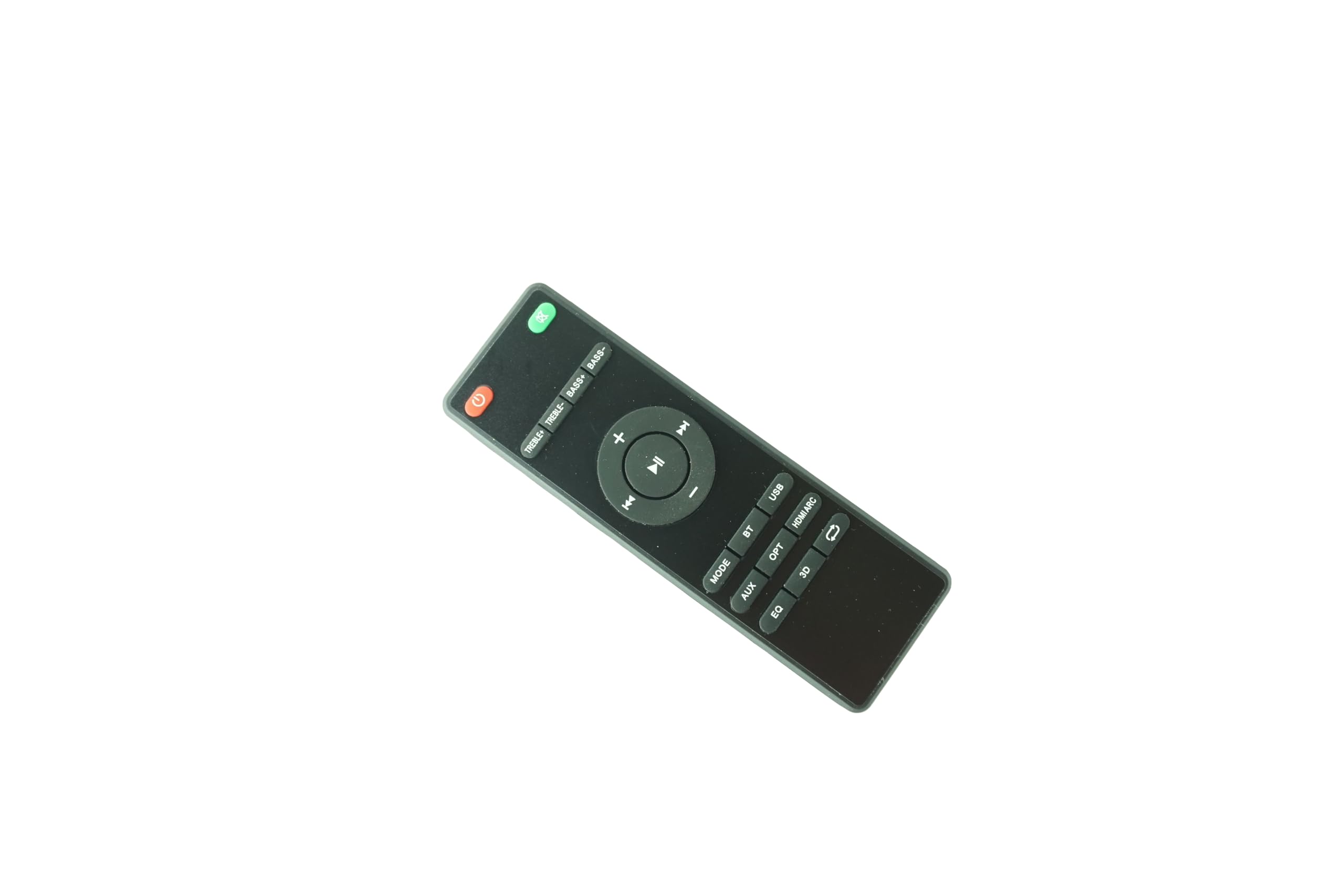
Figure 1: Generic AWSBH22 Remote Control. This image displays the full layout of the remote control, including power, volume, playback, input selection, and sound adjustment buttons.
Button Functions:
- Power Button (Red, top right): Turns the soundbar system on or off.
- Mute Button (Green, top right): Mutes or unmutes the sound.
- Volume Up (+): Increases the volume level.
- Volume Down (-): Decreases the volume level.
- Play/Pause (Center button): Starts or pauses media playback.
- Previous Track (Left arrow): Skips to the beginning of the current track or the previous track.
- Next Track (Right arrow): Skips to the next track.
- MODE: Cycles through different audio input modes.
- AUX: Selects Auxiliary input.
- OPT: Selects Optical input.
- HDMI ARC: Selects HDMI Audio Return Channel input.
- BT: Selects Bluetooth input for wireless connection.
- USB: Selects USB input for media playback.
- EQ: Cycles through Equalizer presets (e.g., Music, Movie, News).
- 3D: Activates or deactivates 3D audio mode.
- Repeat/Loop (Arrow icon): Toggles repeat or loop playback modes (functionality may vary by device).
- TREBLE+ / TREBLE-: Adjusts the treble level up or down.
- BASS+ / BASS-: Adjusts the bass level up or down.
5. Setup
5.1 Battery Installation
- Locate the battery compartment on the back of the remote control.
- Slide open the battery compartment cover.
- Insert two (2) AAA batteries, ensuring the positive (+) and negative (-) terminals align correctly with the markings inside the compartment.
- Close the battery compartment cover securely.
Note: 2 AAA batteries are required and are not included with the remote control.
6. Operating Instructions
This remote control is an infrared (IR) replacement remote. It operates by sending IR signals to your compatible soundbar system. Ensure there is a clear line of sight between the remote control and the soundbar's IR receiver.
6.1 Basic Operation
- Power On/Off: Press the Power button to turn your soundbar on or off.
- Volume Adjustment: Use the Volume + and Volume - buttons to adjust the sound level.
- Mute: Press the Mute button to temporarily silence the audio. Press again to restore sound.
6.2 Input Source Selection
To switch between different audio sources, press the corresponding input button:
- MODE: Cycles through available inputs.
- AUX: For devices connected via a 3.5mm auxiliary cable.
- OPT: For devices connected via an optical digital cable.
- HDMI ARC: For devices connected via HDMI ARC.
- BT (Bluetooth): For wireless audio streaming from Bluetooth-enabled devices.
- USB: For media playback from a USB storage device.
6.3 Sound Adjustment
- EQ: Press to cycle through preset equalizer modes (e.g., Standard, Movie, Music, Voice).
- 3D: Press to enable or disable 3D surround sound effects.
- TREBLE+ / TREBLE-: Adjusts the high-frequency sound output.
- BASS+ / BASS-: Adjusts the low-frequency sound output.
7. Maintenance
7.1 Cleaning
To clean the remote control, wipe it gently with a soft, dry cloth. Do not use abrasive cleaners, waxes, or solvents as they may damage the surface.
7.2 Battery Replacement
Replace the batteries when the remote control's response becomes sluggish or stops functioning. Follow the battery installation steps outlined in Section 5.1. Always replace both batteries at the same time with new AAA batteries.
8. Troubleshooting
| Problem | Possible Cause | Solution |
|---|---|---|
| Remote control not working. |
|
|
| Some functions do not work. |
|
|
9. Specifications
- Model: AWSBH22
- Brand: Generic
- Type: Infrared (IR) Remote Control
- Power Source: 2 x AAA Batteries (not included)
- Compatible Devices: Aiwa AWSBH22, VMA X-bar, Geepa GMS11152 Soundbar Speaker Systems
- Color: Black
- Max Number of Supported Devices: 1
10. Warranty and Support
10.1 Warranty Information
This product is sold as a replacement remote control. Specific warranty details may vary by retailer or region. Please retain your purchase receipt for any warranty claims. The manufacturer, Easytry, provides this product.
10.2 Customer Support
For further assistance or inquiries regarding this remote control, please contact your point of purchase or refer to the contact information provided by the seller. Ensure to mention the model number AWSBH22 when seeking support.