
1. Introduction
This manual provides detailed instructions for the installation, operation, and maintenance of your OiLiehu 9.7-inch Android 13 Car Stereo. This unit is specifically designed for Ford Fiesta models from 2012 to 2015, offering advanced features such as Wireless Carplay, Android Auto, GPS Navigation, Bluetooth 5.0, FM/RDS radio, and AHD Backup Camera support. Please read this manual thoroughly before use to ensure proper functionality and safety.
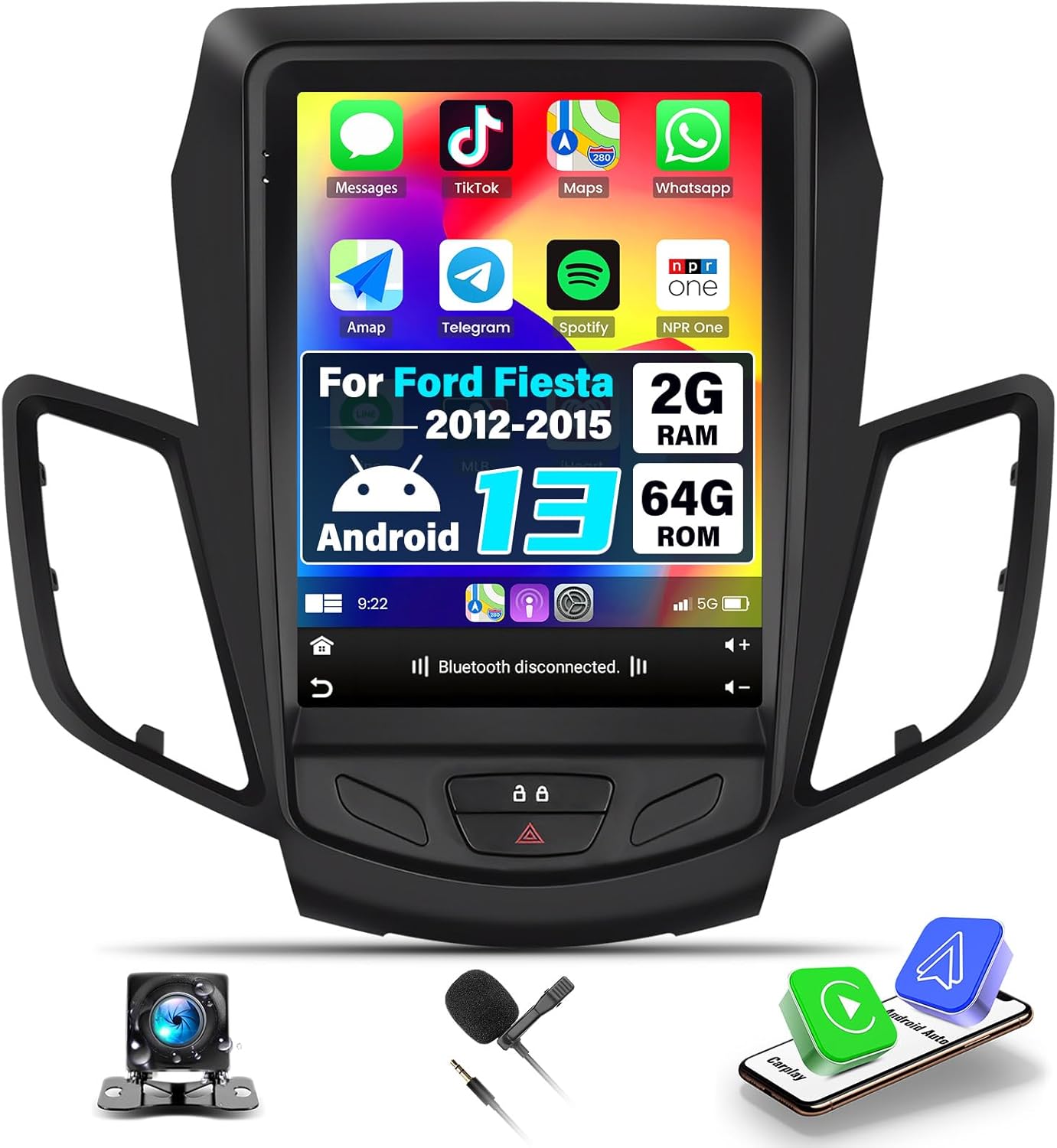
Image: The OiLiehu 9.7-inch Android 13 Car Stereo unit, showing its large vertical display, physical buttons, and included accessories like a backup camera, microphone, and phone mirroring icons.
2. Compatibility and Pre-Installation Check
Before proceeding with installation, it is crucial to verify your vehicle's central control panel compatibility. This product is designed for specific configurations of the Ford Fiesta 2012-2015. Please compare your car's dashboard with the images below.
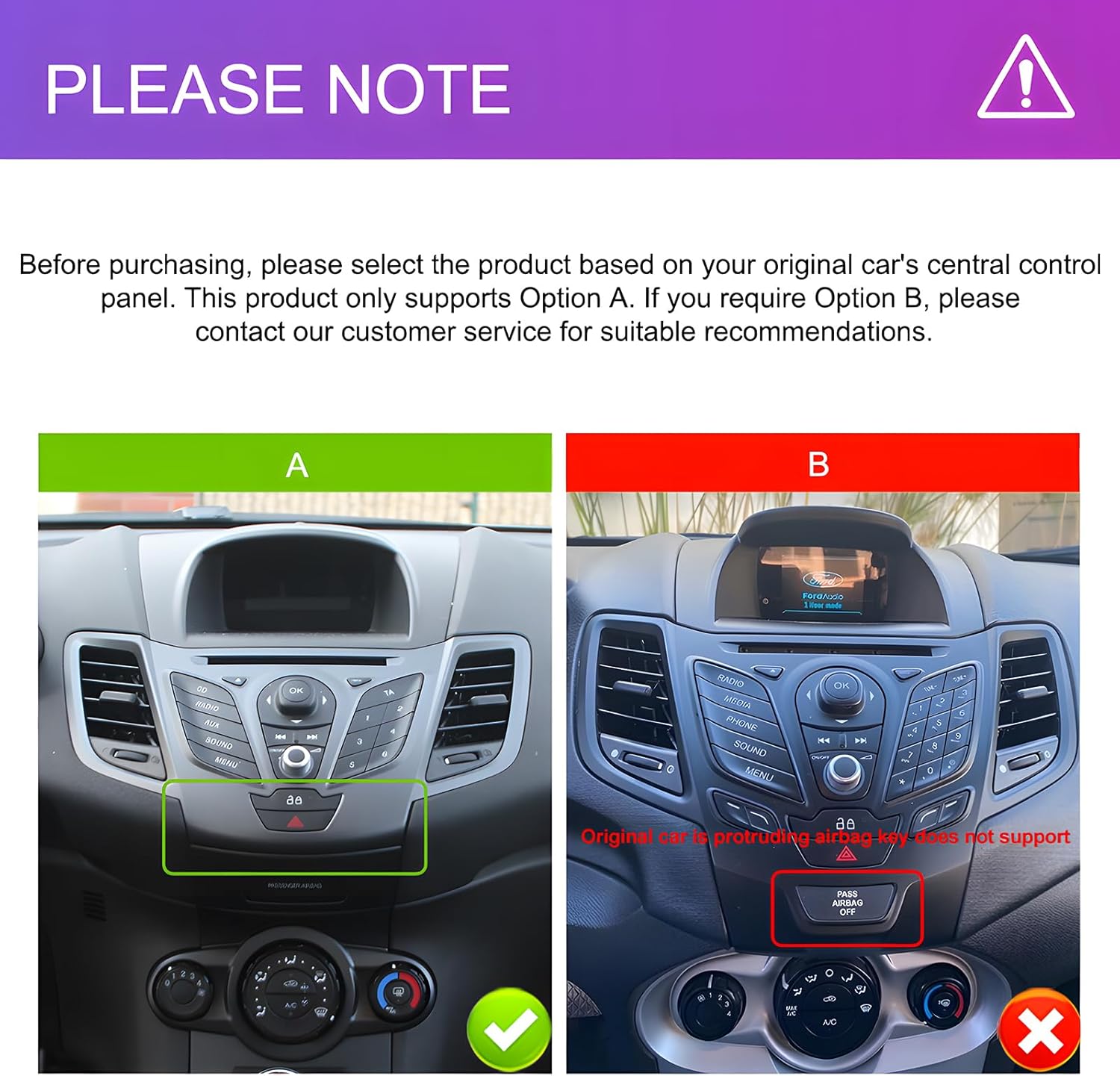
Image: A comparison of two Ford Fiesta central control panels. Option A (left, green checkmark) shows a compatible panel without protruding airbag keys. Option B (right, red cross) shows an incompatible panel with protruding airbag keys. This unit only supports Option A.
Important: This product only supports vehicles with the central control panel configuration shown as "Option A". If your vehicle has "Option B" with protruding airbag keys, this unit is not compatible. Contact customer support for alternative recommendations if needed.
3. Setup and Installation
3.1 Package Contents
Ensure all components are present before beginning installation:

Image: A detailed diagram showing the dimensions of the 9.7-inch unit and a comprehensive view of the rear wiring connections. On the right, a list of included accessories: USB cable, video cable, antenna, Canbus box & MIC, power cable, rear camera, light line, user manual, antenna head, accessories, tools, RCA cable, USB cable, GPS module.
- Main Head Unit (9.7-inch display)
- Power Cable
- RCA Cable
- USB Cables (x2)
- Rear Camera Input Cable
- GPS Antenna
- Canbus Box & Microphone
- AHD Backup Camera
- User Manual
- Installation Tools
3.2 Wiring Diagram and Connections
Refer to the included wiring diagram and the image above for detailed connection instructions. Professional installation is recommended.
- Power Cable: Connect the main power harness to your vehicle's wiring. Ensure correct polarity and secure connections.
- RCA Cable: For external audio/video input/output.
- USB Cables: Connect for data transfer, media playback, and wired Carplay/Android Auto.
- Rear Camera Input Cable: Connect the AHD backup camera to this input.
- GPS Antenna: Mount the GPS antenna in a location with a clear view of the sky for optimal signal reception.
- Canbus Box: Connect the Canbus box to enable steering wheel controls and other vehicle-specific functions.
- Microphone: Connect the external microphone for clear hands-free calling and voice commands.
After installation, the unit should integrate seamlessly into your Ford Fiesta dashboard, as shown in the "After Installation" image below.
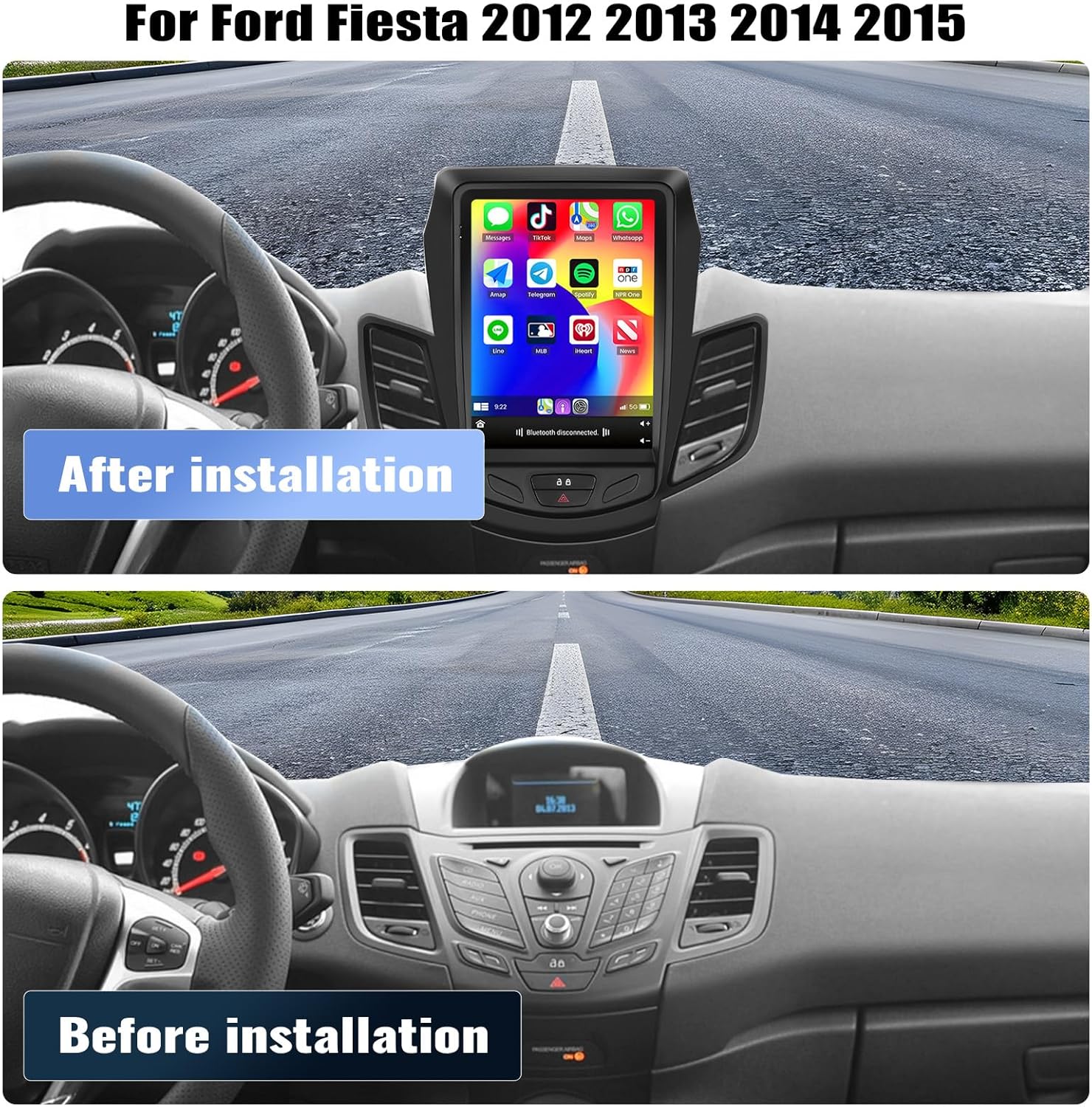
Image: A split image showing the Ford Fiesta dashboard before and after the installation of the OiLiehu 9.7-inch Android 13 Car Stereo. The "After installation" view shows the large vertical screen integrated into the dash, replacing the original radio.
4. Operating Instructions
4.1 Wireless Carplay & Android Auto
The unit features built-in Wireless Carplay and Android Auto for seamless smartphone integration.

Image: A visual representation of Wireless Carplay and Android Auto interfaces displayed on the car stereo screen, alongside a smartphone connected wirelessly. It highlights access to phone features like navigation, music, and messages.
- Connection:
- Ensure Bluetooth is enabled on your smartphone and the car stereo.
- Pair your phone with the car stereo via Bluetooth.
- For Android Auto, navigate to Car Settings > Android Settings > Network & Internet > Hotspot & tethering > WiFi hotspot and turn it ON.
- The system will automatically prompt you to launch Carplay or Android Auto.
- Functionality: Access phone contacts, messages, notifications, map navigation, music, and video directly from the car stereo screen. Voice control is supported.
4.2 Mirror Link Function
Mirror Link allows you to display your smartphone's screen directly onto the car stereo.

Image: A diagram illustrating the Mirror Link function, showing a smartphone screen being mirrored onto the car stereo display. It indicates support for WiFi connection for iOS and WiFi/USB connection for Android devices.
- Connection:
- iOS: Connect via WiFi.
- Android: Connect via WiFi or USB.
- Usage: View content from your phone, such as YouTube videos, Amazon Prime videos, or maps, on the larger stereo screen.
4.3 Built-in GPS Navigation & WiFi
The unit includes a built-in GPS module and WiFi connectivity for navigation and online services.

Image: The car stereo displaying a GPS navigation map with a route highlighted, alongside various app icons representing WiFi connectivity and online services. This illustrates the unit's ability to provide accurate positioning and access online content.
- GPS: Provides accurate positioning and turn-by-turn directions. Supports online and offline maps.
- WiFi: Connect to a WiFi hotspot to download, install, and use various applications from the app store. Compatible with navigation apps like Google Maps, Here We Go, Waze, and Navfree.
4.4 FM/RDS Radio & Bluetooth 5.0
Enjoy radio broadcasts and hands-free communication with the integrated FM/RDS tuner and Bluetooth 5.0.

Image: The car stereo displaying the FM radio interface with frequency 104.30 MHz, and a separate screen showing the Bluetooth call interface with a dial pad. Icons for Bluetooth music and phonebook are also visible, emphasizing hands-free communication and audio streaming.
- FM/RDS Radio: Tune into FM frequencies (87.5-108 MHz) for real-time road conditions, news, and weather forecasts. RDS provides additional broadcast information.
- Bluetooth 5.0:
- Hands-Free Calls: Make and receive calls safely while driving.
- Music Playback: Stream audio from your Bluetooth-enabled device.
- Phone Book: Automatic loading of your phone's contact list.
4.5 Steering Wheel Control (SWC)
Control the car stereo functions directly from your vehicle's steering wheel buttons.

Image: A split image showing a car's steering wheel with control buttons on the left, and the car stereo screen on the right displaying a menu for "Steering Learn" where users can assign functions to physical buttons. This highlights the integration of steering wheel controls for safer operation.
- Configuration: Access the "Steering Learn" menu in the car stereo settings to map your steering wheel buttons to various functions (e.g., volume, track skip, mode).
- Benefits: Enhances driving safety and convenience by allowing control without taking hands off the wheel.
4.6 AHD Backup Camera
The included AHD backup camera provides a clear view of the area behind your vehicle when reversing.

Image: The car stereo displaying a clear, wide-angle view from a backup camera with parking guidelines. In the background, a car is shown reversing into a parking spot, emphasizing the safety benefits. Features like HD, Night Vision, Wide Angle, and Waterproof are highlighted.
- Automatic Activation: The display automatically switches to the backup camera view when the vehicle is put into reverse.
- Features: High-definition image, night vision, 170° wide-angle view, and waterproof design for enhanced safety and visibility.
4.7 Split Screen Function
Utilize two applications simultaneously on the screen for increased multitasking convenience.

Image: The car stereo screen demonstrating the split-screen function, showing a navigation app on one side and a music player on the other. Another part of the image illustrates sound effect customization options (Rock, Pop, Jazz, Custom, Classical) with a car icon representing audio output.
- Activation: Click the rectangle icon at the top of the screen, then select an application and drag it to either the left or right side of the display.
- Usage: For example, run navigation on one side and a music player on the other. Both screens can be operated independently.
4.8 HiFi Sound Effect (EQ Function)
Customize your audio experience with the built-in equalizer and sound presets.
- Presets: Choose from various sound modes like Rock, Pop, Jazz, and Classical.
- Customization: Adjust individual frequency bands to create your preferred audio profile.
- Subwoofer Output: Supports external subwoofer connection for enhanced bass.
5. Maintenance
To ensure the longevity and optimal performance of your car stereo, follow these maintenance guidelines:
- Screen Cleaning: Use a soft, lint-free cloth slightly dampened with a screen cleaner or water. Avoid harsh chemicals or abrasive materials.
- Software Updates: Periodically check for and install available software updates to ensure the system runs efficiently and securely.
- Environmental Conditions: Avoid exposing the unit to extreme temperatures, direct sunlight for prolonged periods, or excessive moisture.
- Connection Checks: Occasionally check all wiring connections to ensure they are secure and free from corrosion.
6. Troubleshooting
If you encounter issues with your car stereo, refer to the following common problems and solutions:
| Problem | Possible Cause | Solution |
|---|---|---|
| Unit does not power on. | Loose power connection, blown fuse, vehicle battery issue. | Check power cable connections. Inspect vehicle fuses. Verify car battery voltage. |
| No sound output. | Volume too low, incorrect audio source, speaker wiring issue. | Increase volume. Select correct audio source. Check speaker connections. Ensure "Not suitable for Bose speakers" warning is heeded if applicable. |
| GPS signal weak or lost. | GPS antenna obstructed or improperly placed. | Ensure GPS antenna has a clear view of the sky. Check antenna connection. |
| Bluetooth connection issues. | Phone not paired, Bluetooth disabled, interference. | Ensure Bluetooth is enabled on both devices. Re-pair the phone. Restart both devices. |
| Backup camera not displaying. | Camera cable loose, camera malfunction, incorrect wiring. | Check the rear camera input cable connection. Verify camera power supply. |
| Steering Wheel Controls not working. | Canbus box not connected, SWC not configured. | Ensure Canbus box is correctly installed. Perform "Steering Learn" in settings. |
If the problem persists after attempting these solutions, please contact customer support.
7. Specifications
| Feature | Detail |
|---|---|
| Display Size | 9.7 Inches |
| Operating System | Android 13 |
| Memory (RAM) | 2GB |
| Storage (ROM) | 64GB |
| Connectivity | Bluetooth 5.0, WiFi |
| Special Features | Wireless Carplay & Android Auto, GPS Navigation, FM/RDS Radio, Steering Wheel Control, AHD Rear Camera, Split Screen |
| Vehicle Service Type | Car (Ford Fiesta 2012-2015) |
| Mounting Type | Dashboard Mount |
| Item Weight | 5.83 pounds (2.65 Kilograms) |
| Package Dimensions | 16.3 x 14.48 x 7.4 inches |
8. Warranty and Support
8.1 Product Warranty
This OiLiehu Car Stereo comes with a 1-year warranty from the date of purchase. This warranty covers manufacturing defects and malfunctions under normal use. Please retain your proof of purchase for warranty claims.
8.2 Customer Support
For technical assistance, troubleshooting, or warranty inquiries, please contact our professional customer service team.
- Email: cyservice@126.com
- Online Support: Refer to the seller's page on Amazon for direct messaging options.


Images: Visual guides on how to access customer support via Amazon and details on warranty and email contact.