
1. Introduction
Thank you for choosing the Bysimilai USB Bluetooth 5.4 Adapter. This device is designed to upgrade non-Bluetooth audio systems, such as car stereos, home audio systems, and wired speakers, by enabling wireless Bluetooth connectivity. It allows for music streaming and hands-free calling from your mobile devices.

Image 1.1: The Bysimilai USB Bluetooth 5.4 Adapter with its included 3.5mm AUX cable.

Image 1.2: The adapter can be used in various scenarios, including cars, old speakers, and existing sound systems to enable Bluetooth functionality.
2. Package Contents
- 1 x Bysimilai USB Bluetooth 5.4 Adapter
- 1 x 3.5mm AUX Audio Cable
3. Product Features
- Bluetooth 5.4 Technology: Provides a stable and fast wireless connection up to 10 meters (33 feet) without significant delay.
- Hands-Free Calling: Integrated microphone for clear phone calls, voice navigation, and music control.
- Plug and Play: Simple setup by connecting to a 3.5mm auxiliary jack and a USB power source.
- Automatic Reconnection: Automatically pairs with the last connected device when powered on.
- Compact Design: Small and portable for easy transport and discreet placement.

Image 3.1: Overview of Bluetooth 5.4 features, including stable connection and fast data transmission.
4. Setup Instructions
The Bysimilai USB Bluetooth 5.4 Adapter is designed for easy plug-and-play operation. Follow these steps to set up your device:
- Power On: Insert the USB end of the adapter into a USB port for power. This can be a car's USB port, a USB wall adapter, or any other USB power source. The 'ON' LED indicator will light up.
- Connect to Audio Input: Connect the 3.5mm AUX audio cable from the adapter's AUX port to the 3.5mm auxiliary input jack of your car stereo, home audio system, or wired speaker.
- Pairing Mode: The adapter will automatically enter pairing mode. The LED indicator will flash, indicating it is ready to connect.
- Enable Bluetooth on Your Device: On your smartphone, tablet, or other Bluetooth-enabled device, go to the Bluetooth settings.
- Select and Connect: Search for available Bluetooth devices and select "BT1150" from the list. Once connected, the LED indicator on the adapter will become solid.
- Enjoy: You can now stream audio wirelessly or make hands-free calls through your connected audio system.
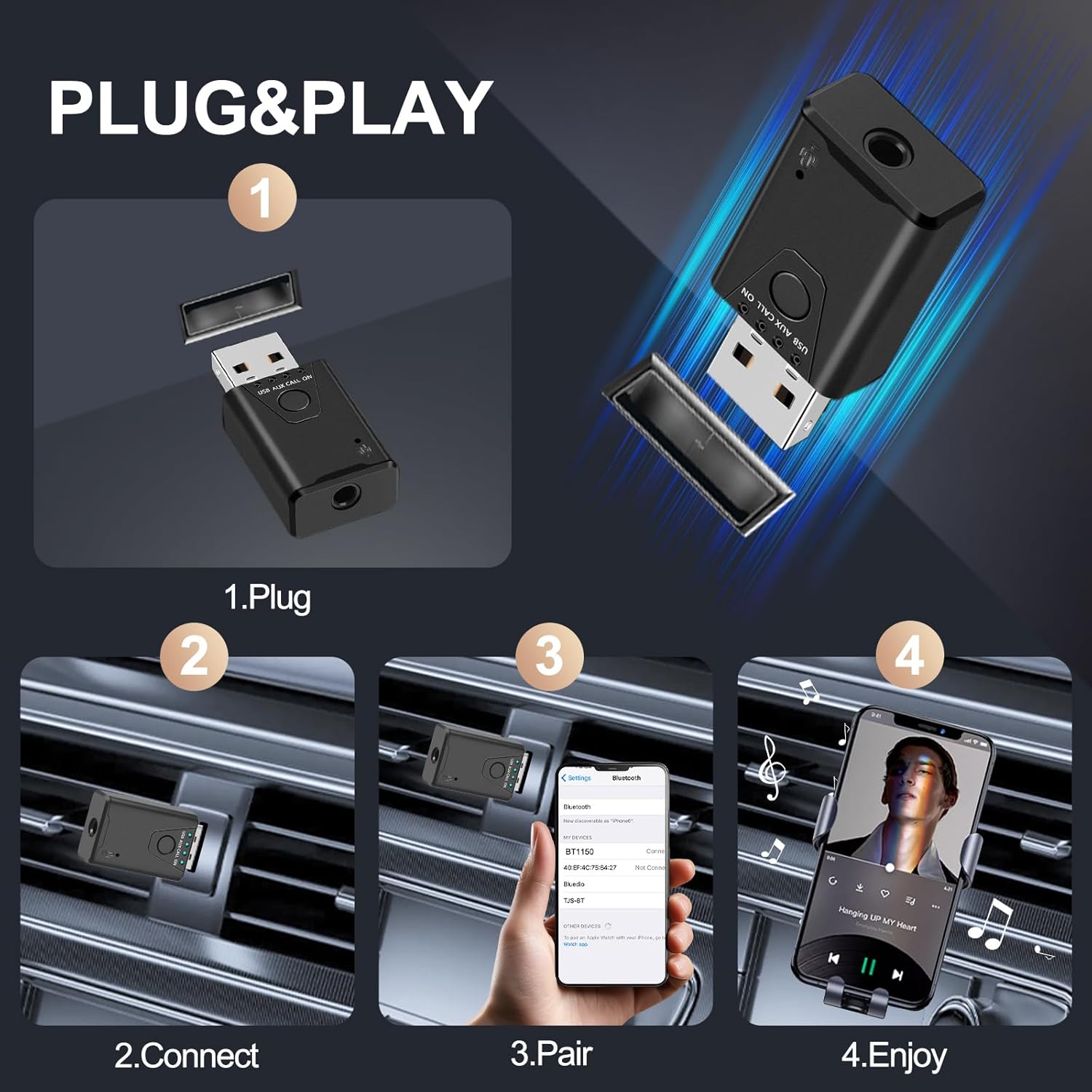
Image 4.1: Visual guide for the plug-and-play setup process.

Image 4.2: Illustration of the two primary connection modes: USB Direct Mode for power and AUX Input Mode for audio.
5. Operating Instructions
5.1 Music Playback
Once successfully paired, your mobile device's audio will be transmitted to the connected car stereo or home audio system. Use your mobile device to control music playback (play, pause, skip tracks, volume).
5.2 Hands-Free Calling
The adapter features a built-in microphone for hands-free communication.
- Answering Calls: When a call comes in, press the multi-function button on the adapter once to answer.
- Ending Calls: Press the multi-function button once during a call to end it.
- Rejecting Calls: Press and hold the multi-function button for approximately 2 seconds to reject an incoming call.
- Voice Navigation: Audio from navigation apps on your phone will be broadcast through the connected speakers.

Image 5.1: The adapter enables clear hands-free calling, wireless music, and voice navigation for safer driving.

Image 5.2: Emphasizing the safety benefits of using the hands-free calling feature while driving.
6. Home Audio Use
The Bysimilai Bluetooth adapter can also transform your traditional home audio equipment into a wireless streaming system. Simply connect the adapter to a USB power source and the 3.5mm AUX input of your home stereo or wired speakers. Pair your mobile device as described in the Setup Instructions, and enjoy wireless music throughout your home.
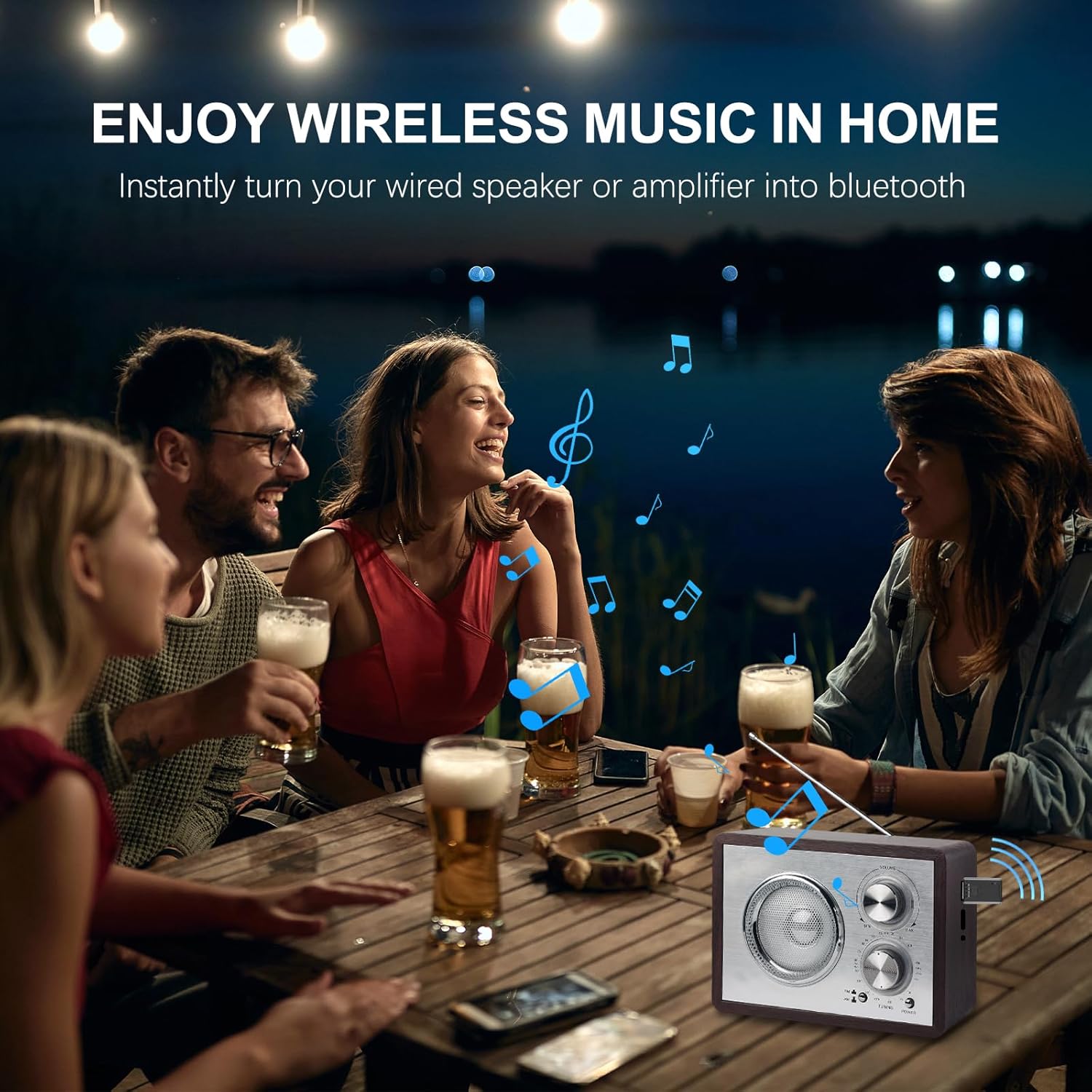
Image 6.1: The adapter allows for wireless music enjoyment in home environments.
7. Troubleshooting
- No Power: Ensure the USB connector is fully inserted into a functional USB power source. Check if the 'ON' LED indicator is lit.
- Cannot Pair:
- Make sure the adapter is in pairing mode (flashing LED).
- Ensure Bluetooth is enabled on your mobile device.
- Move your mobile device closer to the adapter.
- Turn off and on the Bluetooth function on your mobile device, then try searching again.
- No Audio:
- Verify the 3.5mm AUX cable is securely connected to both the adapter and the audio system's input.
- Ensure the audio system is set to the correct AUX input source.
- Check the volume levels on both your mobile device and the audio system.
- Confirm the adapter is successfully paired and connected to your mobile device.
- Poor Audio Quality/Interference:
- Reduce the distance between your mobile device and the adapter.
- Avoid physical obstructions or other electronic devices that may cause interference.
- Ensure the 3.5mm AUX cable is not damaged.
8. Specifications
| Feature | Specification |
|---|---|
| Model Number | BT1150 |
| Bluetooth Version | 5.4 |
| Connectivity | USB (Power), 3.5mm AUX (Audio Output) |
| Compatible Devices | Amplifiers, Car Stereos, Speakers, Home Audio Systems |
| Color | Black |
| Item Weight | 0.634 ounces (approx. 18g) |
| Package Dimensions | 4.13 x 3.03 x 0.87 inches |
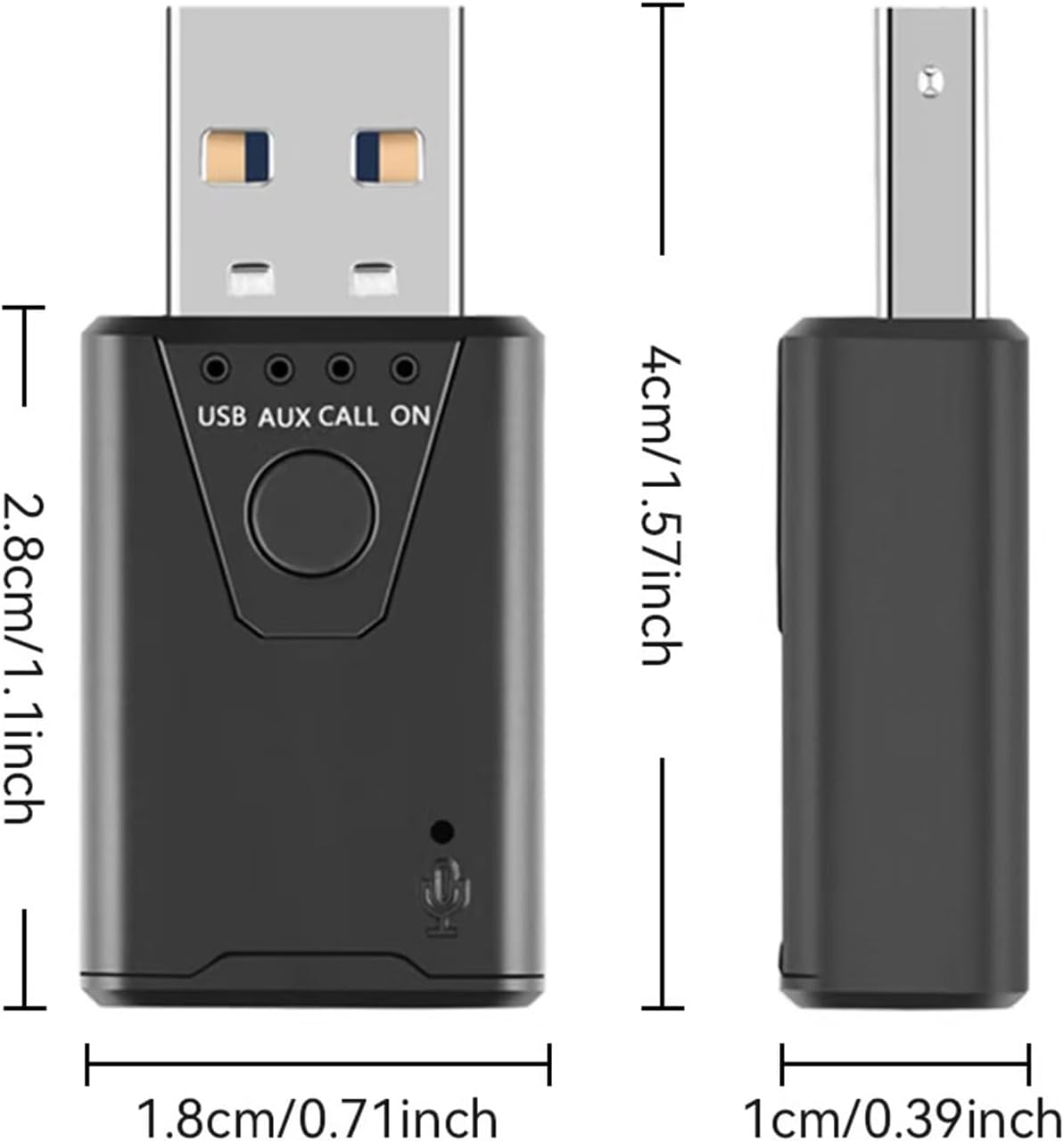
Image 8.1: Physical dimensions of the adapter.
9. Safety Information
- Do not expose the device to extreme temperatures, direct sunlight, or moisture.
- Do not attempt to disassemble or modify the device.
- Keep out of reach of children.
- Use only compatible power sources (standard USB 5V).
- Ensure the device is securely placed and does not obstruct driving visibility or controls when used in a vehicle.
10. Warranty and Support
Bysimilai products are designed for reliability and performance. For any questions, technical support, or warranty claims, please refer to the contact information provided with your purchase or visit the official Bysimilai website. Please retain your proof of purchase for warranty purposes.