
1. Introduction
This instruction manual provides comprehensive guidance for the Szyafei USB WiFi Adapter, Model BW02. This compact wireless network adapter is designed to provide high-speed internet connectivity for your desktop or laptop computer, supporting various Windows operating systems.
The adapter features a built-in high-gain antenna and offers a data transfer rate of up to 150Mbps using 802.11b/g/n wireless technology, ensuring a smooth experience for online activities. Its plug-and-play design aims for ease of use across Windows 11, 10, 8, and 7 systems.
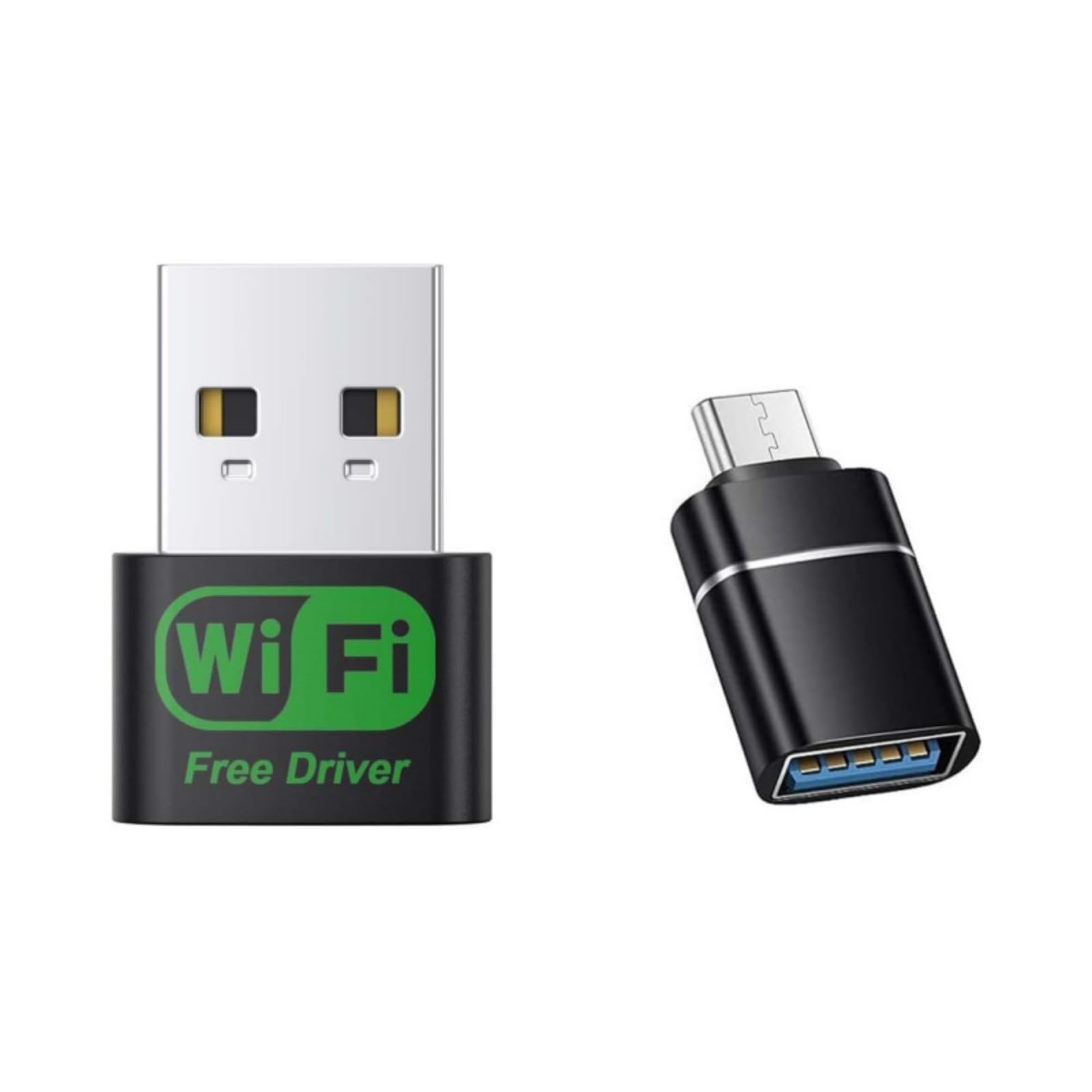
Image 1.1: Szyafei USB WiFi Adapter and included USB-C adapter.
2. Package Contents
Please verify that all items are present in your package:
- 1 x Szyafei USB WiFi Adapter
- 1 x USB-C Adapter

Image 2.1: Contents of the package, showing the USB WiFi adapter and the USB-C adapter.
3. Specifications
| Brand | Szyafei |
| Model Number | BW02 |
| Hardware Interface | 802.11 b/g/n |
| Data Transfer Rate | 150 Megabits Per Second (Mbps) |
| Data Link Protocol | USB |
| Color | Black |
| Product Dimensions (L x W x H) | 0.65" x 0.31" x 0.89" |
| Item Weight | 4.54 g |
| Compatible Devices | Laptop, Desktop PC |
| Compatible Operating System Family | Windows |
| Minimum Required Operating System Version | Windows 7 (Supports Windows 7/8/10/11) |

Image 3.1: The adapter supports various Windows operating systems.
4. Setup Instructions
Follow these steps to install and configure your Szyafei USB WiFi Adapter:
- Insert the Adapter: Insert the USB WiFi adapter into an available USB port on your desktop or laptop computer. If your computer only has USB-C ports, use the included USB-C adapter.

Image 4.1: Step 1 - Insert the adapter and access the virtual CD drive.
- Install the Driver:
- Open "This PC" (or "My Computer") on your desktop.
- Locate and double-click the "CD Drive (E:)" or similar virtual drive labeled "Wireless" or "Driver".
- Inside the virtual drive, double-click the WifiAutoInstallSetup file.
- Follow the on-screen prompts to complete the driver installation. Click "Install" when prompted.
Note: For many Windows 10/11 systems, the adapter may function as plug-and-play without requiring manual driver installation. If the adapter is not recognized automatically, proceed with the manual driver installation steps above.
- Connect to a WiFi Network:
- Once the driver is installed, click the WiFi icon (network icon) in the lower right corner of your taskbar.
- A list of available wireless networks will appear. Select your desired WiFi network.
- Enter the network security key (password) if prompted.
- Click "Connect". Your computer should now be connected to the internet wirelessly.
5. Operating Instructions
Once installed, the Szyafei USB WiFi Adapter operates as a standard wireless network card.
- Wireless Internet Access: The primary function is to provide wireless internet access to your desktop or laptop. After connecting to a WiFi network as described in the setup, your computer will use this adapter for all wireless communication.
- AP Function (Access Point Mode): This adapter may support a "Simulate AP function," allowing your computer to act as a wireless hotspot. This feature typically requires specific software or operating system settings to enable. Refer to your operating system's documentation for instructions on creating a wireless hotspot.
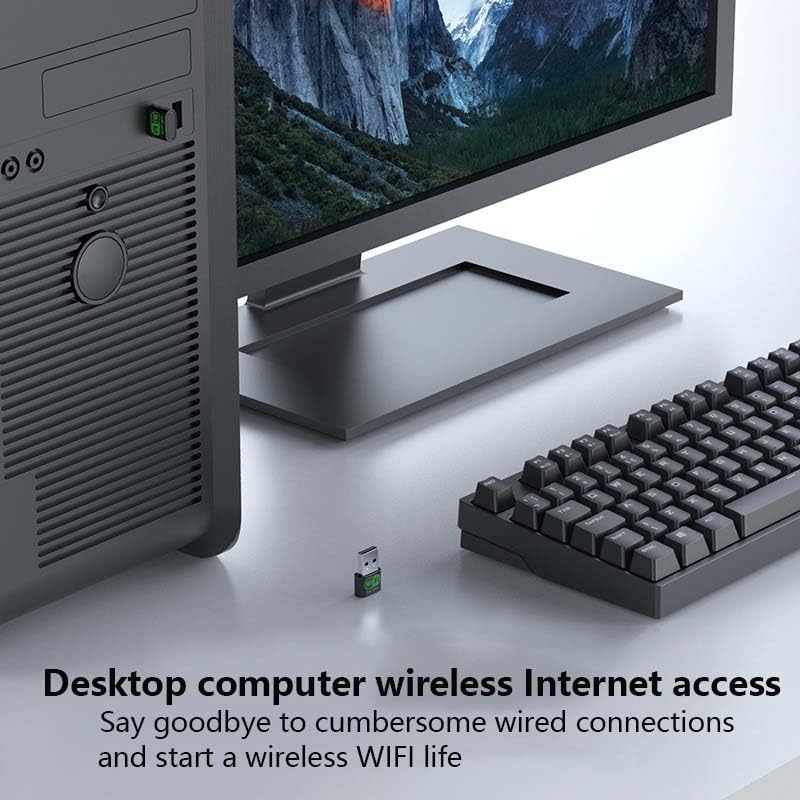
Image 5.1: The USB WiFi adapter provides wireless internet access for desktop computers.
6. Maintenance
To ensure the longevity and optimal performance of your USB WiFi Adapter, consider the following maintenance tips:
- Keep it Clean: Periodically clean the adapter with a soft, dry cloth. Avoid using liquid cleaners or solvents.
- Protect from Physical Damage: Avoid dropping the adapter or exposing it to excessive force. When transporting, consider using a protective case.
- Avoid Extreme Temperatures: Do not expose the adapter to very high or very low temperatures, or high humidity.
- Proper Removal: Always safely remove the adapter from your computer's USB port to prevent data corruption or damage to the device.
7. Troubleshooting
If you encounter issues with your USB WiFi Adapter, refer to the following common problems and solutions:
- No Internet Connection / Adapter Not Recognized:
- Ensure the adapter is fully inserted into a functional USB port.
- Try a different USB port on your computer.
- Verify that the driver is correctly installed. Follow the "Install the Driver" steps in Section 4.
- Restart your computer. Sometimes a simple restart can resolve recognition issues.
- Check your computer's Device Manager to see if the wireless adapter is listed and functioning correctly (no error symbols).
- Slow Connection Speed:
- Ensure your computer is within a reasonable range of your wireless router. Obstacles like walls can reduce signal strength.
- Check for interference from other electronic devices (e.g., microwaves, cordless phones).
- Verify that your router is operating on an optimal channel and that its firmware is up to date.
- Confirm that your internet service provider is delivering the expected speeds.

Image 7.1: The adapter supports up to 150Mbps wireless speed.
- WiFi Disconnects After Power Outage:
- If the WiFi adapter disconnects and is not recognized after a power outage, restart your computer. This often resolves the issue.
8. Warranty and Support
The Szyafei USB WiFi Adapter comes with a standard warranty. For specific warranty details, please refer to the documentation included with your purchase or contact the retailer.
If you encounter any issues not covered in this manual or require further assistance, please contact Szyafei customer support. We are committed to providing assistance to ensure your satisfaction.


