01

Generic Yoosee 1080p Full HD Wi-Fi IP Security Camera Bulb User Manual

Model: 01

1. Introduction

Thank you for choosing the Generic Yoosee 1080p Full HD Wi-Fi IP Security Camera Bulb. This device offers comprehensive surveillance with its 360° panoramic view, high-definition video, night vision capabilities, two-way audio, and intelligent motion detection. Designed for easy installation into a standard E27 lamp socket, it provides a convenient and effective solution for monitoring your home or office.

Please read this manual carefully before installation and operation to ensure proper use and to maximize the performance of your security camera.

2. Setup Guide

2.1 Package Contents

2.2 Installation

  1. Power Off: Ensure the power to the lamp socket is turned off before installation to prevent electrical shock.
  2. Insert Camera: Carefully screw the camera bulb into a standard E27 lamp socket. Ensure it is securely tightened.
    Image of the security camera bulb being screwed into an E27 lamp socket.

    Figure 1: Installing the camera into an E27 socket. The camera is designed for quick and easy setup without complex wiring.

  3. Power On: Turn on the power to the lamp socket. The camera will power on and initiate its self-test. You may hear a voice prompt indicating it's ready for connection.

2.3 App Download and Connection (Yoosee App)

  1. Download App: Scan the QR code provided in the packaging or search for "Yoosee" in your mobile device's app store (Android or iOS) and download the application.
  2. Register Account: Open the Yoosee app and register a new account if you don't have one. Follow the on-screen instructions to complete the registration process.
  3. Add Device:
    • Tap the "+" icon in the app to add a new device.
    • Select "Add new device" or "Smart Camera".
    • Follow the app's instructions to connect the camera to your 2.4GHz Wi-Fi network. Ensure your phone is connected to the same 2.4GHz Wi-Fi network during setup.
    • The camera will emit a sound or voice prompt once successfully connected.
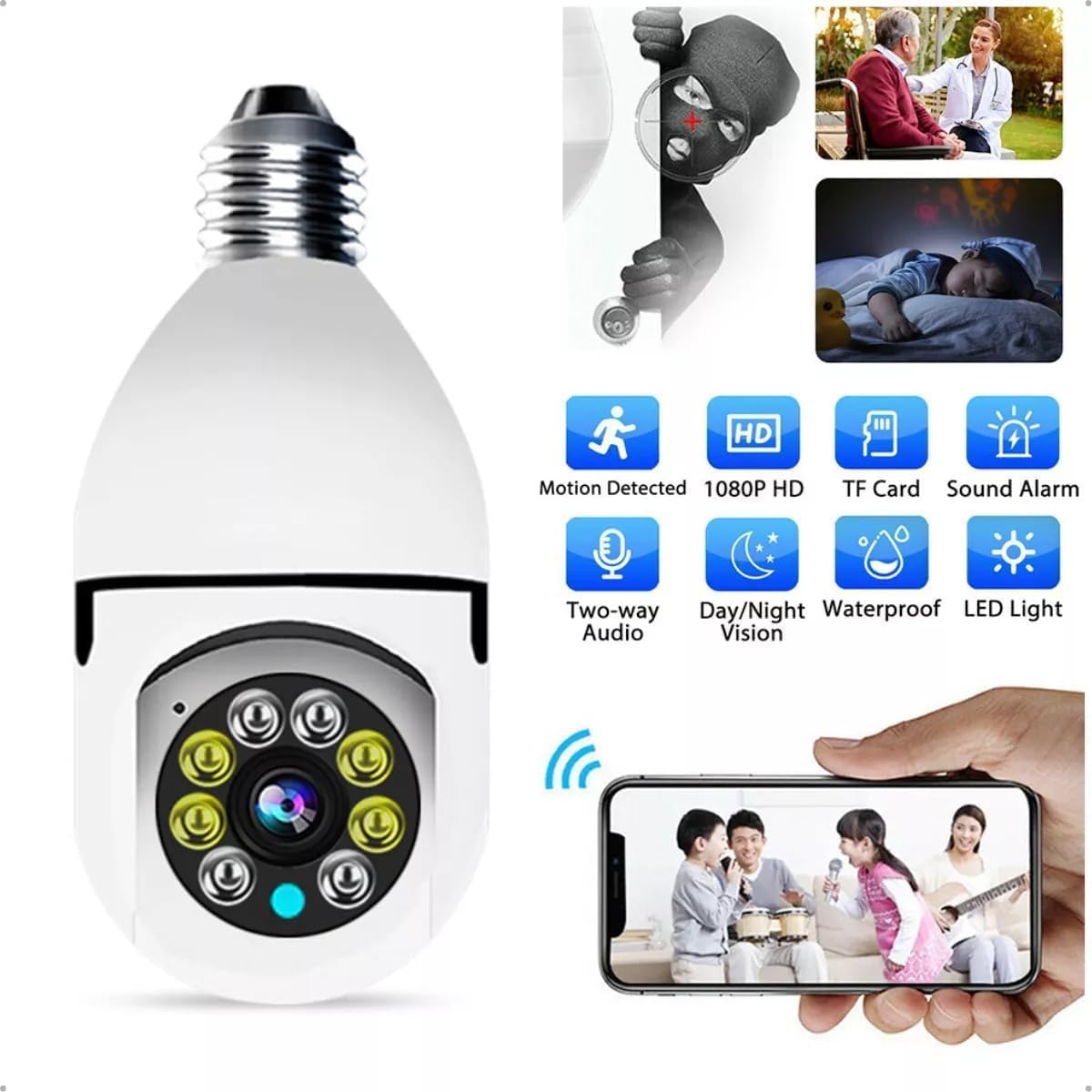
    Image showing the security camera bulb and various features like motion detection, 1080p HD, TF card support, sound alarm, two-way audio, day/night vision, waterproof, and LED light, along with a smartphone displaying live feed.

    Figure 2: Overview of camera features and mobile app interface. The app allows remote viewing and control.

3. Operating Instructions

3.1 Live View and Pan/Tilt Control

3.2 Two-Way Audio

3.3 Night Vision

3.4 Motion Detection and Alerts

3.5 Storage Options

4. Maintenance

5. Troubleshooting

ProblemPossible CauseSolution
Camera not connecting to Wi-FiIncorrect Wi-Fi password; Camera too far from router; Only 5GHz Wi-Fi available; Weak Wi-Fi signal.Verify Wi-Fi password. Move camera closer to router. Ensure your router supports 2.4GHz Wi-Fi. Reset camera and try again.
No live video feedCamera offline; Internet connection issue; App malfunction.Check camera power and Wi-Fi connection. Verify your mobile device's internet connection. Restart the Yoosee app.
Motion alerts not receivedMotion detection disabled; App notifications blocked; Incorrect sensitivity settings.Enable motion detection in app settings. Check phone notification settings for the Yoosee app. Adjust motion sensitivity.
Poor video qualityWeak Wi-Fi signal; Dirty lens; Low light conditions.Improve Wi-Fi signal strength. Clean the camera lens. Ensure adequate lighting or rely on night vision.

6. Specifications

FeatureDetail
Model01
Video Resolution1080p Full HD
ConnectivityWi-Fi (2.4GHz only)
Power SourceWired Electric (E27 Lamp Socket)
Voltage220V (Bivolt, check product for specific range)
Pan/Tilt RangeHorizontal: 355°, Vertical: 100°
Night VisionInfrared and Color Night Vision (via white LEDs)
AudioTwo-Way Audio (Built-in microphone and speaker)
StorageMicroSD card (up to 128GB), Cloud Storage (optional)
App CompatibilityYoosee App (Android/iOS)
Dimensions (L x W x H)15 x 4 x 10 cm (approximate)
Weight240 g (approximate)
Indoor/Outdoor UseSuitable for both indoor and outdoor use. For outdoor installation, ensure the camera is protected from direct exposure to harsh weather conditions despite its water-resistant features.

7. Warranty & Support

7.1 Warranty Information

This product comes with a standard manufacturer's warranty against defects in materials and workmanship. The specific duration and terms of the warranty may vary. Please refer to your purchase documentation or contact your retailer for detailed warranty information.

Note: Damage caused by improper installation, misuse, unauthorized modifications, or natural disasters is not covered under warranty.

7.2 Customer Support

For technical assistance, troubleshooting, or any questions regarding your Generic Yoosee Security Camera Bulb, please contact your retailer or the manufacturer's customer support. Contact information can typically be found on the product packaging or the retailer's website.

For app-related issues, please refer to the help section within the Yoosee application.