
1. Introduction
This manual provides detailed instructions for the safe and efficient operation of your BENTSAI BT-HH6210BL Handheld Inkjet Printer. Please read this manual thoroughly before using the device to ensure proper functionality and to prevent damage. The BENTSAI BT-HH6210BL is designed for versatile coding applications across various industries, offering portability, high resolution, and long-lasting performance.
2. Safety Information
Always observe the following safety precautions to prevent injury or damage to the device:
- Keep the printer away from water and other liquids.
- Do not disassemble or attempt to repair the device yourself. Contact qualified service personnel.
- Use only BENTSAI approved ink cartridges and accessories.
- Avoid direct contact with the ink. If contact occurs, wash thoroughly with soap and water.
- Store the device in a cool, dry place, away from direct sunlight and extreme temperatures.
- Ensure proper ventilation when operating the printer.
- Keep out of reach of children.
3. Package Contents
Verify that all items listed below are included in your package:

Image: Contents of the BENTSAI BT-HH6210BL handheld printer package, showing the printer, ink cartridge, and accessories.
- Aluminum Box
- BT-HH6210BL Handheld Printer
- 42ml Fast Dry Ink (Black)
- User Manual
- USB Flash Disk
- Stylus Pen
- Charger
- Roller Guide
- Positioner
- Ink Cartridge Clip
- Sensor
4. Product Overview
The BENTSAI BT-HH6210BL is a portable inkjet printer designed for high-efficiency coding. Key features include:
- Long-lasting Power: Equipped with a 2600mAh battery, providing over 16 hours of continuous operation.
- High Resolution: Supports 300/600 DPI printing for clear and precise marks.
- Stable Printing: Features 5 stable wheels for smoother and more accurate printing compared to standard 3-wheel designs.
- Ergonomic Design: Lightweight at 410g with a comfortable handle for extended use.
- Intuitive Interface: 4.3-inch HD capacitive touchscreen for easy navigation and operation.
- Versatile Connectivity: USB port for importing external fonts, images (JPG, PNG, BMP), and variable data.
- Photoelectric Sensor: Enables automatic printing when integrated with assembly lines.

Image: The BENTSAI BT-HH6210BL handheld inkjet printer, showcasing its compact design and touchscreen interface.

Image: Illustration highlighting the 16+ hours of operation and 2600mAh battery capacity of the BENTSAI BT-HH6210BL printer.

Image: Close-up view of the BENTSAI BT-HH6210BL printhead, showing 1-inch print height, 5 stable wheels, and 300/600 DPI resolution.
5. Setup
5.1 Charging the Battery
The printer comes with two Lithium Ion batteries. Before first use, fully charge the printer using the provided charger. Connect the charger to the printer's charging port and plug it into a power outlet. The charging indicator on the screen will show the charging status.
5.2 Installing the Ink Cartridge
- Open the ink cartridge compartment cover on the printer.
- Carefully insert the 42ml Fast Dry Black Ink Cartridge into the slot, ensuring it is correctly oriented.
- Close the compartment cover until it clicks into place.
- Ensure the ink cartridge clip is securely fastened to prevent movement during operation.
5.3 Powering On/Off
- To power on, press and hold the power button until the screen illuminates.
- To power off, press and hold the power button until the shutdown prompt appears, then confirm.
5.4 Initial Configuration
Upon first power-on, you may be prompted to set the language, date, and time. Use the stylus pen or your finger on the 4.3-inch HD capacitive touchscreen to navigate and select options.
6. Operation
6.1 Basic Printing
The printer supports various content types including text, QR codes, barcodes, variable data, and images.
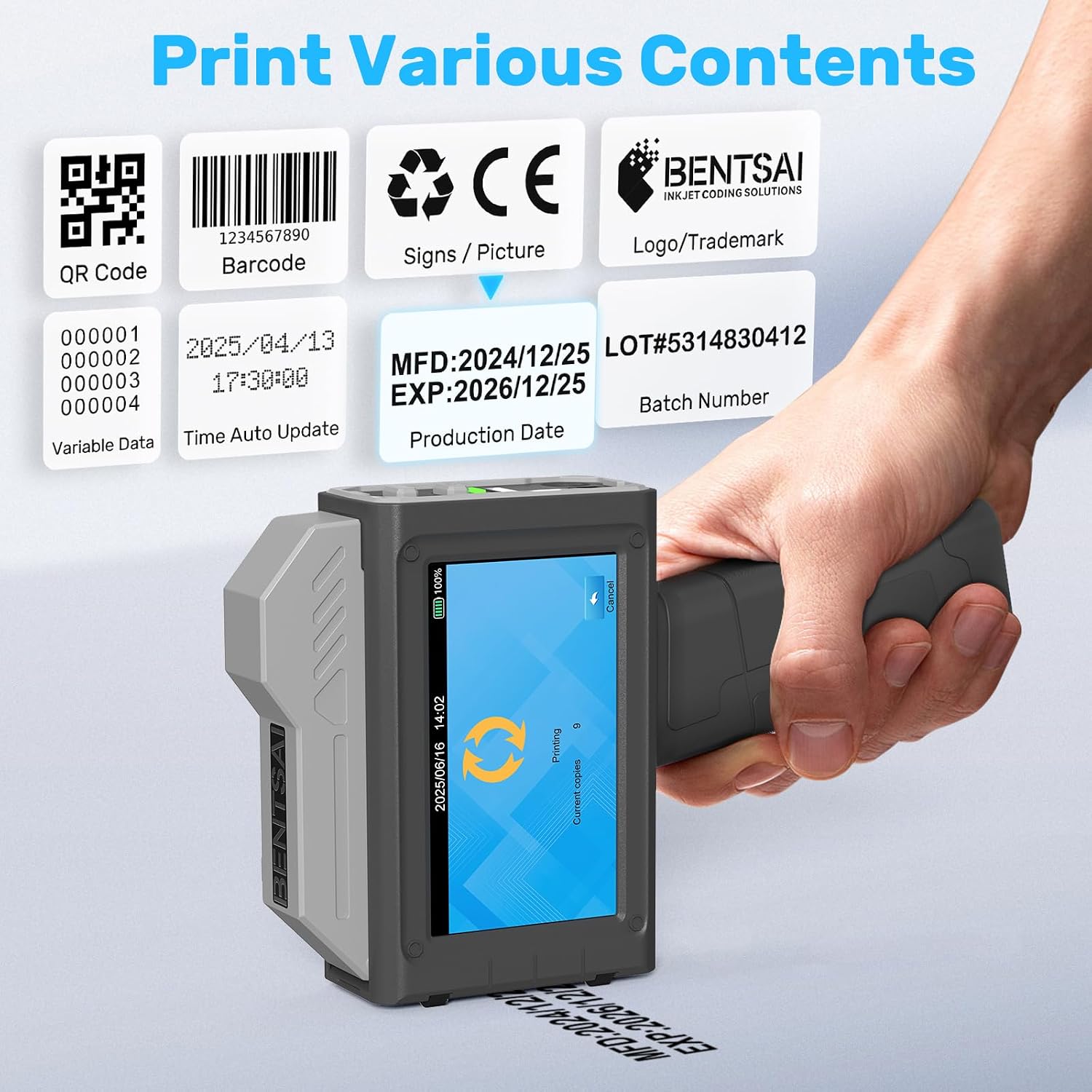
Image: The BENTSAI BT-HH6210BL displaying various print content options such as QR codes, barcodes, variable data, dates, and logos.
- From the main menu, select the desired content type (e.g., "Text", "QR Code", "Barcode").
- Enter or select the content using the touchscreen and virtual keyboard.
- Adjust print settings such as font size, position, and print density as needed.
- Position the printer firmly on the surface to be printed, ensuring the print head is in contact.
- Press the print button on the handle or screen to initiate printing while smoothly moving the printer across the surface.
6.2 Importing Files via USB
The printer supports importing external fonts, images (JPG, PNG, BMP), and variable data files from a USB flash disk.

Image: The BENTSAI BT-HH6210BL with a USB drive inserted, illustrating support for external fonts, image printing (JPG, PNG, BMP), and variable data printing (Text, QR code, Barcode).
- Save your desired files (fonts, images, data) onto the provided USB flash disk. Ensure image files are in JPG, PNG, or BMP format.
- Insert the USB flash disk into the USB port on the printer.
- Navigate to the "File" or "Import" section on the touchscreen.
- Select the files you wish to import. The printer will transfer them to its internal memory.
- Once imported, you can select these files for printing.
6.3 Using the Photoelectric Sensor for Assembly Line Printing
The BT-HH6210BL can be integrated with an assembly line using the photoelectric sensor for automatic printing.
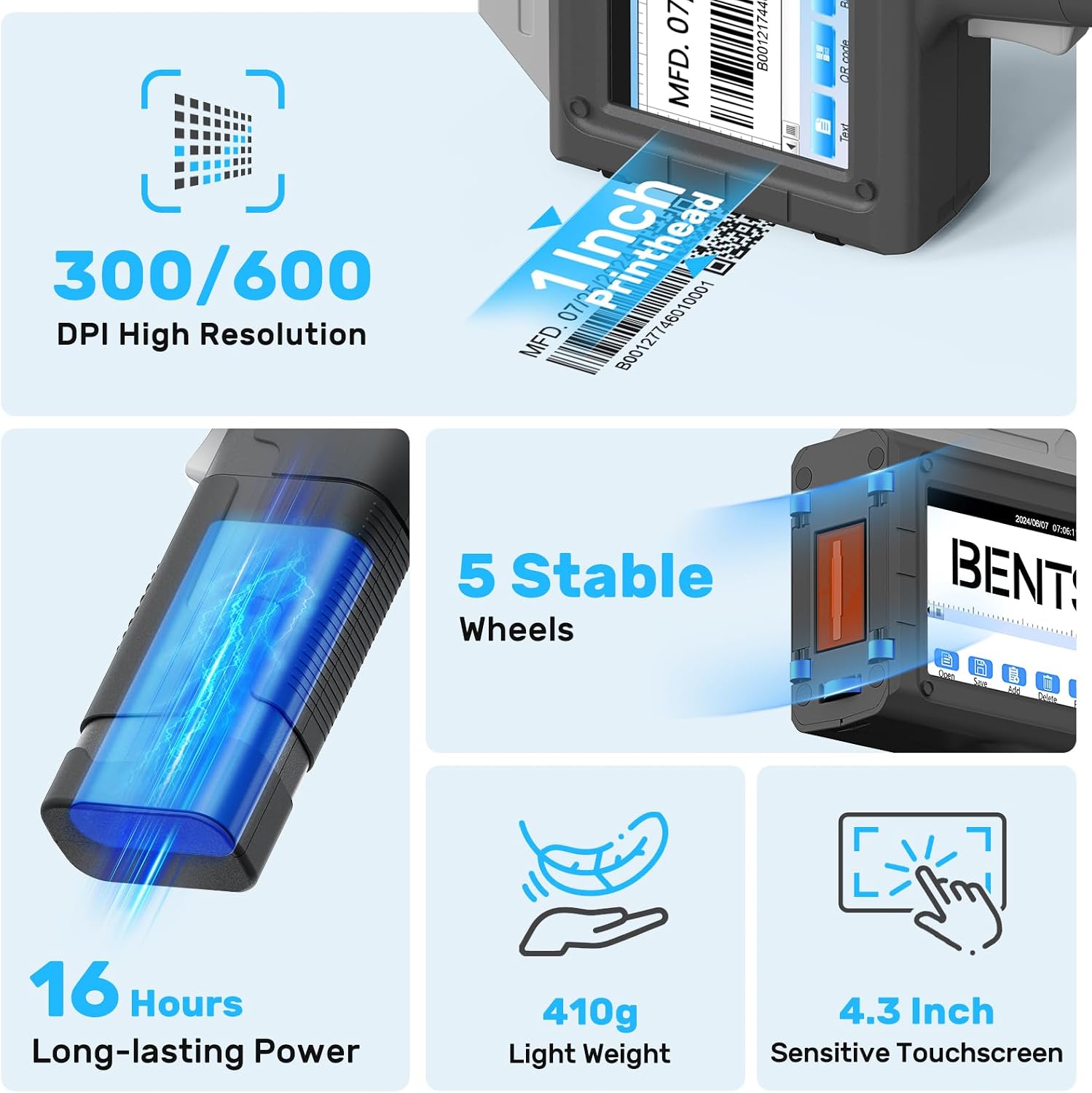
Image: The BENTSAI BT-HH6210BL mounted on an assembly line with a photoelectric sensor, demonstrating automatic coding on moving packages.
- Attach the photoelectric sensor to the printer and mount the printer securely on your assembly line using the positioner and roller guide.
- Connect the sensor cable to the designated port on the printer.
- In the printer settings, enable "Sensor Printing" or "Automatic Printing" mode.
- Calibrate the sensor's detection range and trigger delay as required for your specific assembly line speed and product size.
- As items pass the sensor, the printer will automatically apply the pre-configured print content.
6.4 Printing on Various Materials
The 42ml quick-drying ink cartridge allows printing on a wide range of surfaces.

Image: Examples of the BENTSAI BT-HH6210BL printing on various materials including plastic, carton, wood, fabric, metal, glass, foam, and ceramic.
- Compatible Materials: Wood, cardboard, plastic, polyethylene, metal, glass, ceramic, aluminum foil, concrete, fabric, foam, and more.
- For optimal results, ensure the surface is clean, dry, and free of dust or grease.
- Adjust print pressure and speed based on the material's texture and absorbency.
7. Maintenance
7.1 Cleaning the Print Head
Regular cleaning of the print head ensures consistent print quality and extends the life of the cartridge.
- Turn off the printer before cleaning.
- Gently wipe the print head surface with a lint-free cloth lightly dampened with a print head cleaning solution (not water).
- Do not use abrasive materials or excessive force.
- Allow the print head to dry completely before resuming operation.
7.2 Ink Cartridge Replacement
When the ink level is low or print quality deteriorates, replace the ink cartridge.
- Ensure the printer is powered off.
- Open the ink cartridge compartment.
- Carefully remove the empty cartridge.
- Insert a new BENTSAI 42ml Fast Dry Black Ink Cartridge, ensuring proper alignment.
- Close the compartment cover and secure the ink cartridge clip.
7.3 Battery Care
- Charge the battery fully before long periods of storage.
- Avoid completely draining the battery frequently.
- If storing for an extended period, charge the battery to about 50% and store in a cool, dry place.
8. Troubleshooting
| Problem | Possible Cause | Solution |
|---|---|---|
| Printer does not power on. | Low battery; faulty charger; power button issue. | Charge the battery. Ensure charger is working. Contact support if issue persists. |
| Poor print quality (faded, streaky). | Low ink; clogged print head; incorrect print settings; surface issues. | Replace ink cartridge. Clean print head. Adjust print density. Ensure surface is clean and dry. |
| USB files not recognized. | Incorrect file format; USB drive not formatted correctly (e.g., not FAT32); corrupted files. | Ensure images are JPG, PNG, or BMP. Format USB to FAT32. Try a different USB drive. |
| Printer stops mid-print. | Low battery; ink cartridge issue; internal error. | Charge battery. Check ink cartridge. Restart printer. |
| Touchscreen unresponsive. | Software glitch; physical damage. | Restart the printer. If physically damaged, contact support. |
9. Specifications
| Feature | Detail |
|---|---|
| Model Name | BT-HH6210BL |
| Brand | BENTSAI |
| Printing Technology | Inkjet |
| Connectivity Technology | USB |
| Special Feature | Portable, Photoelectric Sensor Compatible |
| Colour | Grey |
| Printer Output | Monochrome |
| Max Print Speed (Monochrome) | 30 pages per minute (PPM) |
| Product Dimensions | 20D x 13W x 5H centimetres |
| Item Weight | 410g (approx. 1.8 kg with packaging) |
| Batteries | 2 Lithium Ion batteries (included) |
| Ink Cartridge | 42ml Fast Dry Black Ink Cartridge (EB22B) |
| Display | 4.3-inch HD Capacitive Touchscreen |
| Print Height | 1 inch (25.4mm) |
| Print Resolution | 300/600 DPI |
| Country of Origin | China |
10. Warranty and Support
The BENTSAI BT-HH6210BL Handheld Inkjet Printer comes with a 1-Year Warranty from the date of purchase. This warranty covers manufacturing defects and malfunctions under normal use.
For technical support, warranty claims, or service inquiries, please contact BENTSAi customer service. Refer to the contact information provided in your product packaging or visit the official BENTSAI website.
Manufacturer Contact Information: 2/F, Block B, Factory Building 1, 115 Huawei Road, Xiangzhou District, Zhuhai, China.


