
RAMPAGE GEAR RADIANT M1
Rampage Radiant M1 Gaming Mouse User Manual
Model: RADIANT M1
Introduction
Thank you for choosing the Rampage Radiant M1 Gaming Mouse. This precision-engineered peripheral is designed to enhance your gaming experience with its high-performance features and customizable options. This manual will guide you through the setup, operation, maintenance, and troubleshooting of your new gaming mouse, ensuring you get the most out of its capabilities.
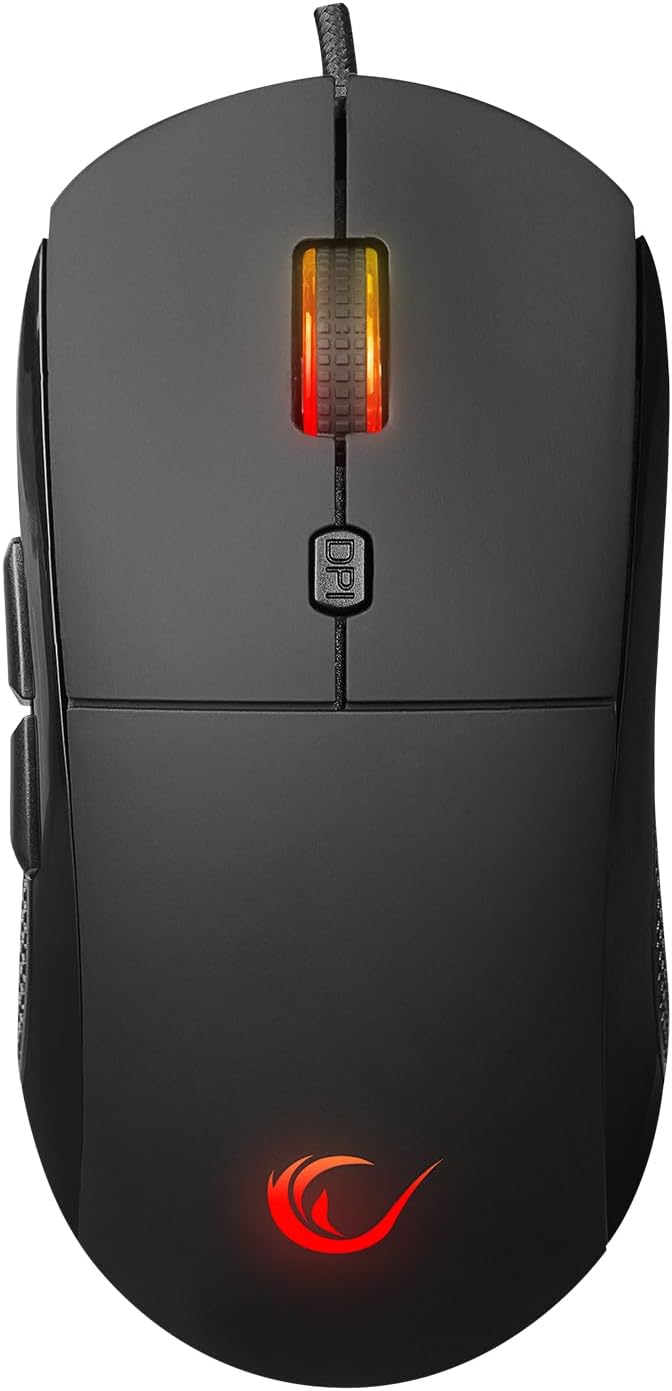
Image: Top-down view of the Rampage Radiant M1 Gaming Mouse, showcasing its sleek black design and illuminated scroll wheel and logo.
What's in the Box
Please check the contents of your package. If any items are missing or damaged, please contact your retailer or Rampage customer support.
- Rampage Radiant M1 Wired Gaming Mouse
Setup
- Connect the Mouse: Plug the USB connector of the Rampage Radiant M1 Gaming Mouse into an available USB port on your computer.
- Driver Installation: The mouse is plug-and-play and should be automatically recognized by your operating system. No additional drivers are typically required for basic functionality.
- Software Installation (Optional): For advanced customization, including macro programming and detailed RGB lighting control, download the official Rampage software from the manufacturer's website. Follow the on-screen instructions to complete the installation.

Image: An angled view of the Rampage Radiant M1 Gaming Mouse, highlighting its ergonomic shape and the braided USB cable extending from the front.
Operating Instructions
Button Functions
The Rampage Radiant M1 features 6 programmable buttons:
- Left Click Button: Standard primary click function.
- Right Click Button: Standard secondary click function.
- Scroll Wheel (Clickable): Scrolls content up/down; functions as a middle click button.
- DPI Cycle Button: Cycles through preset DPI levels.
- Side Buttons (2): Typically function as 'Forward' and 'Backward' in web browsers or can be programmed for in-game actions.

Image: Side view of the Rampage Radiant M1 Gaming Mouse, clearly showing the two programmable side buttons and the textured grip for enhanced control.
DPI Adjustment
The mouse features an adjustable sensitivity up to 12800 DPI. Press the DPI Cycle Button (located behind the scroll wheel) to switch between different DPI settings. Each press will cycle to the next preset level, allowing you to quickly adjust cursor speed and precision for various tasks or gaming scenarios.

Image: An angled view of the Rampage Radiant M1 Gaming Mouse, focusing on the illuminated scroll wheel and the DPI button located just behind it.
RGB Lighting Modes
The Rampage Radiant M1 Gaming Mouse features vibrant RGB backlighting with 12 different lighting modes. These modes can typically be cycled through using a combination of buttons (often the DPI button and a side button, or via the software). Refer to the software for full control over lighting effects, colors, and brightness.
Software Customization (Macro Programming)
For full customization of the 6 programmable buttons and advanced RGB lighting control, install the dedicated macro software from the Rampage website. The software allows you to:
- Assign custom functions to each button.
- Create and assign complex macros for in-game commands.
- Adjust DPI levels and polling rate.
- Customize RGB lighting effects, colors, and patterns.
- Save multiple profiles for different games or applications.

Image: A slightly elevated angled view of the Rampage Radiant M1 Gaming Mouse, showcasing its overall ergonomic design and the subtle glow of its RGB lighting.
Maintenance
To ensure the longevity and optimal performance of your Rampage Radiant M1 Gaming Mouse, follow these maintenance guidelines:
- Cleaning: Use a soft, dry cloth to wipe the surface of the mouse. For stubborn dirt, slightly dampen the cloth with water or a mild cleaning solution. Avoid using harsh chemicals or abrasive materials.
- Sensor Cleaning: Occasionally, dust or debris may accumulate around the optical sensor. Use a cotton swab or compressed air to gently clean the sensor area.
- Cable Care: Avoid sharp bends or excessive pulling on the braided cable to prevent damage.
- Storage: When not in use, store the mouse in a clean, dry environment away from extreme temperatures.
Troubleshooting
If you encounter issues with your Rampage Radiant M1 Gaming Mouse, please refer to the following common solutions:
| Problem | Possible Solution |
|---|---|
| Mouse not responding |
|
| Cursor movement is erratic or jumpy |
|
| RGB lighting is not working |
|
| Buttons are not responding or programming fails |
|
Specifications
| Product Dimensions | 4.8 x 2.5 x 0.1 inches |
| Item Weight | 5.5 ounces |
| ASIN | B0DY143KP7 |
| Item Model Number | RADIANT M1 |
| Batteries | 1 AAA batteries required. (Note: This appears to be an error in the source data as it's a wired mouse. The mouse is powered via USB.) |
| Date First Available | February 21, 2025 |
| Manufacturer | Rampage |
| Brand | RAMPAGE GEAR |
| Color | Black |
| Connectivity Technology | USB |
| Special Feature | Portable |
| Movement Detection Technology | Optical |
Warranty and Support
The Rampage Radiant M1 Gaming Mouse comes with a standard manufacturer's warranty. Please refer to the warranty card included with your product or visit the official RAMPAGE GEAR website for detailed warranty terms and conditions.
For technical support, product inquiries, or warranty claims, please contact RAMPAGE GEAR customer service through their official website or the contact information provided with your purchase. Keep your proof of purchase for warranty validation.
Visit the RAMPAGE GEAR Store: RAMPAGE GEAR Store on Amazon
Ask a question about this manual
Ask about setup, troubleshooting, compatibility, parts, safety, or missing instructions. Manuals+ will review the question and use this page’s manual context to help answer it.