
Product Overview
This Rimoody 10.1 inch Single Din Car Stereo is a versatile in-car entertainment and navigation system featuring a large IPS touch screen. It supports wireless CarPlay and Android Auto, Bluetooth 5.0, Mirror Link, FM/AM/RDS radio, EQ sound processing, USB, AUX, TF card input, Steering Wheel Control (SWC), and includes a microphone and backup camera input. Designed to enhance your driving experience with seamless smartphone integration and high-quality audio.

Image: Overview of the Rimoody 10.1 inch Single Din Car Stereo, showing the main unit, screen, microphone, and backup camera.
What's in the Box
- 10.1 inch Single Din Car Stereo Unit
- Power Cable
- Horn Cable
- Microphone
- User Manual
- Mounting Bracket
- Backup Camera
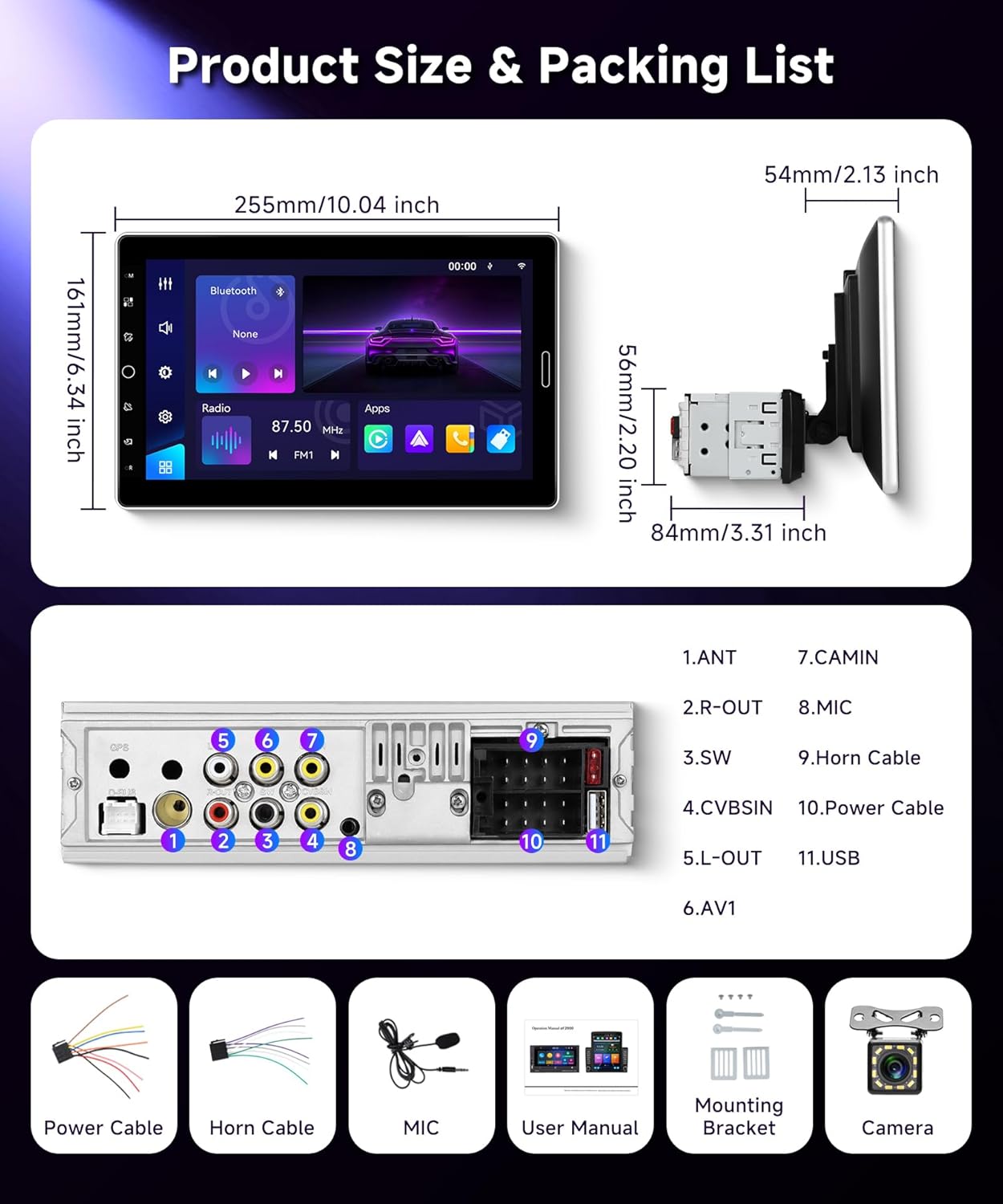
Image: Diagram illustrating the product dimensions and the complete packing list, including cables, microphone, user manual, mounting bracket, and backup camera.
Setup and Installation
Before installation, ensure your vehicle has a single DIN slot. Professional installation is recommended. Refer to the wiring diagram provided in the included user manual for detailed connections.
- Mounting: Secure the main unit into the single DIN slot using the provided mounting bracket.
- Power Connection: Connect the power cable (yellow for constant 12V, red for accessory 12V, black for ground) to your vehicle's wiring harness.
- Speaker Connection: Connect the horn cable to your vehicle's speaker wires, ensuring correct polarity for each speaker.
- Antenna Connection: Connect your car's radio antenna to the ANT port on the stereo.
- External Microphone: Plug the external microphone into the MIC port for improved call quality.
- Backup Camera: Connect the backup camera video output to the CVBSIN port and the camera's power to the reverse light circuit.
- Steering Wheel Control (SWC): Connect the SWC wires to your vehicle's steering wheel control wires. Refer to your vehicle's wiring diagram for specific connections.
- USB/AUX/TF: Connect any external USB devices, AUX audio sources, or insert a TF card as needed.
Image: Detailed rear view of the car stereo unit, showing all connection ports and their corresponding labels for proper wiring.
Operating Instructions
Wireless CarPlay & Android Auto
This unit supports both wireless CarPlay and Android Auto for seamless smartphone integration. Connect your phone via Bluetooth or USB to access navigation, music, calls, and more directly on the stereo screen.
- Enable Bluetooth and Wi-Fi on your smartphone.
- On the car stereo, go to the CarPlay/Android Auto interface.
- Search for the stereo's Bluetooth name on your phone and pair.
- Confirm the pairing on both devices. The system will automatically connect to CarPlay or Android Auto.
- Alternatively, connect your phone via a USB cable for a wired connection.

Image: Screen display showing the wireless CarPlay and Android Auto interface with various app icons, demonstrating connectivity options via Bluetooth/USB and Wi-Fi/USB.
Bluetooth 5.0 & Hands-Free Calling
Pair your smartphone via Bluetooth for hands-free calling and audio streaming.
- Go to the Bluetooth menu on the stereo.
- Enable Bluetooth on your phone and search for the stereo.
- Select the stereo's name to pair.
- Once connected, you can make/receive calls and play music wirelessly.
FM/AM/RDS Radio
Access various radio stations with clear reception.
- Select the "Radio" icon from the main menu.
- Use the auto-scan function to find and save available stations.
- Manually tune to specific frequencies using the touch screen.
- RDS (Radio Data System) provides station information where available.

Image: Display showing the Bluetooth interface for phone calls, the AM/FM/RDS radio tuner, and the graphic equalizer (EQ) settings for audio customization.
Mirror Link Function
Mirror your smartphone's screen directly onto the car stereo display.
- Connect your smartphone to the stereo via USB cable.
- Select the "Mirror Link" option on the stereo.
- Follow the on-screen prompts to complete the connection.
Steering Wheel Control (SWC)
Program your steering wheel buttons to control the stereo functions.
- Go to "Settings" and then "Steering Wheel Control" or "SWC Learning".
- Follow the on-screen instructions to assign functions (e.g., volume up/down, track skip) to your steering wheel buttons.

Image: Screen display showing the rear camera view with parking guidelines and the interface for programming steering wheel controls.
Rear View Camera Input
The stereo automatically displays the rear view when the vehicle is in reverse gear.
- Ensure the backup camera is correctly installed and wired to the CVBSIN port and reverse light trigger.
- When shifting into reverse, the screen will automatically switch to the camera view.
Adjustable Screen
The 10.1-inch screen can be adjusted for optimal viewing angles.
- The screen supports up and down adjustment.
- It can also rock back and forth to reduce glare or improve visibility.

Image: Illustration of the 10.1-inch HD screen, demonstrating its ability to adjust vertically and tilt for optimal viewing.
Maintenance
- Screen Cleaning: Use a soft, lint-free cloth to gently wipe the screen. Do not use abrasive cleaners or solvents.
- Software Updates: Check the manufacturer's website periodically for firmware updates to ensure optimal performance and new features.
- General Care: Avoid exposing the unit to extreme temperatures, direct sunlight for prolonged periods, or excessive moisture.
Troubleshooting
| Problem | Possible Cause | Solution |
|---|---|---|
| No Power | Incorrect wiring; Blown fuse; Loose connection. | Check power and ground connections. Verify fuse. Ensure all cables are securely connected. |
| No Sound | Speaker wires disconnected; Volume too low; Mute enabled. | Check speaker wiring. Increase volume. Disable mute function. |
| CarPlay/Android Auto Not Connecting | Bluetooth/Wi-Fi off; Incorrect pairing; Phone software issue. | Ensure Bluetooth/Wi-Fi is on. Re-pair device. Restart phone and stereo. Try wired connection. |
| Backup Camera Not Displaying | Camera not powered; Video cable loose; Reverse trigger not connected. | Check camera power supply. Ensure video cable is secure. Verify reverse trigger wire connection. |
Specifications
- Screen Size: 10.1 inches
- Display Type: IPS Touch Screen
- Connectivity: Wireless CarPlay, Wireless Android Auto, Bluetooth 5.0, Mirror Link, USB, AUX, TF Card
- Radio: FM/AM/RDS
- Audio Features: Multiple EQ Modes, Treble and Bass Adjustment
- Input/Output: USB Type A, AUX In, TF Card Slot, Rear Camera Input (CVBSIN), Microphone Input, Audio Output (Stereo)
- Control: Touchscreen, Steering Wheel Control (SWC)
- Power Off Memory: Supported
- Package Dimensions: 8.31 x 7.87 x 3.19 inches
- Item Weight: 1.79 pounds
- Manufacturer: Rimoody
- Country of Origin: China
Warranty and Support
Rimoody offers comprehensive customer support for your product.
- Money-Back Guarantee: 30-day Money-Back
- Replacement: 12-month Replacement
- Technical Support: Lifetime Technical Support
- Response Time: Quick response within 24 hours for inquiries.
For any installation or usage questions, please contact Rimoody customer service via email. Refer to the contact information provided in your product packaging or on the official Rimoody website.

Image: Graphic detailing Rimoody's customer support commitments: 24-hour quick response, professional installation guide and video, 90-day free return, and lifetime technical support.