1. Introduction
Welcome to the user manual for your new KurieTim 16 Inch Laptop Computer, Model T160R-3250U. This guide provides essential information for setting up, operating, maintaining, and troubleshooting your device. Please read this manual thoroughly to ensure optimal performance and longevity of your laptop.
Your KurieTim laptop is equipped with an AMD Ryzen 3 3250U processor, a 16-inch 1920x1200 FHD IPS display, 16GB DDR4 RAM, and a 512GB SSD, designed for efficient daily computing tasks.
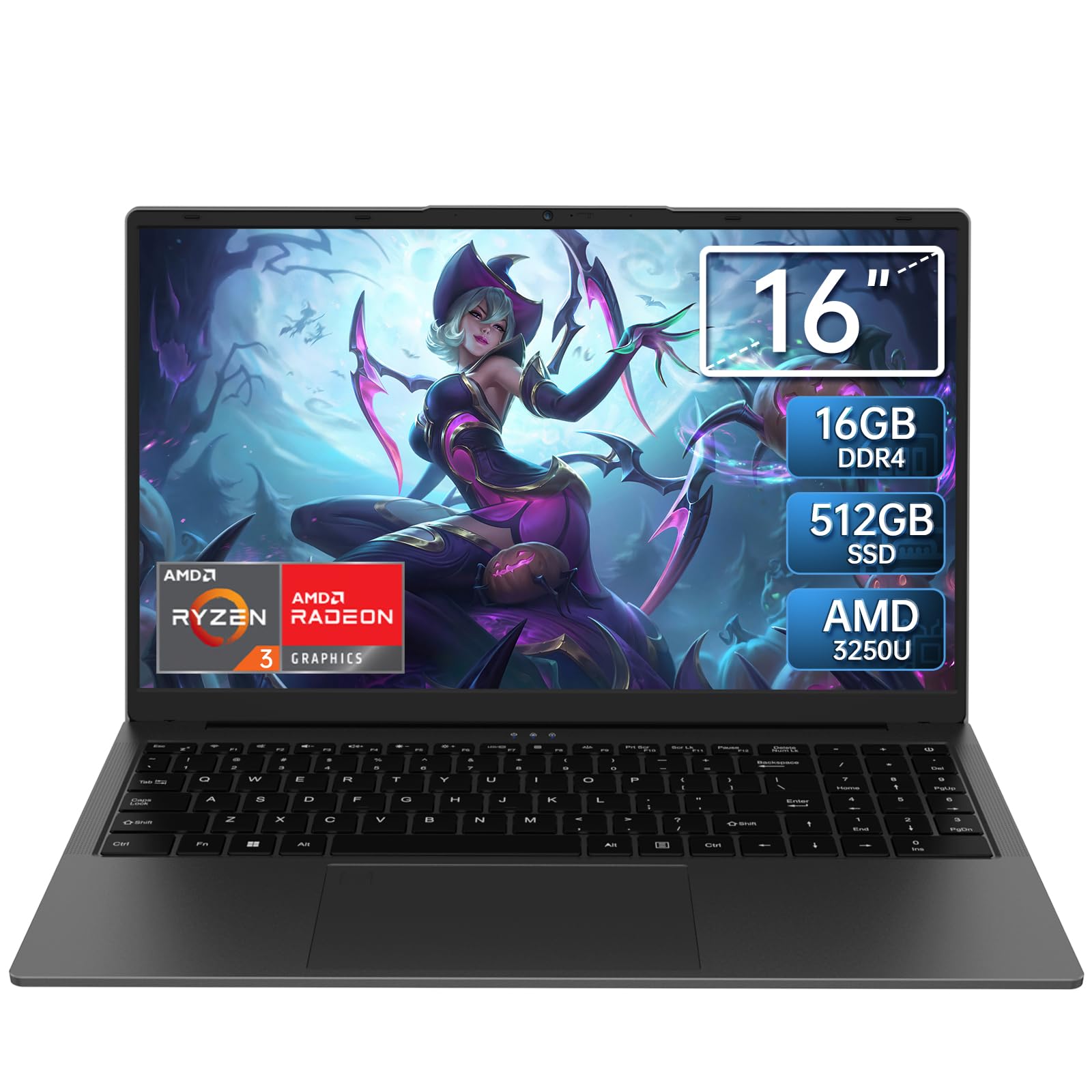
Figure 1: KurieTim 16 Inch Laptop Computer
This image shows the KurieTim 16 Inch Laptop Computer, highlighting its sleek design and large display.
2. Setup
2.1 Unboxing and Initial Inspection
Carefully remove all components from the packaging. The box should contain:
- KurieTim 16 Inch Laptop
- Charger and Cable
- Transparent Keyboard Cover
- Instruction Manual (this document)
Inspect the laptop for any physical damage. If you find any issues, contact customer support immediately.
2.2 Charging the Laptop
Before first use, connect the charger to the laptop's charging port and a power outlet. Allow the laptop to charge fully. The charging indicator light (if present) will typically change color or turn off when charging is complete.

Figure 2: Laptop connected to charger
This image illustrates the laptop connected to its power adapter for charging.
2.3 Initial Power On and Windows Setup
Press the power button to turn on the laptop. Follow the on-screen instructions to complete the Windows 11 Pro setup process. This includes selecting your region, language, connecting to a Wi-Fi network, and creating a user account.

Figure 3: Laptop running Windows 11 Pro
This image shows the laptop screen displaying the Windows 11 Pro operating system interface.
3. Operating Your Laptop
3.1 Power On/Off and Sleep Mode
- Power On: Press the power button located on the keyboard.
- Shut Down: Click the Start button, then Power, and select "Shut down."
- Restart: Click the Start button, then Power, and select "Restart."
- Sleep: Close the laptop lid or click the Start button, then Power, and select "Sleep."
3.2 Keyboard and Touchpad
Your laptop features a full-size keyboard with a numeric keypad and a backlit function for use in low-light conditions.
- Backlit Keyboard: Press Fn + Fx (refer to your keyboard for the specific function key, often F5 or F10) to toggle the backlight on/off or adjust brightness.
- Numeric Keypad: Use the dedicated numeric keypad for efficient data entry.

Figure 4: Fingerprint reader and backlit keyboard
This image highlights the fingerprint unlock sensor and the illuminated keys of the backlit keyboard.
3.3 Fingerprint Unlock
For enhanced security and quick access, configure the fingerprint reader through Windows Settings. Go to Settings > Accounts > Sign-in options > Fingerprint recognition (Windows Hello) to set up your fingerprint.
3.4 Connectivity (Wi-Fi and Bluetooth)
- Wi-Fi: Your laptop supports Wi-Fi 802.11ac for fast and stable wireless internet connections. Access Wi-Fi settings via the taskbar network icon.
- Bluetooth: Bluetooth 4.2 allows you to connect wireless peripherals such as headphones, mice, and keyboards. Enable Bluetooth in Windows Settings to pair devices.
3.5 Ports and Interfaces
The laptop is equipped with various ports for connecting external devices:
- USB Ports: 2x USB 2.0, 1x USB 3.0 for connecting USB devices like flash drives, external hard drives, and mice.
- HDMI: Connect to external monitors or projectors.
- Type-C: A versatile port for data transfer, display output, or charging (depending on the specific Type-C functionality).
- Headphone Port: For connecting headphones or external speakers.
- Micro SD Card Slot: For expanding storage or transferring data from Micro SD cards.
- Security Slot: For attaching a security lock.
- Charging Port: For connecting the power adapter.

Figure 5: Multi-connected interfaces
This image displays the various ports and interfaces available on the laptop, including USB, HDMI, Type-C, headphone, Micro SD, security slot, and charging port.
3.6 Display and Audio
- Display: The 16-inch FHD IPS display offers a resolution of 1920x1200 pixels for clear visuals. Adjust brightness and display settings through Windows.
- Webcam: The integrated 1MP webcam is suitable for video calls.
- Audio: Stereo speakers provide audio output. An integrated digital microphone is available for voice input.
4. Maintenance
4.1 Cleaning Your Laptop
- Screen: Use a soft, lint-free cloth slightly dampened with water or a screen cleaner. Do not spray liquid directly onto the screen.
- Keyboard and Chassis: Use a soft cloth to wipe surfaces. For dust, use compressed air. Avoid harsh chemicals.
- Ensure the laptop is powered off and unplugged before cleaning.
4.2 Battery Care
- To prolong battery life, avoid extreme temperatures.
- It is recommended to occasionally discharge the battery below 20% and then fully recharge it.
- If storing the laptop for an extended period, charge the battery to about 50% and store it in a cool, dry place.
4.3 Software Updates
Regularly check for and install Windows updates to ensure your system has the latest security patches and performance improvements. Go to Settings > Windows Update.
4.4 Storage Management
Your laptop has a 512GB SSD. Regularly manage your files and uninstall unused applications to maintain optimal performance. Consider using cloud storage for large files.
5. Troubleshooting
This section addresses common issues you might encounter.
| Problem | Possible Cause | Solution |
|---|---|---|
| Laptop does not power on. | Low battery, power adapter issue. | Ensure the laptop is connected to a working power outlet and fully charged. Try a different outlet. |
| Screen is blank or black. | Sleep mode, display settings, hardware issue. | Press any key or move the mouse to wake from sleep. Check if an external monitor is connected and set as primary display. Restart the laptop. |
| Wi-Fi connection issues. | Wi-Fi disabled, router issue, incorrect password. | Ensure Wi-Fi is enabled in Windows settings. Restart your router. Verify the Wi-Fi password. |
| Slow performance. | Too many applications running, low storage, outdated drivers. | Close unnecessary applications. Free up disk space. Update Windows and device drivers. |
If you continue to experience issues, please refer to the Warranty & Support section for further assistance.
6. Specifications
Below are the detailed technical specifications for the KurieTim 16 Inch Laptop Computer, Model T160R-3250U.
Figure 6: AMD Ryzen 3 3250U Processor
This image displays the AMD Ryzen 3 3250U processor, highlighting its core specifications.

Figure 7: Memory and Storage
This image visually represents the 16GB DDR4 RAM and 512GB SSD storage capacity of the laptop.
| Feature | Detail |
|---|---|
| Model Name | T160R-3250U |
| Processor | AMD Ryzen 3 3250U (2C/4T, 2.6-3.5GHz) |
| Graphics | AMD Radeon Graphics (Integrated) |
| RAM | 16GB DDR4 |
| Storage | 512GB SSD |
| Display | 16 Inch FHD IPS (1920 x 1200 pixels) |
| Operating System | Windows 11 Pro |
| Wireless Connectivity | Wi-Fi 802.11ac, Bluetooth 4.2 |
| Ports | 2x USB 2.0, 1x USB 3.0, HDMI, Type-C, Headphone Port, Micro SD Card Slot, Security Slot, Charging Port |
| Webcam | 1MP |
| Battery Life | Approximately 5 hours (average) |
| Dimensions (LxWxH) | 14.17 x 0.71 x 10.83 inches |
| Weight | 3.75 pounds |
| Special Features | Fingerprint Reader, Backlit Keyboard, Numeric Keypad |
7. Warranty & Support
7.1 Product Warranty
Your KurieTim laptop is covered by a standard manufacturer's warranty. Please refer to the warranty card included in your product packaging for specific terms, conditions, and duration. Keep your proof of purchase for warranty claims.
7.2 Customer Support
For technical assistance, troubleshooting beyond this manual, or warranty inquiries, please contact KurieTim customer support.
- Online Support: Visit the official KurieTim website or the brand store on Amazon for FAQs and support resources.
- Contact Information: Refer to your product packaging or the official KurieTim website for the most current contact details (email, phone).
You can also visit the KurieTim Store on Amazon for more product information and support.