
1. Introduction
This manual provides detailed instructions for the MechLands AJAZZ ALUX68 MAX HE Aluminum Rapid Trigger Gaming Keyboard. Please read this manual thoroughly to ensure proper setup, operation, and maintenance of your device. This keyboard is designed for high-performance gaming with advanced features such as magnetic switches, rapid trigger functionality, and customizable RGB lighting.

Image 1.1: The MechLands AJAZZ ALUX68 MAX HE Gaming Keyboard, showcasing its compact design and topographic keycaps.
2. Package Contents
Before proceeding with setup, please verify that all items are present in the package:
- MechLands AJAZZ ALUX68 MAX HE Gaming Keyboard
- USB-C Cable
- Keycap Puller
- Instruction Manual (this document)

Image 2.1: Contents of the keyboard package, including the keyboard, USB-C cable, and keycap puller.
Video 2.1: An unboxing demonstration of the AJAZZ ALUX68 keyboard, showing the initial presentation and included accessories.
3. Setup Instructions
3.1 Connecting the Keyboard
- Locate the USB-C port on the back of the keyboard.
- Connect the provided USB-C cable to the keyboard's USB-C port.
- Connect the other end of the USB-C cable to an available USB port on your computer or compatible device.
- The keyboard will automatically be recognized by your operating system.
Image 3.1: Close-up view of the USB-C port on the keyboard for wired connection.
3.2 Compatibility
The AJAZZ ALUX68 MAX keyboard is compatible with a variety of platforms and systems, including:
- Windows
- Mac OS
- Android
- iOS
- PC, Laptops, Tablets, Smartphones, Gaming Consoles

Image 3.2: Visual representation of the keyboard's compatibility with Windows, Mac OS, Android, iOS, and various device types.
4. Operating Instructions
4.1 Key Features
The ALUX68 MAX keyboard incorporates several advanced features for enhanced performance:
- Adjustable Actuation: Customize the keypress distance required to register an input.
- Rapid Trigger: Keys reset instantly upon release, allowing for faster repeated inputs.
- Hall Effect Switches: Magnetic switches provide precise and durable key registration.
- 8K Polling Rate: Ensures ultra-low latency communication with your device.
- 0.125ms Latency: Near-instantaneous response time for competitive gaming.
- Aluminum Alloy Case: Durable and stable construction.
- Aluminum Plate: Provides consistent key feel and reduces wobble.
- South-Facing RGB: Optimized for brighter and more vibrant backlighting.
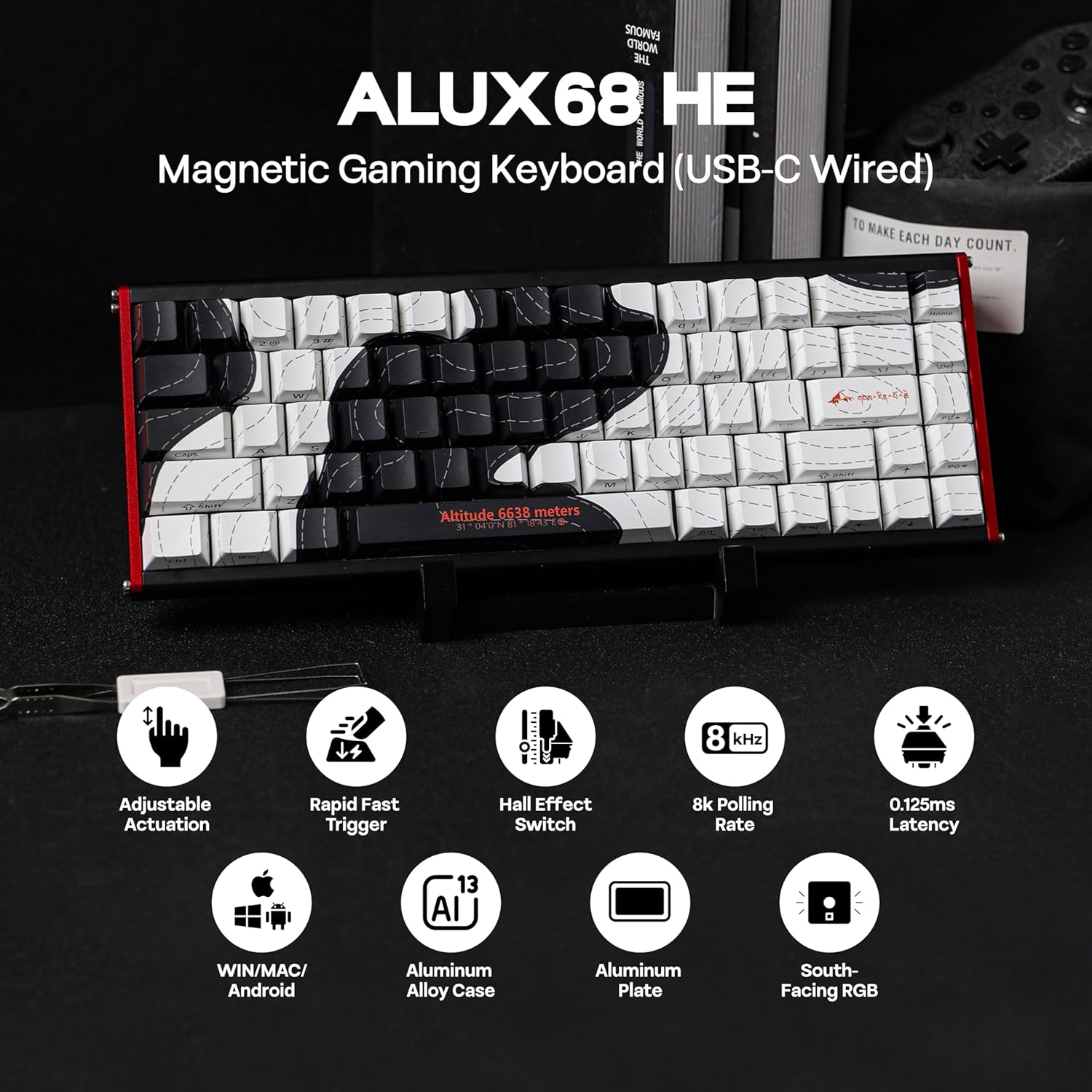
Image 4.1: Visual summary of the keyboard's main features, including adjustable actuation, rapid trigger, Hall Effect switches, and 8K polling rate.
4.2 RGB Backlighting
The keyboard features 16.8 million colors of RGB backlighting with 19 effects and 9 color options. You can control the backlighting directly from the keyboard:
- Toggle Backlight Effects: Press FN + V to cycle through different lighting effects.
- Turn Lights ON/OFF: Press FN + X to switch the backlighting on or off.

Image 4.2: Illustration of the FN key combinations for controlling RGB backlight effects and power.
Video 4.3: A demonstration of typing on the keyboard with various RGB lighting effects active.
4.3 Software Customization
For advanced customization, including backlight settings, stroke settings, macro editing, and key remapping, dedicated software is available. This software is compatible with Windows operating systems only.
- Download the official software from the MechLands or AJAZZ website.
- Install the software and follow the on-screen instructions.
- The software allows for precise control over actuation points, rapid trigger sensitivity, and personalized lighting profiles.
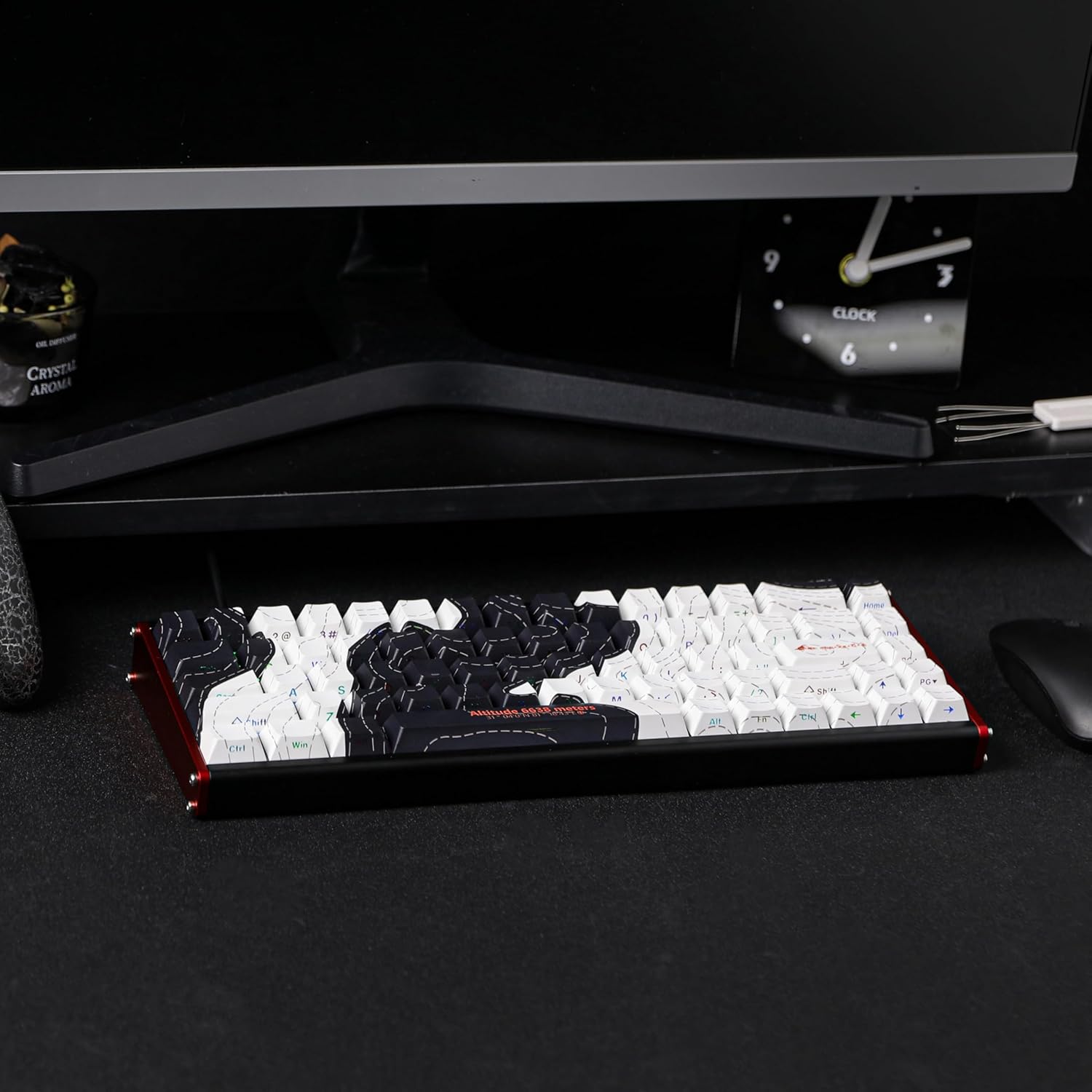
Image 4.4: Screenshot of the keyboard's software interface, showing options for backlight, stroke, macro, and key remapping settings.
4.4 Magnetic Switches and Hot-Swappable PCB
The ALUX68 MAX features magnetic switches (Aquarius Magnetic Switches) that offer superior durability and responsiveness with 0.01mm accuracy and a lifespan of over 100 million keystrokes. The keyboard's PCB is hot-swappable, allowing for easy replacement of magnetic switches without soldering.
Image 4.5: Detailed view of the Aquarius Magnetic Switch with light diffuser, including total travel, operating force, and lifespan specifications.
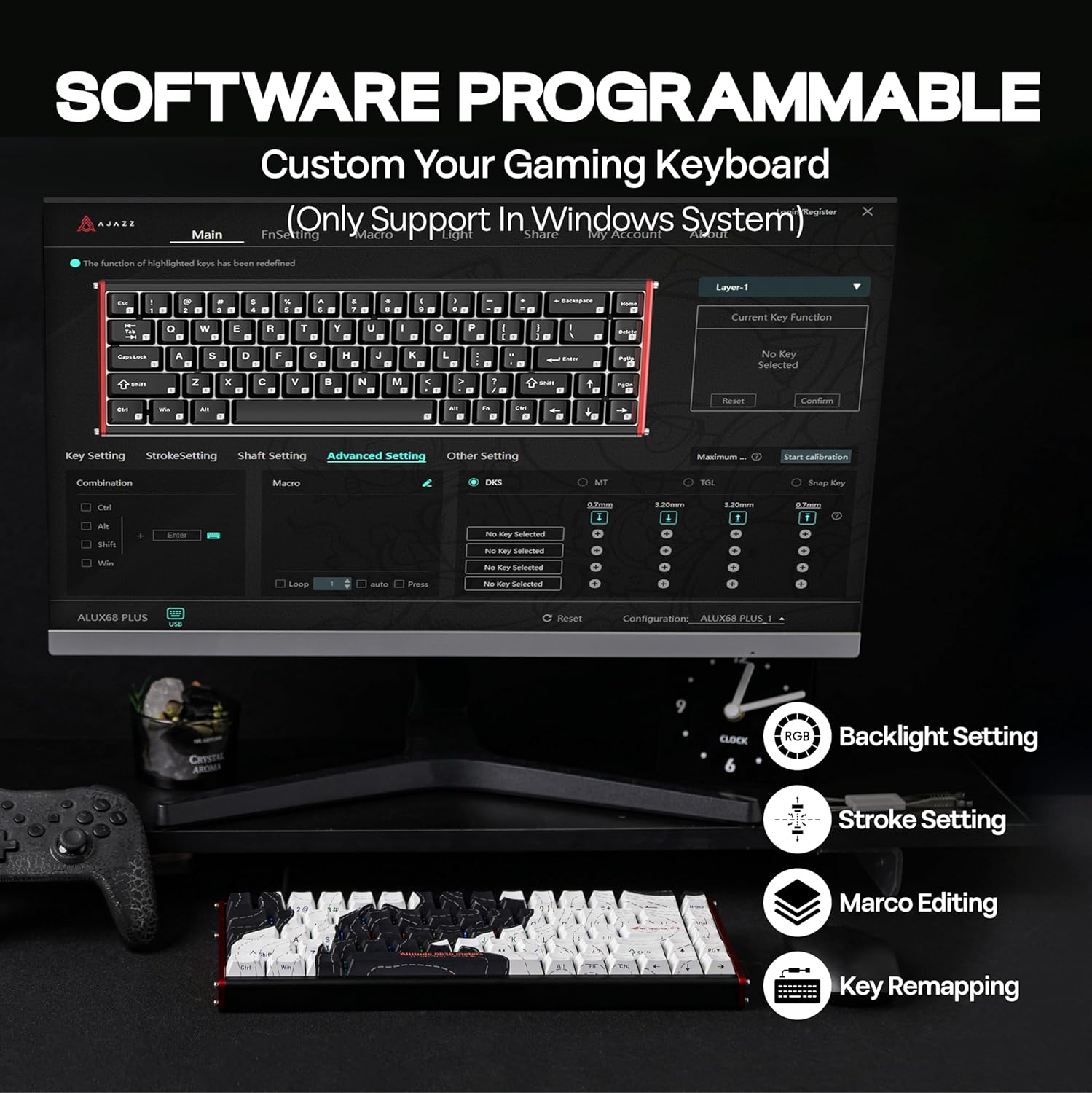
Image 4.6: Illustration of the hot-swappable PCB, showing how magnetic switches can be easily removed and replaced.
Video 4.7: A demonstration of replacing switches and typing on the AJAZZ ALUX68 keyboard.
4.5 N-Key Rollover (NKRO)
The keyboard supports N-Key Rollover (NKRO), which means all keys pressed simultaneously will be registered accurately, preventing ghosting. This feature is crucial for fast-paced gaming and typing.
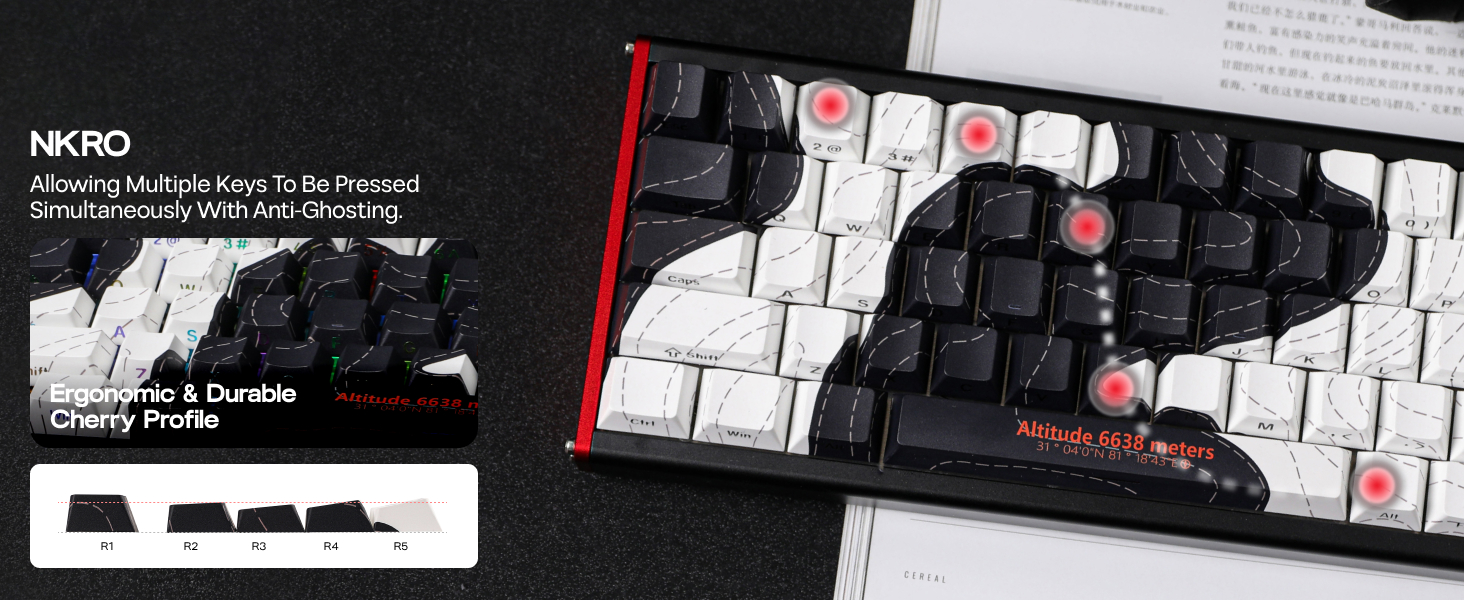
Image 4.8: Visual explanation of NKRO, highlighting how multiple key presses are registered simultaneously without conflict.
5. Maintenance
5.1 Cleaning the Keyboard
To maintain optimal performance and appearance, regular cleaning is recommended:
- Disconnect the keyboard from your computer before cleaning.
- Use a soft brush or compressed air to remove dust and debris from between the keycaps.
- For stubborn dirt, gently wipe the keycaps and keyboard surface with a slightly damp, lint-free cloth. Avoid excessive moisture.
- Do not use harsh chemicals or abrasive materials, as these can damage the keyboard's finish or keycap legends.
5.2 Keycap and Switch Replacement
The included keycap puller can be used to remove keycaps for cleaning or replacement. The hot-swappable design allows for easy switch replacement:
- Use the keycap puller to carefully remove keycaps by gripping two opposite sides and pulling upwards.
- To remove a switch, use a switch puller (not included, but often comes with replacement switches) to gently pry the switch from the PCB. Ensure the switch is aligned correctly when inserting a new one.
- Only use compatible magnetic switches for replacement.
6. Troubleshooting
If you encounter issues with your keyboard, refer to the following common solutions:
- Keyboard Not Responding:
- Ensure the USB-C cable is securely connected to both the keyboard and your computer.
- Try connecting the keyboard to a different USB port on your computer.
- Restart your computer.
- Keyboard Not Connecting on PC Boot:
- If the keyboard does not connect automatically upon PC startup, try unplugging and re-inserting the USB-C cable.
- Ensure your computer's USB drivers are up to date.
- RGB Backlighting Malfunction:
- If RGB lighting appears erratic or causes keyboard malfunction, try reducing the RGB brightness setting, especially if it is above 50%.
- Update the keyboard firmware via the official software if available.
- Software Issues / Poor Translation:
- If the customization software has translation issues or is difficult to navigate, refer to online community guides or videos for assistance.
- Ensure you are using the latest version of the software from the official website.
- Keys Not Registering / Double Typing:
- Check if any debris is lodged under the affected keycap or switch.
- If a specific switch is faulty, consider replacing it with a new magnetic switch.
- Adjust the actuation point settings in the software.
7. Specifications
| Feature | Detail |
|---|---|
| Model | ALUX68 MAX |
| Product Dimensions | 12.56 x 44.09 x 0.79 inches |
| Item Weight | 2.64 pounds |
| Material | Aluminum |
| Connectivity Technology | USB-C |
| Keyboard Description | Gaming |
| Switch Type | Magnetic (Hall Effect) |
| Polling Rate | 8K |
| Latency | 0.125ms |
| Actuation Accuracy | 0.01mm |
| Backlighting | RGB (16.8 million colors) |
| Layout | 65% Compact (68 Keys) |
| Special Features | Adjustable Actuation, Rapid Trigger, Hot-Swappable (Magnetic Switches Only), N-Key Rollover |
8. Warranty Information
MechLands products are covered by a limited warranty. For specific details regarding warranty coverage, duration, and terms, please refer to the warranty card included with your product or visit the official MechLands website. Keep your proof of purchase for warranty claims.
9. Support
For further assistance, technical support, or to download the latest software and drivers, please visit the official MechLands website or contact their customer service department. Contact information can typically be found on the product packaging or the brand's official online presence.