
Ingnok YN02B
Ingnok 15.6-inch FHD 1080P Portable Monitor YN02B Instruction Manual
Your guide to setting up and using your new Ingnok portable monitor.
1. Introduction
The Ingnok 15.6-inch FHD 1080P Portable Monitor YN02B is designed to enhance your productivity and entertainment experience on the go. Featuring a Full HD 1080P resolution and a 1200:1 contrast ratio, it delivers clear and vibrant visuals. Its ultra-thin and lightweight design ensures easy portability, making it an ideal companion for various environments, from business trips to home offices. The monitor supports universal compatibility with a wide range of devices through simple plug-and-play connectivity.
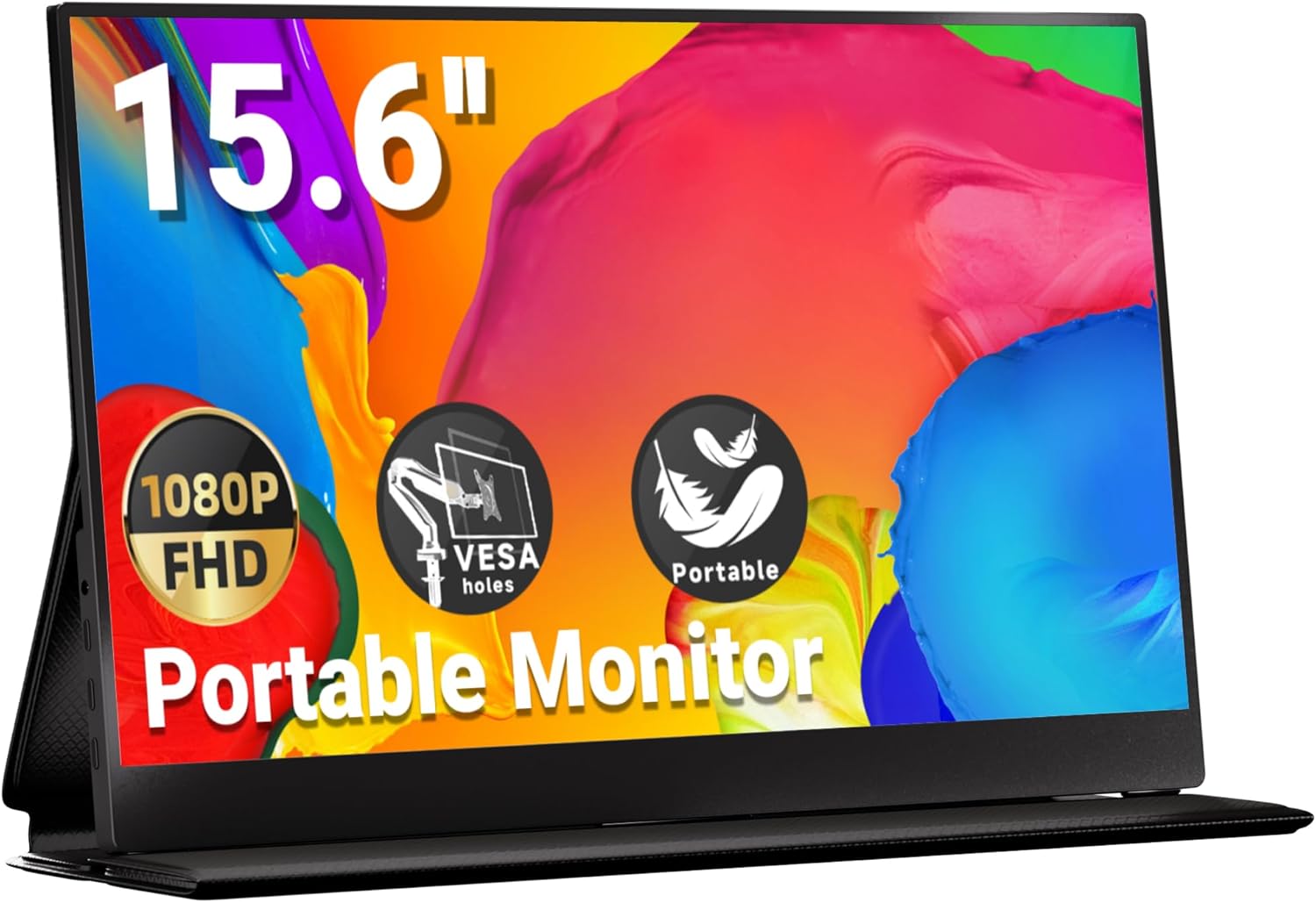
Image: The Ingnok 15.6-inch Portable Monitor, showcasing its sleek design and vibrant display capabilities.
2. Package Contents
Please check the box contents upon unboxing to ensure all items are present:
- Ingnok 15.6-inch FHD 1080P Portable Monitor YN02B
- Magnetic Cover Stand
- USB-C to USB-C Cable (for video and power)
- HDMI to Mini HDMI Cable
- USB-A to USB-C Cable (for power supply)
- VESA Screws (for mounting)
- Cleaning Cloth
- User Manual (this document)

Image: All accessories included with the Ingnok Portable Monitor, such as various cables, the cover stand, VESA screws, and a cleaning cloth.
3. Product Overview
3.1. Physical Design
The Ingnok YN02B monitor features an ultra-thin design, measuring approximately 0.26 inches in thickness and weighing around 1.44 lbs, making it highly portable. Its sleek black finish and durable construction ensure it can withstand travel and daily use.

Image: The Ingnok portable monitor demonstrating its ultra-slim profile and ease of transport.
3.2. Ports and Controls
The monitor is equipped with multiple ports and intuitive controls for seamless operation:
- 2x Full-feature USB-C 3.1 Ports: For power supply and video signal (MacBook/Laptop Plug & Play).
- 1x Mini HDMI Port: For video signal (requires extra power supply via USB-C).
- 1x Headphone Jack: For audio output.
- Brightness Shortcut: Adjusts screen brightness.
- Volume Shortcut: Adjusts audio volume.
- Menu Button: Accesses the On-Screen Display (OSD) menu for advanced settings.
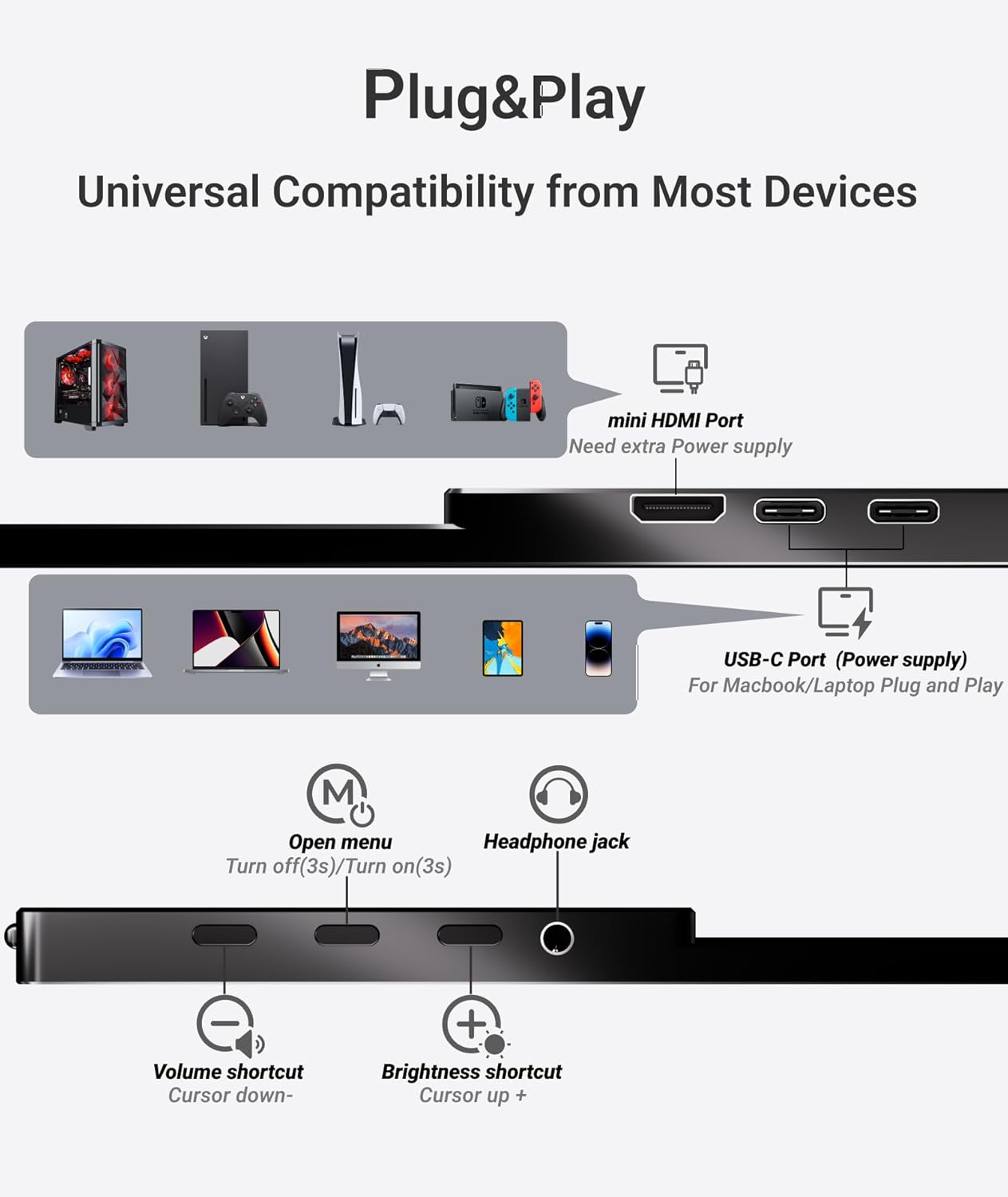
Image: A detailed view of the monitor's ports and control buttons, including USB-C, Mini HDMI, headphone jack, and OSD controls.
4. Setup
4.1. Using the Magnetic Cover Stand
The included magnetic cover doubles as a stand, offering flexible viewing angles. To set up the stand:
- Place the monitor on a flat surface with the screen facing up.
- Attach the magnetic cover to the back of the monitor.
- Fold the cover into a triangular shape to create a stable stand.
- Adjust the folds to achieve your desired viewing angle.

Image: Visual instructions demonstrating how to configure the magnetic cover into a stable stand for the monitor.
Video: An official Ingnok video demonstrating the proper way to set up and use the monitor's magnetic cover as a stand.
4.2. Connecting to Devices
The monitor offers versatile connectivity options:
- USB-C Connection (Single Cable): For devices with a full-feature USB-C port (e.g., modern laptops, MacBooks, some smartphones). Connect one end of the USB-C to USB-C cable to your device and the other end to either of the monitor's USB-C ports. This single connection provides both power and video signal.
- HDMI Connection (Dual Cables): For devices with an HDMI output (e.g., older laptops, PCs, gaming consoles like Switch/PS5). Connect the Mini HDMI to HDMI cable from your device to the monitor's Mini HDMI port. Additionally, connect the USB-A to USB-C cable from a power source (e.g., your device's USB-A port or a wall adapter) to one of the monitor's USB-C ports for power.

Image: The portable monitor set up next to a laptop, demonstrating an extended display configuration.
5. Operating the Monitor
5.1. Display Modes
Once connected, your device should automatically detect the monitor. You can configure the display mode through your device's operating system settings:
- Extend Mode: Uses the portable monitor as an additional screen, allowing you to multitask across two displays.
- Duplicate Mode: Mirrors your primary screen's content onto the portable monitor.
5.2. Adjusting Settings (OSD Menu)
Use the control buttons on the side of the monitor to access and navigate the On-Screen Display (OSD) menu. Here you can adjust various settings:
- Brightness/Contrast: Adjust the screen's luminance and contrast levels.
- Color Settings: Fine-tune color temperature, hue, and saturation.
- Audio Settings: Control the volume of the built-in speakers or connected headphones.
- Other Settings: Access additional display and system options.

Image: The monitor showcasing its FHD 1080P resolution, 1200:1 contrast ratio, 300 cd/m² brightness, and 178° viewing angle for optimal visual quality.
5.3. Built-in Speakers
The monitor includes built-in stereo speakers for audio output. You can also connect external headphones via the 3.5mm headphone jack for private listening.

Image: The monitor highlighting its integrated stereo speakers and headphone jack for versatile audio options.
6. Maintenance
To ensure the longevity and optimal performance of your Ingnok portable monitor, follow these maintenance guidelines:
- Cleaning: Use the provided cleaning cloth or a soft, lint-free cloth to gently wipe the screen. For stubborn smudges, lightly dampen the cloth with water or a screen-safe cleaner. Avoid harsh chemicals or abrasive materials.
- Handling: Always handle the monitor by its edges. Avoid applying pressure directly to the screen.
- Storage: When not in use, store the monitor in its magnetic cover to protect the screen from scratches and impacts. Keep it in a cool, dry place away from direct sunlight and extreme temperatures.
7. Troubleshooting
If you encounter issues with your Ingnok portable monitor, refer to the following common solutions:
- No Signal / Black Screen:
- Ensure all cables are securely connected to both the monitor and your device.
- If using HDMI, confirm the USB-C power cable is also connected to a power source.
- Check your device's display settings to ensure the monitor is detected and configured correctly (e.g., Extend or Duplicate mode).
- Try a different cable or port on your device if available.
- No Audio:
- Increase the monitor's volume using the control buttons.
- Check your device's audio output settings to ensure the Ingnok monitor is selected.
- If using headphones, ensure they are properly plugged into the headphone jack.
- Display Not Bright Enough:
- Adjust the brightness settings via the monitor's OSD menu.
- Ensure the monitor is receiving sufficient power, especially if using a single USB-C cable with a low-power device.
If these steps do not resolve the issue, please contact Ingnok customer support for further assistance.
8. Specifications
| Product Dimensions | 15.51 x 9.92 x 2.8 inches |
| Item Weight | 3.22 pounds |
| Item Model Number | YN02B |
| Standing Screen Display Size | 15.6 Inches |
| Aspect Ratio | 16:9 |
| Resolution | 1920 x 1080 Pixels (FHD 1080p) |
| Image Brightness | 300 Candela |
| Total USB Ports | 2 |
| Screen Surface Description | Matte |
9. Warranty and Support
Ingnok is committed to providing excellent customer service and product reliability:
- Lifetime Unlimited Warranty: Your Ingnok portable monitor is covered by a lifetime unlimited warranty.
- Lifetime Customer Support: The Ingnok team is available to answer your questions and provide guidance throughout your product journey.
- No Worry Return/Replacement: Ingnok offers a hassle-free return and replacement policy.
- Free Accessories: Enjoy complimentary accessories with your purchase.
For any inquiries or support needs, please refer to the contact information provided on the product packaging or the official Ingnok website.
Ask a question about this manual
Ask about setup, troubleshooting, compatibility, parts, safety, or missing instructions. Manuals+ will review the question and use this page’s manual context to help answer it.