
SKYRDROID SG12
Skydroid T12/SG12-RX Receiver User Manual
Model: SKYRDROID SG12
Brand: Generic
1. Introduction
This manual provides detailed instructions for the installation, operation, and maintenance of the Skydroid T12/SG12-RX Receiver. This receiver is designed for use with plant protection drones and other remote-controlled aircraft, ensuring reliable communication and control. Please read this manual thoroughly before using the product to ensure proper functionality and safety.
2. Package Contents
Verify that all items listed below are included in your package. If any items are missing or damaged, please contact your vendor.
- Skydroid T12/SG12-RX Receiver Unit
- 2.4G Antennas (x2)
- Connection Cables (including K V2 cable)

Figure 2.1: Overview of the Skydroid T12/SG12-RX Receiver and its accompanying accessories, including the main receiver unit, two antennas, and various connection cables.
3. Product Overview
The Skydroid T12/SG12-RX receiver features multiple ports and indicators for seamless integration into your drone system.
3.1 Receiver Unit

Figure 3.1: Detailed view of the Skydroid T12/SG12-RX receiver unit, highlighting its various ports and LED indicators for connectivity and status monitoring.
Key components and indicators:
- RED LED: Status indicator.
- GN LED: Status indicator.
- MODE KEY: Button for mode selection or binding.
- GND: Ground connection points.
- USB5V: 5V USB power input.
- DM/CH9, DP/CH10: Digital/PWM output channels.
- Rx3, Tx3: Serial communication ports.
- 2.4G ANT-: Antenna connection ports.
- VCC: Power input.
- Rx1, Tx1, Rx2, Tx2: Additional serial communication ports.
- Sbus: S.BUS output for flight controller connection.
3.2 Antennas
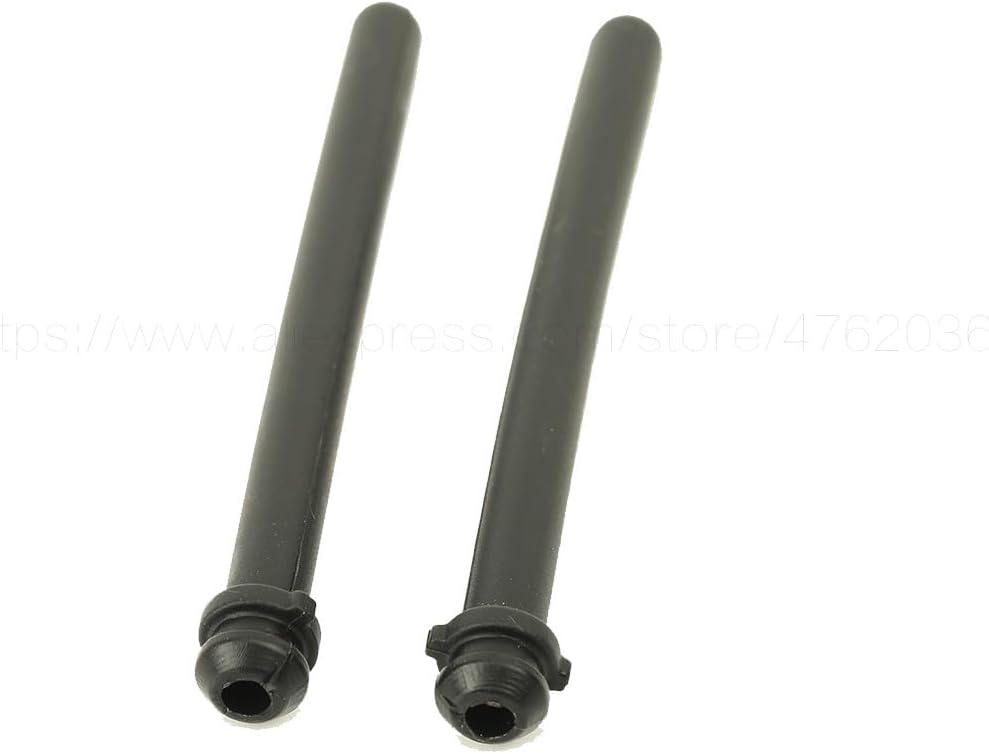
Figure 3.2: The two 2.4G antennas provided with the receiver, essential for establishing a stable radio link with the transmitter.
The two 2.4G antennas are crucial for maintaining a stable and reliable radio link between the receiver and the remote controller. Ensure they are securely connected and positioned correctly for optimal signal reception.
3.3 Connection Cables
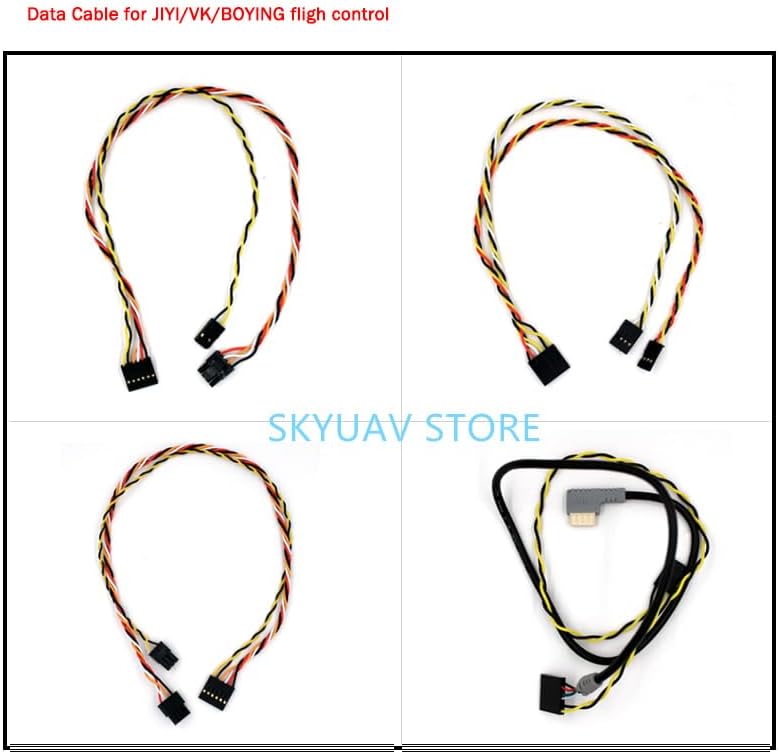
Figure 3.3: A selection of data cables compatible with the Skydroid receiver, including the K V2 cable, used for connecting to flight controllers and other peripherals.
The package includes various connection cables, such as the K V2 cable, designed for interfacing the receiver with different flight controllers (e.g., JIJI/VK/BOYING) and other drone components. Refer to your flight controller's manual for specific wiring diagrams.
4. Setup and Installation
Follow these steps to properly install and set up your Skydroid T12/SG12-RX Receiver.
- Antenna Connection: Carefully connect the two 2.4G antennas to the designated "2.4G ANT-" ports on the receiver unit. Ensure they are securely fastened but do not overtighten. Position the antennas away from metal objects and at a 90-degree angle to each other for best signal diversity.
- Power Connection: Connect the receiver to a stable 5V power source. Use the VCC and GND pins for power input. Ensure correct polarity to prevent damage. The USB5V port can also be used for power during configuration or testing.
- Flight Controller Connection: Connect the receiver to your drone's flight controller using the appropriate cable (e.g., K V2 cable). Common connection methods include:
- S.BUS: Connect the Sbus pin on the receiver to the S.BUS input on your flight controller. This is a common single-wire digital protocol.
- UART (Rx/Tx): For serial communication, connect Rx1/Tx1 or Rx2/Tx2 (or Rx3/Tx3) to the corresponding UART ports on your flight controller.
- PWM: If using traditional PWM, connect the DM/CH9 and DP/CH10 pins to the respective PWM input channels on your flight controller.
- Binding (Pairing): To establish communication between the receiver and your Skydroid remote controller, a binding process is required. Typically, this involves:
- Power on the receiver while holding down the MODE KEY.
- Observe the LED indicators for binding status (refer to your remote controller's manual for specific LED patterns).
- Initiate the binding process on your Skydroid remote controller.
- Once successfully bound, the LEDs on the receiver will indicate a solid connection.
5. Operating Instructions
Once the receiver is installed and bound to your remote controller, it will facilitate communication for controlling your drone.
- Power On Sequence: Always power on your remote controller first, then the drone (which powers the receiver). This ensures the receiver establishes a link with the controller before the flight controller initializes.
- LED Indicators:
- RED LED: Indicates power status or error conditions.
- GN LED: Indicates signal reception and connection status. A solid green light typically means a stable connection.
- Signal Loss: In case of signal loss, the receiver will typically enter a failsafe mode, as configured on your flight controller. Ensure your failsafe settings are properly configured for safe operation.
6. Maintenance and Care
Proper maintenance ensures the longevity and reliable performance of your receiver.
- Keep Clean: Regularly clean the receiver unit with a soft, dry cloth. Avoid using solvents or abrasive cleaners.
- Protect from Elements: Shield the receiver from moisture, dust, and extreme temperatures. If used in a plant protection drone, ensure it is adequately protected from liquids and chemicals.
- Inspect Connections: Periodically check all cable connections and antenna attachments for looseness or damage. Replace any worn or damaged components immediately.
- Firmware Updates: Check the official Skydroid website for any available firmware updates for your receiver. Follow the provided instructions carefully for updating.
7. Troubleshooting
If you encounter issues with your Skydroid T12/SG12-RX Receiver, refer to the following common problems and solutions:
| Problem | Possible Cause | Solution |
|---|---|---|
| No power/LEDs off | Incorrect power connection; Damaged cable; Power source issue. | Verify power cable polarity and connection. Test with a different 5V power source. Inspect cables for damage. |
| No signal/No connection (GN LED off or blinking) | Not bound; Remote controller off; Antennas loose/damaged; Interference. | Ensure remote controller is on. Perform binding procedure again. Check antenna connections and position. Move away from sources of interference. |
| Intermittent signal loss | Antenna placement; Range issues; Interference. | Adjust antenna orientation. Operate within specified range. Identify and mitigate sources of radio interference. |
| Incorrect control response | Flight controller configuration; Incorrect wiring. | Verify wiring between receiver and flight controller. Check flight controller's input configuration (e.g., S.BUS, UART, PWM settings). |
8. Specifications
The following are the technical specifications for the Skydroid T12/SG12-RX Receiver:
- Model Number: SKYRDROID SG12
- Dimensions: 340*135*95MM (as per product description, likely package size)
- Technical Parameters: Value 10
- Material: Composite Material
- For Vehicle Type: Airplanes (specifically plant protection drones)
- Tool Supplies: Assembled class
- Four-wheel Drive Attributes: Assemblage
- Remote Control Peripherals/Devices: Remote Controller
- Upgrade Parts/Accessories: Adapter
- RC Parts & Accs: Connectors/Wiring
- Recommended Age: 18+
- Origin: Mainland China
9. Warranty and Support
Specific warranty terms and detailed support contact information are not provided in the product data. For warranty claims or technical assistance, please contact the retailer or manufacturer directly through their official channels. Retain your proof of purchase for any warranty-related inquiries.
Ask a question about this manual
Ask about setup, troubleshooting, compatibility, parts, safety, or missing instructions. Manuals+ will review the question and use this page’s manual context to help answer it.