
JUCFRDNJ F5 Max
JUCFRDNJ Tuya WiFi Smart Door Lock User Manual
Model: F5 Max (22x190 5050)
Product Overview
The JUCFRDNJ Tuya WiFi Smart Door Lock (Model F5 Max) is an advanced electronic locking system designed for enhanced home security and convenience. It integrates multiple unlocking methods including biometric fingerprint recognition, smart card, password, mechanical key, and WiFi connectivity via the Tuya App. Built with durable aluminum alloy and featuring an IP66 waterproof rating, this lock is suitable for various door types and environments, offering reliable performance and smart home integration.

Figure 1: JUCFRDNJ Tuya WiFi Smart Door Lock installed on a door, illustrating its sleek design and integrated keypad and fingerprint sensor.
Package Contents
Verify that all components are present and in good condition before proceeding with installation.
- Smart Door Lock Assembly (Exterior and Interior Units)
- Mortise Lock Body (Suitable for 5050 mortise)
- 6 x IC Cards
- 2 x Mechanical Keys
- 1 x Pack of Screws and Installation Hardware
- User Manual (This document)

Figure 2: All items included in the product package, laid out for inspection.
Specifications
| Feature | Detail |
|---|---|
| Model Number | F5 Max |
| Power Supply | Dry Battery |
| Protection Level | IP66 (Waterproof) |
| Suitable Mortise | 5050 |
| Fit Door Thickness | 35-65mm |
| Suitable Door Types | Steel Door, Wooden Door, Other |
| Connectivity | WiFi |
| Smart Home Platform | Tuya |
| Unlocking Methods | APP, Mechanical Keys, Card, WiFi, Password, Fingerprint |
| Material | Aluminium Alloy |
| Handle Direction | Direction Reversible |
| Special Features | Built-in Doorbell, Anti-peeping Password, Mute Function |
| Item Weight | 1.76 ounces (approx. 50 grams) |
| Package Dimensions | 1.18 x 0.79 x 0.39 inches |
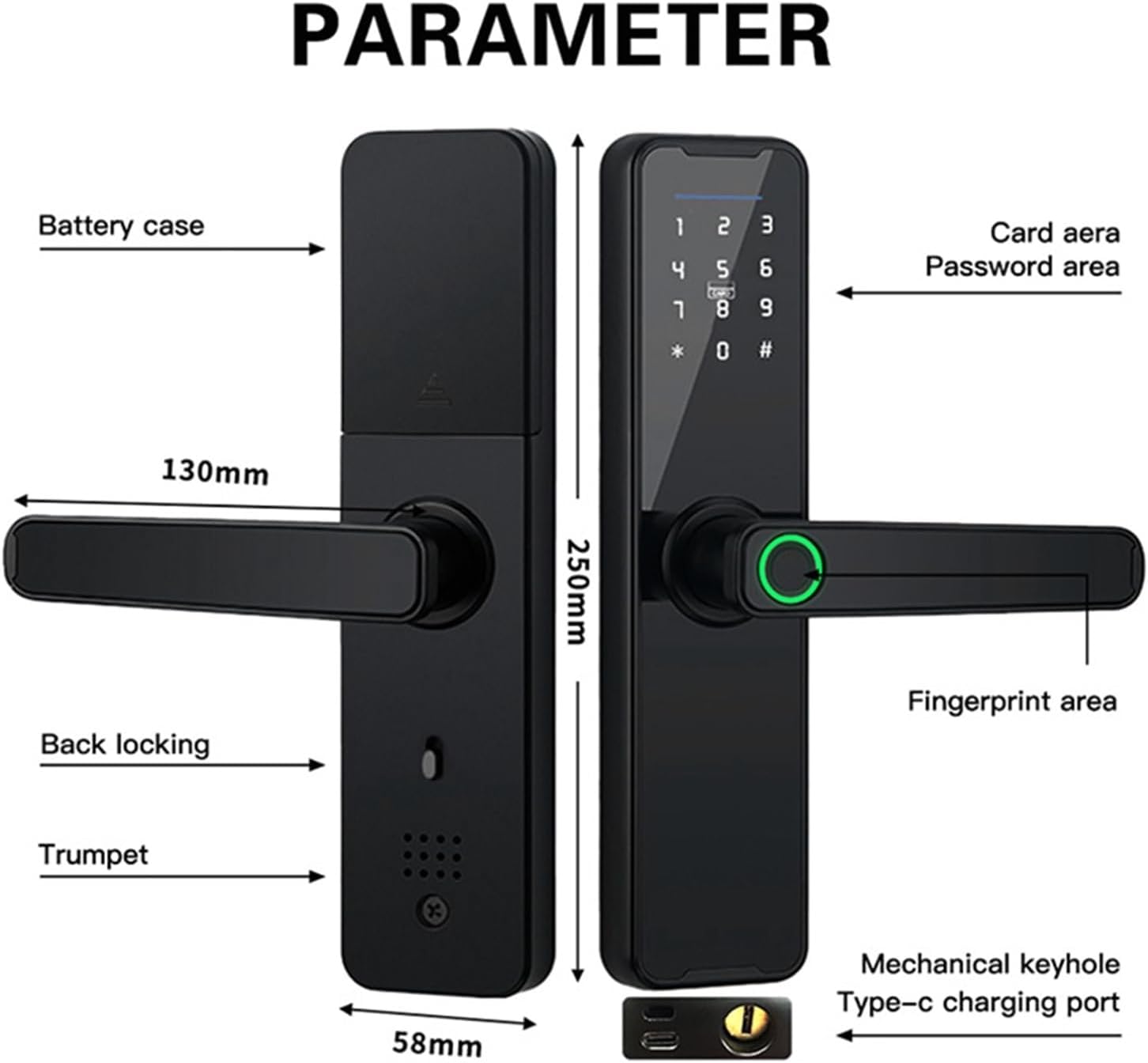
Figure 3: Detailed view of the lock's components and dimensions.
Setup and Installation
1. Door Preparation
Ensure your door thickness is between 35-65mm. The lock is designed for a 5050 mortise. If replacing an existing lock, ensure the mortise dimensions are compatible. Refer to Figure 4 for mortise dimensions.

Figure 4: Mortise and lock body dimensions for installation reference.
2. Battery Installation
The lock operates on dry batteries. Locate the battery compartment on the interior unit (refer to Figure 3 for 'Battery case' location). Insert the required batteries, ensuring correct polarity. Use high-quality alkaline batteries for optimal performance and longevity.
3. Tuya App Connection
- Download the "Tuya Smart" or "Smart Life" app from your mobile device's app store.
- Register or log in to your account.
- Add the smart door lock device by following the in-app instructions. This typically involves putting the lock into pairing mode (refer to the lock's specific pairing instructions, usually by pressing a button or entering a code on the keypad).
- Ensure your phone is connected to a 2.4GHz WiFi network during the pairing process.
Operating Instructions
1. Unlocking Methods
- Fingerprint Unlock: Place your registered fingerprint on the fingerprint sensor (refer to Figure 3 for 'Fingerprint area'). The lock will unlock upon successful recognition.
- Password Unlock: Enter your registered password on the keypad. The lock supports an anti-peeping password feature, allowing you to enter random digits before or after your actual password to prevent others from guessing it (see Figure 5). Press '#' to confirm.

Figure 5: Anti-peeping password demonstration.
- Smart Card Unlock: Present a registered IC card to the card reader area (refer to Figure 3 for 'Card area'). The lock will unlock upon successful card recognition.
- Mechanical Key Unlock: In case of emergency or battery depletion, use the provided mechanical keys to unlock the door. Insert the key into the mechanical keyhole (refer to Figure 3) and turn.
- Tuya App Unlock: Open the Tuya Smart app on your smartphone. From the device interface, you can remotely unlock the door, generate temporary passwords, and manage user access.
2. Locking the Door
The lock typically auto-locks after a set period once the door is closed. You can also manually lock the door from the inside by lifting the handle or using the back locking mechanism (refer to Figure 3 for 'Back locking').
3. Sound and Volume Control
The lock features adjustable sound volume and a mute function. You can turn on or off the beep sound and select between low, medium, or high volume settings as per your preference (see Figure 6).
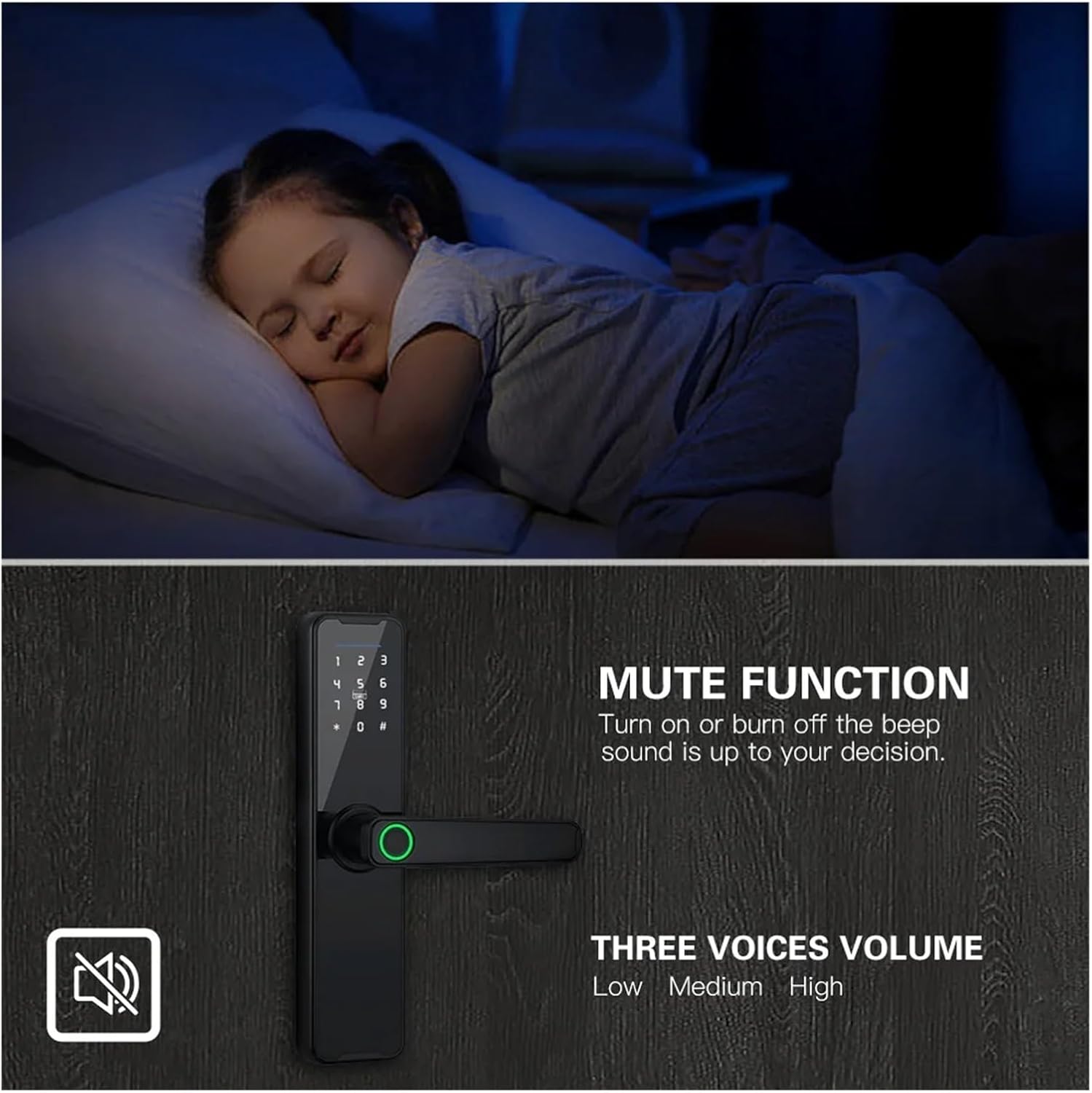
Figure 6: Mute function and volume settings.
Maintenance
- Battery Replacement: Replace batteries when the low battery indicator appears or when the lock's performance degrades. Always replace all batteries simultaneously with new, high-quality dry batteries.
- Cleaning: Wipe the lock's surface with a soft, dry cloth. Avoid using abrasive cleaners, solvents, or harsh chemicals, as these can damage the finish and electronic components.
- Fingerprint Sensor Care: Keep the fingerprint sensor clean and dry. If it becomes dirty, gently wipe it with a lint-free cloth.
- Mechanical Parts: Periodically check the screws and ensure they are tight. Do not lubricate the lock cylinder unless specifically recommended by the manufacturer.
- Firmware Updates: Check the Tuya Smart app regularly for any available firmware updates for your lock to ensure optimal performance and security.
Troubleshooting
| Problem | Possible Cause | Solution |
|---|---|---|
| Lock not responding | Low or dead batteries | Replace all batteries with new ones. |
| Fingerprint not recognized | Finger dirty/wet, sensor dirty, unregistered fingerprint | Clean finger and sensor. Ensure fingerprint is properly registered in the app. Try re-registering. |
| Password not working | Incorrect password, anti-peeping feature misunderstood | Verify the correct password. Ensure you are using the anti-peeping feature correctly (if applicable). Reset password via app if forgotten. |
| Cannot connect to WiFi/Tuya App | Incorrect WiFi password, 5GHz network, distance from router, lock not in pairing mode | Ensure 2.4GHz WiFi. Re-enter WiFi password. Move closer to router. Put lock into pairing mode as per instructions. |
| Lock makes unusual noises | Mechanical obstruction, internal issue | Check for any obstructions around the latch or bolt. If problem persists, contact customer support. |
Warranty and Support
For warranty information, please refer to the purchase documentation or contact your retailer. For technical support, product inquiries, or assistance with installation and operation, please contact JUCFRDNJ customer service through the following channels:
- Manufacturer: huangjiaxuan
- Contact Information: Please refer to the contact details provided with your product packaging or on the official JUCFRDNJ website.
- Online Resources: Visit the Tuya Smart app's help section or the JUCFRDNJ product page on Amazon for FAQs and additional support.
When contacting support, please have your product model (F5 Max) and purchase date available.
Ask a question about this manual
Ask about setup, troubleshooting, compatibility, parts, safety, or missing instructions. Manuals+ will review the question and use this page’s manual context to help answer it.