
Introduction
The HRepair 8-Zone WiFi Smart Sprinkler Controller is designed to provide an efficient and convenient solution for managing your garden and yard irrigation. This WiFi-enabled system allows for automated scheduling, real-time monitoring, and intelligent adjustments based on local weather conditions, helping to conserve water and maintain a healthy landscape.
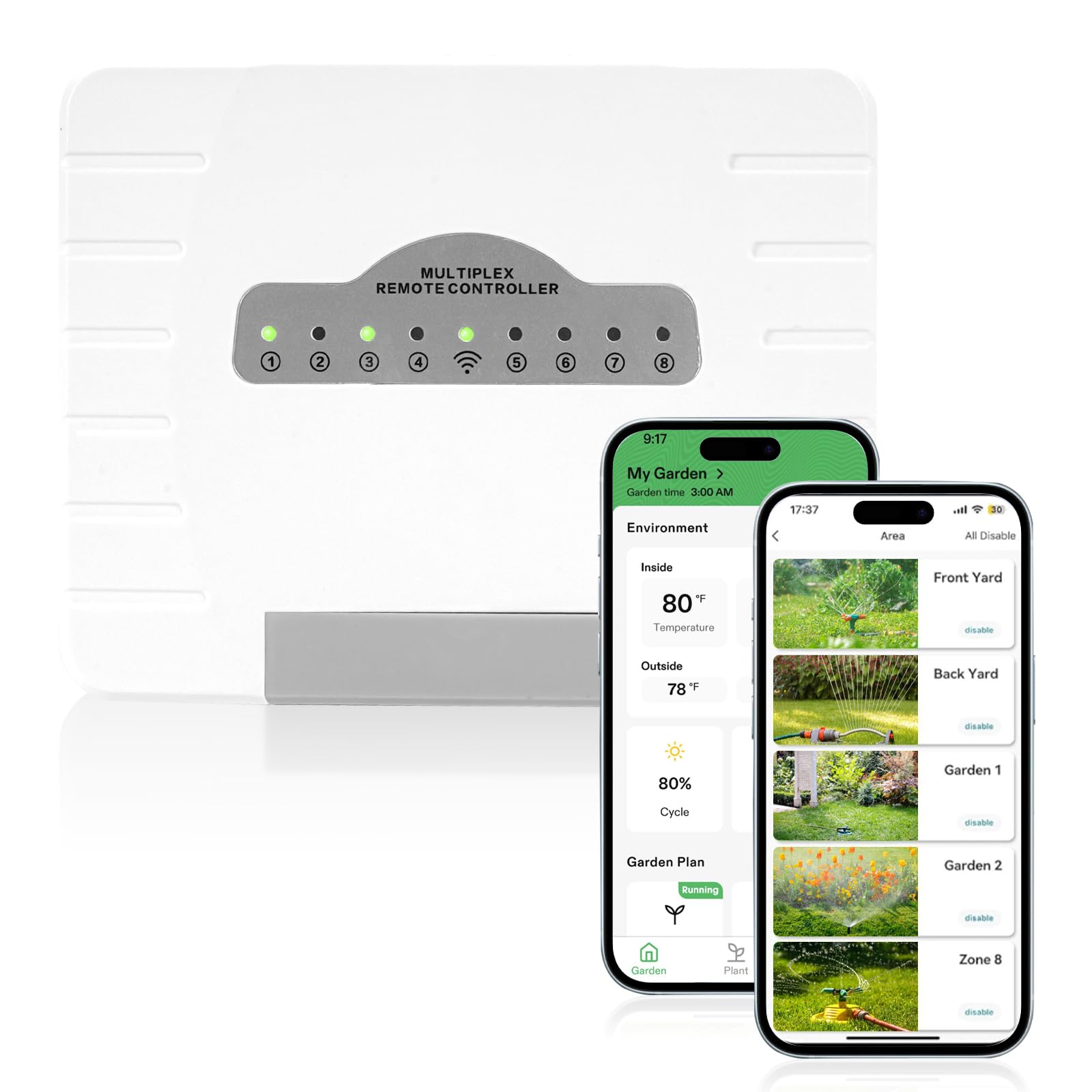
Image: The main HRepair 8-Zone WiFi Smart Sprinkler Controller unit.
Key Features
- Hassle-free Watering: Customize watering schedules based on yard and plant needs. Control and monitor your sprinkler system anytime, anywhere via the app.
- Customized Watering Solutions: Set multiple watering schedules across 8 zones. Fine-tune watering frequency for daily, intermittent, or weekly soaking to achieve optimal moisture balance.
- Quick and Easy Installation: DIY installation typically takes 15 minutes or less, requiring no special tools. Compatible with most existing sprinkler controllers.
- Control Anytime, Anywhere: Manage watering, run sprinklers, set and view schedules, and estimate outdoor water usage through the user-friendly app.
- Save Money and Water: The smart app helps deliver the right amount of water at the right time, reducing water bills and conserving water.
Setup and Installation
1. Unboxing and Components
Before beginning installation, ensure all components are present. The package typically includes the HRepair 8-Zone Smart Sprinkler Controller, a power adapter, and mounting hardware.

Image: The HRepair 8-Zone Smart Sprinkler Controller with clearly labeled power, common, and zone output ports.
2. Mounting the Controller
Choose a suitable indoor location for the controller, ideally near an AC power outlet and away from major appliances that might interfere with Wi-Fi signals. Use the provided mounting hardware to secure the controller to the wall.

Image: Visual guide showing the three main steps for installation: replacing an old controller, wiring the new unit, and setting up via the app.
3. Wiring the Sprinkler System
Carefully disconnect the wires from your old sprinkler controller, noting which wire corresponds to each zone. Connect the common wire to the 'COM' terminal and each zone wire to its corresponding numbered terminal (1-8) on the HRepair controller. Connect the power adapter to the 'Power' input.
Video: A user demonstrates how to control the sprinkler system using the HRepair app, showcasing the ease of remote operation.
4. App Download and Initial Setup
Download the HRepair smart app from your device's app store. Follow the in-app instructions to connect the controller to your home's 2.4 GHz Wi-Fi network. You will typically need to create an account and pair the device.
Operating the Controller
1. Setting Watering Schedules
Use the HRepair app to create and customize watering schedules. You can define specific start times, watering duration for each of the 8 zones, and select watering days (e.g., specific days of the week, odd/even days).

Image: A smartphone screen showing the HRepair app with a "Watering Skipped" notification, indicating the weather intelligence feature is active.
2. Weather Intelligence
The controller integrates with local weather forecasts to automatically adjust or skip watering cycles based on rain, temperature, and other conditions. This feature helps prevent overwatering and conserves water.
3. Manual Control
For immediate watering needs, you can manually activate individual zones or all zones directly from the app. Specify the duration for manual runs as required.
4. Offline Operation
In case of Wi-Fi loss, the controller is designed to continue running its last programmed schedule. It also features power-off memory to retain settings.

Image: The HRepair controller highlighting its ability to continue operation even when offline, thanks to power-off memory and offline auto-operation features.
Maintenance
The HRepair Smart Sprinkler Controller requires minimal maintenance. Periodically check the wiring connections to ensure they are secure. Keep the controller unit clean and free from dust or debris. Ensure the Wi-Fi signal remains strong at the installation location for optimal app connectivity.
Troubleshooting
- Controller Not Connecting to Wi-Fi: Ensure your Wi-Fi network is 2.4 GHz. Check the signal strength at the controller's location. Restart your router and the controller.
- Zones Not Watering: Verify that the wiring for the affected zones and the common wire are securely connected. Check the app for any active weather skips or paused schedules. Ensure the water supply to your sprinkler system is on.
- Incorrect Watering Times: Review your schedules in the app to confirm the start times and durations are set correctly.
- App Issues: Ensure the app is updated to the latest version. Try restarting the app or your mobile device.
Specifications
| Feature | Detail |
|---|---|
| Brand | HRepair |
| Model Number | 8ZULW-C |
| Number of Zones | 8 |
| Connectivity | WiFi (2.4 GHz) |
| Material | Plastic |
| Item Weight | 2.48 pounds (1.13 Kilograms) |
| Package Dimensions | 10.75 x 10.75 x 2.72 inches |
| Batteries Required | No |
| Included Components | Smart Sprinkler Controller |
| Display Type | Digital or Touchscreen |
Warranty and Support
For specific warranty information and customer support, please refer to the documentation included with your product or visit the official HRepair website. HRepair has been specializing in the automotive parts market since 1998, dedicated to the research and production of automotive aftermarket replacement parts, and aims to provide professional and efficient solutions.