
1. Setup Guide
This section provides instructions for the initial setup of your VEGOOS YG381 projector.
1.1 Unboxing and Components
Carefully remove all components from the packaging. Ensure the following items are present:
- VEGOOS YG381 Projector
- Power Adapter
- Remote Control
- User Manual (this document)
- HDMI Cable (if included)
1.2 Placement
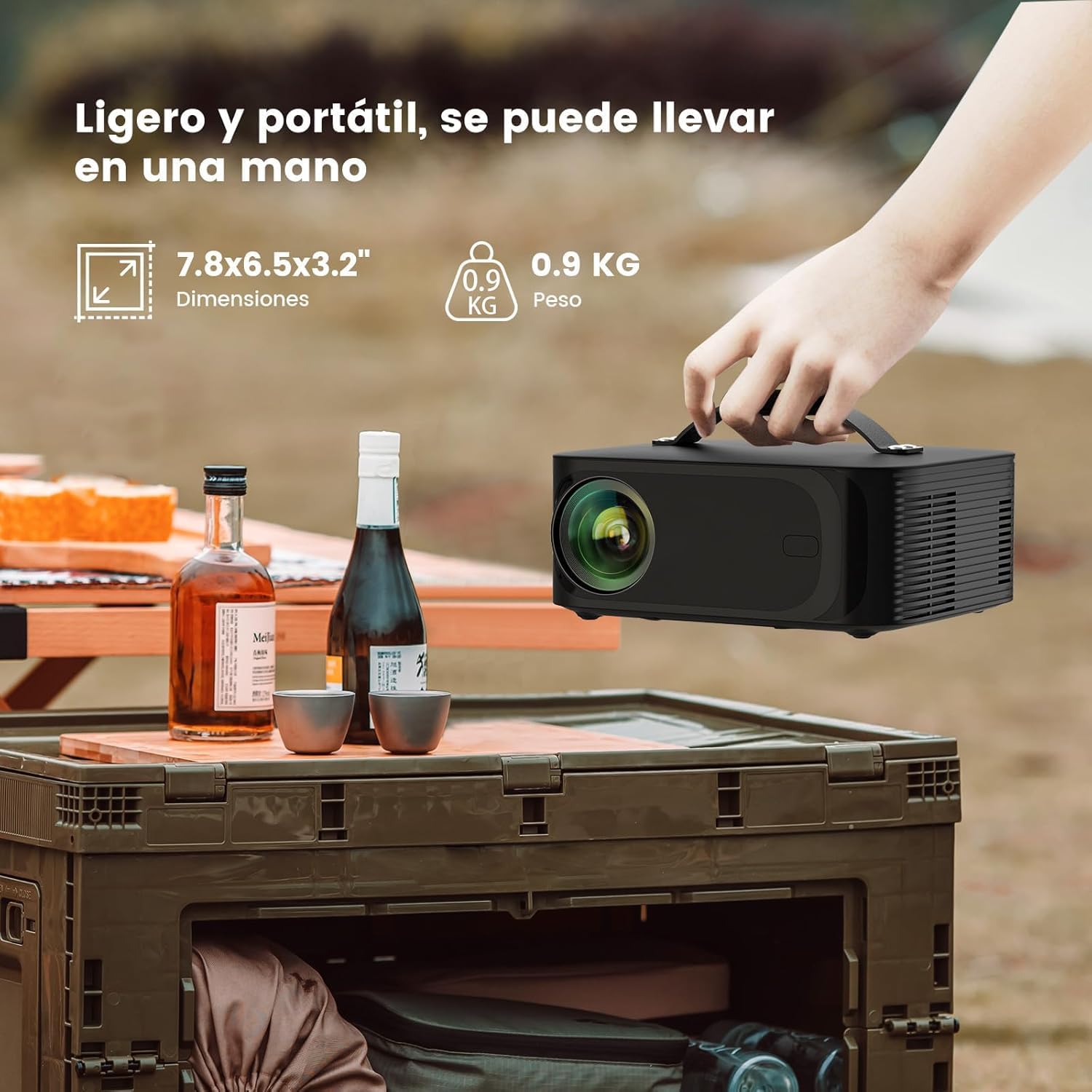
The VEGOOS YG381 projector offers flexible placement options:
- Table Mount: Place the projector on a stable, flat surface.
- Wall Mount: Securely attach the projector to a wall using a compatible mount (sold separately).
- Ceiling Mount: Install the projector on the ceiling using a compatible mount (sold separately). Ensure proper ventilation around the unit.
1.3 Power Connection
- Connect the power adapter to the projector's power input port.
- Plug the power adapter into a suitable electrical outlet.
- Press the power button on the projector or remote control to turn on the device.
1.4 Network Connection (Wi-Fi)
The projector supports 2.4G/5G dual-band Wi-Fi 6 for stable and fast internet connectivity.
- Navigate to the Settings menu on the projector's interface.
- Select Network or Wi-Fi Settings.
- Choose your desired Wi-Fi network from the list.
- Enter the Wi-Fi password using the on-screen keyboard and remote control.
- Confirm the connection.

2. Operating Instructions
This section details how to operate your VEGOOS YG381 projector for an optimal viewing experience.
2.1 Basic Controls
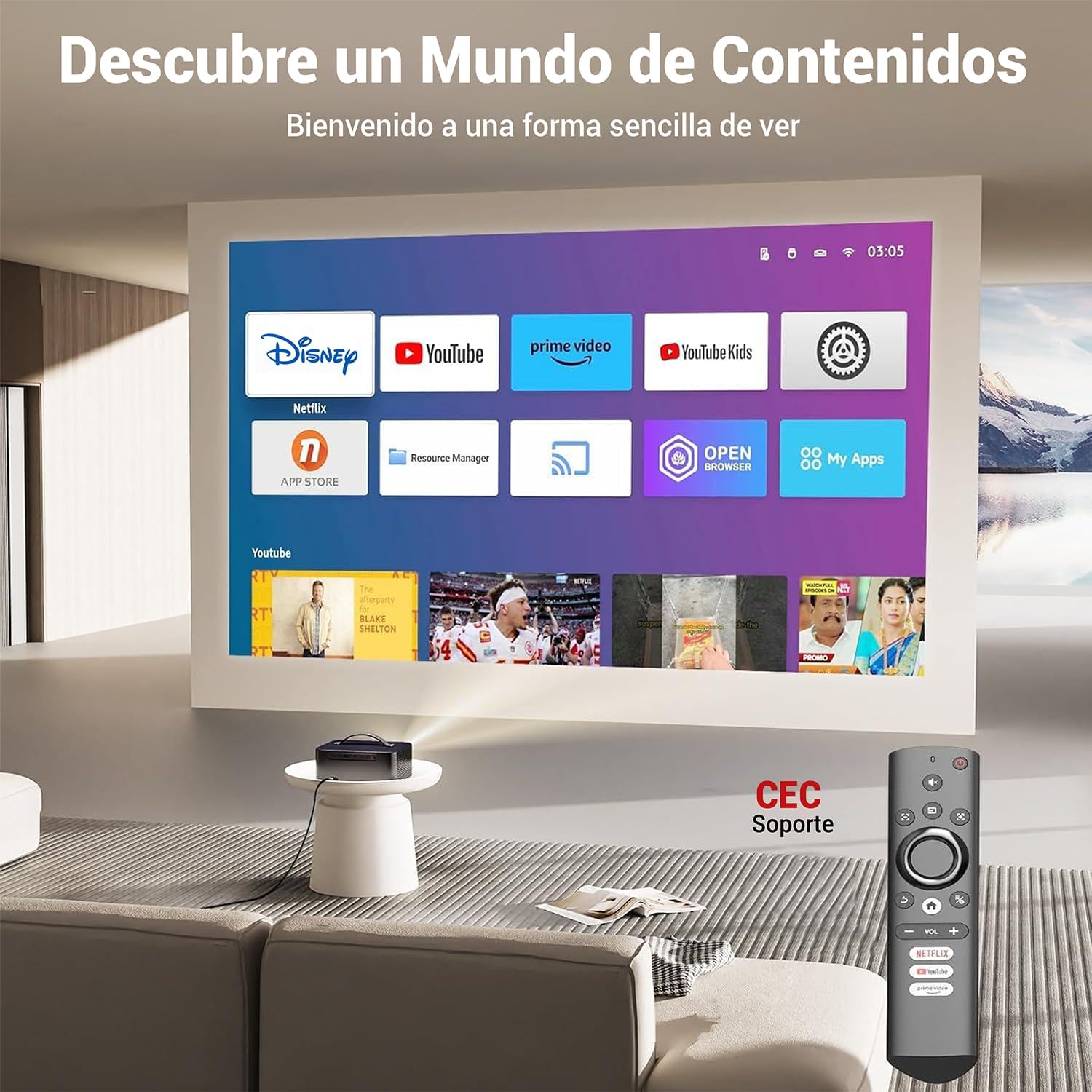
The projector can be controlled using the included remote control. Key functions include:
- Power Button: Turns the projector on/off.
- Navigation Buttons: For menu navigation.
- OK/Enter Button: Confirms selections.
- Back Button: Returns to the previous screen.
- Volume Buttons: Adjusts audio output.
- Focus Button: Activates electric focus adjustment.
- Keystone Correction Button: Accesses keystone adjustment.
2.2 Focus and Keystone Correction
Achieve a clear and perfectly rectangular image with these adjustments:
- Electric Focus: Use the dedicated focus button on the remote to adjust image sharpness. The projector also features automatic focus.
- Keystone Correction: The projector supports ±45° electronic keystone correction (4D keystone) and automatic vertical correction. Press the keystone button on the remote to access these settings and adjust the image shape.

2.3 Zoom Function
Adjust the projected image size without moving the projector:
- The projector allows zooming the image from 50% to 100% via the remote control.
- This feature is useful for fine-tuning the image to fit your screen or wall.

2.4 Content Access and Streaming
The VEGOOS YG381 comes with official licenses for popular streaming platforms:
- Pre-installed Apps: Access Netflix, YouTube, and Prime Video directly from the projector's interface.
- App Store: Explore and install additional applications through the integrated app store.
- Screen Mirroring: Utilize the screen activation function to mirror content from your mobile phone, laptop, or PC.

2.5 Connecting External Devices
The projector features multiple ports for connecting various devices:
- HDMI: Connect laptops, gaming consoles (e.g., PS5), Blu-ray players, or other HDMI-enabled devices.
- USB: Play media files directly from a USB drive.
- Audio Out (3.5mm): Connect external speakers or headphones for enhanced audio.

2.6 Bluetooth Audio
Connect to external Bluetooth speakers or headphones for an immersive audio experience with Bluetooth 5.4 technology.
- Ensure your Bluetooth audio device is in pairing mode.
- On the projector, navigate to Settings > Bluetooth.
- Select your device from the list and pair.
The projector also features Dolby Audio technology for clear and immersive sound.

3. Maintenance
Proper maintenance ensures the longevity and optimal performance of your projector.
3.1 Cleaning the Lens
- Use a soft, lint-free cloth specifically designed for optical lenses.
- Gently wipe the lens in a circular motion.
- Avoid using abrasive cleaners or excessive pressure, which can scratch the lens.
3.2 Cleaning the Projector Body
- Wipe the exterior of the projector with a soft, dry cloth.
- Do not use liquid cleaners directly on the projector.
3.3 Ventilation
- Ensure the projector's ventilation ports are clear of obstructions to prevent overheating.
- Do not place the projector on soft surfaces that may block airflow.
3.4 Storage
- When not in use, store the projector in a cool, dry place.
- Protect the lens with its cover to prevent dust accumulation.
4. Troubleshooting
Refer to this section for solutions to common issues you might encounter.
4.1 No Image or Blurry Image
- Check Power: Ensure the projector is properly connected to power and turned on.
- Adjust Focus: Use the remote control's focus button to sharpen the image.
- Keystone Correction: If the image is distorted, adjust the keystone correction settings.
- Input Source: Verify that the correct input source (HDMI, USB, etc.) is selected.
- Distance: Ensure the projector is within the recommended projection distance for a clear image (39-180 inches screen size).
4.2 No Sound or Low Sound
- Volume Level: Increase the volume on both the projector and the connected source device.
- Mute Function: Check if the projector or source device is muted.
- Audio Output: If using external speakers, ensure they are properly connected via Bluetooth or the 3.5mm audio jack.
- Bluetooth Connection: If Bluetooth audio is unstable, try re-pairing the device or connecting via a wired connection.
4.3 Wi-Fi Connectivity Issues
- Network Selection: Ensure you have selected the correct Wi-Fi network and entered the password accurately.
- Signal Strength: Move the projector closer to your Wi-Fi router or ensure there are no obstructions.
- Router Restart: Try restarting your Wi-Fi router.
- Frequency Band: The projector supports both 2.4G and 5G Wi-Fi. If experiencing issues, try connecting to the other frequency band if available.
4.4 Remote Control Not Responding
- Battery Check: Replace the batteries in the remote control.
- Line of Sight: Ensure there is a clear line of sight between the remote and the projector's IR receiver.
5. Specifications
Detailed technical specifications for the VEGOOS YG381 Mini Portable Smart Projector.
| Feature | Specification |
|---|---|
| Model | YG381 |
| Native Resolution | 1920 x 1080 (Full HD) |
| Supported Resolution | Up to 4K |
| Brightness | 500 ANSI Lumens |
| Contrast Ratio | 6000:1 |
| Display Technology | LCD |
| Wi-Fi Connectivity | 2.4G/5G Dual-band, Wi-Fi 6 |
| Bluetooth | Bluetooth 5.4 |
| Audio Technology | Dolby Audio |
| Keystone Correction | ±45° Electronic (4D), Auto Vertical |
| Zoom Function | 50% - 100% |
| Projection Screen Size | 39-180 inches |
| Aspect Ratio | 4:3 / 16:9 |
| Input Interfaces | HDMI, USB |
| Output Interfaces | 3.5mm Audio Jack |
| Compatible Devices | Cellular, Laptop, PC, PS5, Smart TV |
| Dimensions | 24.7 x 21.5 x 16.4 cm |
| Weight | 1.67 kg |
| Special Features | Official Netflix License, Linux System, AI Image Technology |
6. Warranty & Support
For warranty information and technical support, please refer to the official VEGOOS website or contact customer service.
Keep your purchase receipt as proof of purchase for any warranty claims.