
LX-D5
LX-D5 Mini Label Printer User Manual
Model: LX-D5 | Brand: Generic
1. Introduction
Thank you for choosing the LX-D5 Mini Label Printer. This compact and versatile thermal printer is designed to simplify your labeling and organization tasks, offering high-quality, inkless printing on various paper types. This manual provides detailed instructions on setting up, operating, and maintaining your device to ensure optimal performance.

Image: The LX-D5 Mini Label Printer in green, showcasing its compact design.
Package Contents:
- 1 x LX-D5 Mini Printer (Portable Thermal Printer)
- 12 x Vibrant Pastel Color Pens
- 3 x Rolls of Colored Stickers (Adhesive with various designs)
- 1 x Roll of White Stickers (Matte finish)
- 1 x Roll of 40x40mm Thermal Paper
- 1 x Type-C Cable
- 1 x English User Manual

Image: All items included in the LX-D5 Mini Printer package, including the printer, pens, and various paper rolls.
2. Setup Guide
2.1 Charging the Printer
Before first use, ensure the printer is fully charged. Connect the provided Type-C cable to the printer's charging port and the other end to a 5V/1A power adapter (not included). The indicator light will show charging status.
2.2 Loading Paper
- Open the printer cover by gently sliding the latch.
- Insert the thermal paper roll into the paper compartment, ensuring the printing side faces the print head.
- Adjust the paper clamp to fit the width of the paper roll (18mm - 57mm).
- Close the printer cover firmly until it clicks into place.

Image: Close-up view demonstrating how to adjust the paper clamp inside the printer to fit different paper widths.
2.3 App Installation and Bluetooth Pairing
- Download the "Dolewa" app from your device's app store (iOS/Android).
- Turn on the printer by pressing and holding the power button for three seconds. The indicator light will turn on.
- Enable Bluetooth on your smartphone or tablet.
- Open the "Dolewa" app and click "Add Device" or similar option.
- Select "LX-D5" or "LX-D5-JR" from the list of available devices to pair. Once connected, the app will indicate a successful connection.

Image: A visual guide showing the three steps to connect the printer via the mobile app, including pressing the power button and selecting the device in the app.
3. Operating Instructions
The LX-D5 printer offers various printing functions through the "Dolewa" app.
3.1 Basic Label Printing
- Open the "Dolewa" app and select the "Label" or "Text" function.
- Enter your desired text or select a template.
- Adjust font, size, and alignment as needed.
- Press the print button in the app to send the data to the printer.
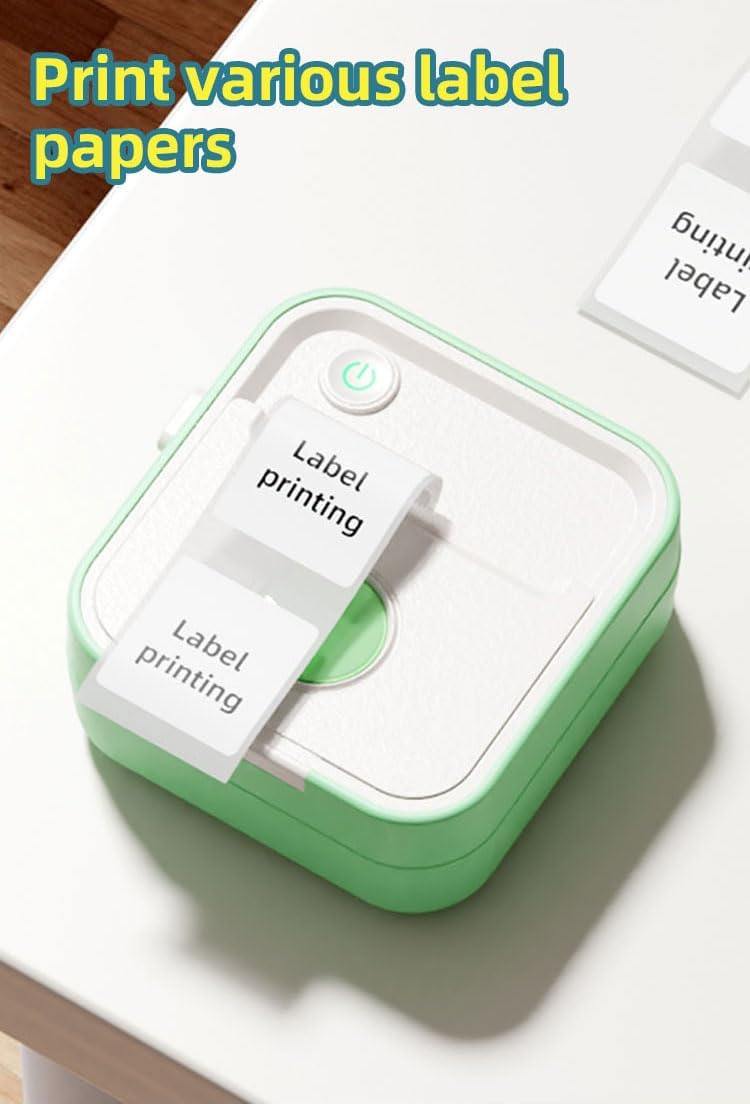
Image: The LX-D5 printer actively printing labels with "Label printing" text, demonstrating its output capability.
3.2 Creative Printing Functions
The app provides various creative options:
- Sticky Note Printing: Utilize pre-designed templates or create your own custom sticky notes for reminders or decorative purposes.
- Image Printing: Print photos or graphics directly from your device. The 200DPI resolution ensures clear monochrome images.
- OCR Text Extraction: Use the app's OCR feature to extract text from images and print it.
- Drawing Board: Draw directly within the app and print your creations.
- Banner Printing: Create longer prints by combining multiple sections for banners or extended labels.

Image: Examples of sticky notes printed with the LX-D5, featuring various cute designs like a cat, cow, and astronaut.

Image: A hand coloring a printed image of a bee, with various colored thermal paper rolls featuring astronaut and lion designs, highlighting creative possibilities.
4. Maintenance
Proper maintenance ensures the longevity and performance of your LX-D5 printer.
4.1 Cleaning the Print Head
- Turn off the printer and disconnect the power cable.
- Open the printer cover.
- Gently wipe the print head with a cotton swab lightly dampened with isopropyl alcohol.
- Allow the print head to dry completely before closing the cover and turning on the printer.
4.2 Paper Storage
Store thermal paper in a cool, dry place away from direct sunlight and heat sources to prevent fading and damage.
5. Troubleshooting
If you encounter issues with your LX-D5 printer, refer to the following common problems and solutions:
| Problem | Possible Cause | Solution |
|---|---|---|
| Printer not turning on | Low battery or power issue | Charge the printer using the Type-C cable. Ensure the power adapter is working. |
| Cannot connect via Bluetooth | Bluetooth off, printer not in pairing mode, or app issue | Ensure printer is on and Bluetooth is enabled on your device. Restart the app and try pairing again. Check if the app has Bluetooth permissions. |
| Poor print quality / Faded prints | Dirty print head, incorrect paper type, or low battery | Clean the print head as described in Section 4.1. Ensure you are using thermal paper. Charge the printer. |
| Paper jam | Improperly loaded paper or foreign object | Turn off the printer, open the cover, and carefully remove any jammed paper. Reload paper correctly. |
| Printer not responding | Software glitch or temporary error | Turn off the printer, wait a few seconds, then turn it back on. Restart the app and your device if necessary. |
6. Specifications
| Feature | Specification |
|---|---|
| Model Name | Multifunction Mini Printer |
| Item Model Number | LX-D5 |
| Manufacturer | Shenzhen Xiqi Technology Co. , Ltd. |
| Color | Green |
| Printing Technology | Thermal |
| Connectivity Technology | Bluetooth 5.0 |
| Printer Output | Monochrome |
| Max B&W Print Resolution | 200 DPI |
| Max Color Print Resolution | 200 DPI |
| Max Monochrome Print Speed | 20 pages per minute |
| Print Media | Labels, Thermal Paper |
| Paper Size | 18mm-57mm Millimeters (Adjustable) |
| Duplex Printing | No |
| Batteries | 1 Nonstandard Battery (Included) |
| Lithium Battery Energy Content | 1000 mAh |
| Lithium Ion Battery Cells | 1 |
| Product Dimensions | 42 x 94 x 96 cm; 560 grams (Depth x Width x Height) |
| Power Consumption | 5 Watts |
| Special Features | Compact Palm Size, Ink-free, Label Printing, OCR Text Extraction, Error Printing, Error Collection, Smudge Answers, Image Search, Drawing Board, To-do List, Photo Printing, Banner Printing, Web Print |
7. Warranty and Support
For warranty information and technical support, please refer to the documentation provided with your purchase or contact the seller directly. Keep your proof of purchase for any warranty claims.
Ask a question about this manual
Ask about setup, troubleshooting, compatibility, parts, safety, or missing instructions. Manuals+ will review the question and use this page’s manual context to help answer it.